Email archive System settings
Introduction
The Email archive System settings page allows administrators to configure the core, tenant-level settings that govern how Email archive operates. This includes selecting the database used for the address book, configuring the connection to the Exchange Server environment, and defining general archiving behavior such as public folder handling, restore methods, and message class filtering.
General Email archive system settings can be accessed by navigating to Email Archive ⇒ Settings ⇒ System settings on the ribbon:
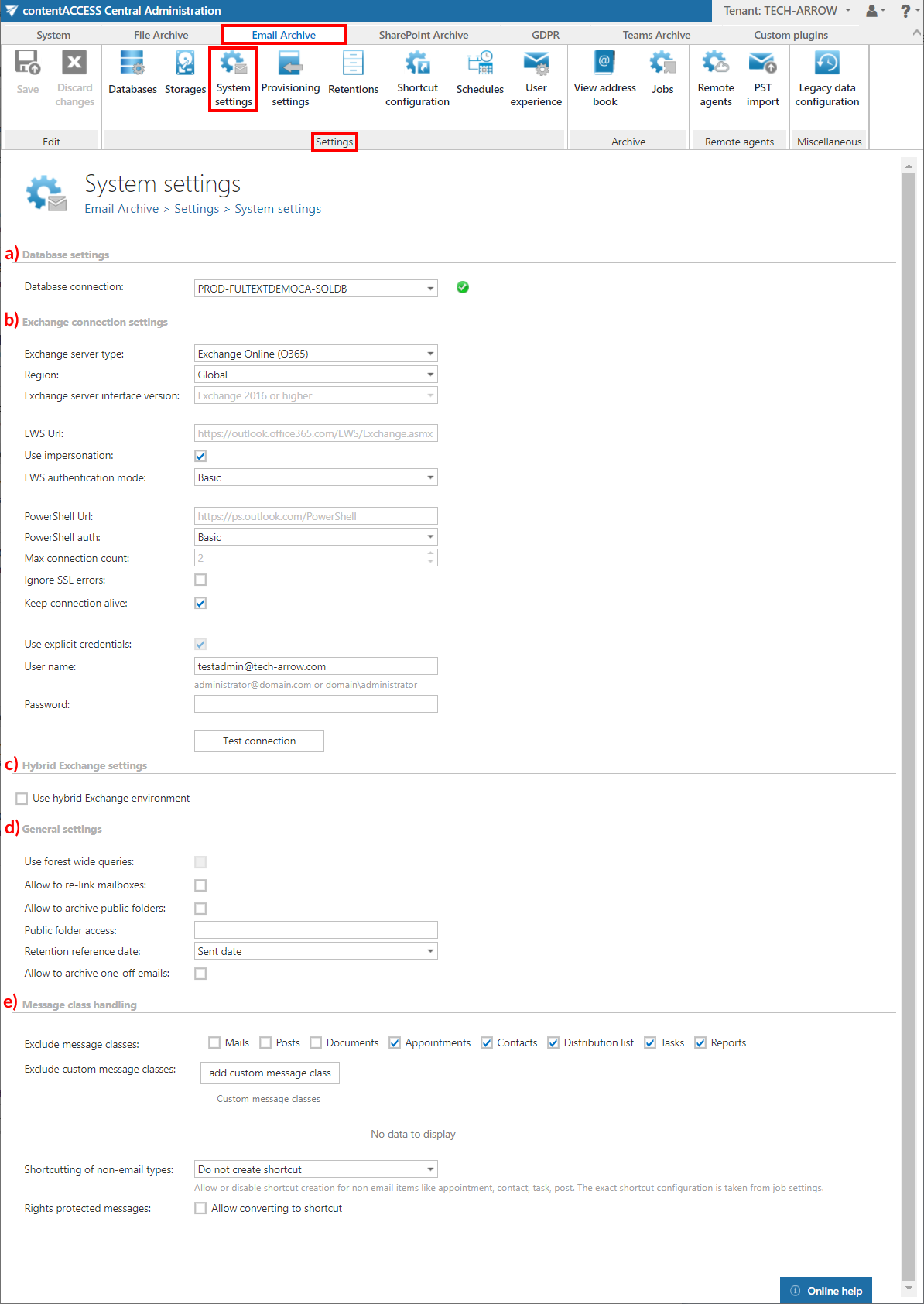
The Email archive configuration consists of the following areas:
- Database settings
- Exchange connection settings
- Hybrid Exchange settings
- General settings
- Message class handling
Database settings
Select the Email archive database from the dropdown list, which you have previously configured on the Email Archive ⇒ Settings ⇒ Databases page (in this example, "PROD-FULTEXTDEMOCA-SQLDB").
This is the main database for Email archive, holding the address book. It contains synchronized information from Exchange Server or other systems and helps you keep track of mailboxes, groups, their relations, permissions, etc.
Exchange connection settings
Select the type of Exchange Server to archive:
- On-premises Exchange Server
- Hosted Exchange Server
- Microsoft 365
- Hybrid Exchange Server (on-premises or hosted + Microsoft 365)
The information entered in this section allows the application to access mailbox data (using EWS or Graph) and to access address book related information (PowerShell) to archive emails.
For the configuration of your Exchange Server, see the dedicated sections referenced above.
Important: In case the user has a cloud environment, it is possible to set a Microsoft 365 "SuperUser" under Exchange connections. To learn what to configure for the "SuperUser" mailbox, see the Microsoft 365 SuperUser mailbox configuration section of our documentation.
Note: In case the user who has MFA enabled is also Admin for email archiving, the user must use the app password instead of the regular password in Email archive ⇒ System settings ⇒ EWS settings.
Important: Microsoft is retiring the RPS (Remote PowerShell) for Exchange Online from the beginning of June 2023. Clients won't be able to use the RPS protocol to connect to Exchange Online after this date. This means that the contentACCESS configuration needs to be changed to connect to Exchange Online PowerShell. (Read this article for more information about the deprecation of Remote PowerShell.)
Solution: contentACCESS can use modern authentication to connect to Microsoft 365 Exchange Online. This requires an Azure App registration to be configured on the Microsoft 365 tenant. The procedure to create the App registration is described in the Azure App registration for Microsoft 365 archiving chapter.
For more information about how to configure contentACCESS to use modern authentication for PowerShell on Exchange Online, see the How to reconfigure your Email archive to use modern authentication for PowerShell section of the manual.
Hybrid Exchange settings
To support a Hybrid Exchange environment, select this checkbox and configure the settings. In that case, contentACCESS will connect to both on-premises and Microsoft 365 environments, which are configured separately.
General settings
-
Use forest wide queries: Allows listing users and groups in other child domains. This option is available for the On-premises Exchange server type only. Many large companies separate users from resources into multiple child domains. Without this option, email provisioning searches only the current domain (where MS Exchange is installed), not the others. Using this option extends the search to other domains as well. This option has some impact on provisioning performance.
-
Allow to re-link mailboxes: Turned off by default. If turned on, the provisioning job can detect that a mailbox was deleted and replaced by a new one. The new mailbox (even if the mailboxGUID has changed) will be linked to the deleted (old) entry. If turned off, the provisioning job will not attempt to re-link the mailbox; instead, the mailbox will be marked with a warning flag in the Address book.
-
Default restore method: Defines the default restore method. Data can be restored either into the existing shortcut (in-place restore) or as a new item. The default setting is used by the Email archive restore and Shortcut synchronization jobs.
-
Allow to archive public folders: By default, contentACCESS does not archive public folders; select this option if you want them archived, otherwise they will be ignored. If public folder archiving is turned on and later off, the existing archived public folder mailbox is not removed or disabled — it simply stops being archived further, while existing data remains in the archive.
-
Public folder access: When connecting using Exchange Web Services, a mailbox (any mailbox) must be opened. This mailbox is defined here. It is recommended to use the superuser mailbox. If this value is changed, the email provisioning job must be run again.
-
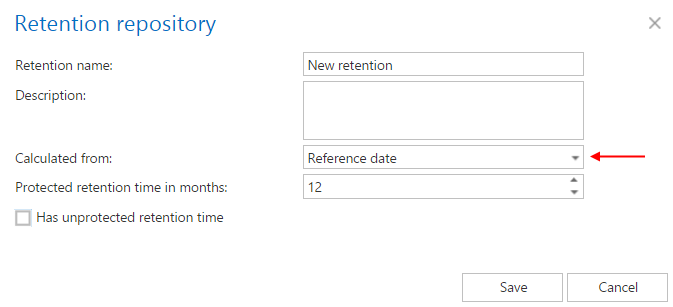
Retention reference date: If Sent date is set here, the Reference date option when creating a new retention will use the Sent date value.
-
Allow to archive one-off emails: One-off items are emails with a special message class and custom code (for example, a contentACCESS shortcut) that is disconnected from the custom form (i.e., the message class is reverted, and the custom code is included in the mail). By default, this option is unchecked, because these are not correctly formed emails. These emails were previously reported as errors in the System logs; they are now reported as information. By checking this option, the system will archive these emails (which may be necessary for journal archiving). One-off emails will be archived "as-is," with no warranty that they can be opened in Outlook.
Message class handling
This section allows certain message classes to be excluded from the email archiving process at the tenant level. This feature is useful for companies with a policy stating that certain message classes, e.g., Contacts, Tasks, etc., must not be archived. You can also exclude custom message classes — for example, if your company already has a third-party archive, you can exclude these already-archived emails from the re-archiving process.
Wildcards are supported in the exclude message class list. Supported formats are: contains: *Test*; EndsWith: *Test; StartsWith: IPM*.
Shortcutting of non-email items (appointment, task, post, contact) is also supported. The message class of these items will not be changed by the job — only the body and attachments will be. The shortcut type is taken from the job settings. If you wish to process these items, select Create shortcut from the dropdown list; if not, select Do not create shortcut.

Important: In the case of custom Exchange solutions used for emails, custom email properties will not be archived! The recommended solution is to not archive these emails and/or use the exclude feature (in Email archive System settings) for these custom message classes.
Important: The message class settings performed within Email Archive ⇒ Settings ⇒ System settings, under the Exclude message classes section, will always take priority over the message class filtering configurations of an archiving job.
The Allow converting to shortcut checkbox for Rights protected messages enables the administrator to allow this kind of email to be shortcutted at the tenant level. This option is disabled/unchecked by default. You can read more about the archiving of rights protected messages in the Archiving of rights protected messages section.

Related topics
- On-premises Exchange Server settings
- Hosted Exchange Server settings
- Microsoft 365 settings
- Hybrid Exchange Server configuration
- Microsoft 365 SuperUser mailbox configuration
- Azure App registration for Microsoft 365 archiving
- How to reconfigure your Email archive to use modern authentication for PowerShell
- Address book objects
- System logs
- Archiving of rights protected messages