Provisioning and address book objects in Hybrid Exchange environments
Introduction
In Hybrid Exchange environments, on-premise (or Hosted) Exchange and Microsoft 365 mailboxes are archived side by side. This page explains how provisioning and address book objects behave in this configuration, covering:
- which groups are visible for provisioning;
- how user logins are created for on-premise and cloud mailboxes;
- how on-premise and cloud mailboxes are distinguished in the address book;
- what steps are required when a mailbox is moved between environments;
- how to reconfigure the system if the on-premise environment is turned off.
Prerequisites
Before running provisioning jobs, the following prerequisites must be met, depending on your environment:
| Environment | Prerequisites |
|---|---|
| Hybrid on On-premise Exchange | 1. Mailboxes should be assigned to groups available on the On-premise Exchange. 2. Configure the Microsoft 365 login provider. |
| Hybrid on Hosted Exchange | 1. Configure the Microsoft Exchange login provider if needed (optional). This provider allows login with email address and password. 2. Configure the Microsoft 365 login provider. For cloud mailboxes, a Microsoft 365 login will be created. |
Note: Always configure login providers before running provisioning jobs to ensure user logins are created correctly for both on-premise and cloud mailboxes.
Provisioning in hybrid environments
Which groups are visible for provisioning?
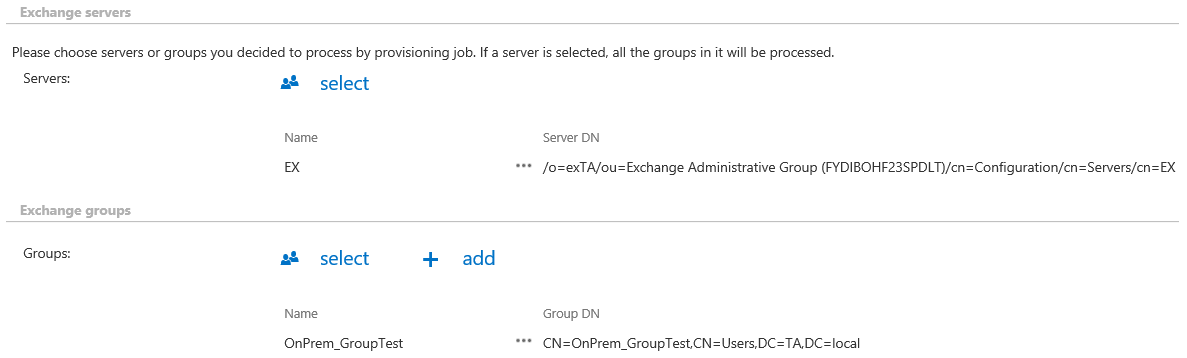
In hybrid environments, the Email archive only processes the groups that are available on the on-premise Exchange servers. These groups can contain both on-premise mailboxes and cloud mailboxes.
It is recommended to set up an Exchange group (or groups) containing all mailboxes to be archived, and to provision only that group.
How are logins created?
In the Email archive Provisioning settings (Email archive > Settings > Provisioning settings > User creation options), you can configure what type of login is associated with the users.
- A Windows login is created for every on-premise and cloud mailbox.
- A Microsoft 365 login is created for every Microsoft 365 mailbox, and can optionally also be created for on-premise mailboxes.

Address book objects in hybrid environments
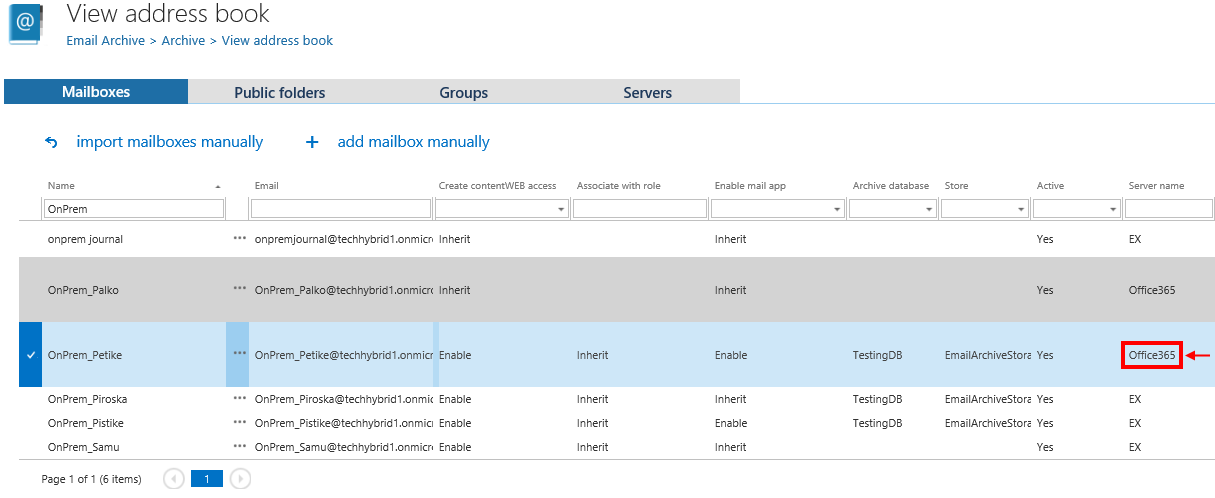
How to distinguish between on-premise and cloud mailboxes in the address book
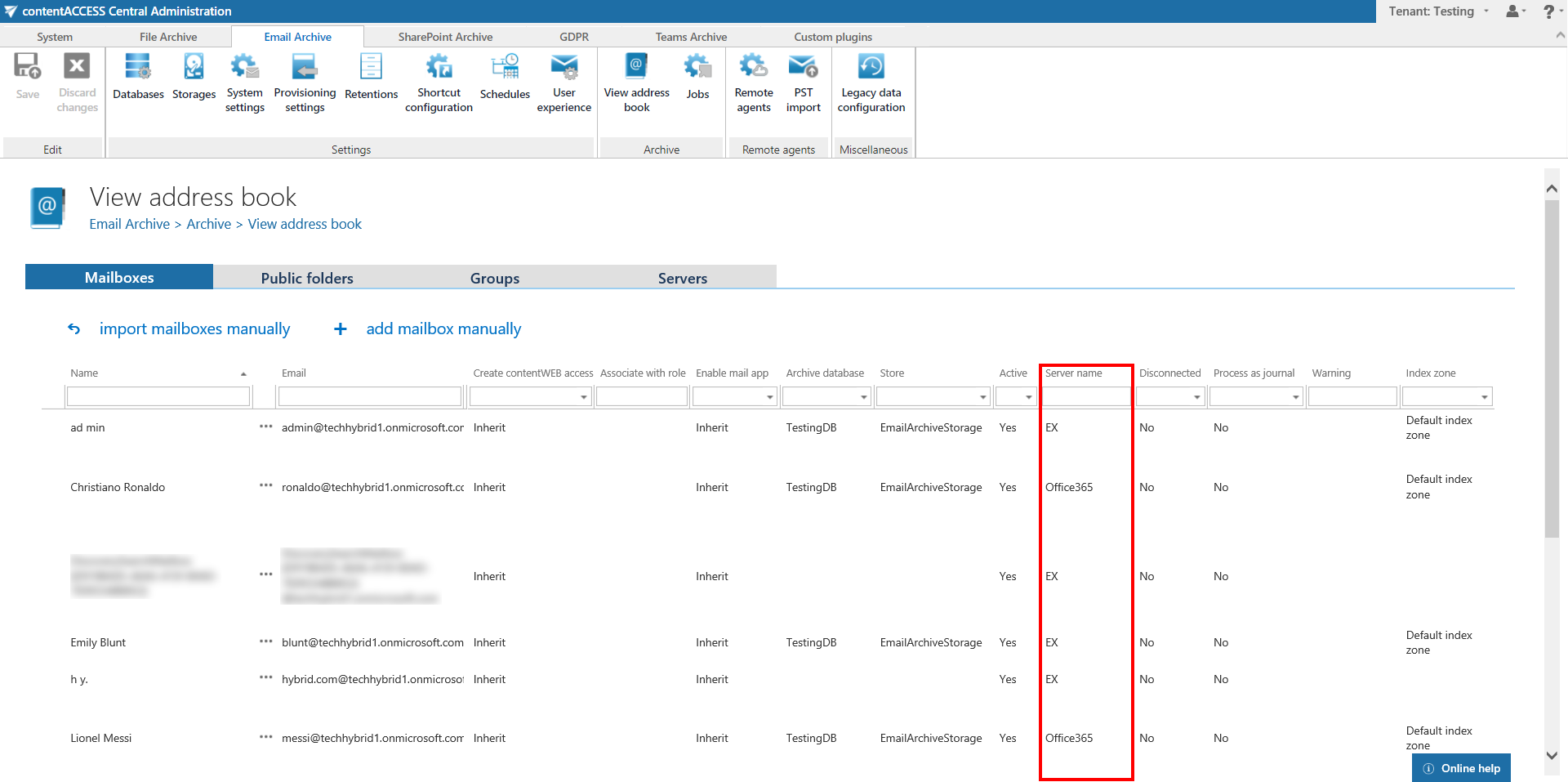
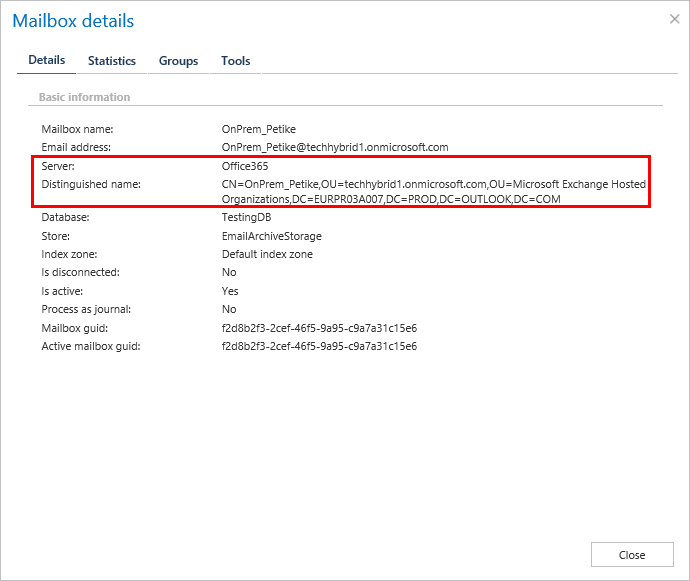
The Server name column shows the server that hosts the mailbox:
- For cloud mailboxes, the server name is Office365.
- For on-premise mailboxes, the server name is the name of the on-premise Exchange server.
What to do after a mailbox is moved between on-premise and cloud
If the mailbox remains in the group after the move, only the Email archive Provisioning job needs to be started.
After a mailbox is moved from on-premise to cloud, it should remain a member of one of the groups configured for provisioning. The next provisioning job run will actualize the mailbox information and switch the on-premise mailbox to a cloud mailbox type. The same procedure applies when a mailbox is moved from cloud to on-premise.
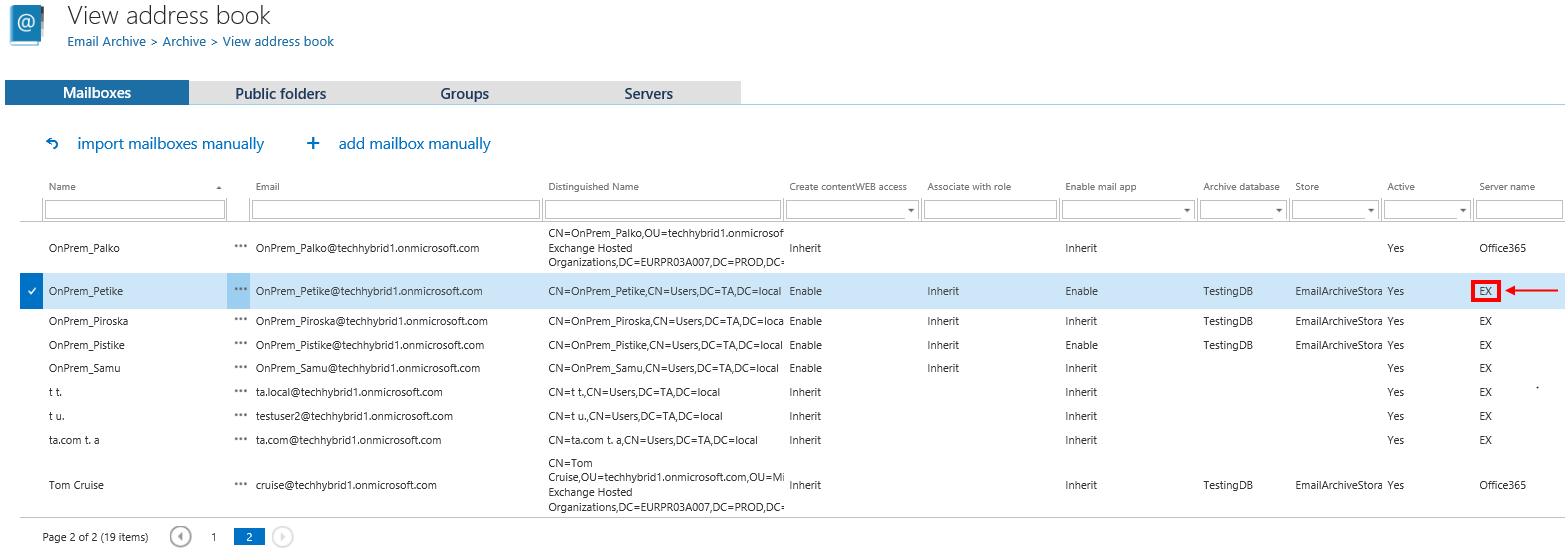
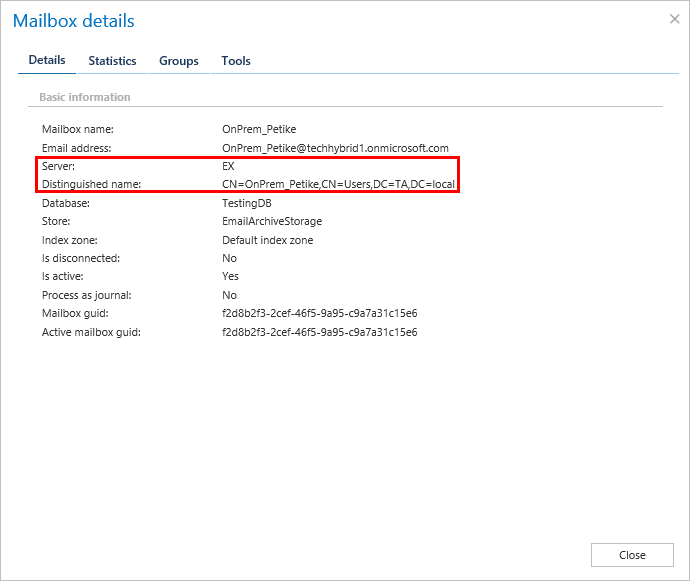
Screenshots: Mailbox before moving to cloud
Screenshots: Mailbox after moving to cloud
Important: If an on-premise Exchange group is used in a job configuration, the job configuration must be updated after the group is moved to the cloud, since the group identifier changes and the job would otherwise continue using the old identifier.
Steps to take:
- Open the job's configuration page.
- Remove the group from the list of address book objects to process.
- Select the group again and re-add it to the list.
- Save the job configuration.
Reconfiguring after on-premise is turned off
If you decide to keep only your cloud system running and turn off the on-premise one, the following steps must be performed for your environment to work correctly:
- Uncheck the Use hybrid Exchange environment checkbox in Email archive > Settings > System settings > Hybrid Exchange settings.
- Rewrite the EWS settings under Email archive > Settings > System settings to point to the cloud system.
- Delete the old server and groups from the Email archive Provisioning job configuration, and add the new ones.