Email recovery job configuration
Introduction
The Email recovery job configuration page allows administrators to configure the settings used by an email recovery job to restore mailbox and In-Place Archive items from the archive. On this page, administrators define what will be recovered, where it will be recovered to, which mailboxes and folders are included or excluded, how recovered items are filtered, and when the job runs.
The configuration page includes the following sections:
- Report mode settings
- Processing settings
- Scheduling settings
- Notification settings
- Address book objects to process
- Include folders
- Exclude folders
- Filtering settings
- Resource settings
Report mode settings
If the Use report mode checkbox is checked, the job runs in report mode. After the job finishes running in this mode, a .csv report file can be downloaded from this section. The file contains a list of emails belonging to the entities selected in the Address book objects to process section, along with additional information, including whether each item will be processed or not.

Processing settings
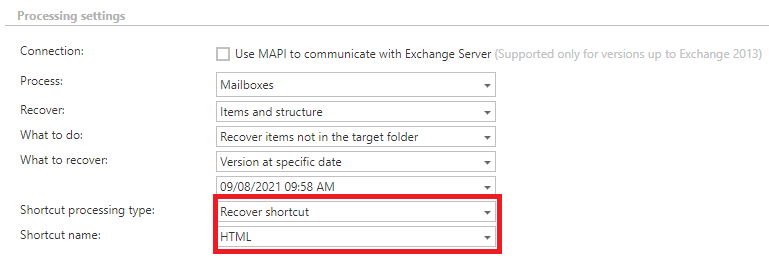
In this section, the administrator configures what will be recovered and how it will be recovered.
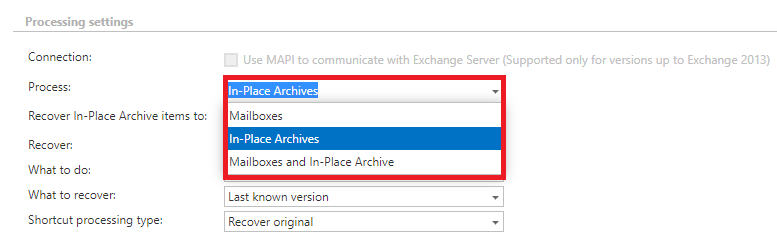
Process
From the Process dropdown list, the administrator must choose what will be recovered by the recovery job. There are three options:
- Mailboxes
- In-Place Archives
- Mailboxes and In-Place Archives
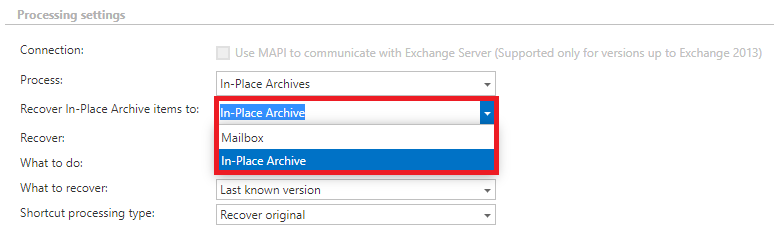
If In-Place Archives or Mailboxes and In-Place Archives is selected, the administrator must also choose where the In-Place Archive items will be recovered to. There are two options:
- In-Place Archive
- Mailbox
Note: If you are recovering emails from an In-Place Archive to a Mailbox, the Is in in-place archive flag might be modified:
- if recovered to the same mailbox and same folder, the flag is removed;
- if recovered to the same mailbox but a different folder, the flag is not removed;
- if recovered to a different mailbox but the same folder, the flag is not removed;
- if recovered to a different mailbox and a different folder, the flag is not removed.
The administrator can select whether to use the MAPI protocol to communicate with the Exchange server. If MAPI is not selected, the EWS (Exchange Web Services) connection is used by default. Note that Microsoft 365 Exchange server does not support MAPI connections. Using MAPI also requires Exchange Server 2013 or an earlier version.
Note: MAPI can be selected only if Mailboxes is selected in the Process dropdown list, since MAPI is not supported by In-Place Archive.
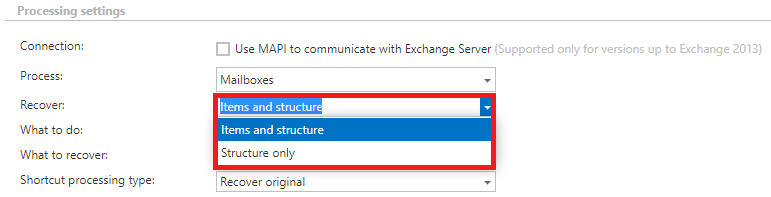
Recover — what will be recovered
- Files and structure — the recovery job creates the archived folder structure and recovers the emails from the archive.
- Structure only — the recovery job creates the archived folder structure, but no emails are recovered.
What to do
- Recover items not in the target folder — only non-existing emails are recovered.
What to recover
- Last known version — the job recovers the latest version of the item from the archive.
- Version at specific date — the job recovers the version that was valid at a specific time, that is, the version with a modification date older than or equal to the specified date.
Shortcut processing type
- Recover original — the job recovers the original email.
- Recover shortcut — the job recovers the shortcut. If items need to be recovered as shortcuts, the shortcut configuration selected here is used to recover them. If Recover original is selected above, this configuration option is hidden.
Scheduling settings
Specify a scheduler to determine when the recovery job will run. You can either select an existing scheduler from the list or create a new one using the Create new option. For more information about configuring schedulers, refer to the Schedules section.
It is recommended to use a One time scheduler here, or to start the job manually.

Notification settings
Select when you need to receive notifications from the job regarding the success of the recovery process. You can configure the job to always or never send a notification email, or to send one only when an error or warning occurred during recovery — for example, if the recovery of one or more items failed. In the Recipient list text box, enter the email address(es) of the person(s) who should receive these notifications.

Address book objects to process
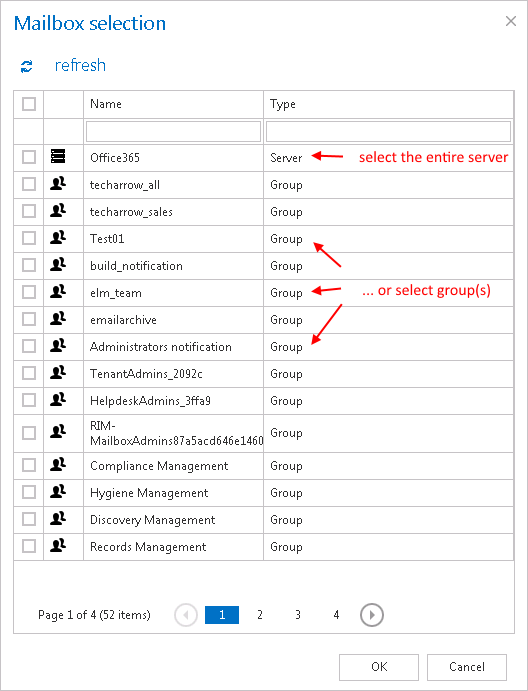
Select the mailboxes, groups, or the entire Exchange server to be processed by the recovery job. Click the  select option, check the required groups or servers in the Mailbox selection window, then click OK.
Note: If In-Place Archives is selected in the Process dropdown list under Processing settings, a warning is displayed for Address book objects. In this case, only servers, groups, and In-Place Archive mailboxes can be selected after clicking Select.

Important: If an on-premise Exchange group is used in a job configuration, the job configuration needs to be updated after the group is moved to the cloud, since the group identifier changes and the job continues to use the old identifier.
Steps to take:
- Open the job's configuration page.
- Remove the group from the list of address book objects to process.
- Select the group again and re-add it to the list.
- Save the job configuration.
Next, select where the emails from the folder will be recovered:
- To original location — items are recovered to the place where they were archived from. The target folder can be added manually; click OK.
- To specific location — items can be recovered to a different folder in the same mailbox, or to a different folder in a different mailbox. Click To specific location. A new dropdown list appears, where you can select the destination folder for the recovery.

Include folders
The recovery job can recover any folders of the mailbox: the entire mailbox, a single folder, multiple folders, recursive folder structures, and so on. Before entering the folder name(s) to be crawled, select the folder filtering type.

- Entire mailbox — the whole mailbox, including all folders, is recovered.
- One single folder — only one predefined folder is processed (for example, if you set
INBOX\Subfolder1, onlySubfolder1is processed). - Recursive, starting from a single folder — all folders starting from the specified folder are processed (for example, if you set
INBOX\Subfolder1, every subfolder in the structure starting fromSubfolder1is processed). Subfolders must be added to a root folder with a backslash (\). - Multiple folders and Multiple recursive, starting from a single folder follow the same rules, but allow you to work with several folders simultaneously (for example,
INBOX,OUTBOX\Folder name 5… or …TASKS,CALENDARS\Folder name 6).
Important: It is not required to specify the root folder with wildcards (percent signs) for the recovery processing type. If a wildcard is specified, the recovery process will not be successful. For example, use INBOX instead of %INBOX%, and TASK instead of %TASK%. The same rule applies to Exclude folders configurations.
How to recover a whole mailbox? By selecting Recursive, starting from a single folder under Include folders and leaving the folder path text box empty, the whole selected mailbox will be recovered.

Exclude folders
Use this function to specify which folders and subfolders should not be recovered. Folders to be excluded can be:
- Added via the + new button. The settings are the same as for the email archive job, with one exception: for the email recovery job, you cannot use
%INBOX%to reference language-independent default folders. - Imported from a file via the Import button. For more information, refer to Importing contentACCESS configurations from files.

Filtering settings
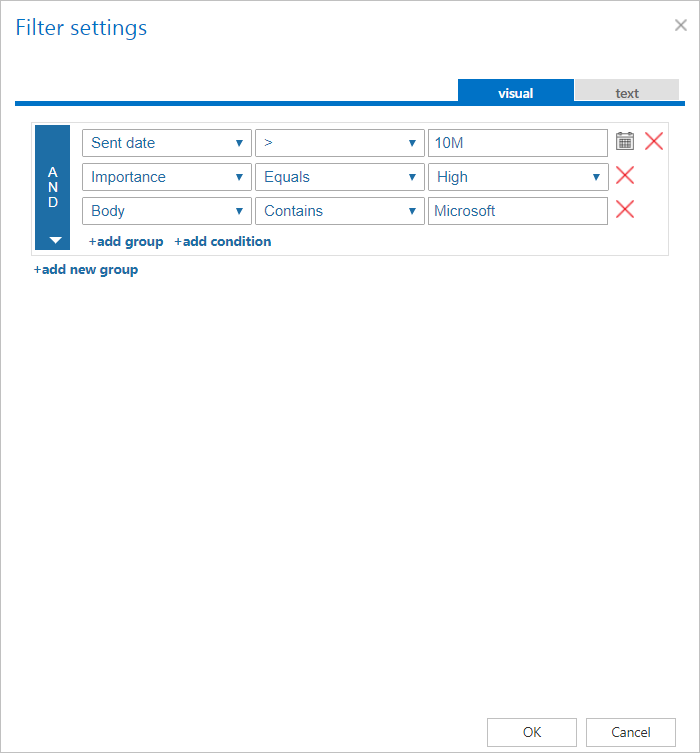
Click Change filter and configure the filtering according to your needs and/or regulations. To learn more about working with filtering settings, see Filtering in jobs.
Resource settings
Set the value that determines how many items are processed simultaneously by the recovery job. The recommended value is 2.
Finalizing the job configuration
- Save your changes.
- Wait until the scheduler starts the job.