Creating contentACCESS Portal users (option 1)
Introduction
The Create contentACCESS Portal user method allows administrators to grant access rights to multiple mailbox users for their own associated mailbox archives. This is one of two available methods for creating contentACCESS Portal users, and is the recommended approach when access needs to be granted broadly, based on a mailbox user's own archive.
contentACCESS Portal users, i.e. users with permissions to access their associated email archives through contentACCESS Portal, can be created at three levels:
- for all mailbox users of the Exchange server;
- for all mailbox users of a selected Exchange group;
- for a single, selected mailbox.
This page explains how to create contentACCESS Portal users at each of these levels, how contentACCESS Portal user roles are assigned, and what happens when automatic contentACCESS Portal user creation is disabled or when searching for groups and mailboxes based on their contentACCESS Portal user status.
Creation levels
contentACCESS Portal users can be created at the following levels in the Address book:
-
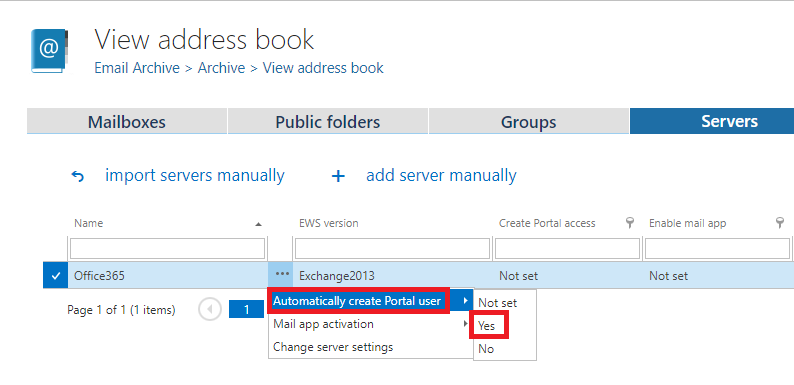
Server level: Create contentACCESS Portal users for all mailbox users of the Exchange server by selecting Automatically create contentACCESS Portal user from the server's context menu and choosing Yes.
-
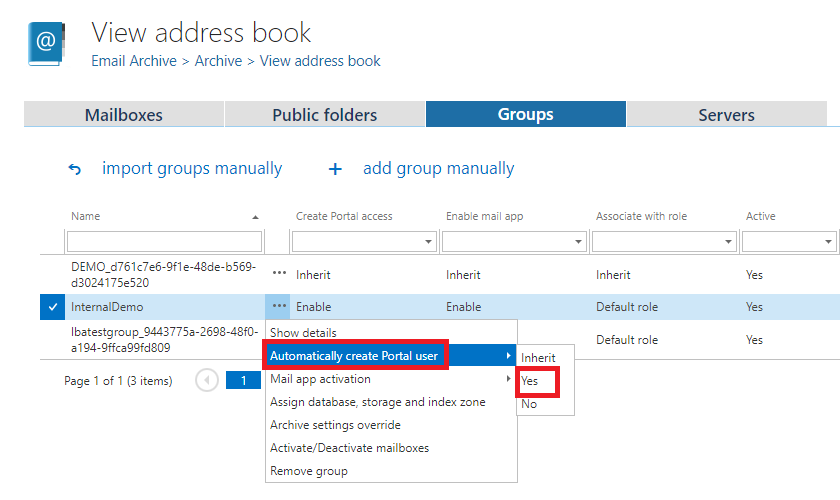
Group level: Create contentACCESS Portal users for mailbox users of a selected Exchange group by selecting Automatically create contentACCESS Portal user from the group's context menu and choosing Yes or Inherit (if the parent already has contentACCESS Portal user creation turned on).
-
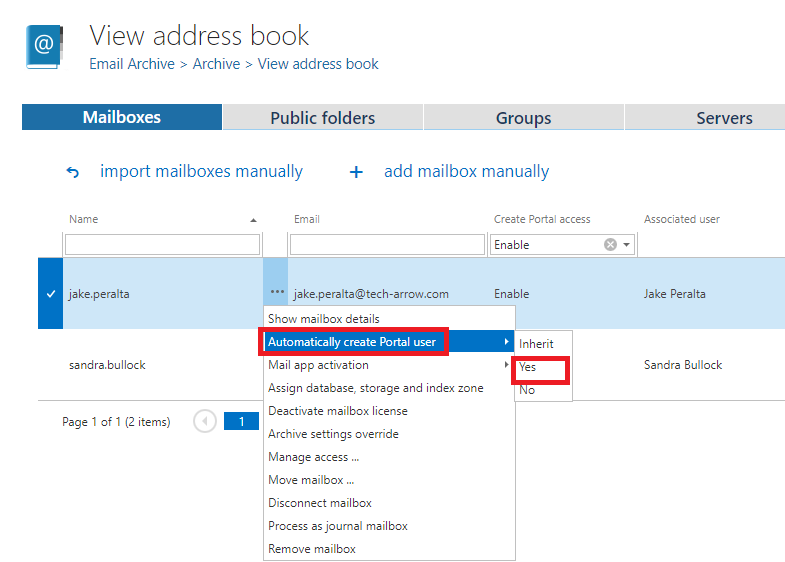
Mailbox level: Create a contentACCESS Portal user for a single, selected mailbox by selecting Automatically create contentACCESS Portal user from the context menu of the selected mailbox and choosing Yes or Inherit (if the parent already has contentACCESS Portal user creation turned on).
Assign a contentACCESS Portal user role
When you allow the creation of a contentACCESS Portal user, the contentACCESS Portal user role dialog opens. Here, you specify the contentACCESS Portal user role, containing the user permissions, to be assigned to the contentACCESS Portal user.
There are two options for defining the role:
- Use the default role (for example, with read-only permissions only) defined in the email archive provisioning job. For more information, see Email Archive Provisioning settings.
- Assign a custom role (for example, the Standard user role with more permissions, such as manual recovery or preview) to the user in the Archive settings section of the contentACCESS Portal user role dialog. For more information, see Email Archive Provisioning settings.
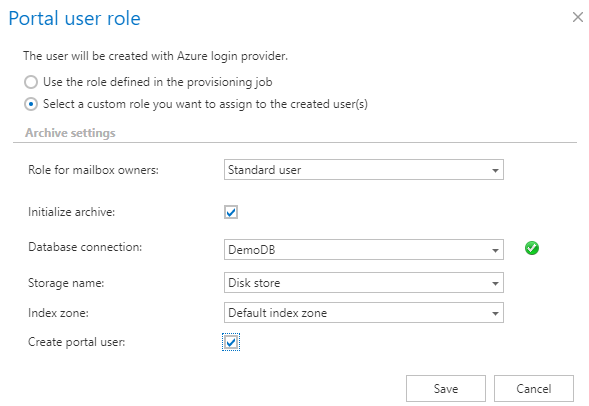
The Standard user role is a system-level role and is available by default in the contentACCESS Portal user role dialog's dropdown list. Other types of email archive user roles must be created manually. For more information, see Roles.
Important: If multiple roles are assigned to the same Exchange object (for example, one role with fewer permissions in the provisioning settings and another role with more permissions in the Address book), the role with more permissions always takes precedence.
Example: creating contentACCESS Portal users with different permission levels
In this use case, contentACCESS Portal users are created with default Standard user permissions in the archive for the whole DEMO server. However, the mailbox user "Jake Peralta" will also have full rights on all archive mailboxes of the TECH-ARROW tenant in contentACCESS Portal. This example assumes that the Standard user role is already selected in the email archive provisioning job.
-
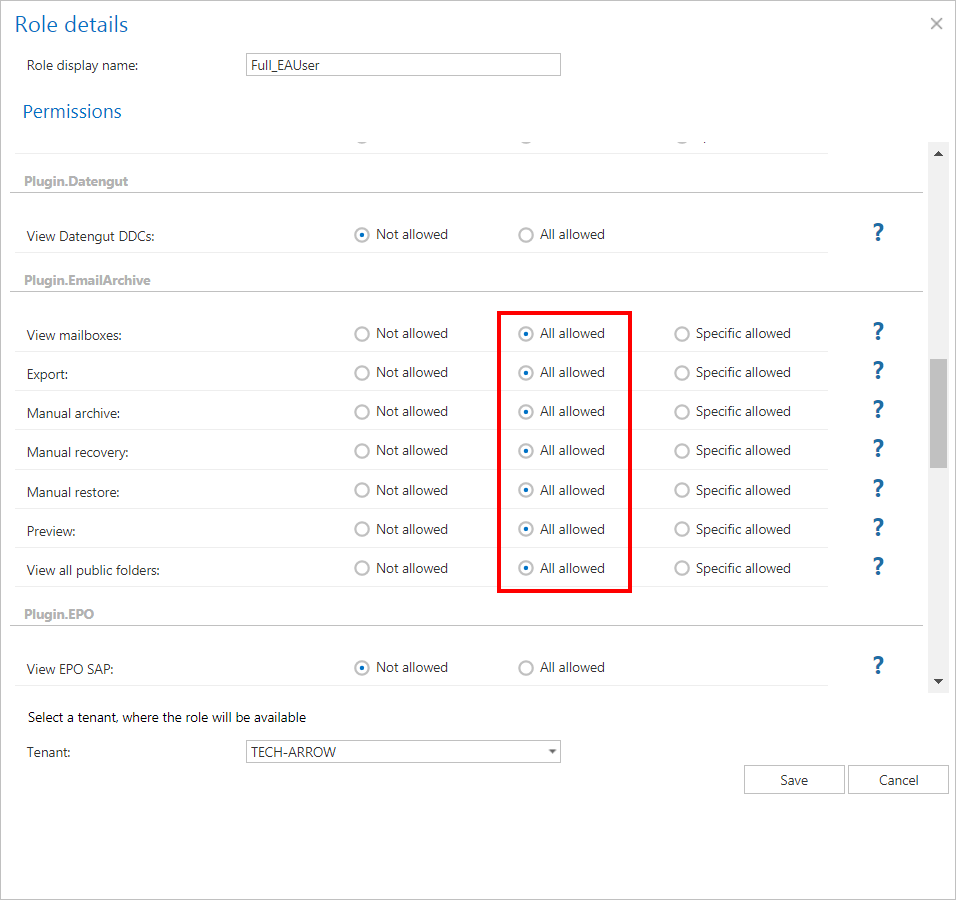
Create a role with "All allowed" permissions on the tenant's email archive. This role will later be assigned to "Jake Peralta". For more information, see Roles.
-
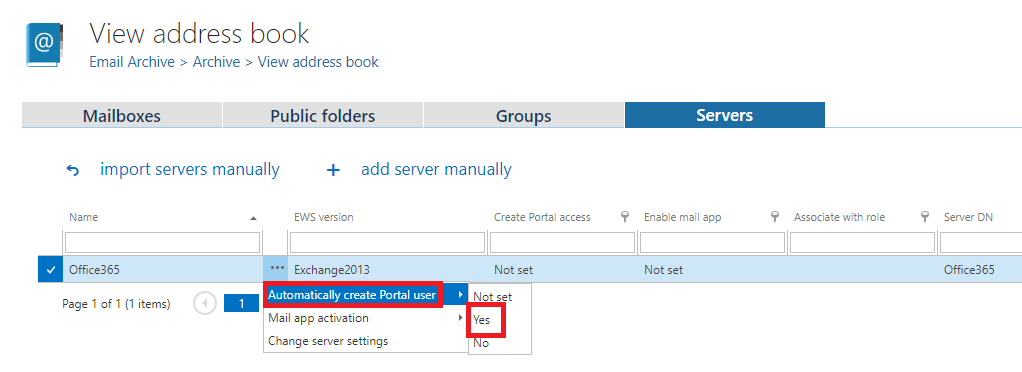
In the Address book, open the server's context menu by clicking the ellipses, choose Automatically create contentACCESS Portal user from the list, and select Yes.
-
In the contentACCESS Portal user role dialog that opens, select Use the role defined in the provisioning job. As mentioned above, the Standard role is defined in the provisioning job.

-
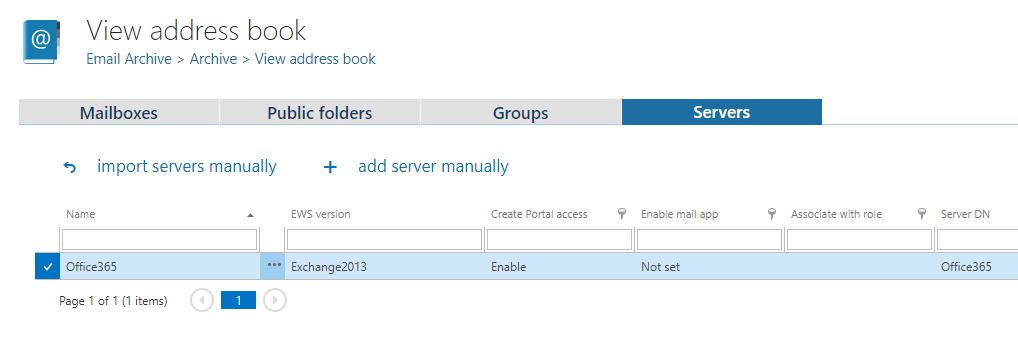
An Enabled status appears in the Create contentACCESS Portal access column, indicating that contentACCESS Portal users for all mailboxes on the server will be created at the next run of the provisioning job. The associated role is Inherit, meaning the default role defined at server level is inherited from the email archive provisioning job.
-
Search for the mailbox "Jake…" and create a contentACCESS Portal user for it as well. This user will have full permissions on all archive mailboxes of the tenant, as defined in the "Standard user" role created in step 1. Select this role in the pop-up window.
-
Start the provisioning job to create the contentACCESS Portal users with their assigned roles, or wait until it runs according to the provisioning scheduler.
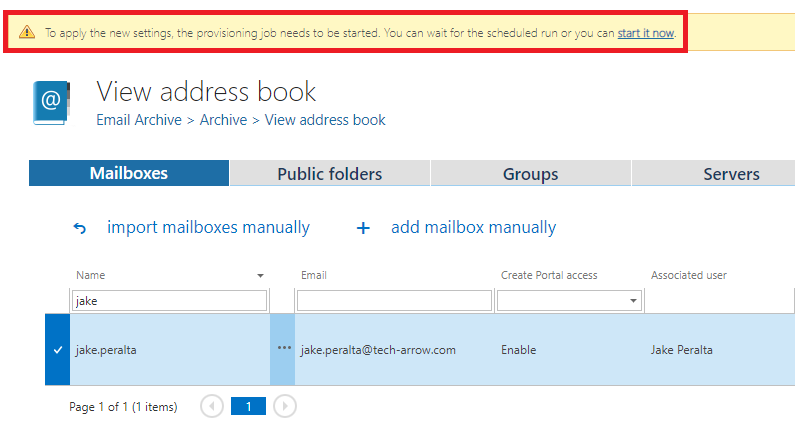
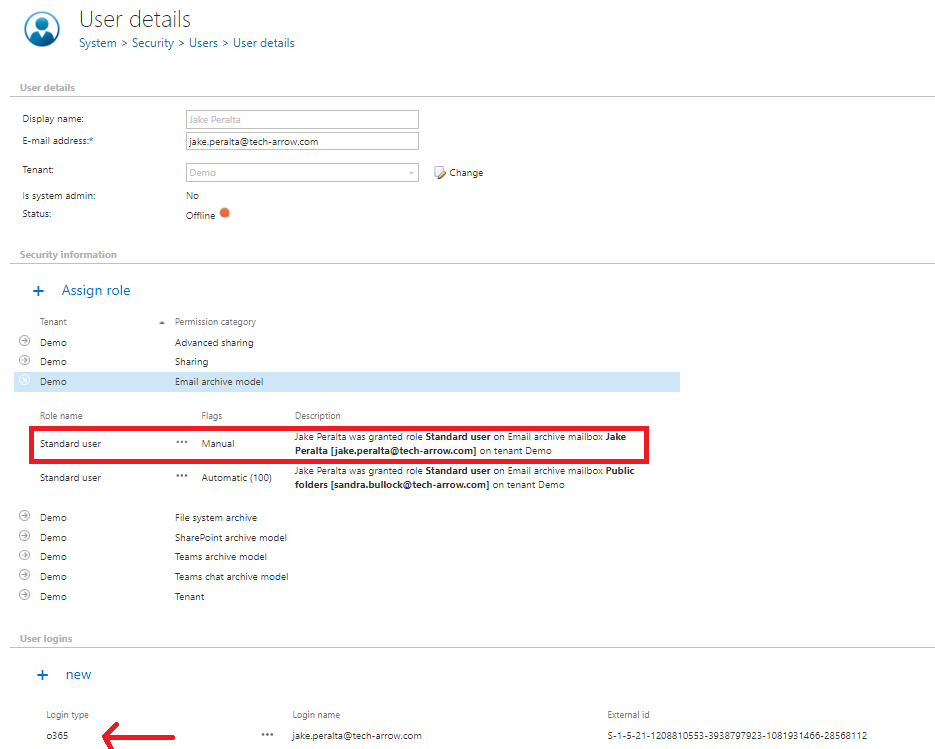
The provisioning job identifies which mailbox user is associated with which mailbox(es) on the Exchange server and synchronizes these permissions with contentACCESS. The rights on the Exchange server are synchronized with contentACCESS, and new contentACCESS Portal users are created for each mailbox user on the server. Each contentACCESS Portal user is assigned an Automatical flag.
- For Microsoft 365, an Azure user login is created for each mailbox user.
- For an on-premise Exchange server, a Windows user login is created for each mailbox user.
With these accounts, the contentACCESS Portal email archive becomes accessible to the respective mailbox users. The contentACCESS Portal user created for "Jake Peralta" will be able to access the archive mailboxes of the assigned tenant as defined in his role.
Disabling automatic contentACCESS Portal user creation
If Automatically create contentACCESS Portal user was previously set to Yes on a group or server and the administrator changes it to No, existing contentACCESS Portal users are not deleted. However, any new mailbox users subsequently added to the Exchange server will not receive contentACCESS Portal access rights to their mailbox archive.
Finding Exchange groups and mailboxes by contentACCESS Portal user status
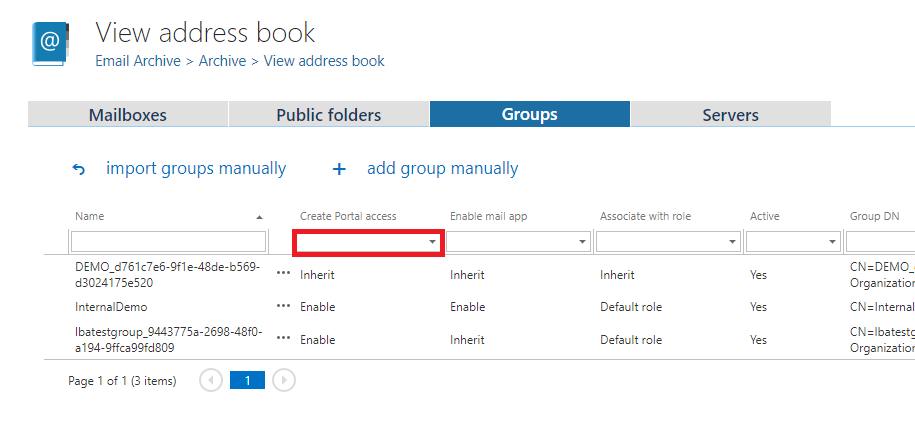
To find Exchange groups or mailboxes with or without contentACCESS Portal users, go to the Groups or Mailboxes tab, click the Create contentACCESS Portal access dropdown box, and select one of the following:
- Enable: filters out all groups or mailboxes for which contentACCESS Portal users will be, or were, created.
- Inherit: filters out all groups or mailboxes without contentACCESS Portal users.