Manage access to a mailbox archive (option 2)
Introduction
This page describes an alternative method for granting a user access to a mailbox archive in contentACCESS. It applies to scenarios where an administrator must grant archive access to a second, explicit user who is not the main mailbox owner. This explicit user can be anyone who requires access to the archived content, for example:
- a user who has never used contentACCESS before but now needs to view archived emails;
- a colleague who stood in for somebody else during vacation time and needs access to the archive;
- someone from the company who received a claim regarding older items and needs access to already archived email attachments, invoices, or similar content.
In these cases, the explicit user must be granted rights to the mailbox archive(s) associated with the main mailbox user.
This example demonstrates how to grant explicit rights to the archive mailboxes associated with the mailbox ane@ta.internal for another user.
Prerequisites
The Manage access option is available to the logged-on administrator only if their role assignment includes:
- Manage tenant permission on the tenant; and
- View archive mailbox – All allowed rights on the tenant.
For more information, see Managing access to contentACCESS objects.
Open the Manage access option
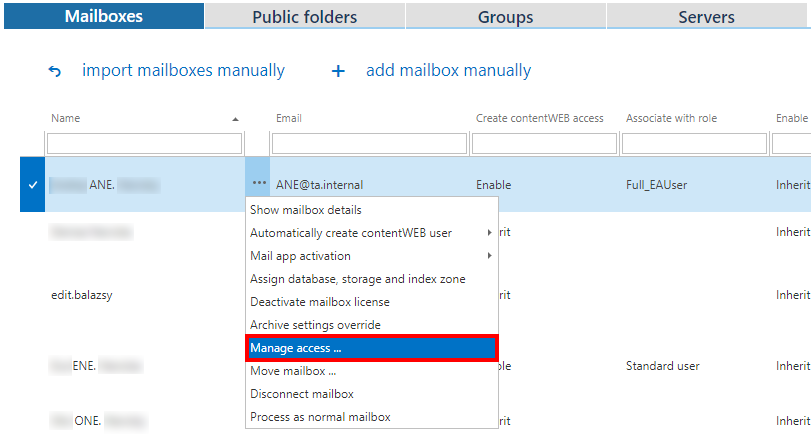
- Navigate to the Email Archive tab ⇒ Archive ⇒ View Address book control on the ribbon.
- Under the Mailboxes tab, choose the desired mailbox.
- Click the ellipsis mark (…) next to the mailbox and select Manage access from the context menu.
Create a new role association
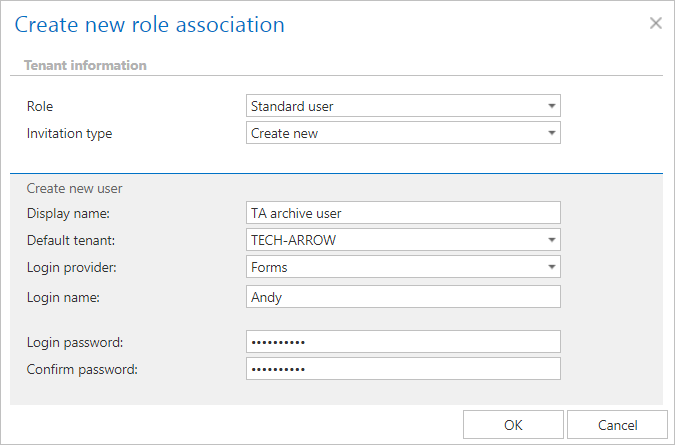
On the Manage access page, click + New. The Create new role association dialog opens.
- Select a role that this user will have (Standard user role or any explicit role created on the Roles page).
- Select the invitation type:
- Invite new user
- Search for existing contentACCESS user
- Create new user
- Specify the login provider and the login credentials, if required.
Manage the created user's login
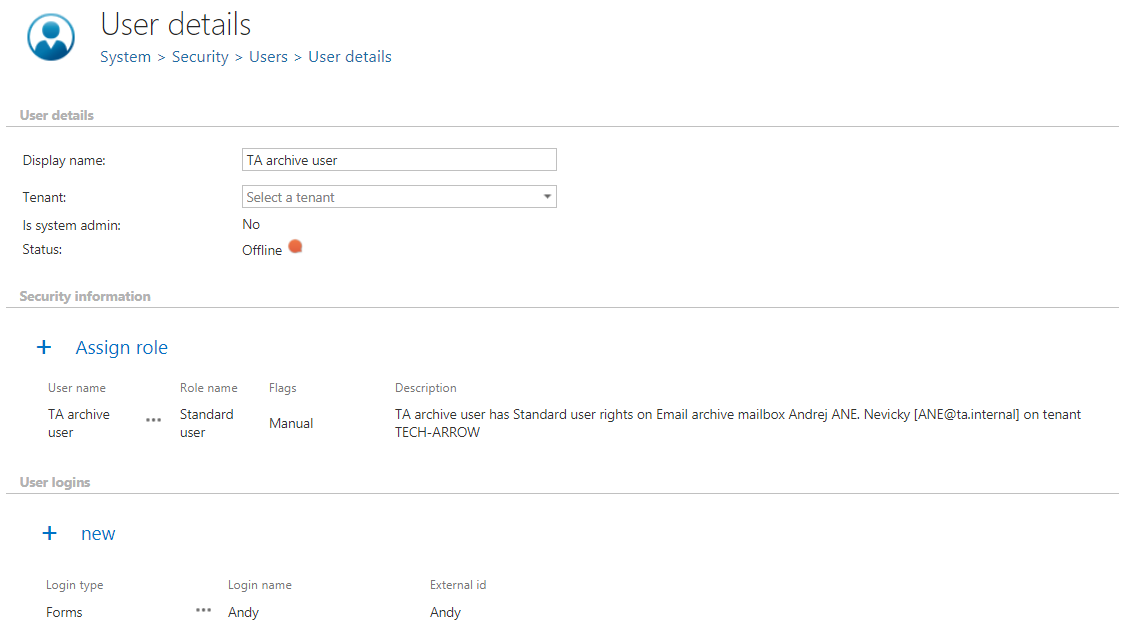
Since this user was created manually, they receive a Manual flag, which can be viewed on their User details page.
From the context menu of the provider, under the User logins section, the administrator can also:
- edit the user's login data;
- delete the user login.
Important: If the administrator deletes the user login, the user will no longer be able to log in to contentWEB with this user login.