Mailbox move job configuration
Introduction
The Mailbox move job allows administrators to move an archived mailbox's data from one database and storage location to another, optionally into a different target mailbox and across tenants. This page describes the different ways a mailbox move job can be created, the configuration options available in the Select mailbox to move dialog, the scheduling, notification, and resource settings required for the job, the Consolidate option used to correct mailboxes archived into multiple databases, and how to verify that a mailbox move job completed successfully.
Create a mailbox move job
A mailbox move job can be created in two ways:
- As a new job from the Email archive's Jobs page.
- Directly from the address book, by selecting Move mailbox from the desired mailbox's context menu.
The screenshot below shows a mailbox move job being created for the mailbox edit.balazsy@tech-arrow.com directly from the address book.
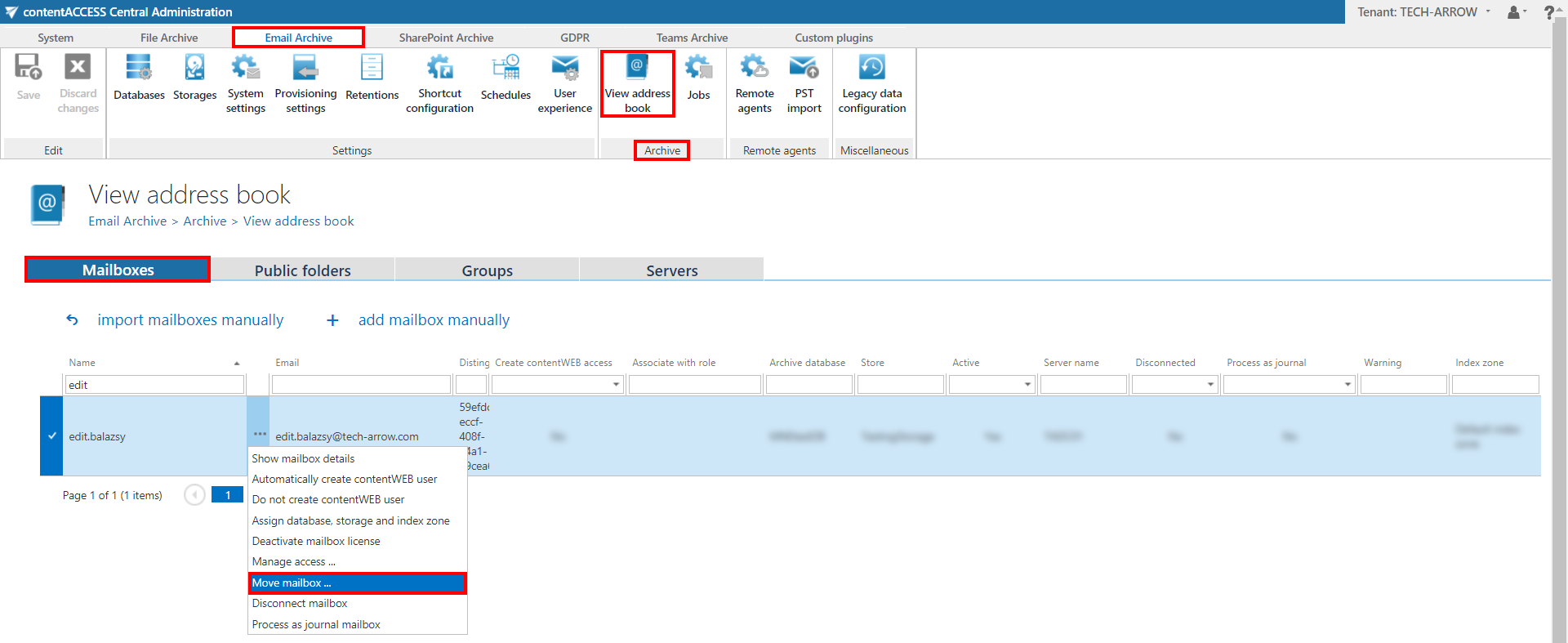
Clicking Move mailbox in the mailbox's context menu automatically opens the Select mailbox to move dialog, with the source mailbox already preselected. The new mailbox move job is created using the name of the selected mailbox. By default, the job can run on any available node.
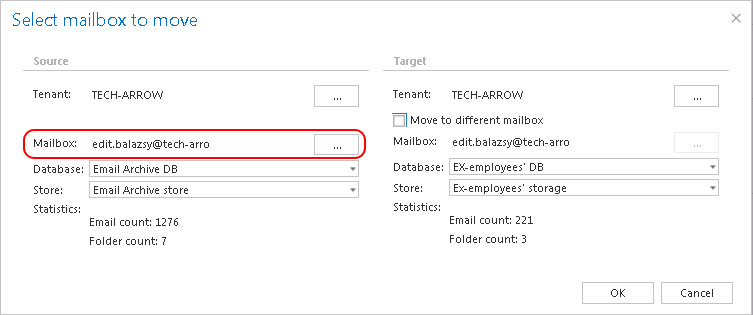
Note: The same dialog can also be opened from the job's configuration page by clicking Add under the Mailboxes to move section.
Configure the mailbox move settings
In the Select mailbox to move dialog, the administrator can configure the following:
Source mailbox
The source mailbox contains the archived data to be moved.
- If the job was created from the address book, the source mailbox is preselected.
- If the job was created from the Jobs page, the source mailbox must be configured manually.
Target mailbox
In special cases, the archived data of the source mailbox can be moved to a different target mailbox archive:
- To move the data to a different mailbox, check Move to different mailbox on the target side and specify a new target mailbox.
- To keep the archived data in the same mailbox, select the source mailbox on the target side as well. This is the default configuration.
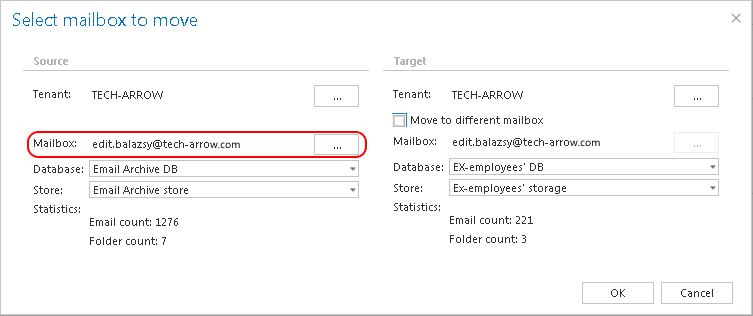
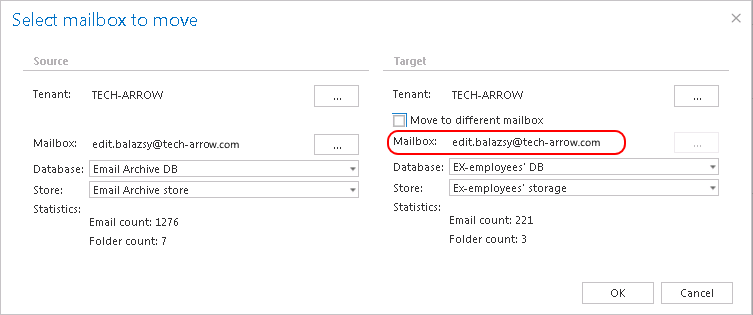 Screenshot A (left) and Screenshot B (right): Source mailbox archive selected on the target side.
Folder prefix
The Folder prefix option allows the data to be moved into a custom subfolder in the target mailbox, letting you separate the original and the moved data.
- The Folder prefix textbox appears once Move to a different mailbox is enabled.
- Enter a new root folder name for the target mailbox.
- Multiple subfolders can be added under the new root, separated by the
\character. - The root and subfolders do not need to be created manually — the job automatically creates the folder structure and moves the data into it.
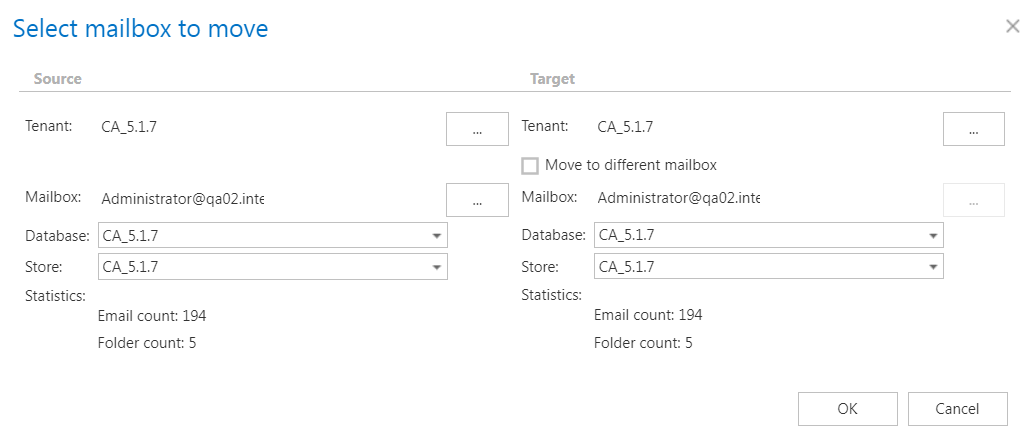
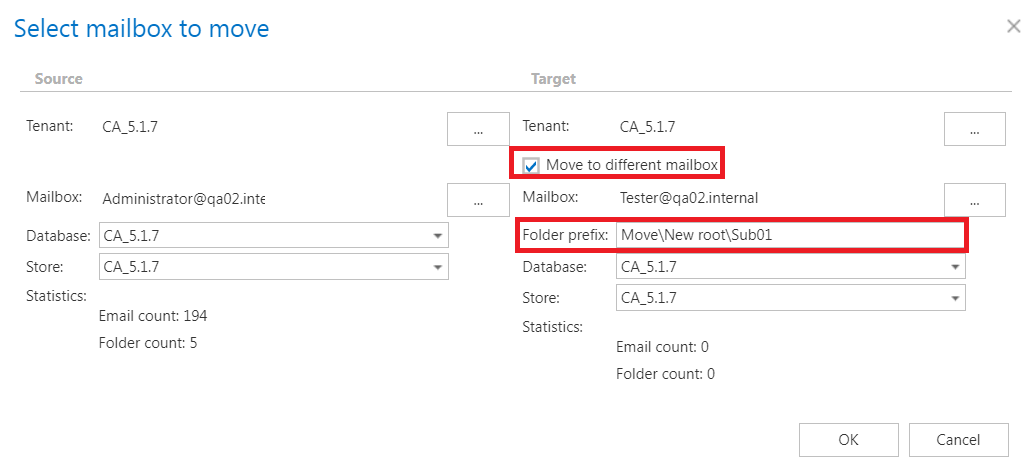 Screenshot C (left): Mailbox move without folder prefix. Screenshot D (right): Mailbox move with folder prefix.
Source database and storage
By default, the already associated database and storage of the source mailbox are shown here. The source mailbox statistics (email count, folder count) are displayed in the source column.
Target database and storage
The target database and storage define where the archived data of the source mailbox should be moved. The target mailbox statistics (email count, folder count) are displayed in the target column.
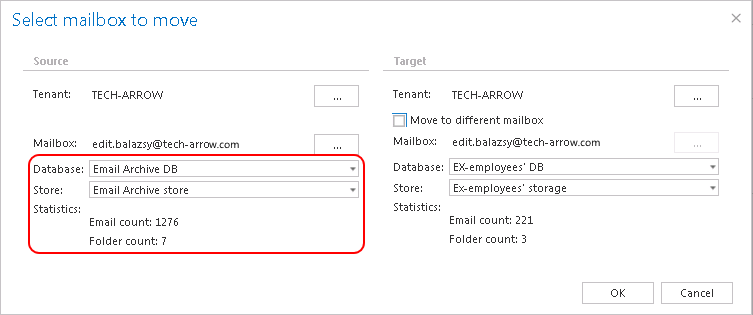
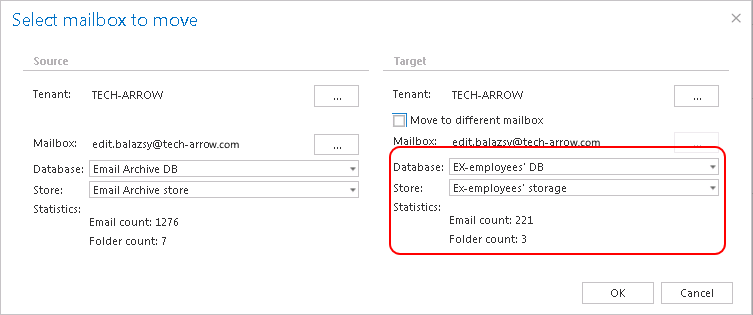 Screenshot E (left): Associated database and store. Screenshot F (right): Target database and store — in this example, the Ex-employees' DB and Ex-employees' storage were selected.
Cross-tenant move
A mailbox move job also supports moving data across tenants.
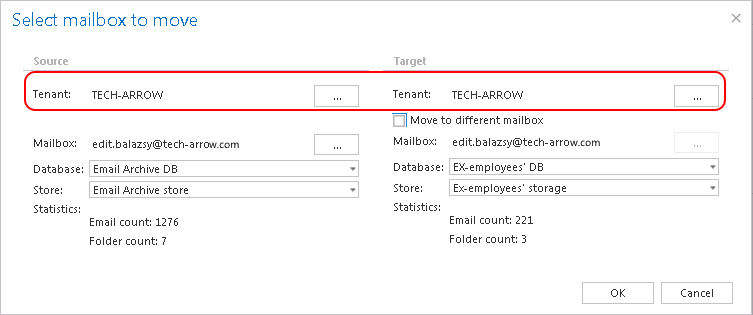
How database and storage selection affects the move
The behavior of the mailbox move job depends on the combination of source and target database and storage selected:
- Different databases, same store: The records are moved (copied and then deleted) from the source database into the new target database, but the binary data remains in the same store.
- Same database, different store: The database records are updated with the new store ID only. The source storage data is copied into the new storage, and the old files are removed from the source store if the source store supports deletion. Deletion is currently supported by Disk store and HybridStore. If the store does not support deletion, the binary data remains in the source store.
- Different database and different store: A combination of the above occurs — both the database records and the binaries are moved.
- Move into a different mailbox: The original mailbox record is also deleted from the database once all entries have been successfully moved.
Configure scheduling, notification, and resource settings
When configuring a mailbox move job, the administrator must also set the job's running time, notification settings, and resource settings on the job's configuration page.
Scheduling settings
Select a scheduler from the dropdown list to determine when the move process will run. For this job type, it is recommended to use a one-time scheduler or to start the job manually. For more information about setting up schedulers, see Schedules.

Notification settings
To be informed of potential failures during the mailbox move process, configure:
- In which cases notification emails should be sent.
- Who should receive these emails.
It is recommended to select the Errors or warning occur option, or alternatively to check the job events on the System logs page.

Resource settings
Set the value that determines how many items will be processed simultaneously by the mailbox move job.
Consolidate mailboxes
The Consolidate option, available on the job's configuration page, is the fastest way to correct a mailbox that has been archived into multiple databases.
Clicking Consolidate makes the system find all mailboxes that exist in two or more databases and list them on the Mailbox selection page. The target database and target store are already assigned based on the View address book.
To use this option:
- Click Consolidate.
- Review the listed mailboxes.
- Select one or more mailboxes.
- Click OK.

Note: If this dialog is empty, all metadata is already contained in a single database, and no correction is necessary.
Verify that the mailbox move completed successfully
To check whether a mailbox move job successfully moved the selected mailbox archive to the desired database and storage:
- Navigate to the Email archive jobs page on the ribbon (Email Archive tab ⇒ Archive ⇒ Jobs).
- Open the context menu of the mailbox move job.
- Click Show last logs.
This redirects to the System logs page, where the last run of the selected job is preselected and the corresponding job events can be viewed.