Public folder archiving
Introduction
Public folder archiving in contentACCESS allows organizations to archive public folders together with the rest of their Exchange mailbox content. Individual public folders or entire folder hierarchies can be archived just like any other mailbox items, and archived items can be replaced with shortcuts. This page explains how public folder archiving works, how to configure it in System settings, and how contentACCESS synchronizes and represents public folders in the address book.
Definition of terms:
- Public folder – one folder in the public folder hierarchy
- Public folder hierarchy – the tree of all public folders in the organization
- Public folder database – special Exchange database (2007, 2010) holding public folders
- Public folder mailbox – special Exchange mailbox (2013, 2016) holding public folders
- Archive public folder mailbox – contentACCESS representation of a public folder (virtual mailbox)
Overview
Archiving public folders with contentACCESS offers several advantages:
- Archiving using shortcuts saves storage space while still ensuring quick access to items directly from the mailbox.
- Items can be restored from shortcuts, and recovered if they have been deleted.
- Archived public folder items can be browsed using the contentACCESS Portal.
- User access to archived content is fast and convenient.
contentACCESS supports a wide range of Exchange Servers, from Exchange 2007 SP1 up to Exchange 2019. Public folders can be hosted on as many servers as desired. Even when public folders are hosted across multiple servers, contentACCESS treats them as one entity (that is, one mailbox).
Note: If you have a mixed Exchange environment (for example, both Exchange 2010 and Exchange 2016) and want to archive public folders, set the highest Exchange server version containing the public folders on the Email Archive System settings page, in the EWS settings section. On the same page, in the General settings section, the Public folder access must be set to an email address from the highest Exchange server containing public folders.
Configure public folder archiving
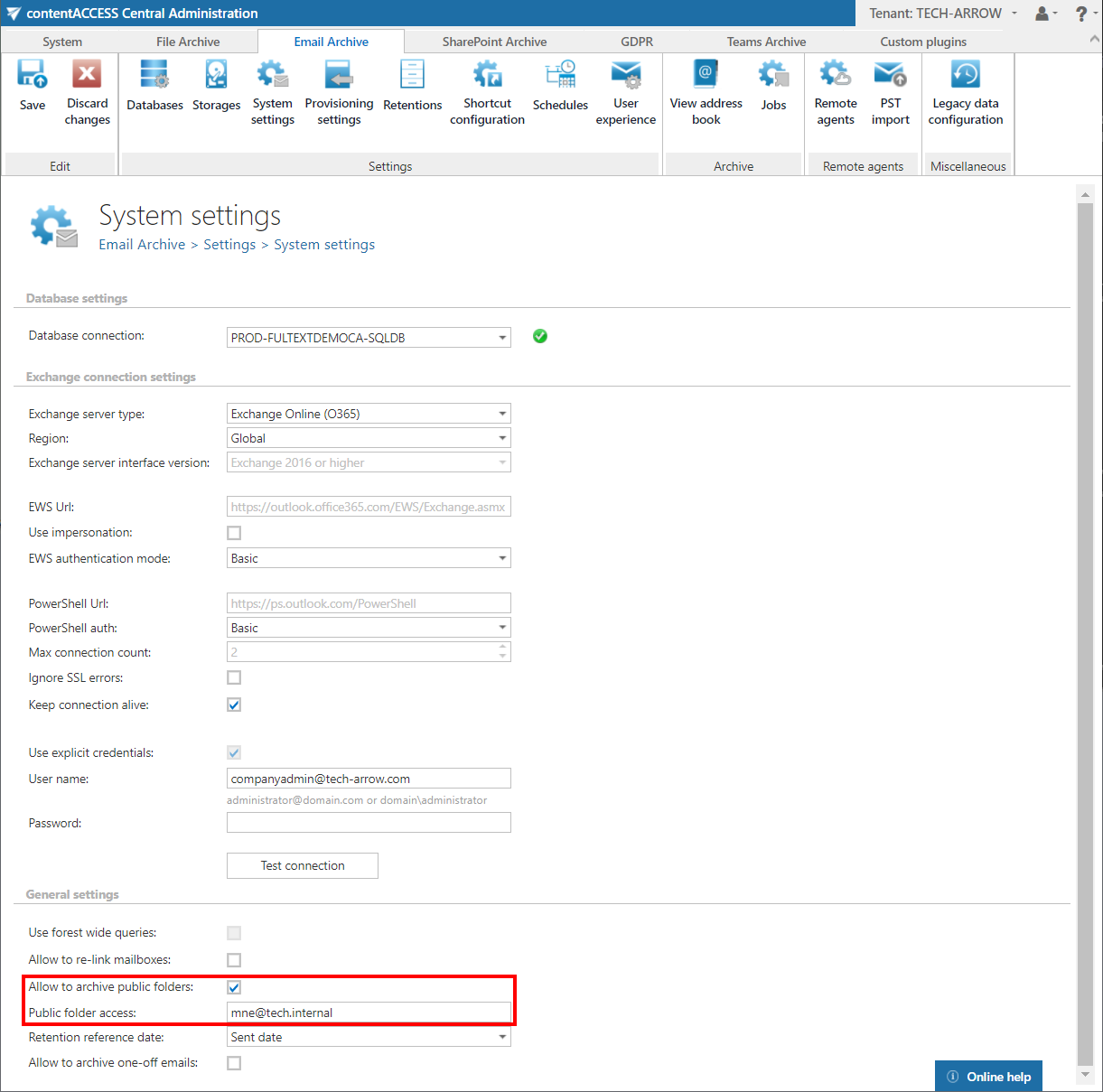
By default, contentACCESS does not archive public folders, since not every organization has public folders on the Exchange server. Public folder archiving must be enabled individually under Email Archive → Settings → System settings, in the General settings section.
-
Allow to archive public folders: Select this option to enable public folder archiving; otherwise, the provisioning job ignores public folders. If public folder archiving is turned on and later turned off, the existing archived public folder mailbox is not removed or disabled — it will simply no longer be archived further, while the existing data remains in the archive.
infoNote: Restore and recover will also not work if public folder archiving is turned off.
-
Public folder access: An email address. It is recommended to set this value to the SMTP (Simple Mail Transfer Protocol) address of the superuser. If this value is changed, the email provisioning job must be run.
warningImportant: For a mixed Exchange environment — if you move the user to a newer Exchange Server, the public folder will be moved to the new Exchange Server as well. Therefore, it is recommended not to move the user if the public folders should remain archived on the old Exchange Server. If the user needs to be moved, it is recommended to change the public folder email address to a different mailbox that still resides on the old Exchange Server.
Public folder synchronization and provisioning
Public folders are synchronized to the contentACCESS address book by the email archive provisioning job.
If public folder archiving is turned off in System settings, public folders are completely ignored:
- If there is no archived public folder mailbox yet, it will not be created.
- If there is already an archived public folder mailbox, it is not updated.
If public folder archiving is turned on, the provisioning job performs the following steps after all mailboxes are processed:
- Searches for public folder databases (Exchange 2007–2010) using PowerShell.
- Searches for public folder mailboxes (Exchange 2013–2019) using PowerShell.
- If no public folders are found at all, the process is cancelled.
- If multiple public folders are found, the newest ones are always used (if an Exchange 2013/2016/2019 public folder mailbox is found, that is used).
- If there is no archive public folder mailbox yet, one is created.
- If an archive public folder mailbox already exists, its email address is updated from System settings (if the system settings were changed, this step actualizes the value).
As the last step, all contentACCESS users belonging to the same domain are granted the User role on the public folder mailbox, allowing them to select Public folders in the contentACCESS Portal.
Public folders in the address book
Provisioned public folders appear in a separate section of the contentACCESS Address book.
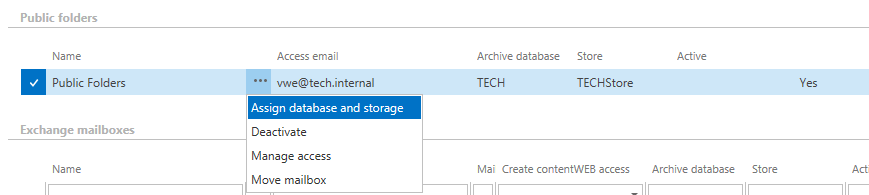
The context menu options allow you to:
- Assign a database and storage to the public folders to be archived, as with Exchange groups or mailboxes.
- Activate or deactivate the public folders on the license server.
- Set contentACCESS Portal permissions for the public folders using the Manage access option.
- Move the content to a mailbox.
The Access email column displays the value from the System settings page (General settings section) and is updated by the provisioning job whenever the value changes.