Shortcut repair job configuration
Introduction
The Shortcut repair job configuration page allows administrators to configure the settings required to repair shortcuts in mailboxes and In-Place Archives. The job can regenerate shortcuts with updated settings, update reply/forward status icons, and allow re-archiving of items after a mailbox has been moved to a different domain or system.
The configuration options available on this page include report mode, scheduling, notifications, processing options, repair options, address book objects, folder filtering, and resource settings.
Report mode settings
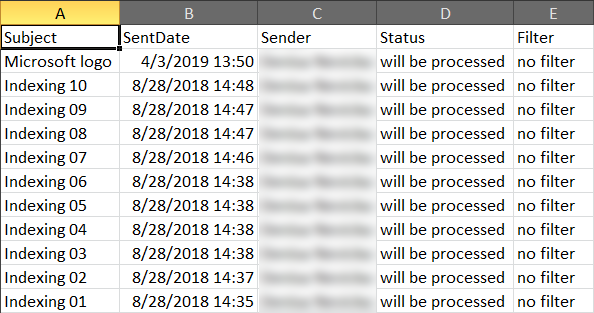
If the Use report mode checkbox is checked, the job will run in report mode. After the job finishes its run in this mode, the user will be able to download a .csv report file in this section. The file will contain a list of emails that belong to the entities selected in the Address book objects to process section of the job, along with some related information, including whether they will be processed or not.

 Screenshot: Report file preview
Scheduling settings
In this step, the running time(s) of the job must be selected. It is possible either to select a scheduler from the list or to create a new scheduler via the create new option.

Notification settings
The user may select here when to send notification emails from the job regarding the success of the process. It is possible to set whether a notification email is needed always, never, or only in case an error/warning occurred during the process. Into the Recipient list textbox, insert the email address(es) of the person(s) to whom such notifications will be sent. Notification emails may be useful if the System logs feature is not used to detect possible failures of job execution.

Processing settings
From the Repair dropdown list, select what will be repaired by the job. There are 3 options:
- Mailboxes
- In-Place Archives
- Mailboxes and In-Place Archives
There is also the possibility to use MAPI to communicate with the Exchange server by checking the checkbox in this section. This checkbox is available only if Mailboxes is selected in the Repair dropdown list.

Repair options
-
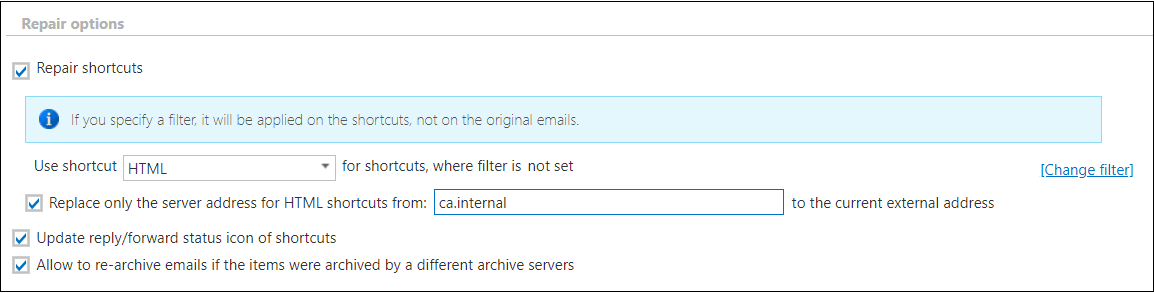
Repair shortcuts: This option can be used to completely regenerate the shortcuts with new settings. Set the shortcut type to be applied. This function allows you to apply a new type of shortcut to existing shortcuts.
The Replace only the server address for HTML shortcuts option significantly reduces the time required for one of the most common repair scenarios: updating the server's DNS name or protocol (from HTTP to HTTPS). Instead of regenerating the entire shortcut, the repair process modifies only the shortcut body during the operation. This enhancement ensures a much faster and more efficient process, allowing you to complete server name updates quickly. This option applies to HTML shortcuts only.
The appearance, such as colors or formatting, in the HTML shortcut will not be changed when this option is selected.
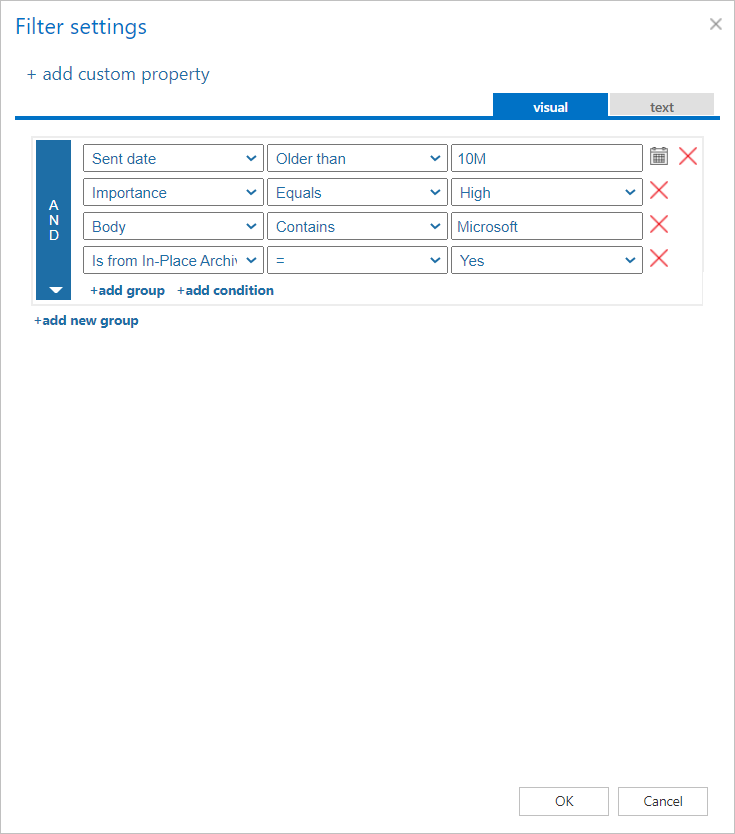
Click on the Change button and set the filtering according to your needs and/or regulations. To learn more about how to work with filtering settings, see the Filtering in jobs section of this documentation.
-
Update reply/forward status icon: This option should be used if upgrading from older contentACCESS versions to version 3.1. In version 3.1, the reply/forward status of the mail is reflected in the shortcut icon — there is a different shortcut icon for replied and forwarded mails. If the customer wants to update the existing shortcuts, use this function. The job will search for all Normal and HTML shortcuts that have the incorrect icon and will update them. Note that this function only makes sense for shortcuts where the message class was changed (that is, the shortcuts have a different icon).
-
Allow to re-archive items: This option should be used if a mailbox was archived with "Keep original" on one system and that mailbox was moved to another domain archived with a different system. Since the mailbox is on a new Exchange server together with the shortcuts, the new system skips the emails archived by the old system to prevent compatibility problems. To allow archiving the items again, but on the new system, this option must be checked.
Address book objects to process
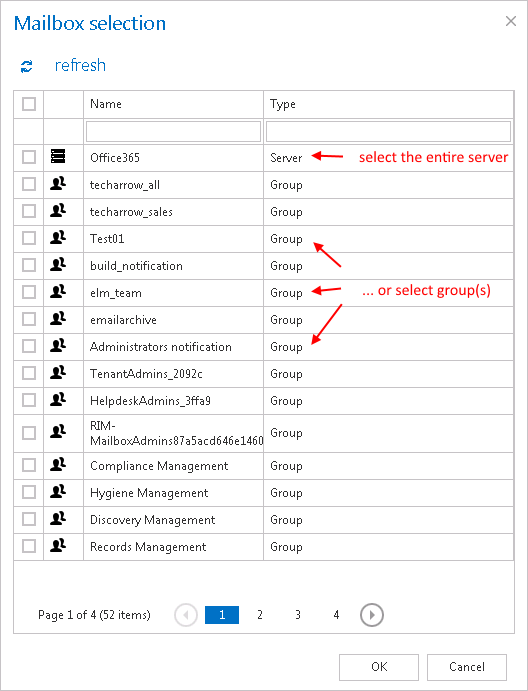
Here you can select the mailboxes, groups, or the entire Exchange server, which will be processed by the job. Click on the  select option and check the groups or servers in the Mailbox selection window, then click on OK:
Note: If the In-Place Archives option is selected in the Repair dropdown list in Processing settings, this warning will pop up for the Address book objects. In this case, only servers, groups, and In-Place Archive mailboxes can be selected after clicking on the Select option.

Important: If an on-premise Exchange group is used in a job configuration, the job configuration needs to be updated after the group is moved to the cloud, since the group identifier changes and the job continues to use the old identifier.
Steps to take:
- Open the job's configuration page.
- Remove the group from the list of Address book objects to process.
- Select the group and re-add it to the list.
- Save the job configuration.
Include folders
The job is able to process any folders of the mailbox: the entire mailbox, one single folder, multiple folders, recursive folder structures, etc. Before you enter the folder name(s) to be crawled, it is necessary to select the folder filtering type.

Exclude folders
With this function you may set which folders/subfolders should not be repaired. The folders that should not be repaired may be:
-
Added via the + new button — The settings are the same as for the Email archive job.
-
Imported from a file via the import button — For more information, refer to the Importing contentACCESS configurations from files chapter of this guide.

Resource settings
Set the value that will determine how many items will be processed simultaneously by the recovery job. The recommended value is "2".

Repair logic
The job will scan the mailbox and repair based on the following logic:
| Located shortcut | After repair |
|---|---|
| Keep original | Not modified |
| Normal shortcut | HTML shortcut |
| HTML | HTML shortcut |
| Journal shortcut | Not found |
Note: The shortcuts are completely re-created with the actual settings.