Shortcut synchronization job configuration
Introduction
The Shortcut synchronization job in Email archive keeps mailbox shortcuts and their corresponding archived items in sync. It updates the archive location of shortcuts that have been moved to another mailbox folder, cleans up orphaned or unknown shortcuts, restores foreign shortcuts, and maintains other shortcut-related properties.
This page describes how to configure a shortcut synchronization job using an example scenario: synchronizing the archive of a user named Jack Bolton, whose mailbox contains shortcuts that have been moved to another folder. The job updates the location of these items in the archive based on the shortcuts' current location in the mailbox, and in this example is configured to run only once.
The configuration of this job consists of the following sections:
- Scheduling settings
- Notification settings
- Processing settings
- Address book objects to process
- Include folders
- Exclude folders
- Resource settings
Create the job
Create a new job and open its configuration page. In this example, the job is named My sync job.
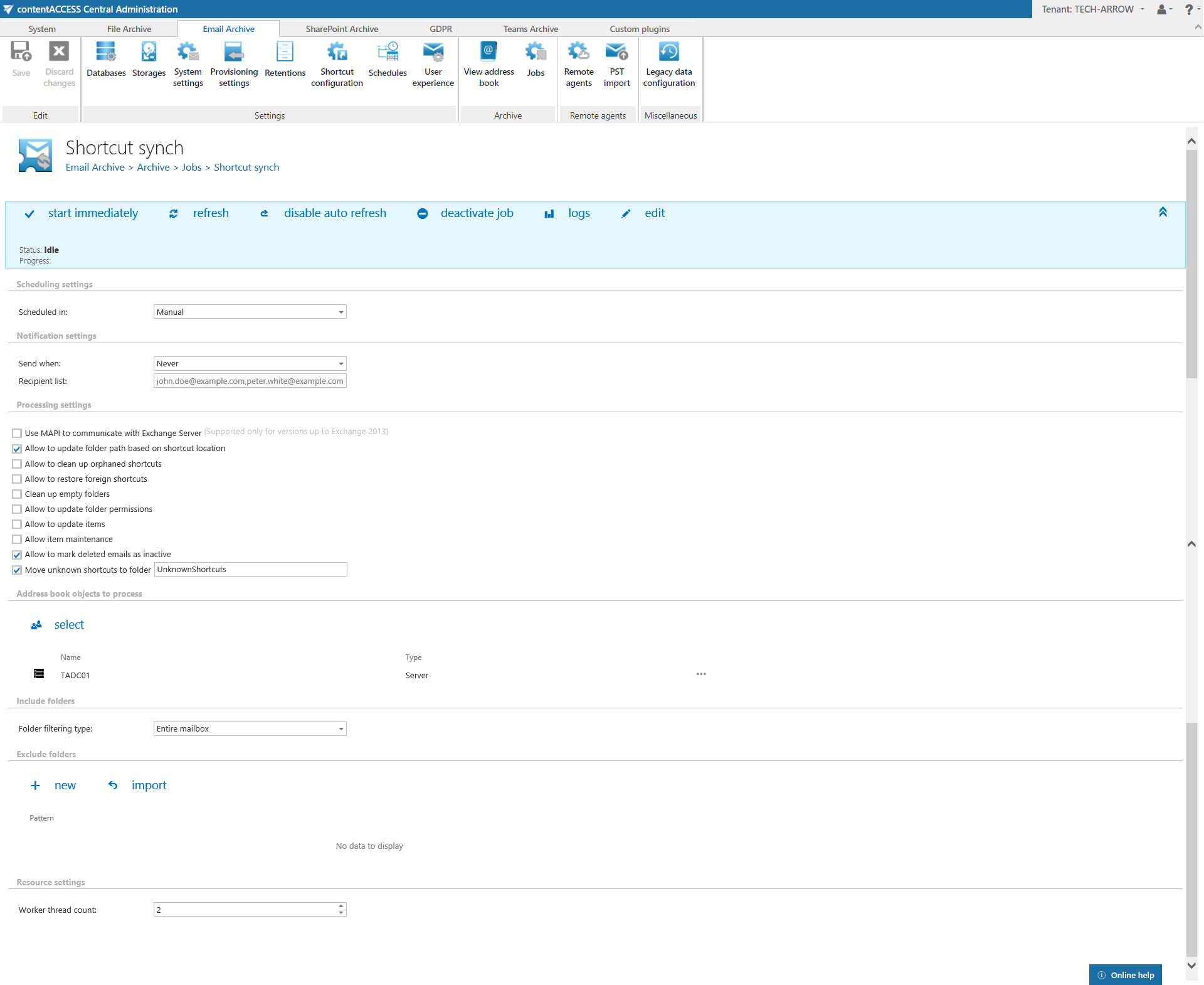
Scheduling settings
Scheduling settings define the time slots when the job runs. Since this synchronization job needs to run only once, a one-time scheduler is configured.
For more information about schedulers, refer to the Schedules section.
Notification settings
If you want to receive notification emails when errors or warnings occur during the job run, you can configure this here.
Processing settings
Processing settings specify the functions that should be executed inside one job. Performing multiple functions inside one job optimizes Exchange access: the mailbox is read only once, while multiple functions are performed on the same set of data.
Important: Processing of In-Place archive mailboxes is allowed by default.
- It is possible to use MAPI instead of EWS.
- The Allow to update folder path based on shortcut location checkbox turns folder path synchronization on or off.
- The Allow to clean up orphaned shortcuts checkbox turns on or off the function that deletes shortcuts pointing to emails that were deleted (purged) by the Delete job.
- The Allow to restore foreign shortcuts checkbox turns on or off the automatic restore of shortcuts that do not belong to the mailbox.
- The Clean up empty folders function deletes empty archive folders in contentWEB.
- The Allow to update folder permissions checkbox turns folder permissions updating on or off.
- The Allow to update items function allows the job to detect shortcuts (normal, HTML, or keep original) that have changed and synchronize these changes to the archive.
- The Allow item maintenance checkbox turns on or off the function that processes emails and shortcuts archived by contentACCESS versions older than 3.3, updating their categories and reply/forward status. Without this, these items would not reflect changes in categories and status.
- The Allow to mark deleted emails as inactive function allows the job to compare shortcuts with the database. If a shortcut is present but its status in the database is "inactive", the document is set to "active". If a shortcut is not present in the folder but the database has it, the document is set to "inactive". Inactive documents are displayed in contentACCESS Portal the same way as inactive File archive documents.
- The Move unknown shortcuts to folder option allows the job to move unknown shortcuts (shortcuts that are not found in contentACCESS and are not purged by the Delete job) to a specified folder in the mailbox. The name of the folder can be set here.
In this use case, only the folder update allowance option is set, as shown in the screenshot above.
Address book objects to process
This setting allows you to specify the whole Exchange server, Exchange groups, or mailboxes to be involved in the job. Click Select and search for the server, group, or mailbox in the pop-up dialog:

Important: If an on-premise Exchange group is used in a job configuration, the job configuration needs to be updated after the group is moved to the cloud, since the group identifier changes and the job would otherwise continue using the old identifier.
Steps to take:
- Open the job's configuration page.
- Remove the group from the list of Address book objects to process.
- Select the group again and re-add it to the list.
- Save the job configuration.
Include folders
Set the folders that the job needs to process. In this use case, the entire mailbox is included.
Exclude folders
Exclude folders that should not be touched by the synchronization job. The list of folders can also be imported from files; for more information, see Importing contentACCESS configurations from files. Only folders allowed by the include/exclude filters are processed.
Note: It is recommended to process the entire mailbox to receive the best coverage.
In this use case, no folders are excluded from the process, so these settings can be skipped.
Resource settings
The selected mailboxes are processed on multiple threads, defined in this section. Each thread processes one folder from any mailbox at any time.
Save your settings and wait until the scheduler starts the job, or start it manually from the header bar.
Feature limitations
Multiple copies of the same shortcut
If a user has multiple copies of the same shortcut in the mailbox, the shortcut synchronization job will not be able to determine the correct location. In such cases, the last writer wins — the folder that was processed last determines the final location.