Shortcuts in email archiving
Introduction
Shortcuts are one of the archiving methods available in contentACCESS's email archive solution, used to replace archived emails in the mailbox with a lightweight reference to the archived item. The Shortcut configuration page allows administrators to configure and manage the available shortcut types used by email archive jobs.
In contentACCESS's email archive solution, emails can be archived using one of the following methods:
- Replaced by shortcut: two shortcut types can be used for this purpose — normal shortcut and HTML shortcut.
- Completely deleted.
- Kept in the original file location.
Mailbox items younger than 1 year are typically archived continuously on a daily basis, but the originals are kept in the original mailbox folder. Items between 1 and 2 years old are usually archived using the shortcutting method to ensure easy access in case of need. Shortcuts allow already archived items to be opened directly from the mailbox, without the need to browse for them in the archive. Another advantage of shortcuts is the storage space they help spare — they unburden Exchange servers from redundant documents that are no longer in use. Mailbox items older than 2 years are usually deleted. It is up to the customer how these processing methods are combined.
Important: Encrypted S/MIME emails are not converted to shortcut during the archiving process. The encrypted emails are still archived, but not converted to shortcut, and the following applies:
- No message class is changed.
- No text body or HTML body is modified.
- A category can still be added to the email.
- Attachments are not removed from the email.
Note: There are situations when emails are archived with a shortcut type that later turns out to be incorrect, usually due to incorrect planning or bad decisions. If shortcuts have already been created and need to be replaced, the Shortcut repair job type can easily solve this problem. Read more in the Shortcut repair job chapter.
Note: If an email was archived using the shortcutting method and a category was added, the category remains present even after running the Email restore job.
Shortcut configuration page
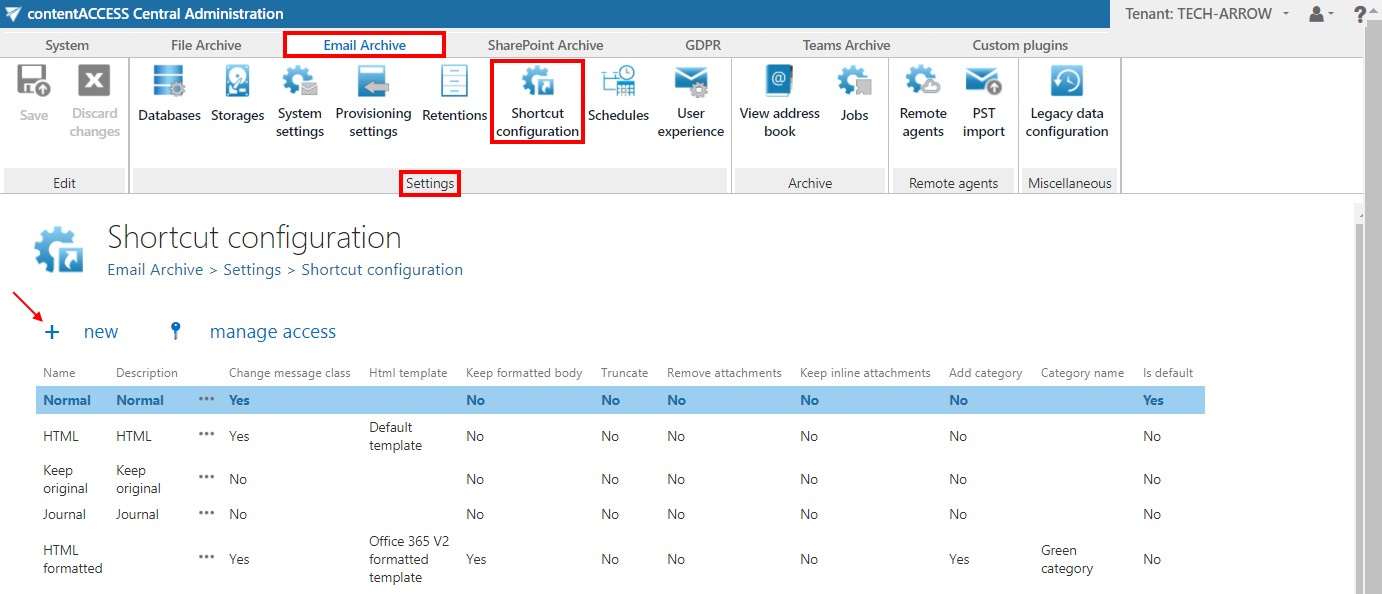
These archive methods and shortcut types can be configured on the Shortcut configuration page. Navigate to Email Archive ⇒ Settings ⇒ Shortcut configuration to open it.
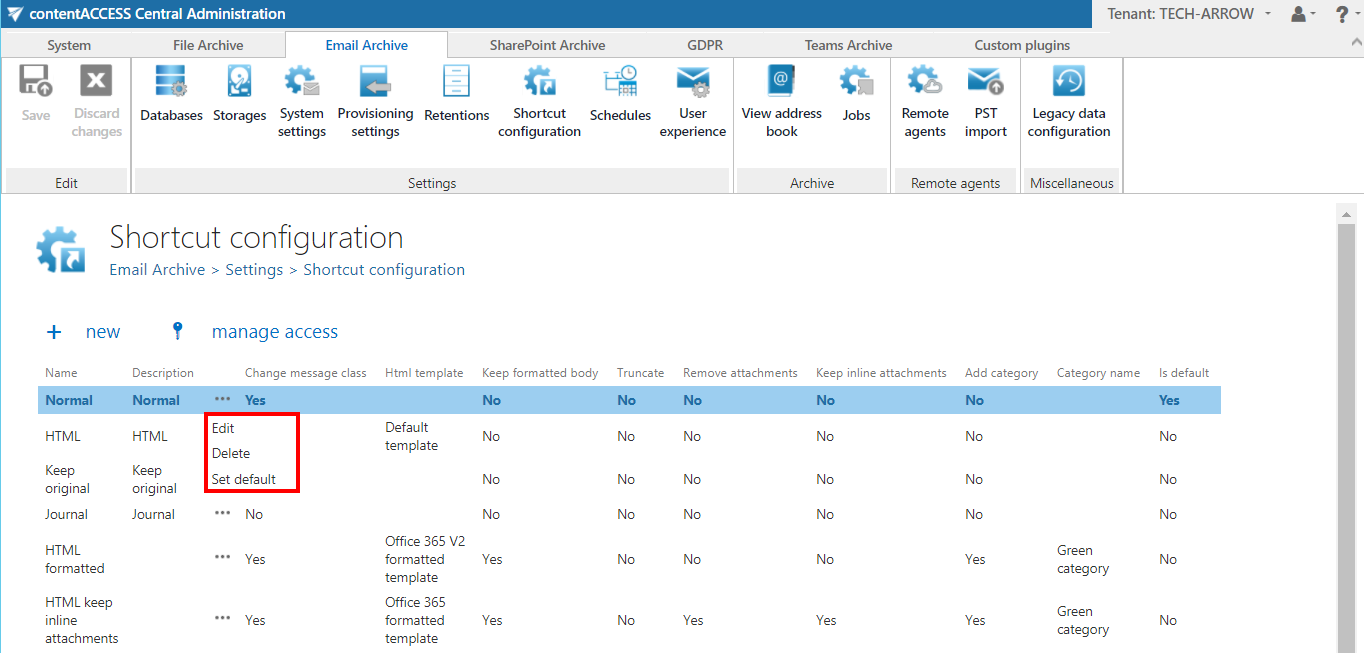
- Under the Shortcut configuration section, you can find the full list of already configured shortcuts. The grid also contains the configuration information of the respective shortcuts. A shortcut shown in bold indicates that it has been set as the default (used by manual archiving).
- Under the HTML Templates section, you can see all HTML templates configured for the HTML shortcuts. The date of creation, modification, and the modified-by information can also be viewed in the templates grid.
The shortcuts configured on this page can be selected when configuring an email archive job.
Listed items can be deleted or edited from their context menu by clicking the ellipses (…).
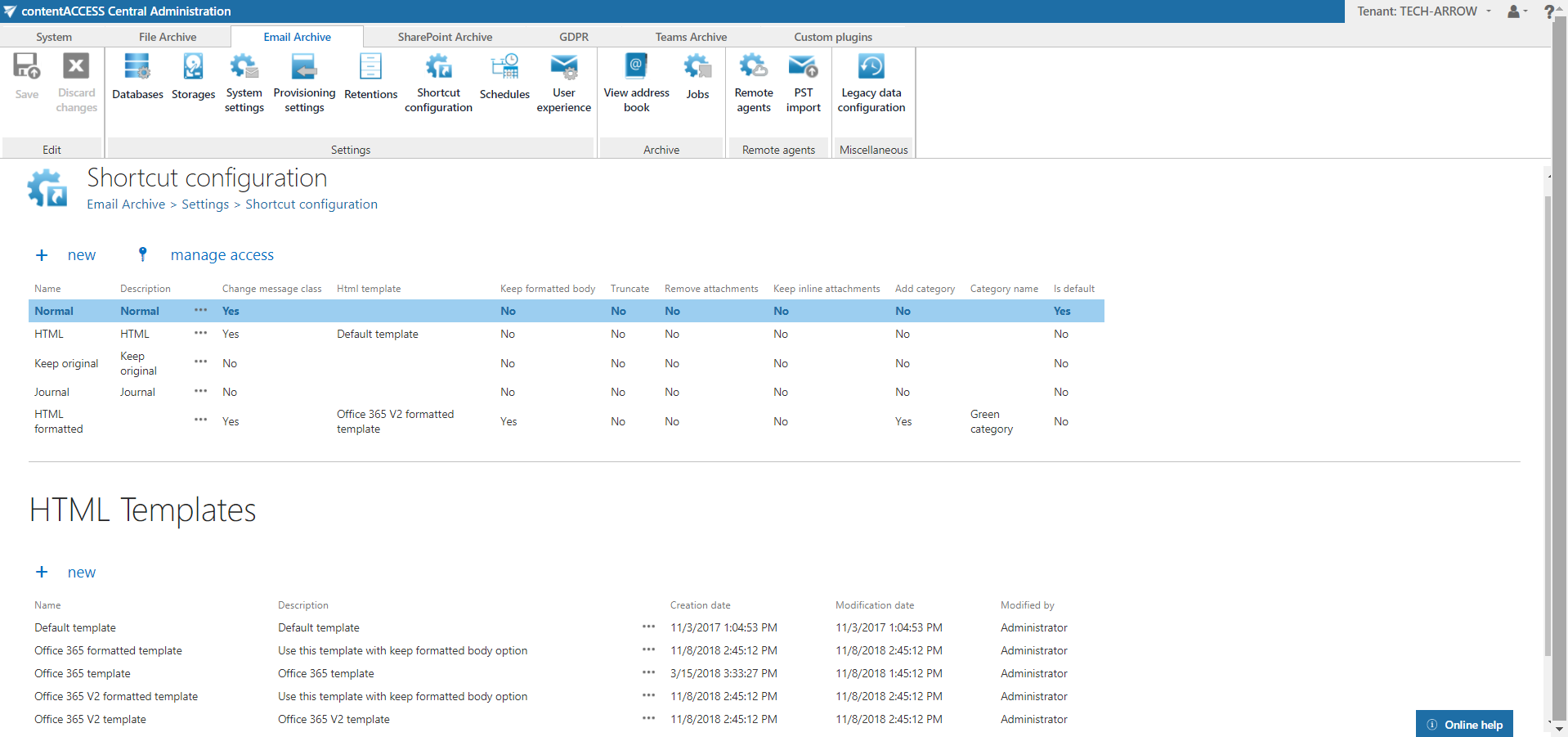
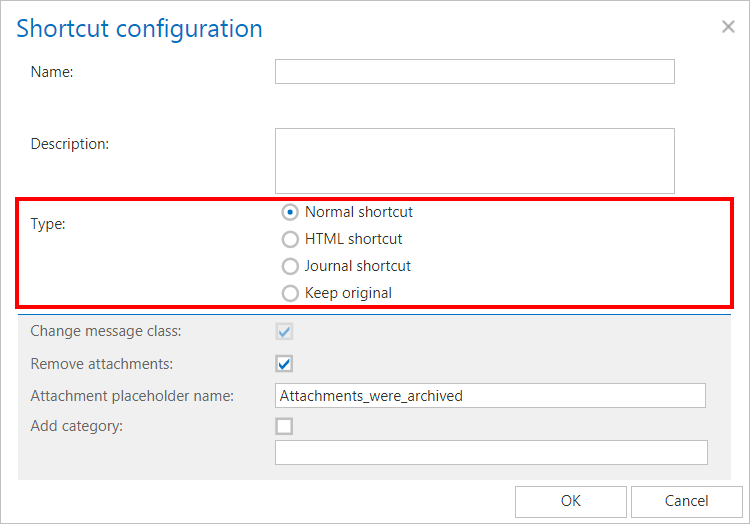
To create a new shortcut, click + new under the Shortcut configuration section and select a shortcut type from the Type list of the Shortcut configuration dialog.
Note: The + new option is unavailable to the logged-on user if the "Add repository items" permission on the tenant is not allowed in their role assignment.
The "manage access" option allows granting access permissions on the selected shortcut configuration to a second user. This option is available to the logged-on administrator if their role assignment contains the Edit repository item – All allowed permission on the tenant. Read more in Managing access to contentACCESS objects.
There are 4 types of shortcuts in contentACCESS's Email Archive:
- Normal shortcut
- HTML shortcut
- Journal shortcut
- Keep original shortcut
Normal shortcut
The normal shortcut is completely transparent with the original message — after restoring or reopening, the user cannot see any change between the original email and the shortcut version. This is the recommended shortcut type if the end user uses MS Outlook.
This type of shortcut works as follows:
| Installed prerequisites | Are attachments directly accessible? (direct preview) | Is email body accessible? | |
|---|---|---|---|
| Outlook 2013 or higher | Mail app* or Outlook forms | Yes | Yes |
| Nothing installed | No | Yes | |
| OWA 2013 or higher | Mail app | Yes | Yes |
| Nothing installed | No | Yes | |
| Outlook 2010 | Outlook forms | Yes | Yes |
| Nothing installed | No | Yes | |
| OWA 2010 | OWA 2010 extension | Yes | Yes |
| Nothing installed | No | Yes |
- MS Outlook 2013 or higher: To display archived attachments, the user needs to have the contentACCESS Outlook form or the contentACCESS MailApp (refer to User experience) installed in Outlook. If not installed, the email body will still be accessible.
- MS Outlook 2010: To display archived attachments, the user needs to have the contentACCESS Outlook form installed in Outlook. If not installed, the email body will still be accessible.
- OWA 2013 or higher: To display archived attachments, the user needs to have contentACCESS MailApp installed. For more information, refer to User experience. If not installed, the email body will still be accessible.
- OWA 2010: To display archived attachments, the user needs to have contentACCESS OWA integration installed. For more information, refer to User experience. If not installed, the email body will still be accessible.
For more information on how to install contentACCESS Outlook forms, refer to Installing Outlook forms. Regarding system requirements: MS Outlook 2010 or 2013 is needed. The form should work on both 32-bit and 64-bit Outlook versions. On mobile devices, the form is not supported.
If the Remove attachments function was turned on during the configuration of the shortcut, the attachments remain accessible by double-clicking on the archived message in the compose window (provided the correct extension — Outlook forms, contentACCESS MailApp, or OWA 2010 extension — is installed).
Configuring a normal shortcut
On the normal shortcut's configuration dialog, the Change message class checkbox is selected by default. This setting ensures that restoring from shortcuts works correctly.
- Remove attachments: specifies whether the attachment of the processed email should be removed (checked) or kept (unchecked). Removed attachments can be retrieved by double-clicking on the archived email in the compose window.
- Attachment placeholder name: specifies the name used for the placeholder replacing a removed attachment.
- Add category: if checked and a category is entered, archived emails are marked with this category (for example, if the Black category is selected, emails will be marked with black color).
After filling in all required data in the Shortcut configuration window, click OK.
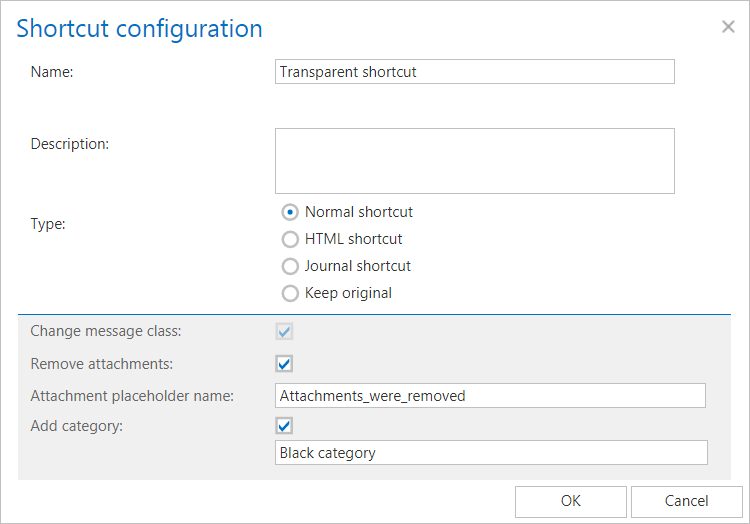
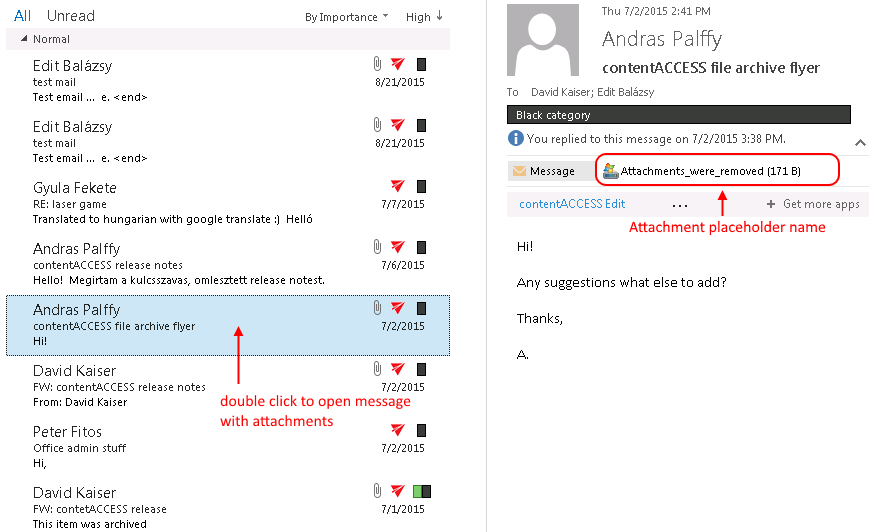
Screenshot A: Normal shortcut used by an email archive job. Screenshot B: Original email replaced with the normal shortcut in the user's mailbox.
HTML shortcut
If a job archives using an HTML shortcut, the outcome depends on the Keep formatted body option:
- If Keep formatted body is not checked: the body of the original email message is replaced by an HTML file containing two links to the original email message and its attachment(s) — one link opens the original email as
.msg, the second opens it as.eml. - If Keep formatted body is checked: the shortcut template is injected into the original body, and the original formatted body is kept.
Note: The .eml link ensures compatibility with a wide range of applications and operating systems, including macOS.
Important: Digitally signed (S/MIME) emails can be converted to shortcut with the following limitation: inline images cannot be kept in the shortcut. Even if you select the Keep formatted body option, the formatted text will be kept in the shortcut, but the inline images will be missing.
Important: If an email message is archived with the HTML shortcut method and it contains an embedded .msg, there will be no link in the body to access the embedded message as an attachment.
In certain situations, it is not possible to use Outlook to check emails. In these circumstances, users cannot use normal shortcuts to access emails. However, HTML shortcuts can still be used to access email bodies and attachments with the help of links — for example, when emails are checked using OWA. To ensure easy access to archived items in all cases, it is highly recommended to use this shortcut type.
The following table gives a general overview of how archived emails and attachments can be accessed with HTML shortcuts in MS Outlook or OWA:
| A) Prerequisites are installed | Attachments accessible | B) Prerequisites are not installed | Attachments accessible | |
|---|---|---|---|---|
| Outlook 2013 or higher | Mail app* or Outlook forms | In direct preview | – | Over links |
| OWA 2013 or higher | Mail app | In direct preview | – | Over links |
| Outlook 2010 | Outlook forms | In direct preview | – | Over links |
| OWA 2010 | OWA 2010 extension | In direct preview | – | Over links |
- MS Outlook 2013 or higher: To transparently view the archived items (body and attachment), the user needs to have the contentACCESS Outlook forms or the contentACCESS MailApp installed in Outlook.
- MS Outlook 2010: To transparently view the archived items (body and attachment), the user needs to have the contentACCESS Outlook form installed in Outlook.
- OWA 2013 or higher: To transparently view the archived items (body and attachment), the user needs to have contentACCESS MailApp installed. For more information, refer to User experience.
- OWA 2010: To transparently view the archived items (body and attachment), the user needs to have contentACCESS OWA integration installed. For more information, refer to User experience.
If the extensions are not installed, the body and attachment are still accessible over the shortcut links.
If the Remove attachments function was turned on, the attachments are still accessible by double-clicking on the archived message in the compose window.
Note: The contentACCESS Outlook add-in catches changes when replying to or forwarding an HTML and/or normal shortcut. Read more about the contentACCESS Outlook forms in contentACCESS Outlook add-in.
HTML templates
Before configuring an HTML shortcut, one or more HTML templates must be created. You can use one of the pre-configured templates or create your own. If you want to create your own template, it is highly recommended to download one of the pre-configured templates and customize it:
- If you want a more flexible template (for example, for localization purposes), download and customize a V2 template.
- If you want to keep the original formatted body, download and customize a V2 formatted template.
The 5 predefined HTML templates are:
- Default
- Microsoft 365 template
- Microsoft 365 formatted template
- Microsoft 365 V2 template
- Microsoft 365 V2 formatted template
The formatted templates are used when creating an HTML shortcut with the Keep formatted body option checked. The V2 templates use mustache syntax, which allows much more flexibility when creating the template. All text included in them can be changed, meaning the templates can be fully localized.
To obtain a template:
-
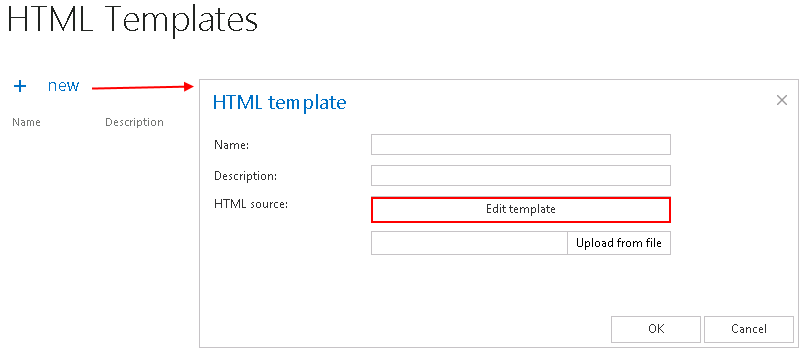
Default template: click + new under the HTML Templates section, then click Edit template in the HTML template dialog to download it automatically.
-
Pre-configured template: select Edit from its context menu, then click Edit template.

-
Custom template: download a pre-configured template as described above, save it to your disc, then edit it using an HTML editor of your choice and save it.
To upload the default or custom HTML template to the template list:
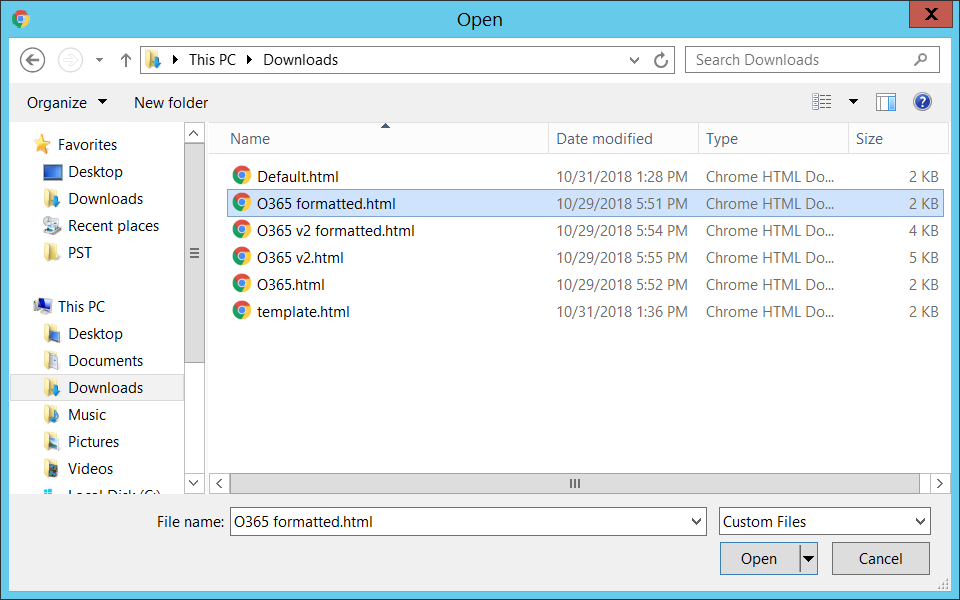
- Under the HTML Templates section, click + new. The HTML template dialog opens.
- Enter a Name for the template and, optionally, a Description.
- Click Upload from file and browse for the desired template.
- Upload it to the template list.

Configuring an HTML shortcut
Once your desired template is uploaded, a custom HTML shortcut can be configured. Navigate to Email Archive ⇒ Settings ⇒ Shortcut configuration and click + new under the Shortcut configuration section.
The Shortcut configuration dialog opens:
- Name: enter a name for the shortcut.
- Use html template: select the HTML template that you have created.
- Keep formatted body: if checked, the original HTML body is not converted to plain text during shortcut creation — the system instead tries to inject the attachment links into the existing message body. You must select a template that supports this formatting option. It also becomes possible to keep inline attachments in the mail body by checking Keep inline attachments. The Truncate body option is disabled when this is checked.
- Change message class: checked by default and cannot be unchecked. This enables restoring the archived emails from the shortcuts.
- Truncate body: if you want a certain number of characters to be included in the shortcut, check this option and enter a value.
- Remove attachments: checked by default for HTML shortcuts. Removed attachments can later be retrieved by double-clicking on the archived email in the compose window.
- Attachment placeholder name: specifies the placeholder name, same as when configuring a normal shortcut.
- Add category: specifies the category used to mark archived emails.
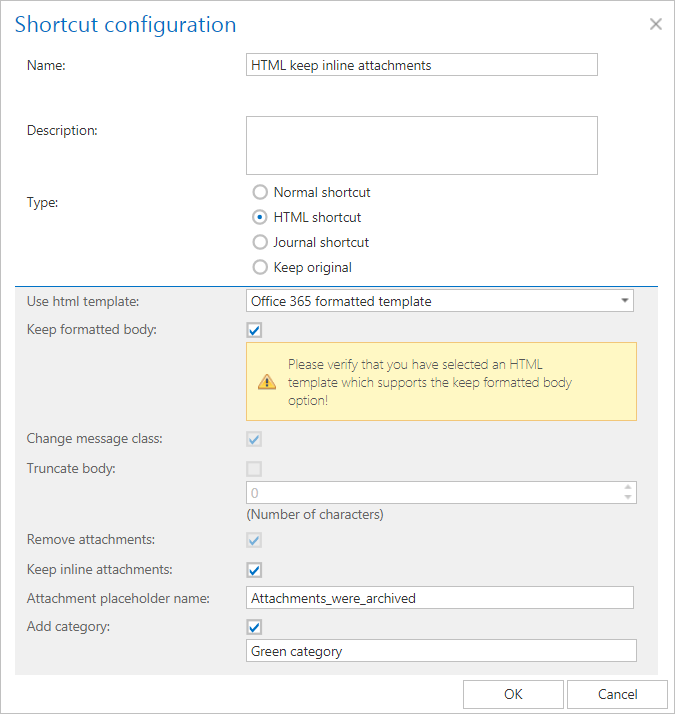 Screenshot: Configuring a new HTML shortcut.
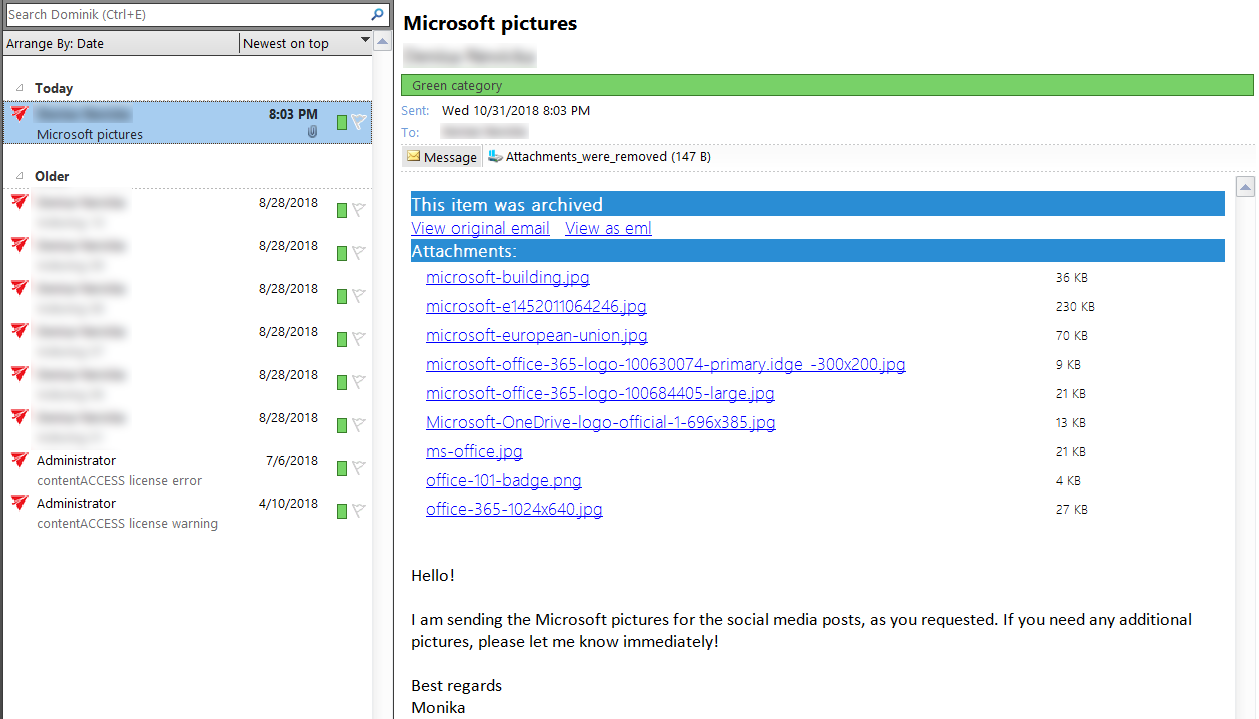 Screenshot: Email replaced by the HTML formatted shortcut in the user's mailbox.
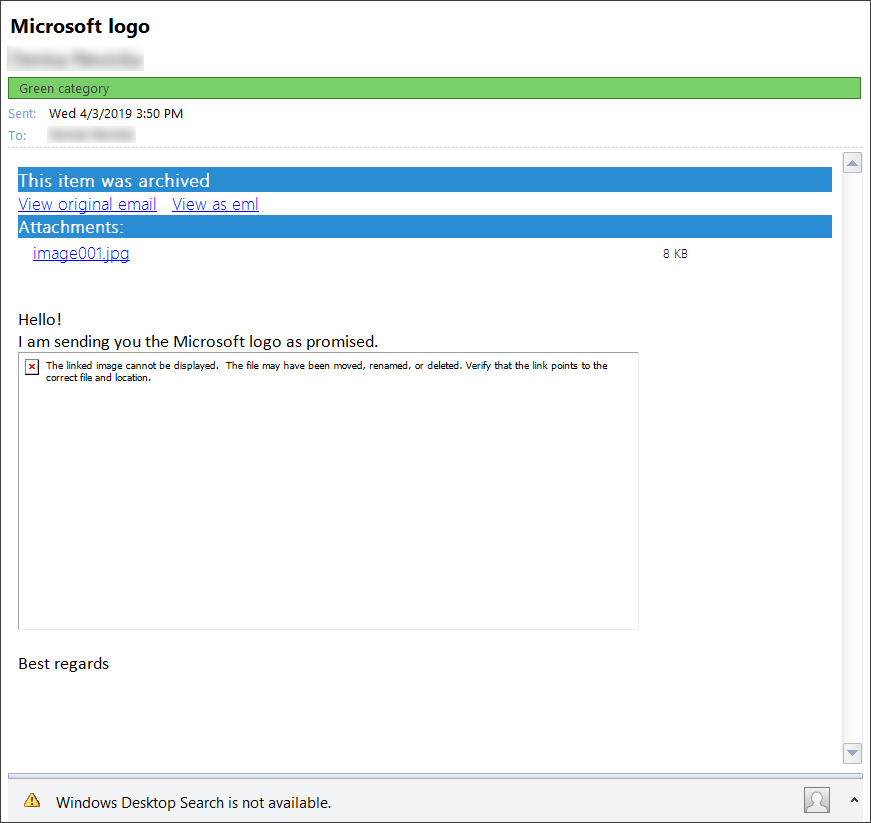 Screenshot: Email archived with Keep inline attachments unchecked.
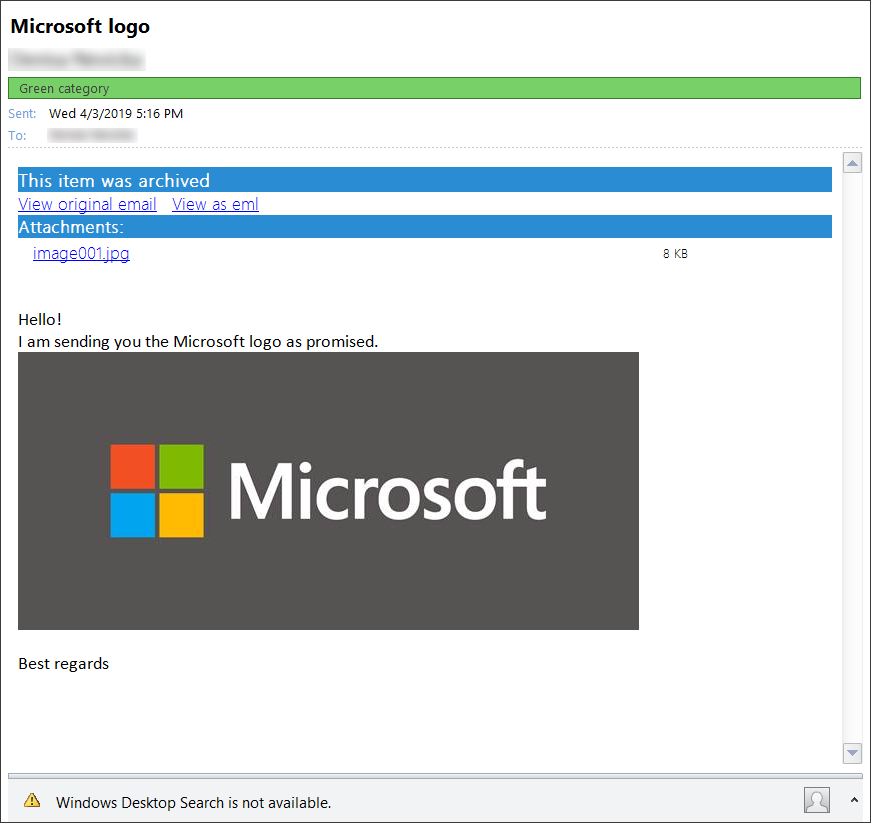 Screenshot: Email archived with Keep inline attachments checked.
Note: The HTML shortcut that replaces the archived email also contains a link in .eml format, which is compatible with macOS as well.

After filling in all required data in the Shortcut configuration window, click OK.
Note: Always keep in mind that the size of an HTML template cannot exceed 32 kB. If the template is edited with MS Word, a large amount of redundant information will be included in the template, which can easily cause the file size to exceed the maximum. For this reason, it is not recommended to use MS Word for editing HTML templates. If you receive a warning such as the one below, delete the template and try editing a new default one with an alternative HTML editor.

Journal shortcut
With this option, the original message is automatically deleted from the original location. The Delete original checkbox is inactive and selected by default. This processing type is commonly used when archiving mailboxes that will no longer be used (for example, if the mailbox user or employee leaves the company), or when mailbox items are older than 2 years. It is also commonly used for archiving Exchange server journal mailboxes.
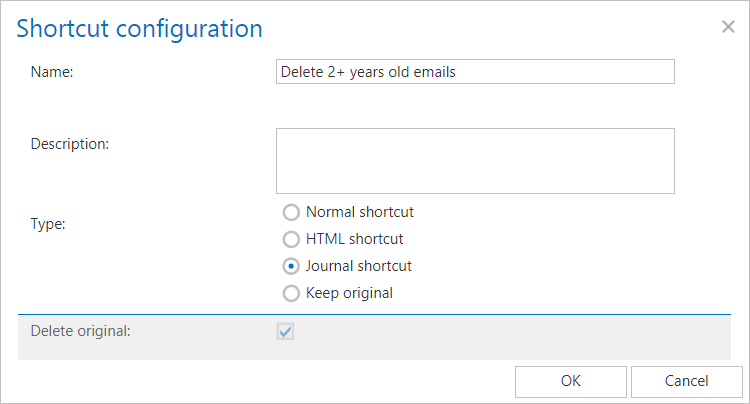
Keep original shortcut
With this option, the original document is kept in its original location/folder. It is recommended to select this processing type for archiving emails younger than 1 year. By checking the Add category checkbox and specifying a custom category, you can set up a custom category for the archived email message (for example, if the Blue category is set, as shown in Screenshot B below, the email is marked with this color).
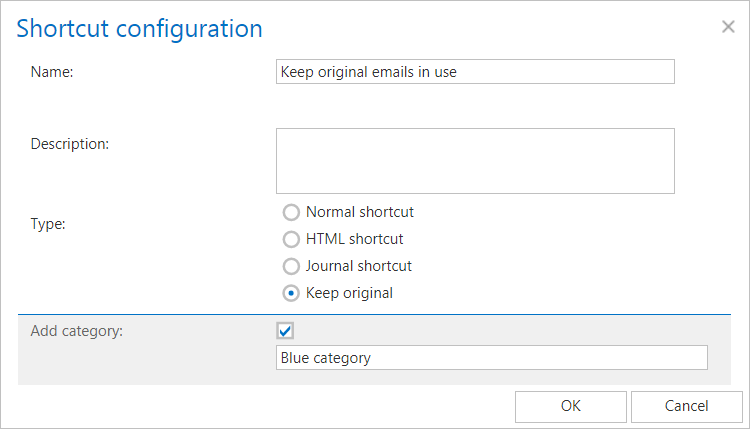
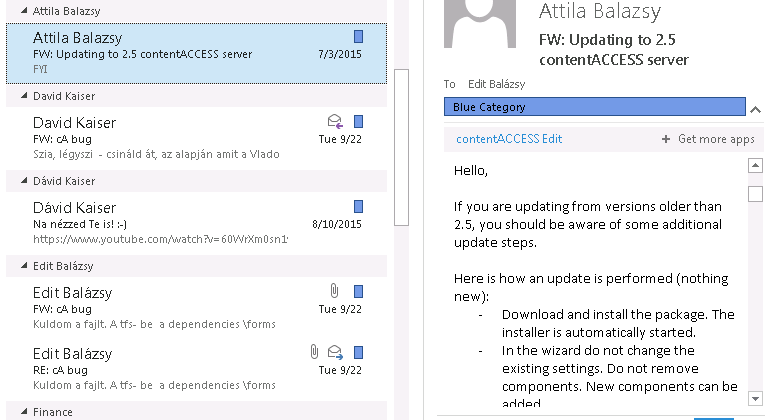
Screenshot A: Keep original method used for archiving emails older than 2 years. Screenshot B: Untouched originals marked with blue.
Editing shortcuts
To modify a shortcut:
-
Select the shortcut you would like to modify from the grid and open its context menu.
-
Click Edit and change the settings in the Shortcut configuration dialog so that the shortcut contains the information you require.
You can also set the selected shortcut as default from the shortcut's context menu. This is a required setting if you want to archive or restore emails manually using the contentACCESS MailApp or OWA integration (more information in User experience).