Exchange 2010: OWA 2010 integration
Introduction
The OWA 2010 integration deploys Outlook Web Access (OWA) support to your Exchange 2010 server, enabling contentACCESS and legacy (MAM and ELM) shortcuts to open transparently directly in OWA 2010. Once installed, mailbox items can be manually archived, and contentACCESS shortcuts can be restored directly from the mailbox.
This page covers the prerequisites for the OWA 2010 integration, how to install it on the CAS 2010 (Client Access Role) server, how to verify a successful installation, and the mailbox operations available once the integration is in place.
Prerequisites
The OWA integration feature requires the following to be in place:
- Proxy with HTTPS connection installed – this can be installed on the CAS 2010 (Client Access Role) server as well. The proxy is used by OWA to retrieve emails from the shortcuts.
- A HTTPS alias configured on the System page, under the External accessibility settings section (see System settings for more information).
- A default shortcut, used when archiving from the mailbox (see Shortcuts in email archiving for more information).
- A default retention (see Retentions for more information).
Install the OWA integration on the CAS 2010 server(s)
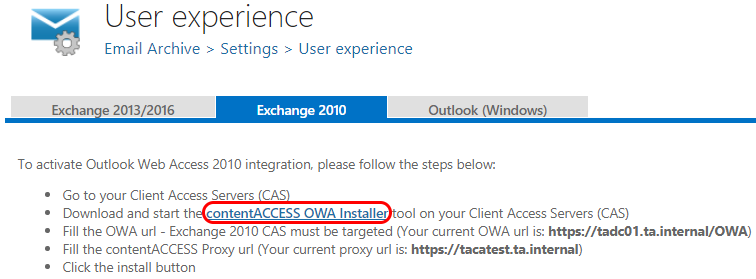
Go to the CAS server(s). The OWA integration setup can be accessed on the User experience page of the Central Administration, by navigating to Email Archive ⇒ Settings ⇒ User experience. If Exchange 2010 is configured in the Email Archive's system settings, the corresponding tab is automatically preselected on this page.
Use the link on this page to download the contentACCESS OWA Installer tool and start it on your CAS server(s).
The OWA installer requires the following steps:
- Fill in the OWA URL field (the value is prepopulated in the OWA 2010 installer window on the User experience page).
- Fill in the contentACCESS Proxy URL field (the value is also prepopulated in the OWA 2010 installer window on the User experience page).
- Click Install.
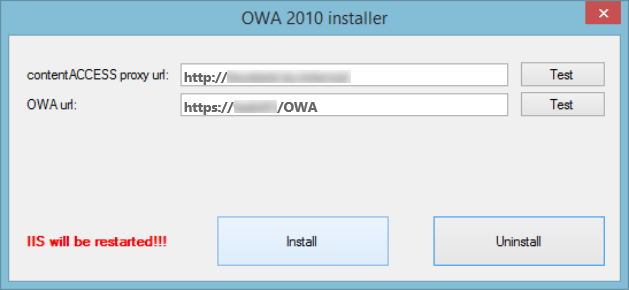 Screenshot: OWA 2010 installer (sample).
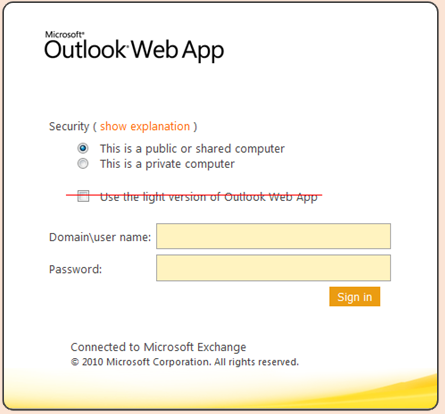
Important: The shortcuts in OWA 2010 do not work with the light version of OWA. Do not select this option when signing in:
Verify the installation
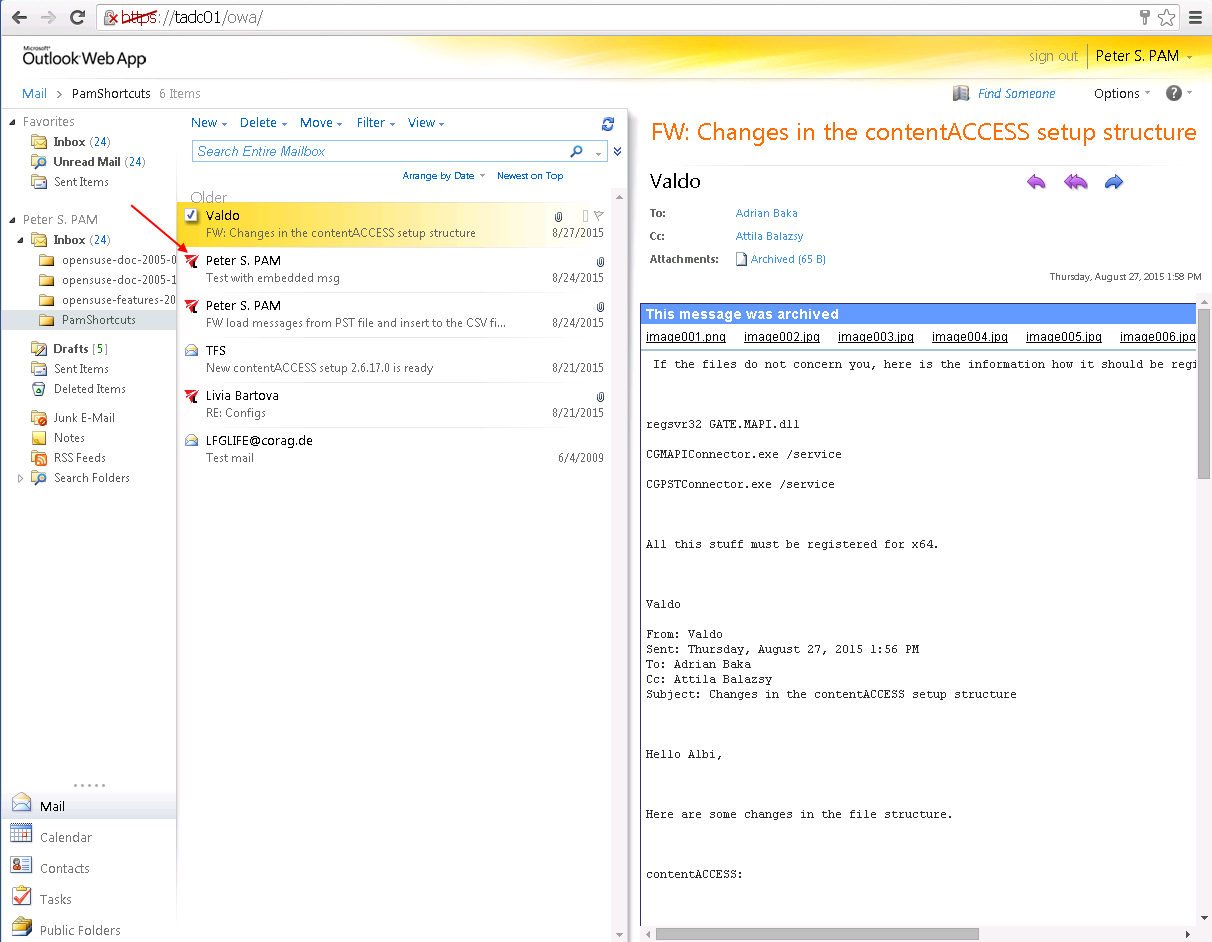
The contentACCESS icons in your mailbox indicate that the OWA 2010 integration has been successfully installed on your CAS server. Uninstalling the OWA 2010 support automatically removes these icons.
Legacy shortcuts are marked with an icon containing the letter "L", as shown below.
Mailbox operations available with OWA 2010
If OWA 2010 is used, the following operations are available in the contentACCESS mailbox items context menu:
-
Manual archiving: Mailbox items that have not been archived yet can be archived manually. Multiple items can be archived at once.
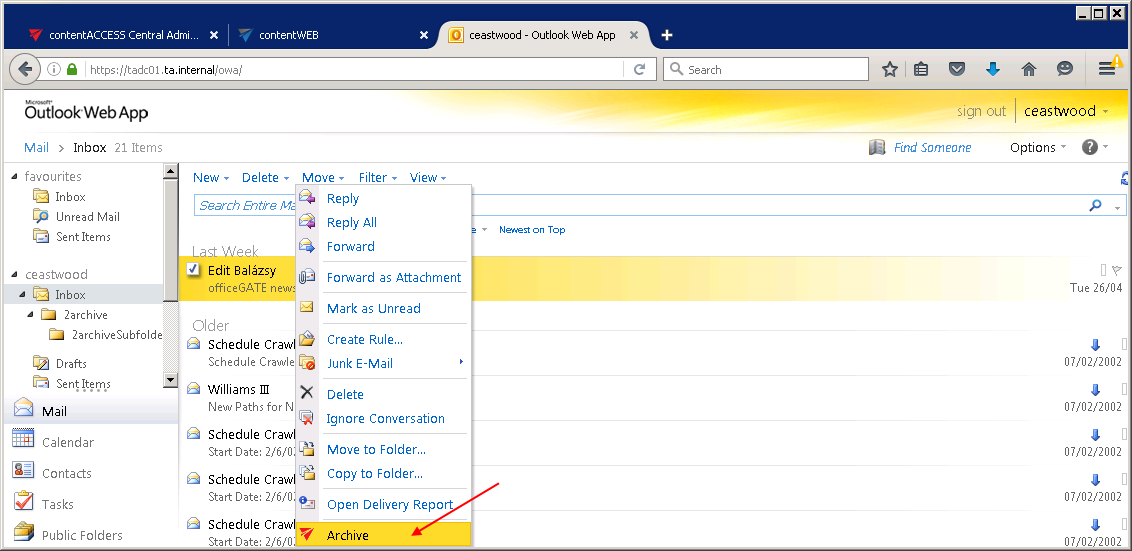
-
Manual restoring: Already archived emails can be restored using the email's context menu.
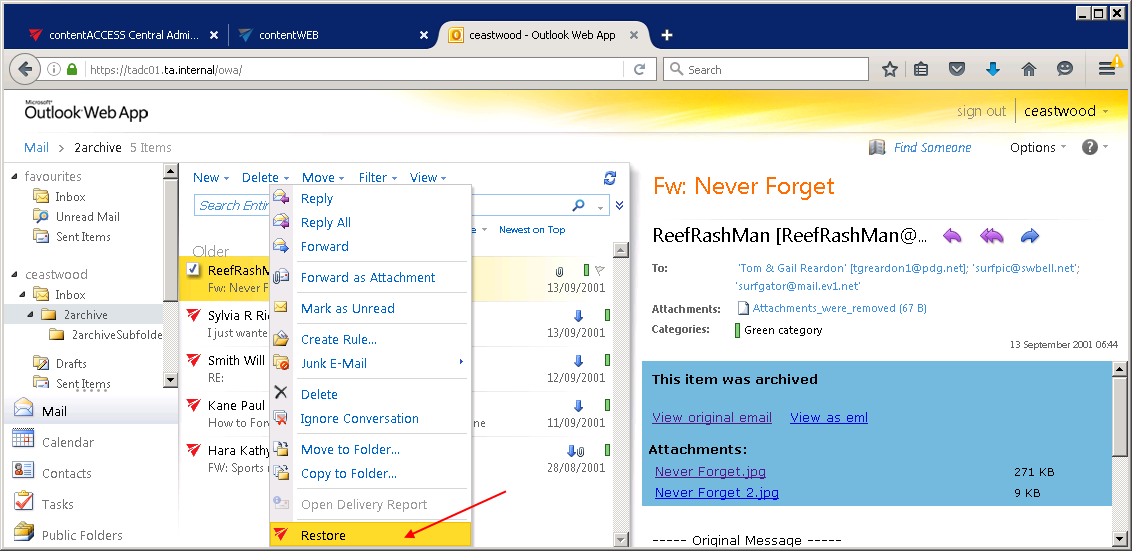
Hint: Conversation mode must be turned off, otherwise manual archiving and manual restoring are not available in the context menu.
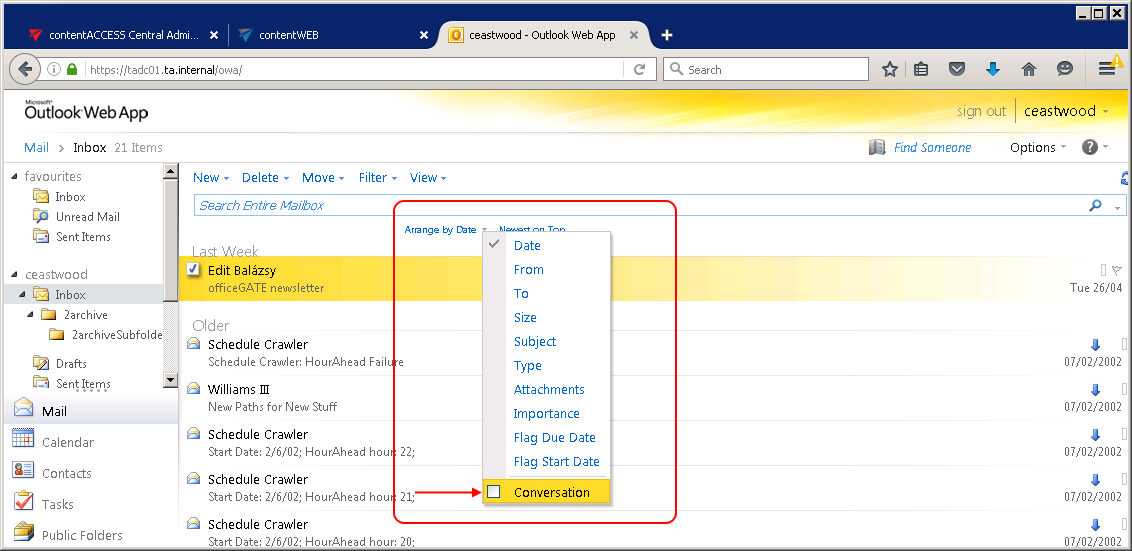
The operations available depend on the shortcut type:
- contentACCESS shortcuts: All operations (forward, reply, manual restoring) are available, including restoring of multiple items, except forwarding as attachment.
- Legacy MAM and legacy ELM shortcuts: Forwarding and replying are available, but manual restoring and forwarding as attachments are unavailable.