Grant permissions for Email archive
Introduction
Granting permissions for Email archive enables contentACCESS to authenticate and connect to the Microsoft Exchange Online environment using a modern and more secure authentication method. This page describes how to configure the required API permissions, grant admin consent, assign the required Exchange role, and generate the client secret needed for this authentication method.
Prerequisites
- An existing App registration in Azure Active Directory.
- Administrator access to Azure Active Directory to grant admin consent and assign roles.
Configure API permissions
-
On the application details page, click API permissions in the left menu. When the configured permissions page loads, click + Add a permission and select the requested API.
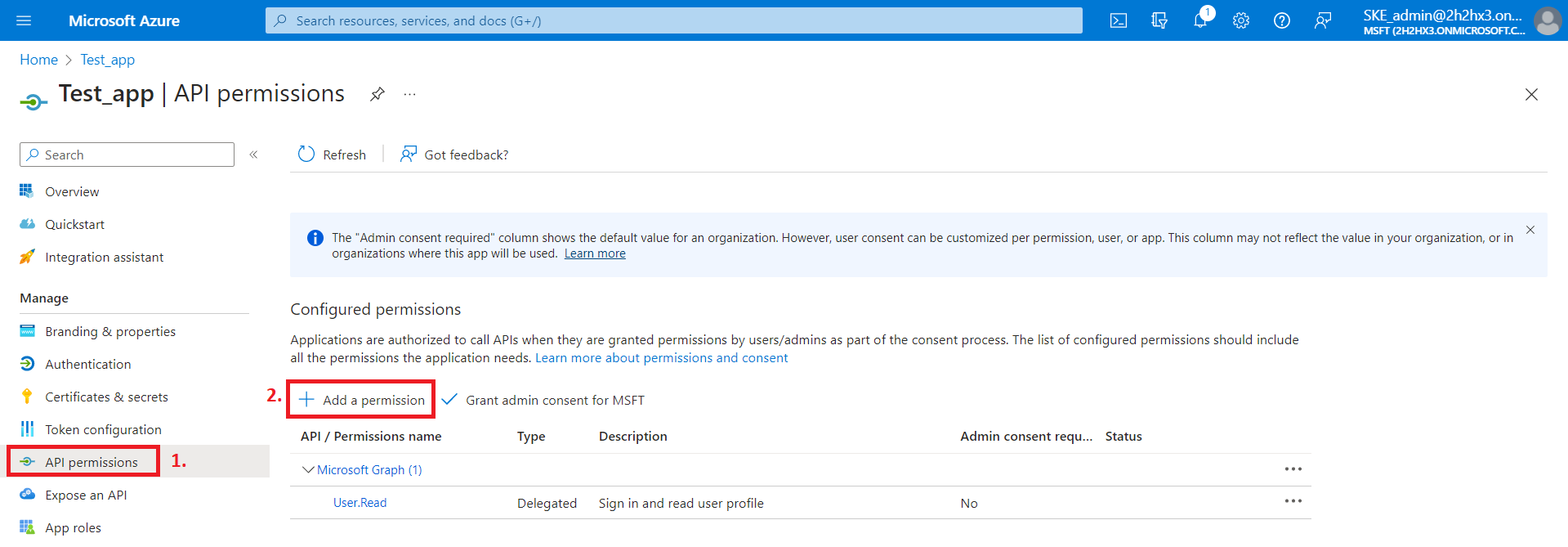
-
On the Request API permissions tab, search for Office 365 Exchange Online and select it.
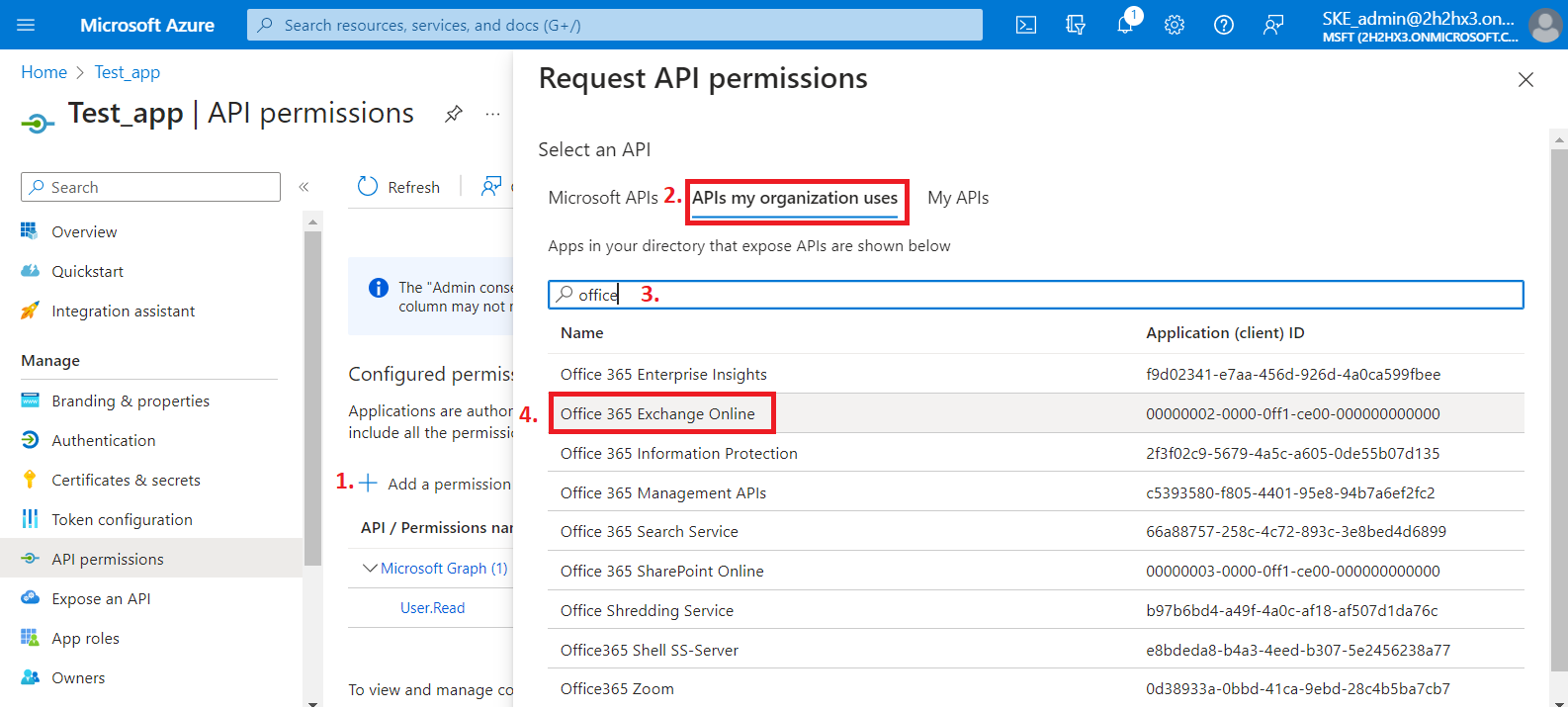
-
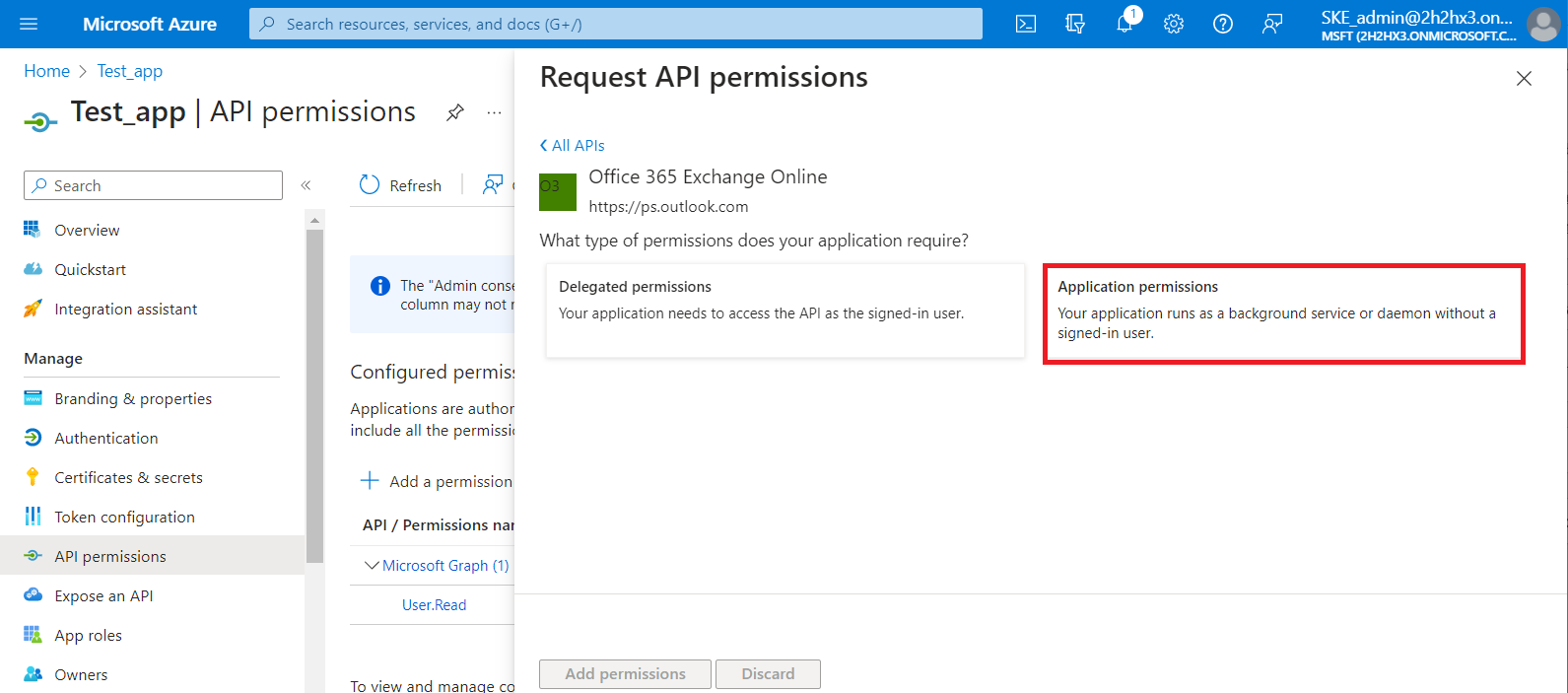
Select the Application permissions box to display the available permissions in this category.
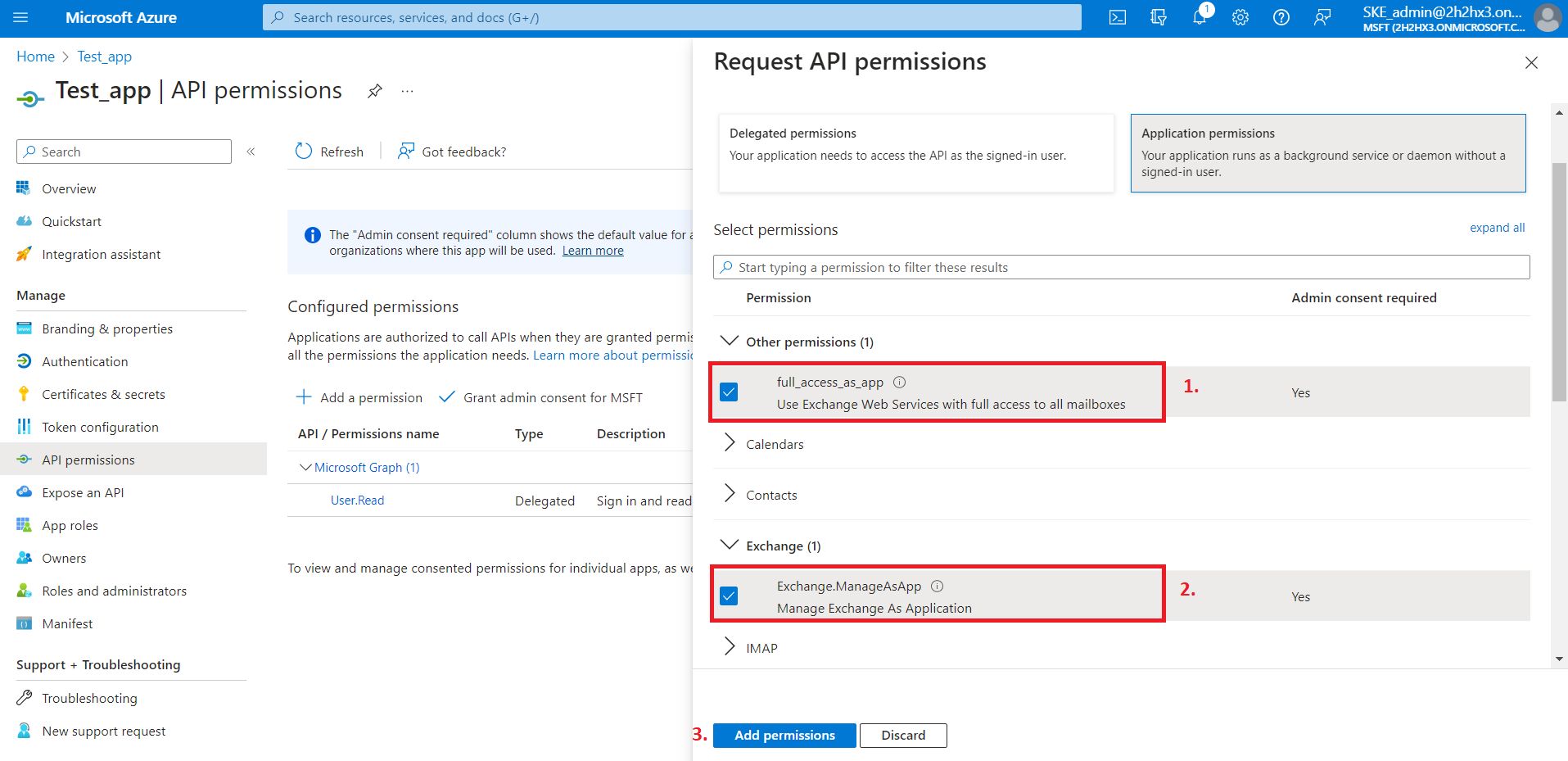
Locate the full_access_as_app permission under Other permissions and the Exchange.ManageAsApp permission under Exchange, then click Add permissions.
Grant admin consent
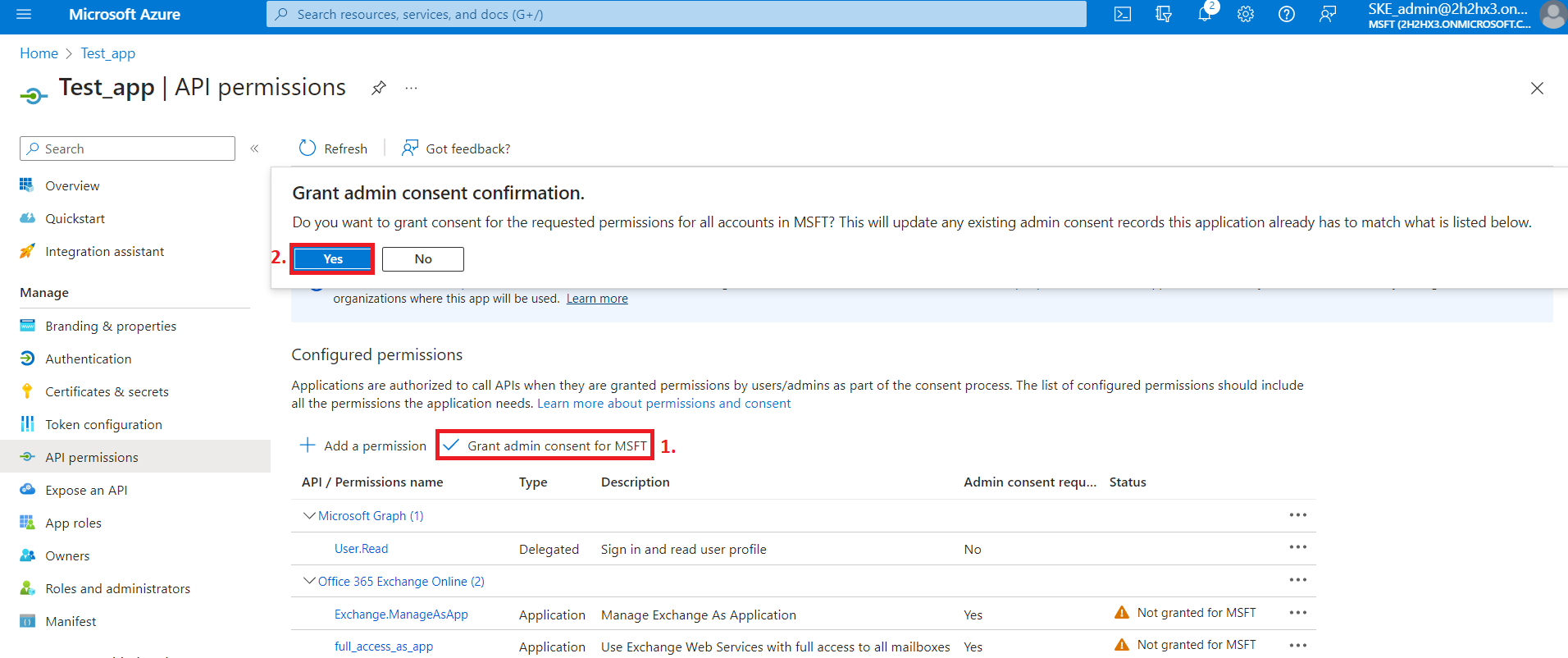
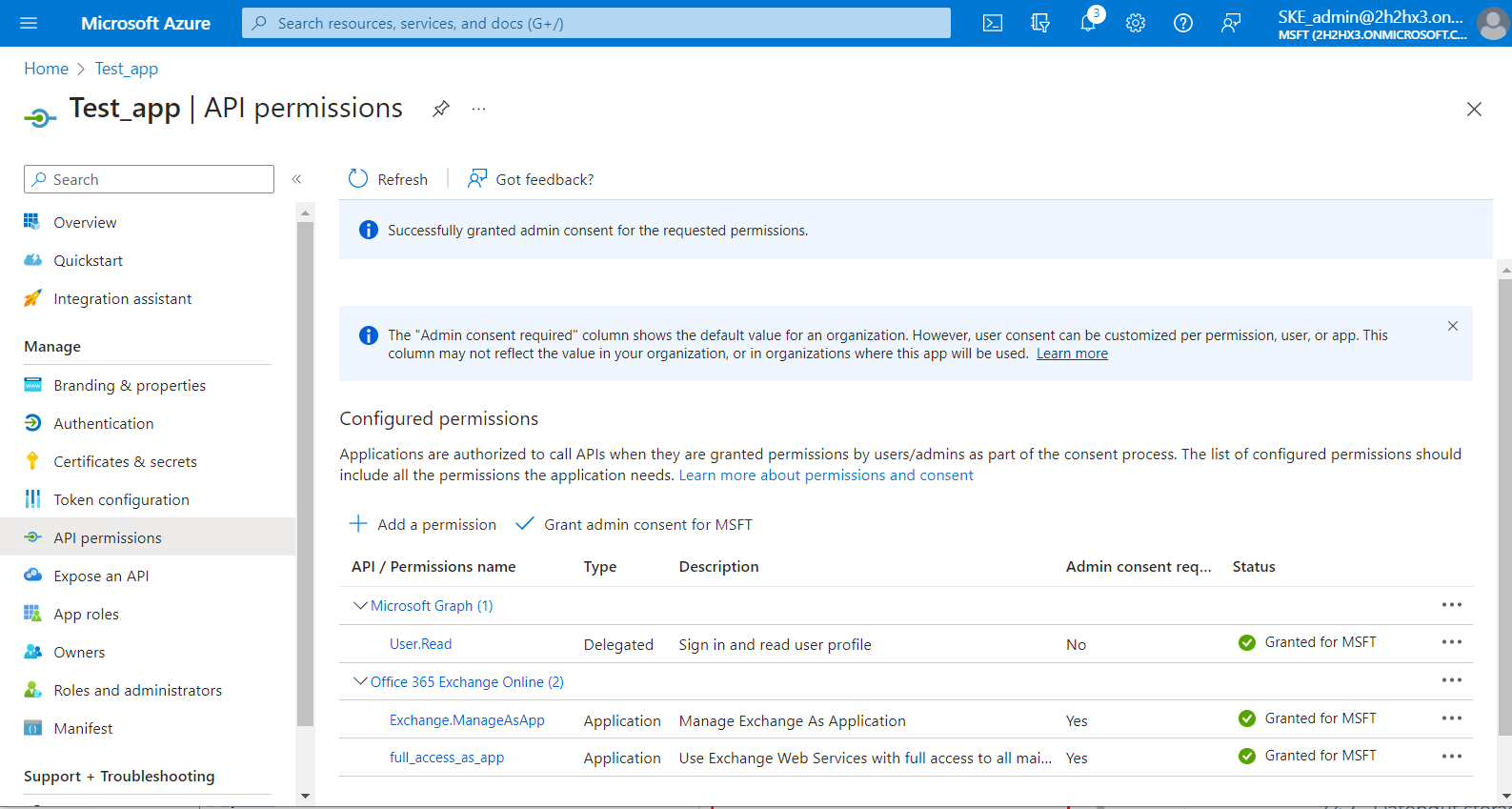
After the permissions have been assigned to the application, the administrator must grant consent for these permissions.
Click Grant admin consent for "TENANTNAME".
Assign the required Exchange role
The Exchange.ManageAsApp permission allows the application to connect to PowerShell but does not grant access to any PowerShell commands or Exchange objects. Access to Exchange objects is granted through Role Based Access Control (RBAC). This means the App registration must be assigned to the Exchange Administrator role or the Exchange Recipient Administrator role.
-
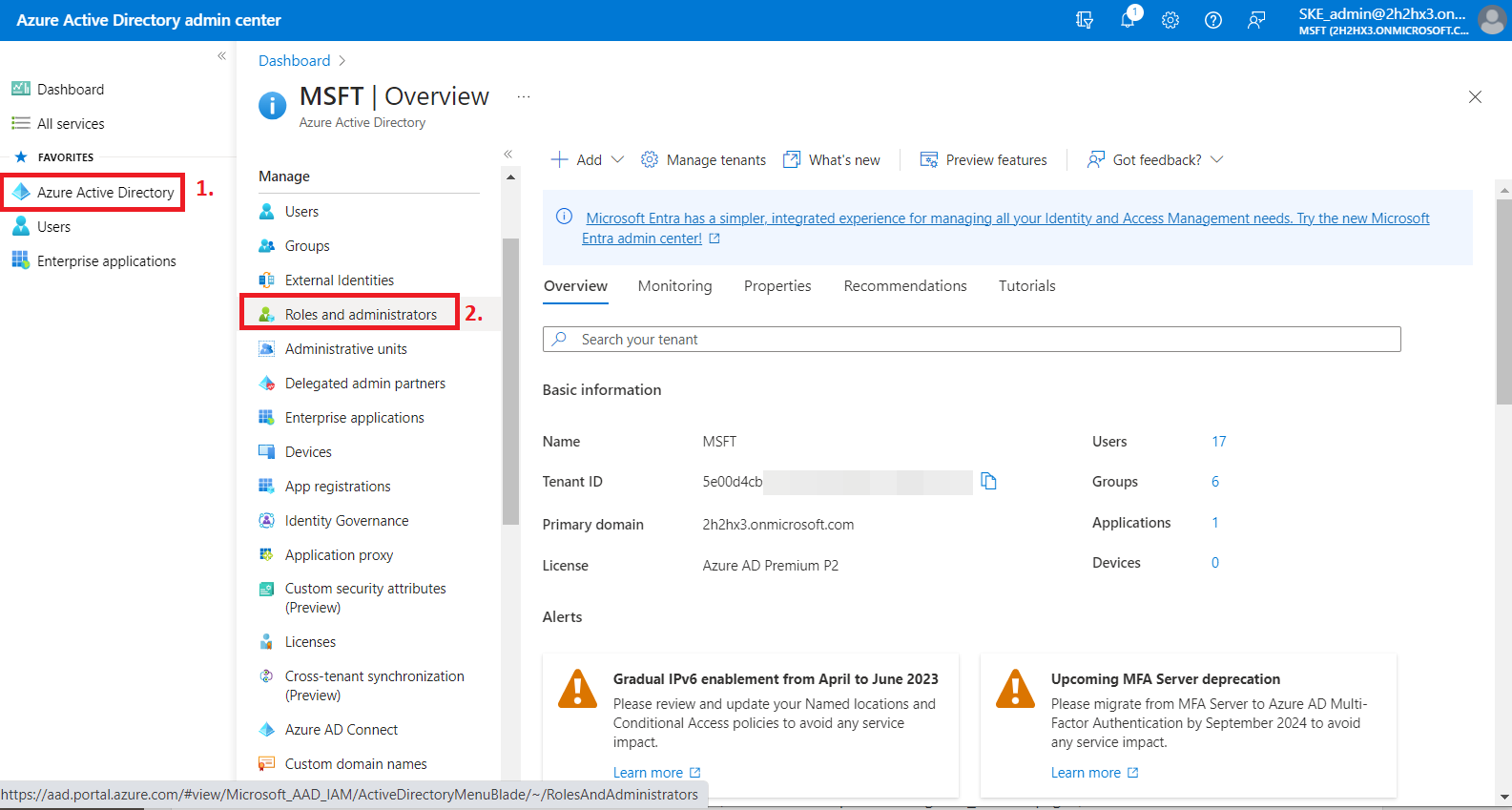
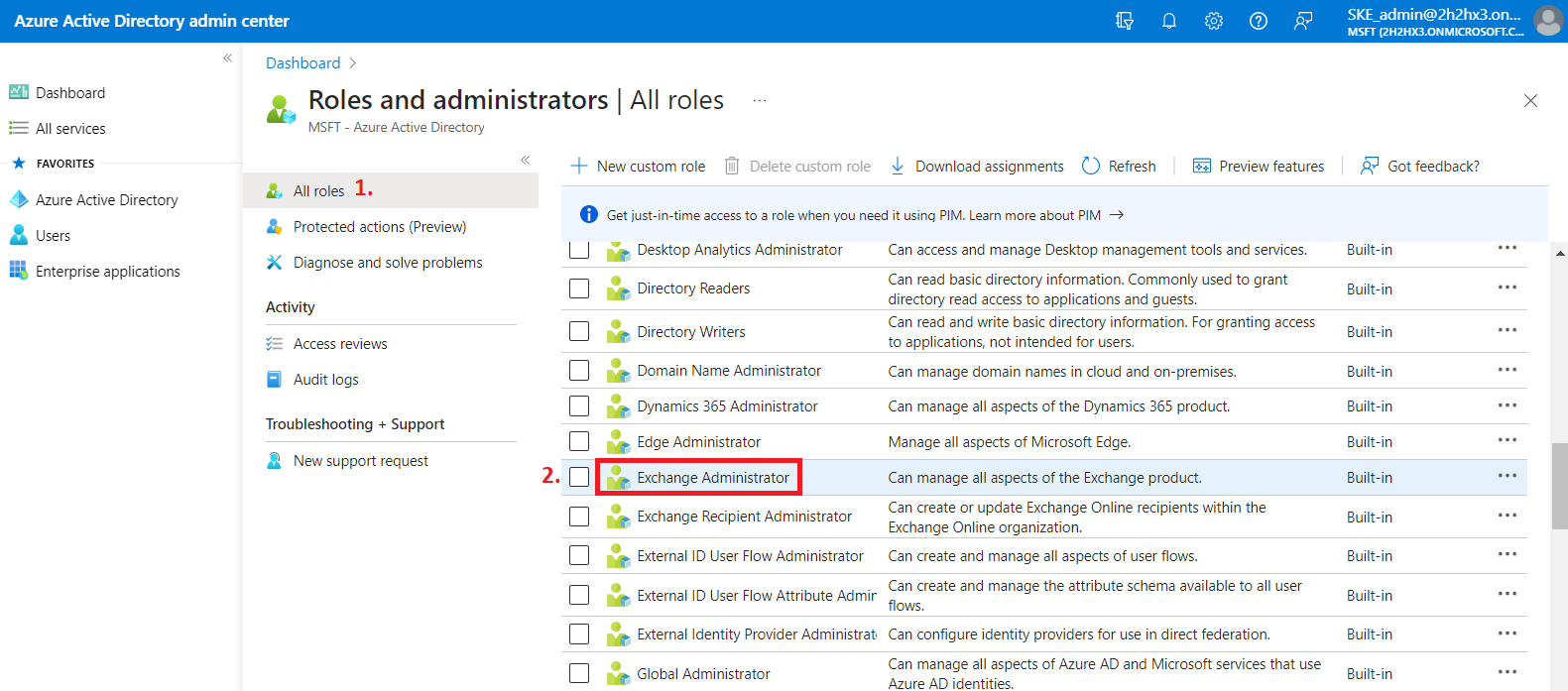
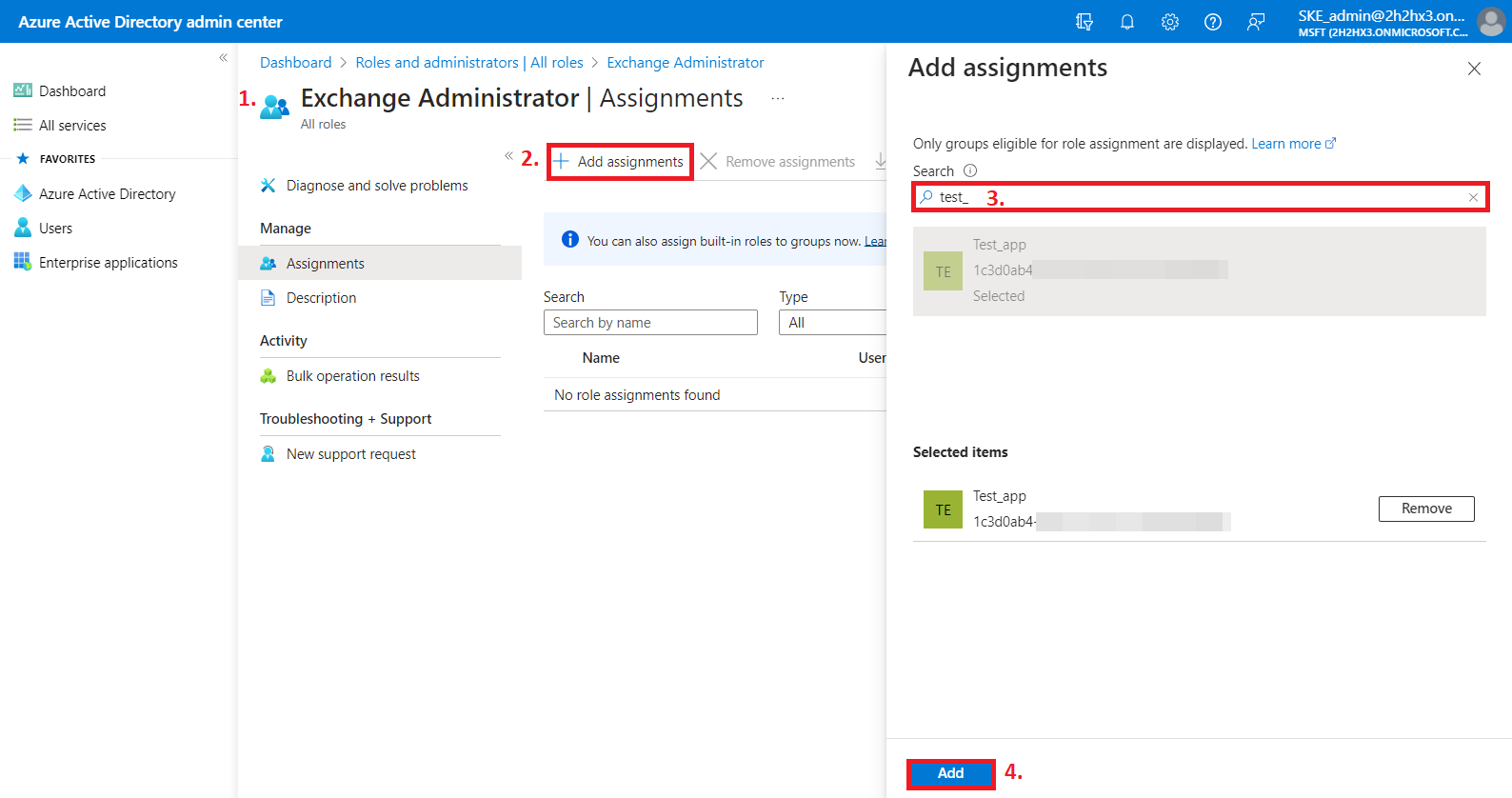
Go to the Azure Active Directory page, then open the Roles and administrators | All roles page. Select Exchange Administrator from the list and click the role.
-
Click Add assignments, then search for your App registration (for example,
Test_app) and assign it to the role.infoNote: The App registration must be of type Service Principal.
-
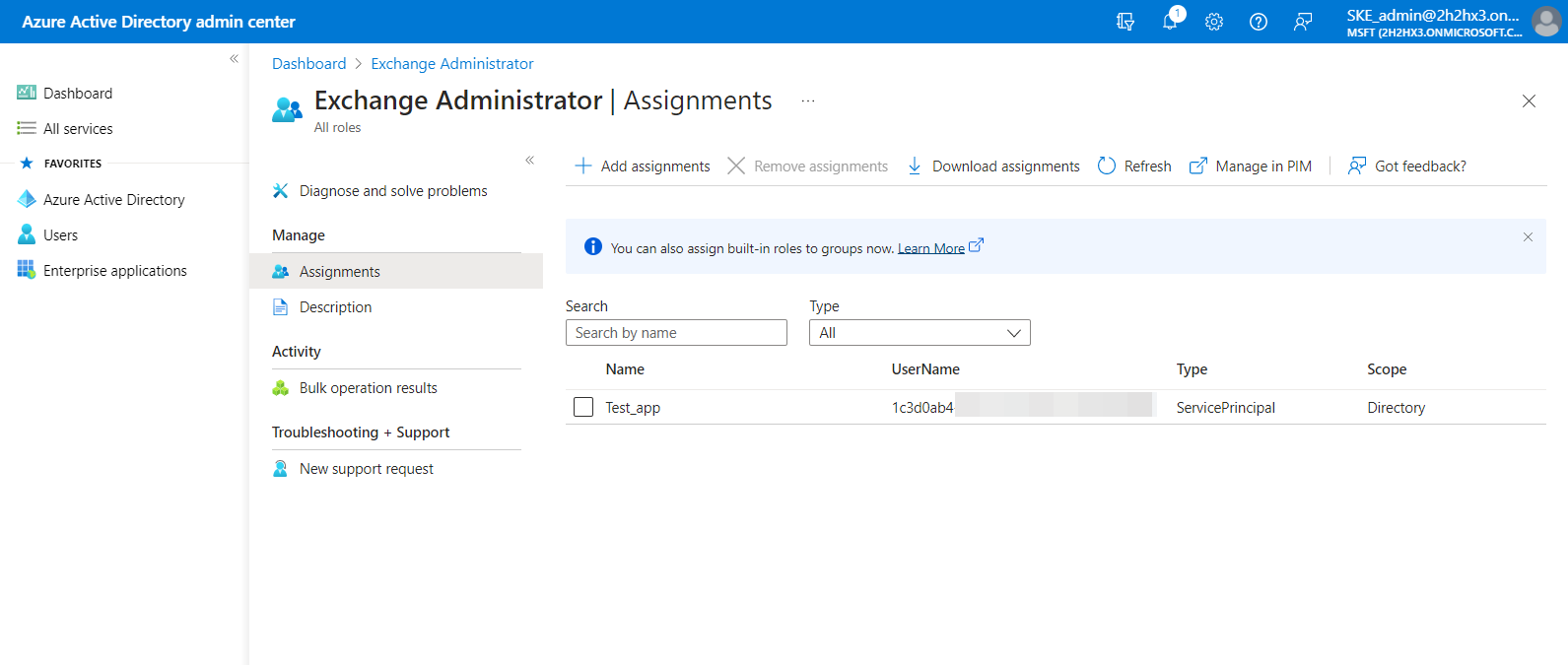
The assigned role will now be listed on the Exchange Administrator | Assignments page.
Generate a client secret
Once the permissions are assigned to the application, admin consent is granted, and the roles are assigned, add a new client secret by clicking + New client secret. This is necessary for some jobs and client applications.
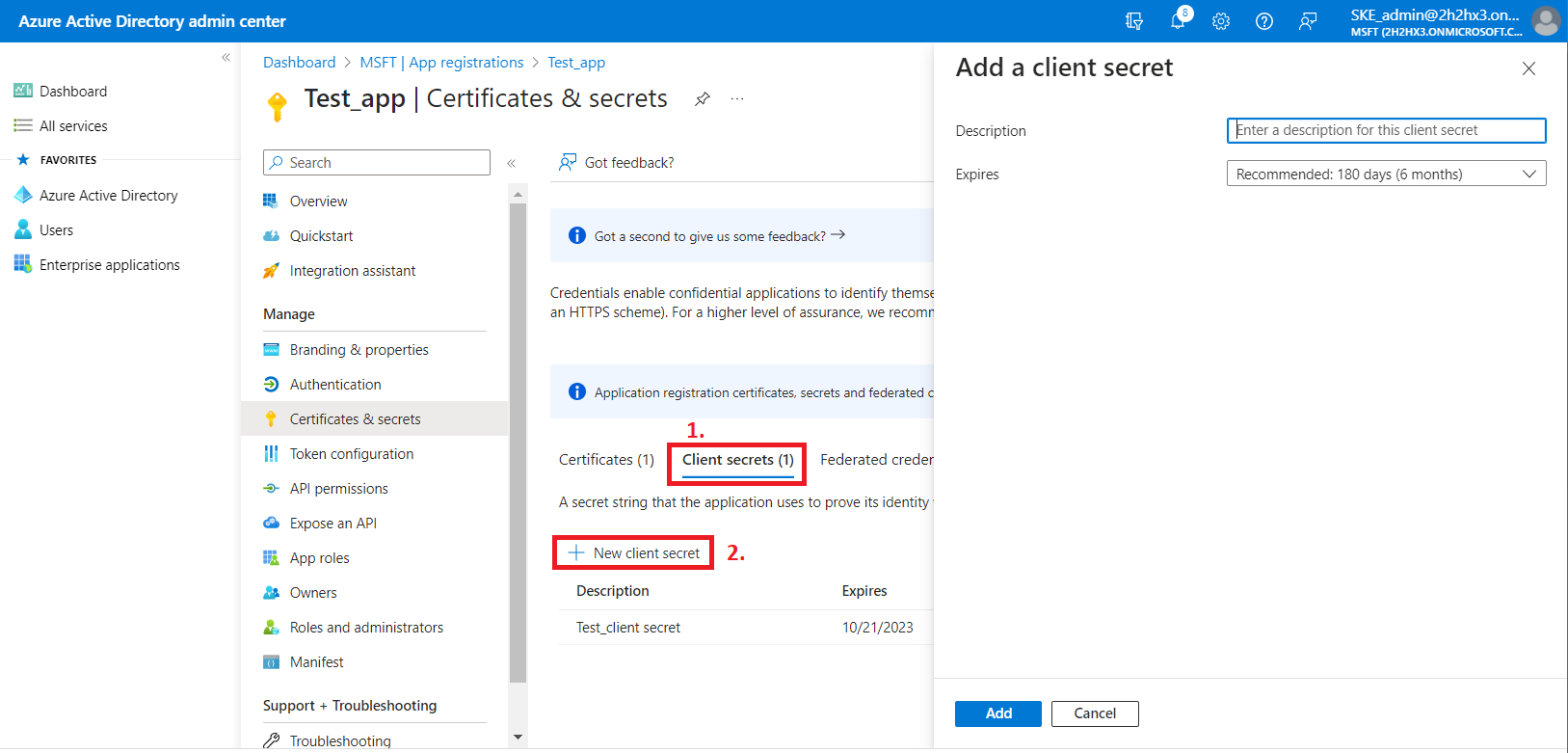
After the configuration is done, copy the client secret shown in the Get client secret dialog box to a secure location so that you can refer to it later. The client secret is required when configuring certain contentACCESS modules with modern authentication, such as:
Note: The App registration uses a client secret that has a limited lifetime (usually one year). It is important to track this expiration: every year, a new client secret must be generated for the App registration. The updated client secret must then be applied to all affected contentACCESS configurations.
Once these steps are complete, contentACCESS can be configured to use modern authentication for PowerShell. For more information, see the Exchange connection configuration page.