Grant permissions for the SharePoint archive
Introduction
Granting permissions for the SharePoint archive enables contentACCESS to authenticate and connect to the Microsoft 365 environment using a modern and more secure authentication method based on Azure Active Directory app registrations.
This page describes step by step how to:
- Add the required API permissions from Microsoft Graph and SharePoint.
- Grant admin consent for the assigned permissions.
- Assign a client access certificate to the application.
- Create a client secret required for configuring contentACCESS modules with modern authentication.
Add API permissions
Navigate to your registered application (Azure Active Directory → App registration → Owned applications → registered application, for example Test_app → open the application by clicking on its title).
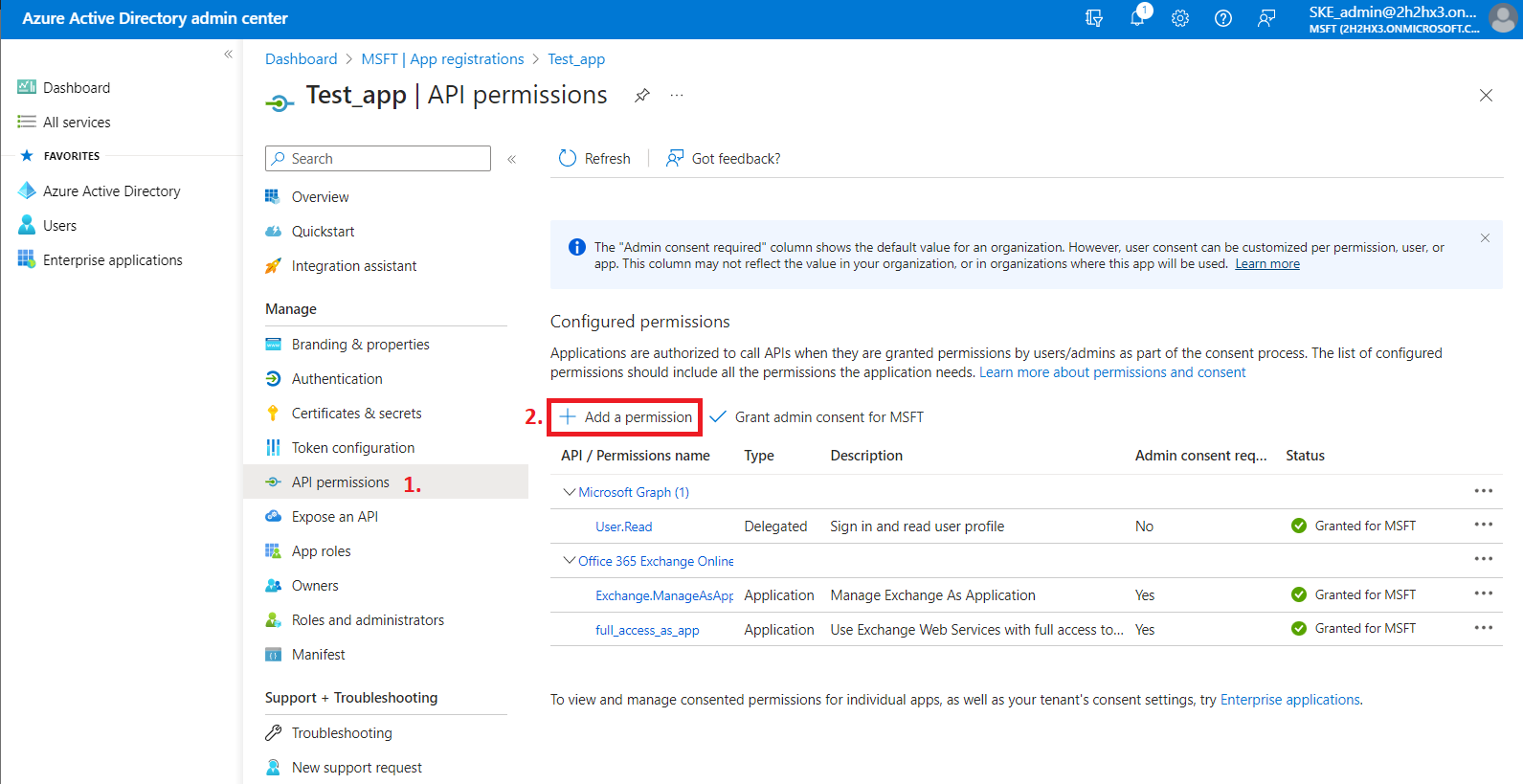
- On the application details page, click API permissions in the left menu.
- When the configured permissions page loads, click + Add permission.
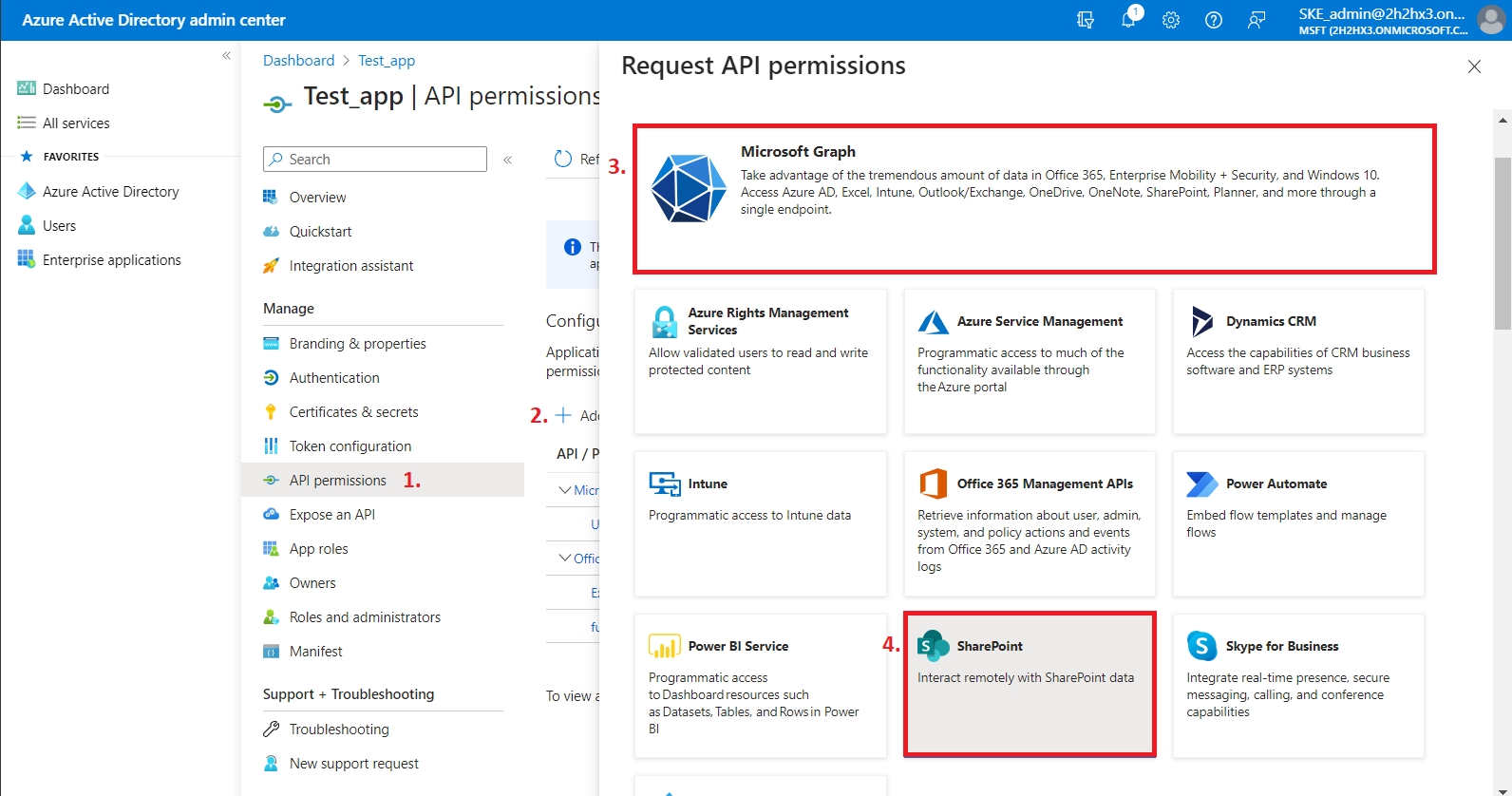
- Select the requested API.
On the Request API permissions → Microsoft APIs tab, you need permissions from both the Microsoft Graph and SharePoint options to support all the functions of contentACCESS and other client applications, including Azure AD group support in the SharePoint archive.
Microsoft Graph permissions
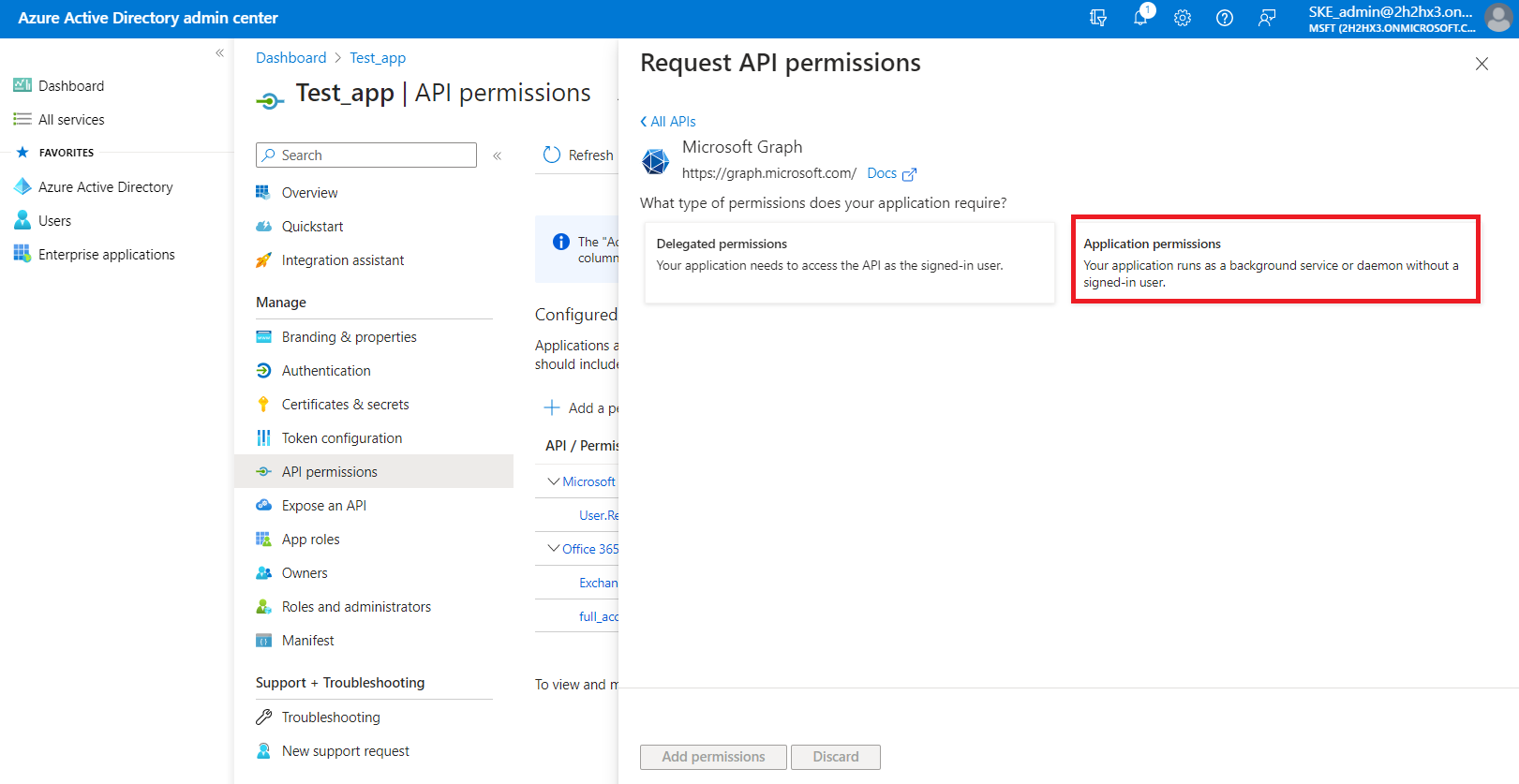
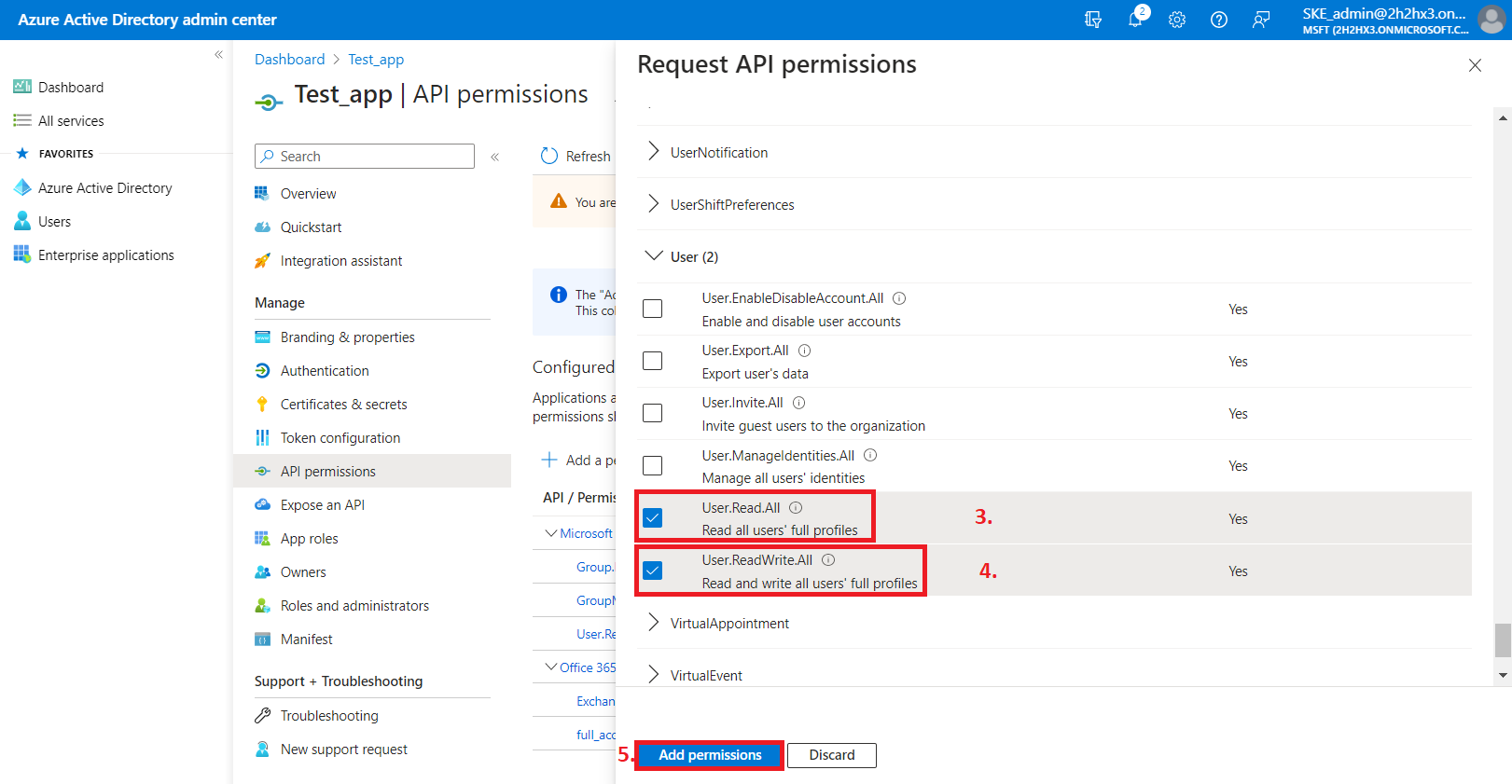
After selecting Microsoft Graph from the list, choose the Application permissions box, where the available permissions from this category are shown.
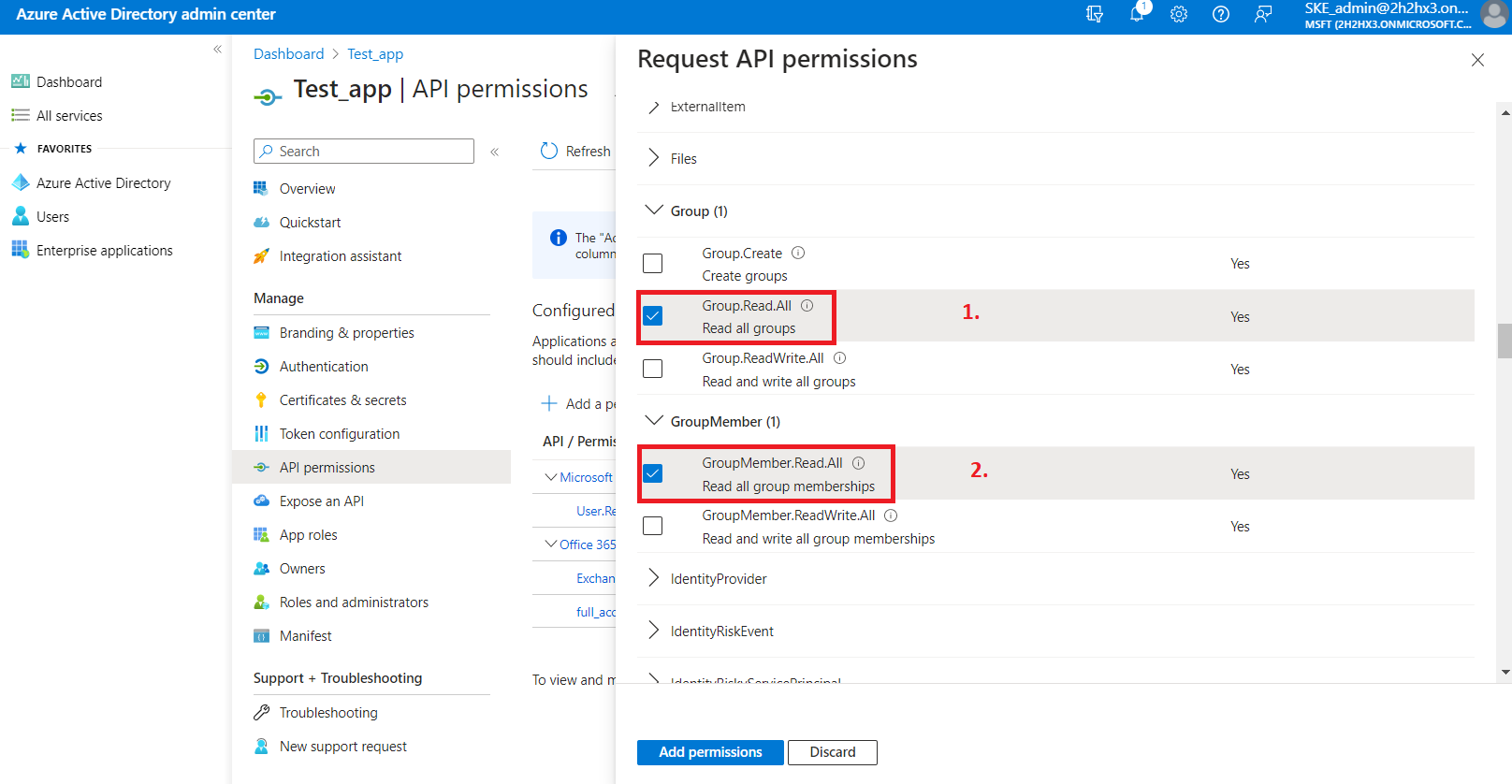
Locate the following permissions:
- Group.Read.All (read all groups) from the Group option.
- Group.Members.Read.All (read all group memberships) from the GroupMember option.
- User.Read.All (read user profiles) and User.ReadWrite.All (read and write user profiles) from the User option.
Then click Add permissions.
SharePoint permissions
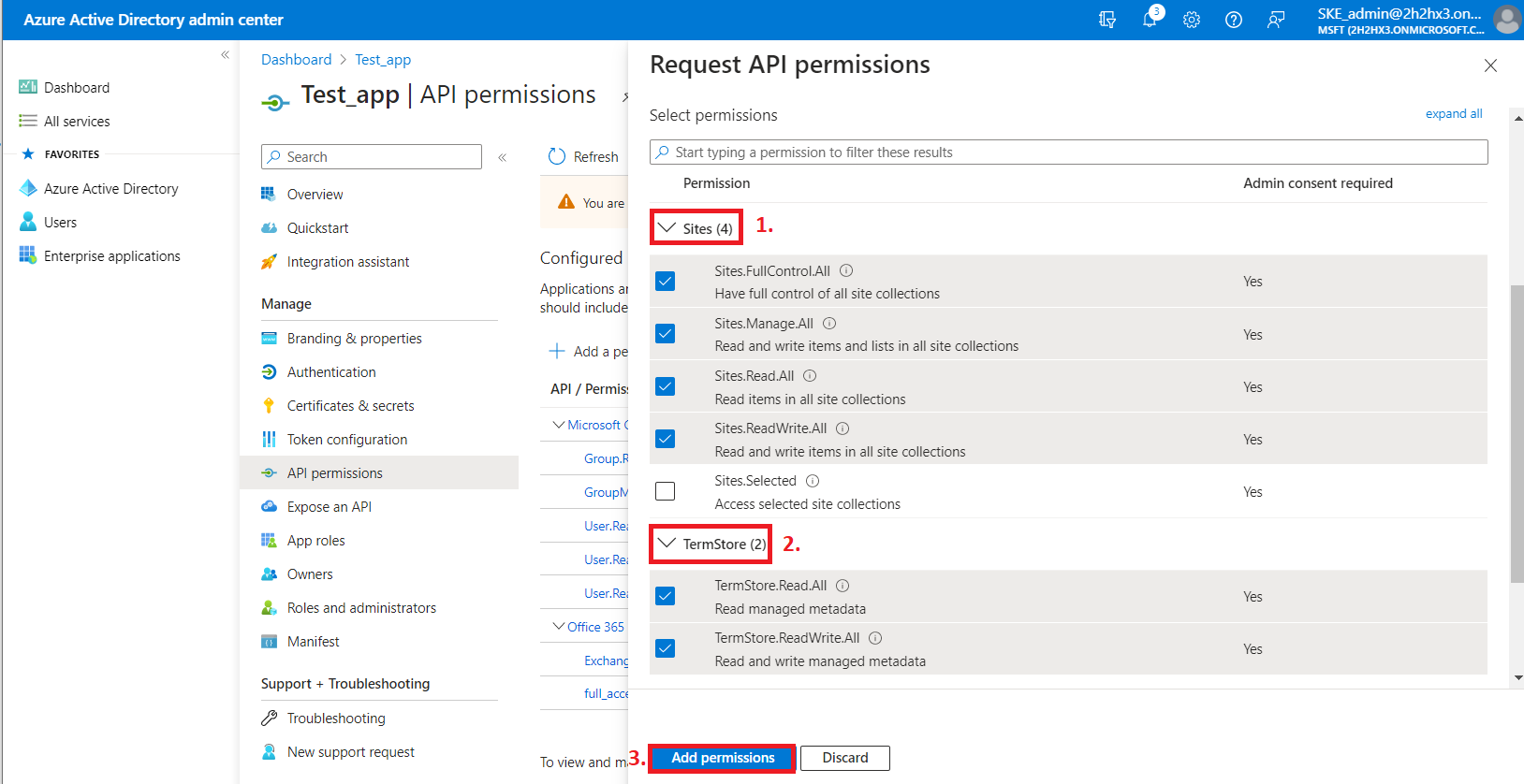
From the SharePoint option, the following Application permissions are required, from the Sites and TermStore groups:
- Sites.FullControl.All – have full control of all site collections.
- Sites.Manage.All – read and write items and lists in all site collections.
- Sites.Read.All – read items in all site collections.
- Sites.ReadWrite.All – read and write items in all site collections.
- TermStore.Read.All – read managed metadata.
- TermStore.ReadWrite.All – read and write managed metadata.
Grant admin consent
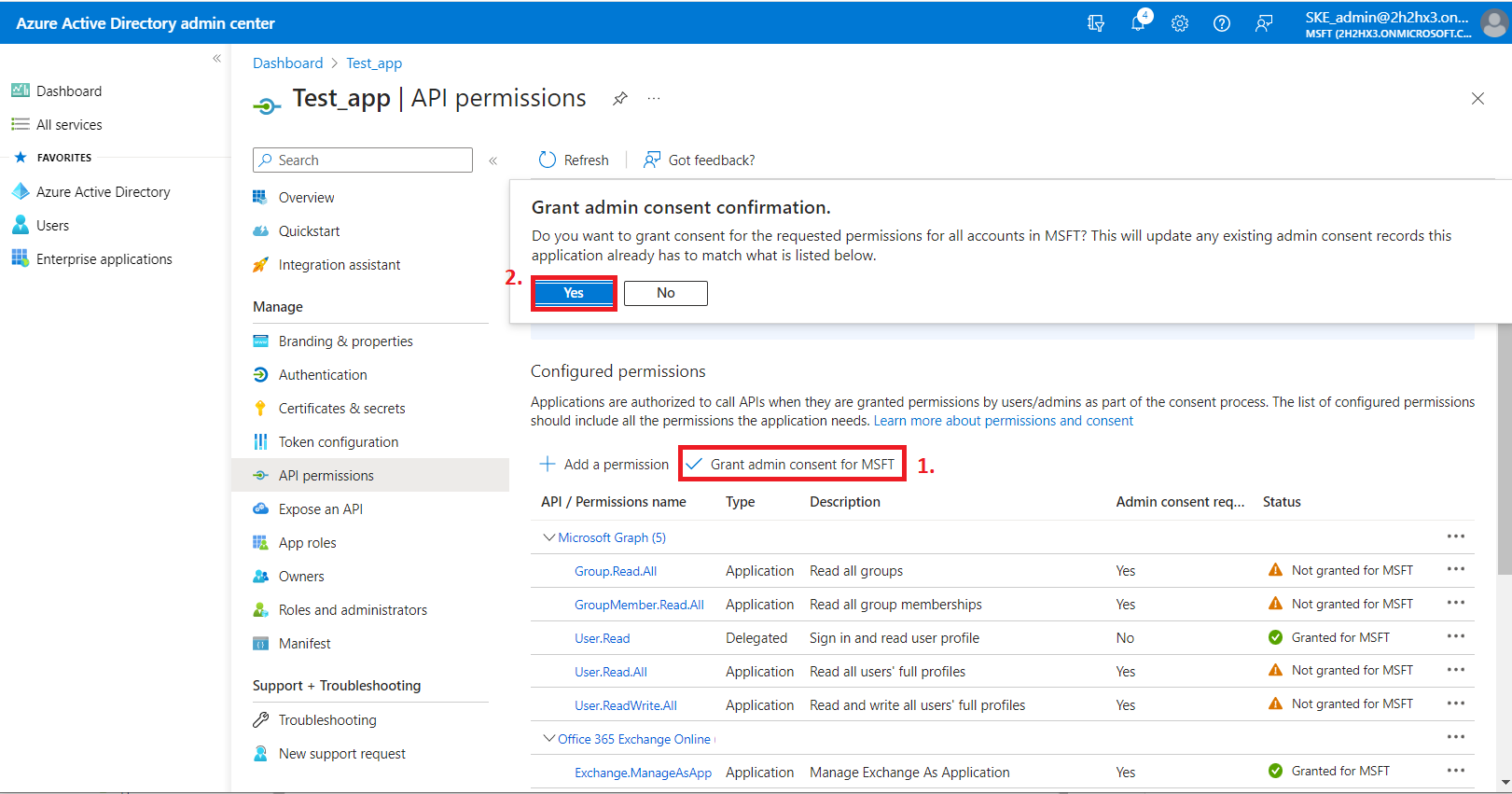
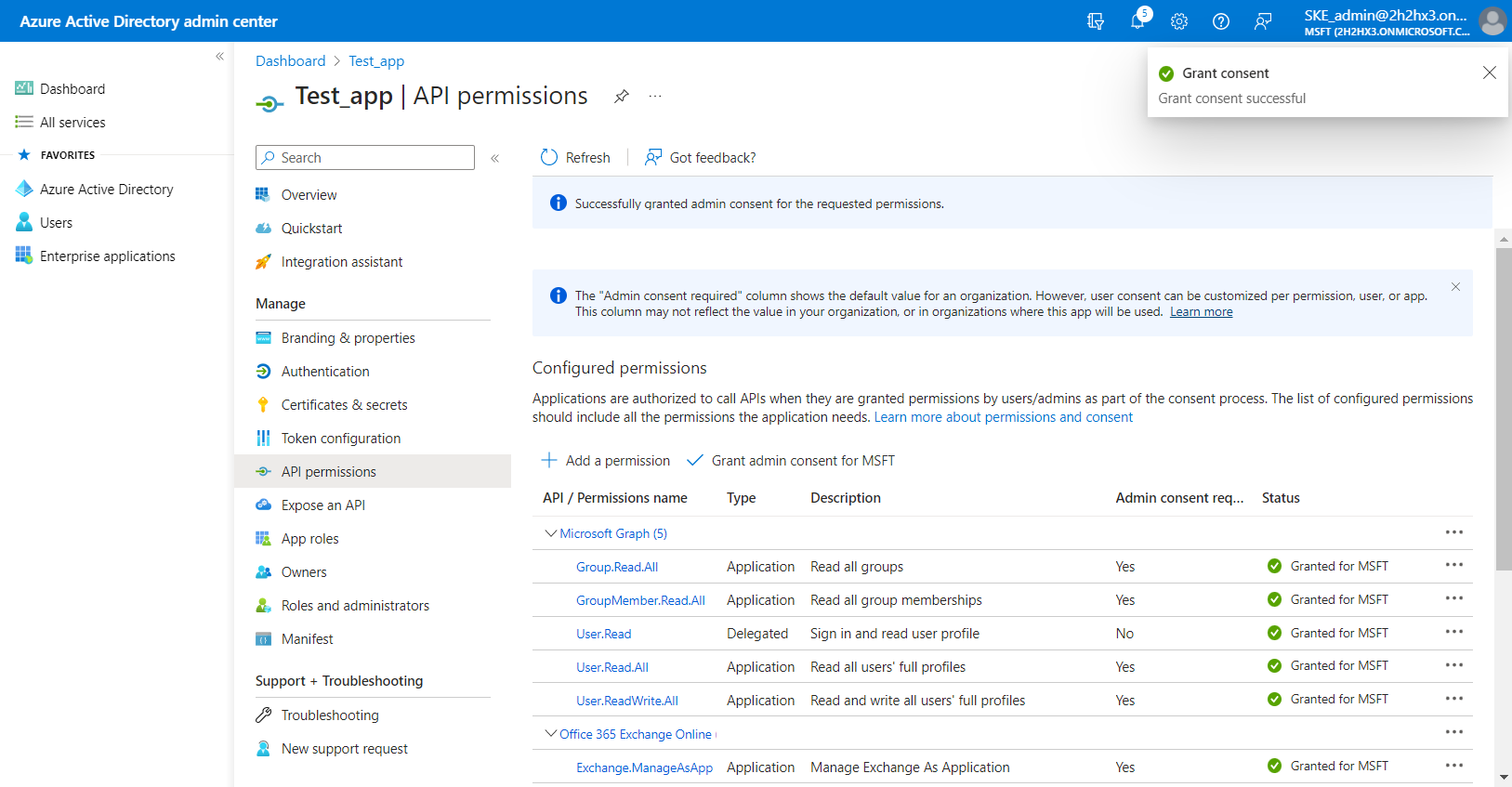
After the permissions have been assigned to the application, the administrator must grant consent for these permissions.
Click Grant admin consent for "TENANTNAME".
Assign a client access certificate
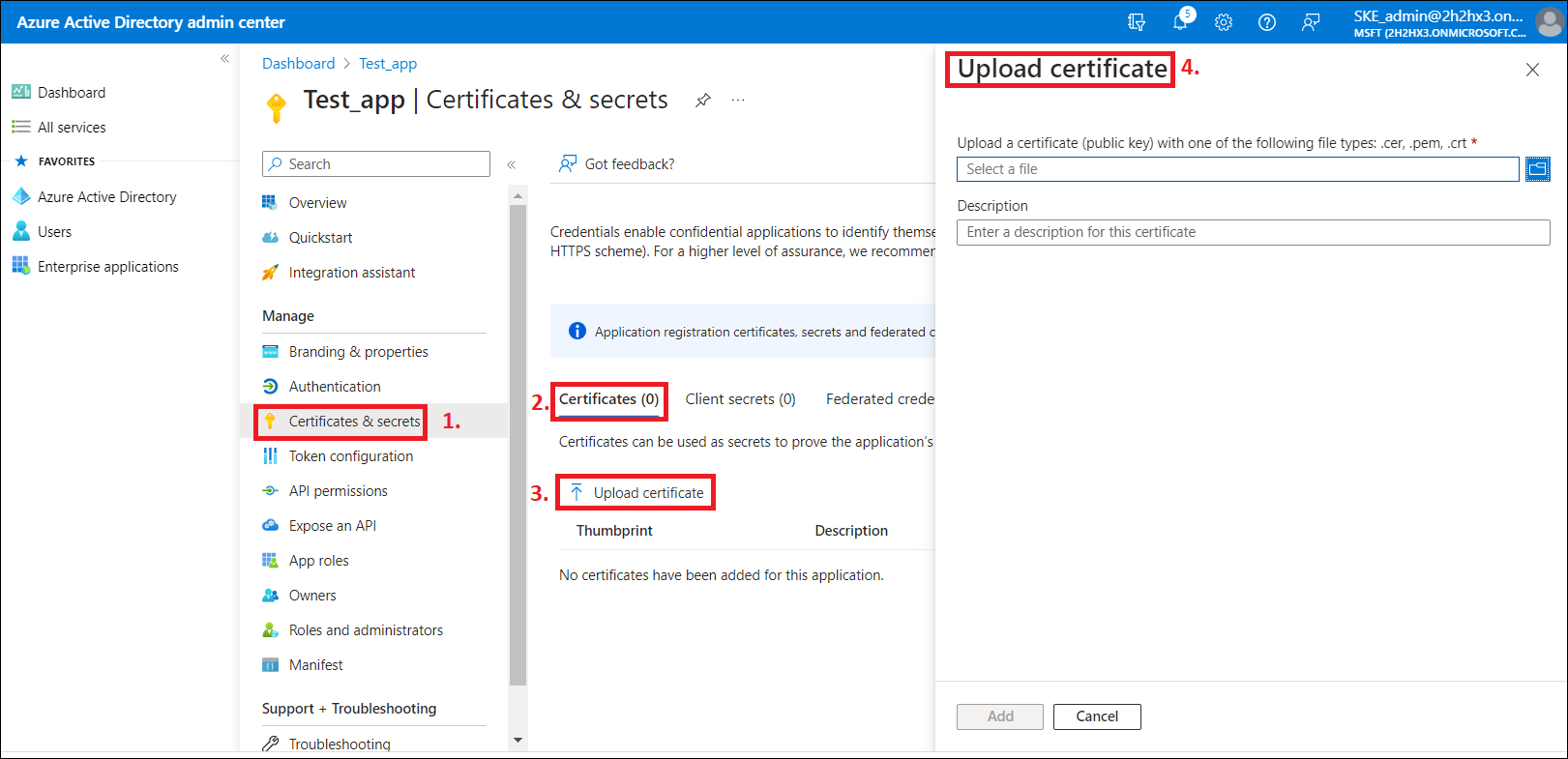
Once the permissions are assigned to the application and the admin consent is granted, a client access certificate must be assigned to the application.
- Click Certificates & secrets in the left menu.
- On the certificate management screen, click Upload certificate on the Certificates tab.
- Browse to the client certificate you want to use and upload it. This can be a self-signed certificate or an existing one.
A PowerShell script for creating a self-signed certificate can be downloaded here.
Create a client secret
Add a new client secret by clicking + New client secret. This is necessary for some jobs and client applications (for example, Test_client secret).
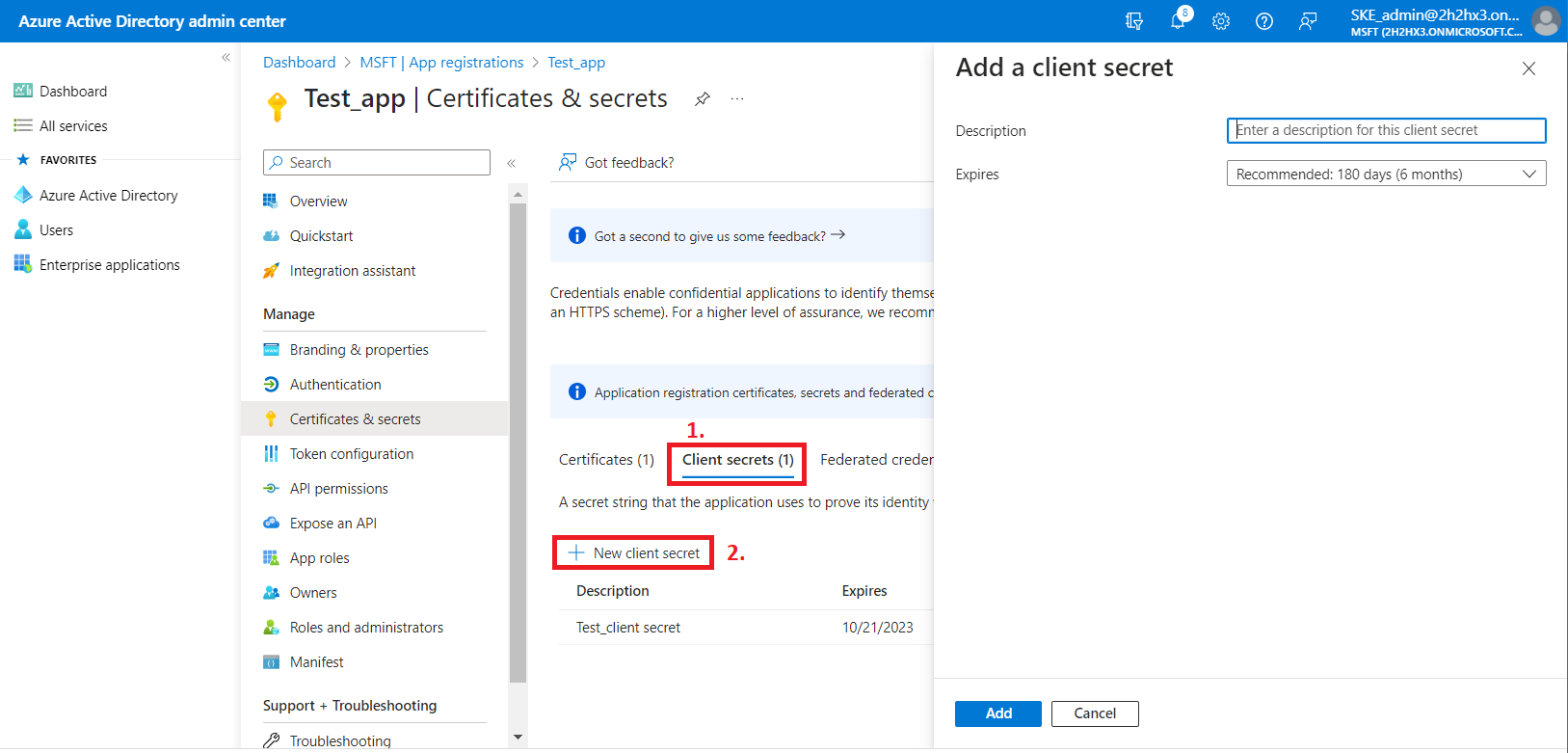
After the configuration is complete, copy the client secret shown on the Get client secret dialog box to a secure location so that you can refer to it later. The client secret will be required when configuring certain contentACCESS modules with modern authentication, such as:
Note: The app registration uses a client secret that has a limited lifetime (usually 1 year). It is important to maintain this information: every year, a new client secret needs to be generated for the app registration. The updated client secret must then be applied in all affected contentACCESS configurations.