How to configure contentACCESS for Microsoft 365 with limited permissions
Introduction
contentACCESS for Microsoft 365 normally requires the Microsoft Entra App registration used for archiving to be assigned either the Exchange Administrator or Exchange Recipient Administrator role in Exchange Online. For some administrators, assigning such a broad role is not desirable, as archiving only requires a more restricted set of permissions.
To address this, you can configure a custom administrator role in Exchange Online with limited permissions and assign it to the Entra App registration instead of using the default broad roles.
This page explains how to:
- collect the required information about the App registration;
- create a custom administrator role in Exchange Online with limited permissions;
- connect to Exchange Online using PowerShell;
- create a service principal for the App registration;
- assign the service principal to the custom administrator role.
Prerequisites
- The Microsoft Entra App registration for Microsoft 365 archiving must already be completed. If it has not yet been set up, refer to Azure app registration for Microsoft 365 archiving for guidance.
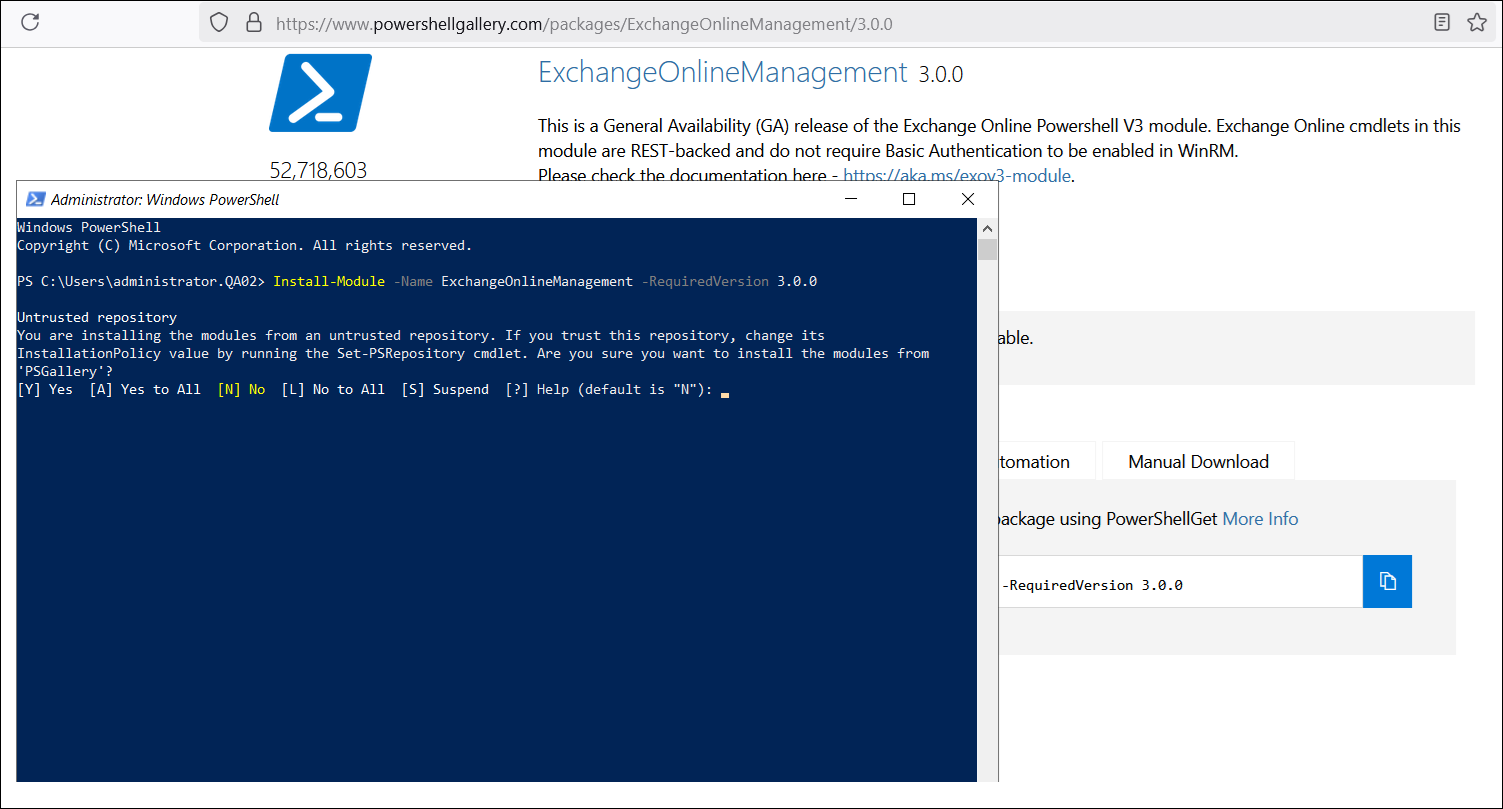
- The Exchange Online PowerShell module must be installed. For installation details, see Installing the Exchange Online PowerShell module.
Collect information about the App registration
-
Open the Azure Portal and navigate to Microsoft Entra ID.
-
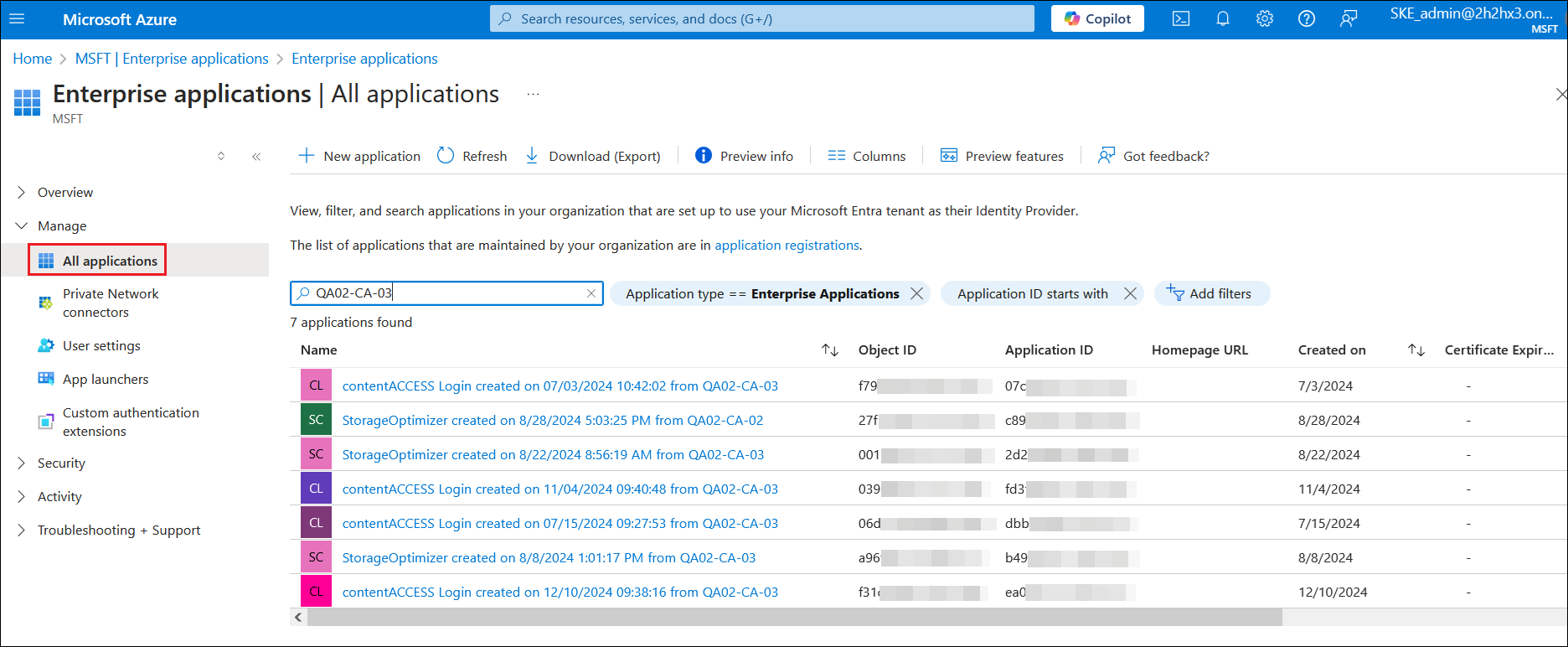
Open Enterprise Applications and locate the App registration in the list. You may need to adjust the filter to display all applications.
-
Open the required App registration and collect the following information:
- Application ID
- Object ID
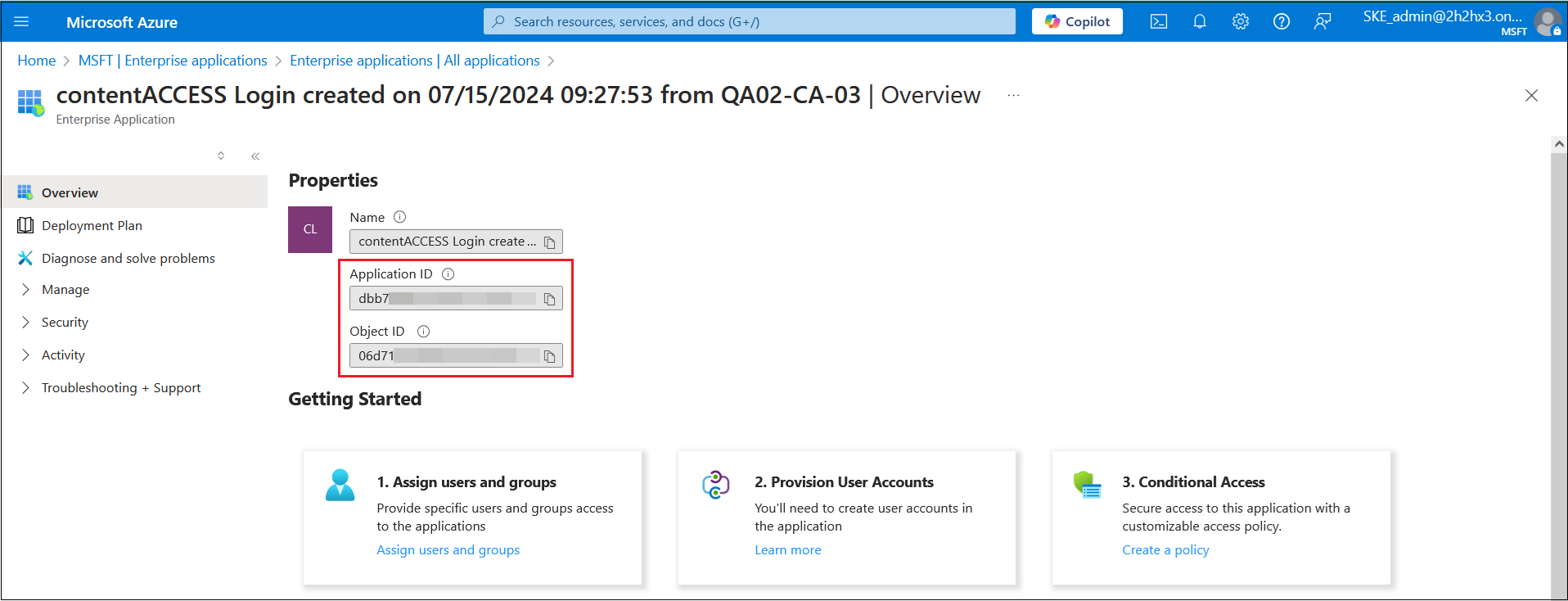
Once this information has been collected, proceed to create a custom administrator role in Exchange Online.
Create a custom administrator role in Exchange Online with limited permissions
-
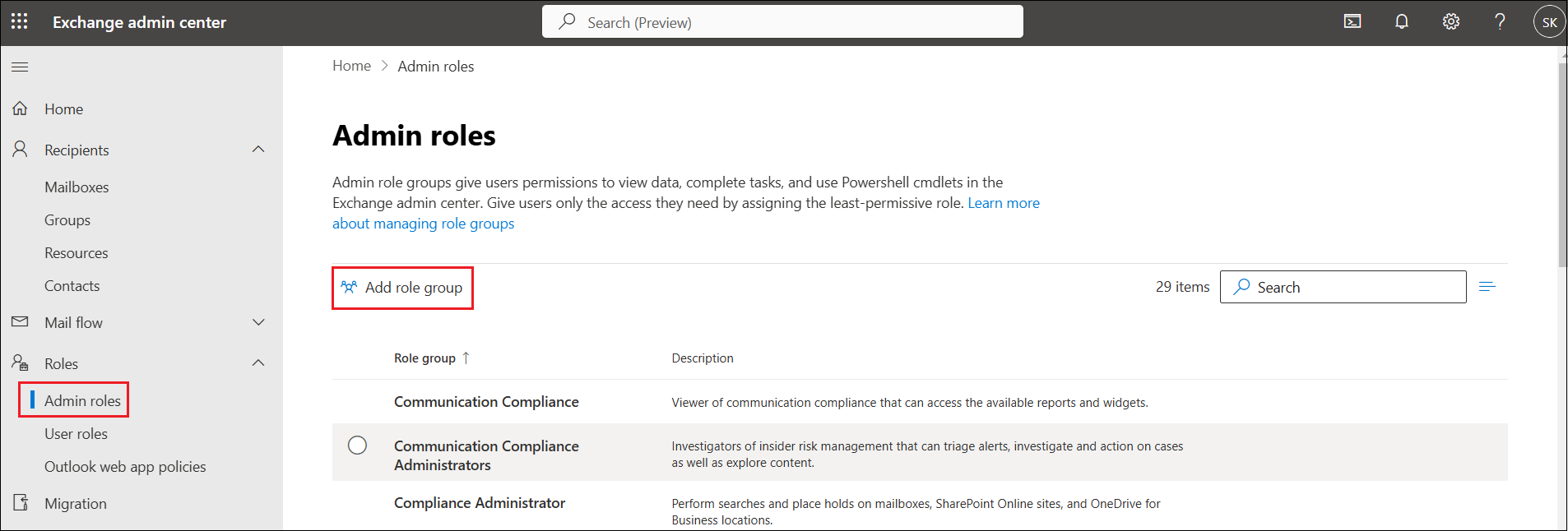
Open the Exchange admin center and navigate to Roles > Admin Roles.
-
Click Add role group to create a new role group.
-
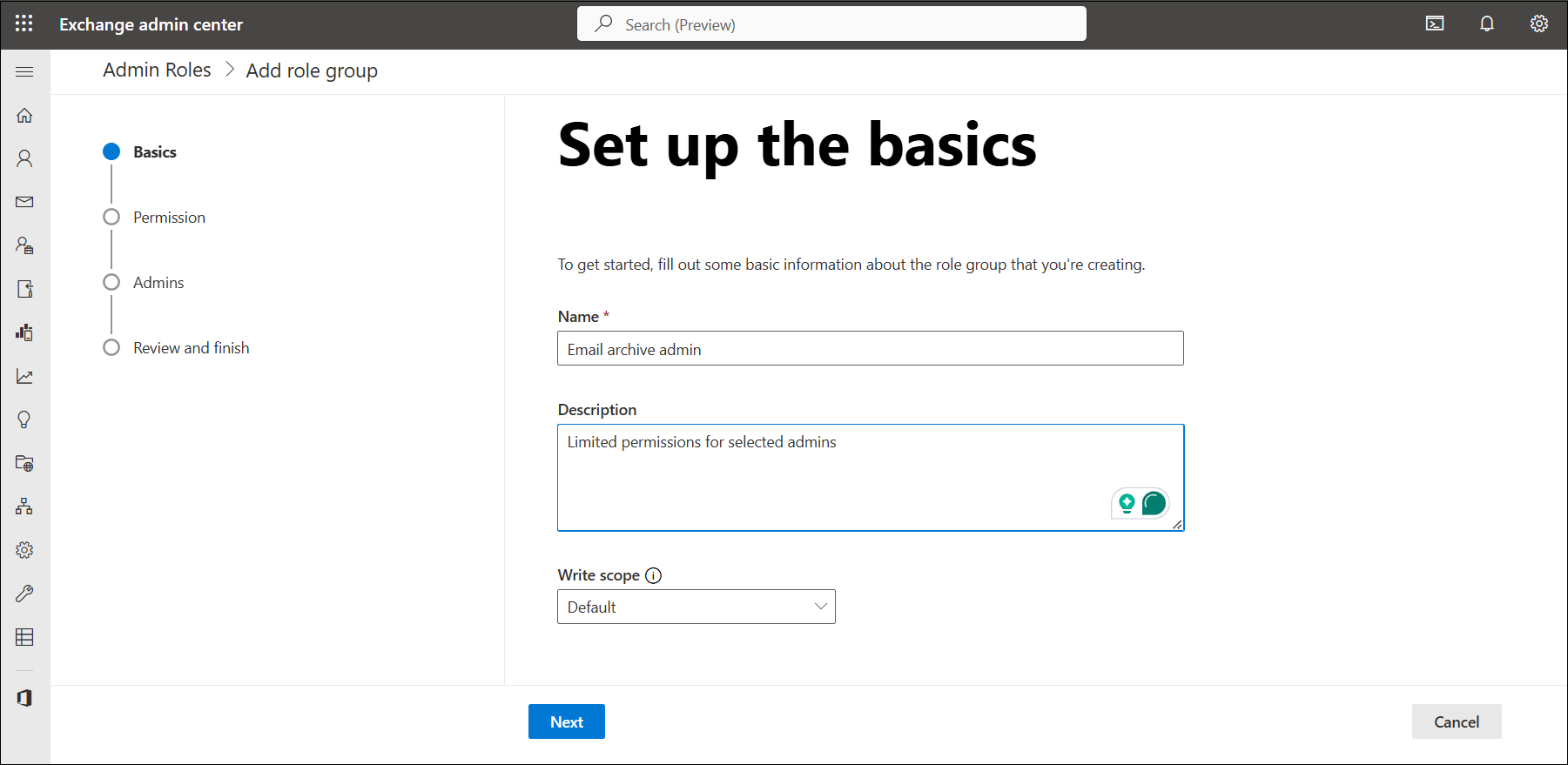
Configure the new role group using the following steps:
-
Basics — Enter a name and description for the new role group. Choose a unique name to distinguish it from other roles.
-
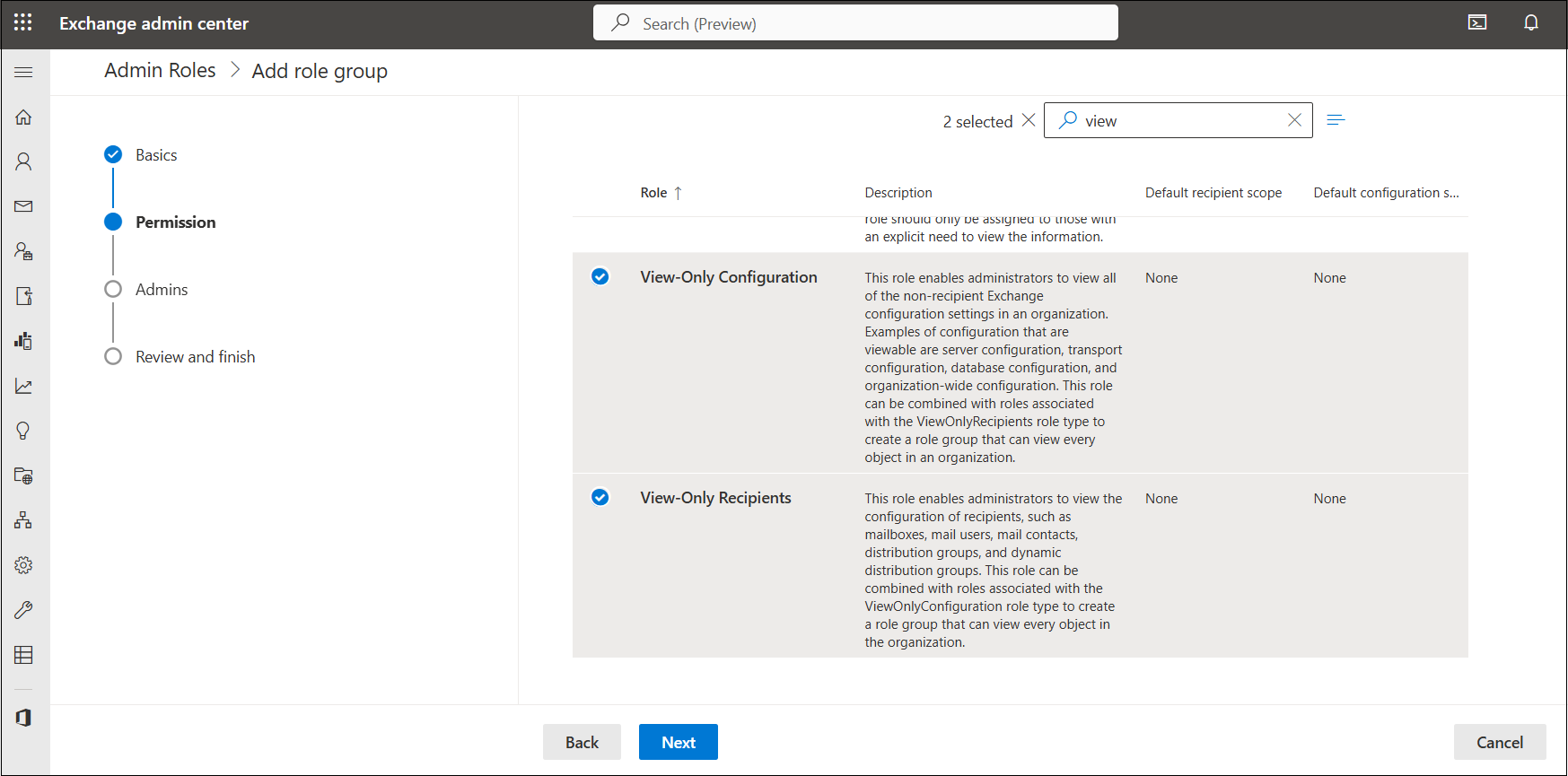
Permissions — Select the required permissions for the group: View-Only Recipients and View-Only Configuration.
-
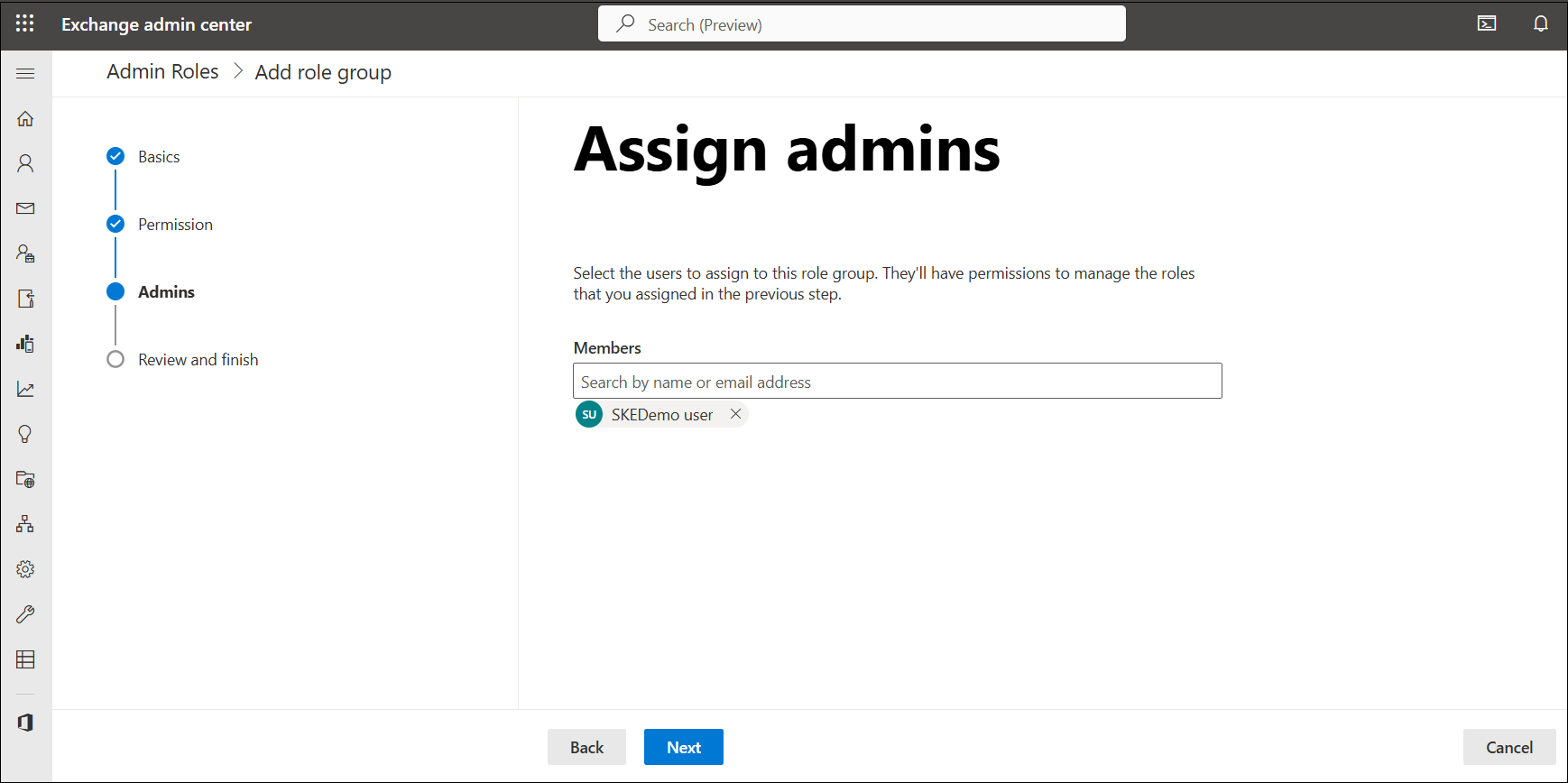
Admins — Select the users to assign to this role group.
-
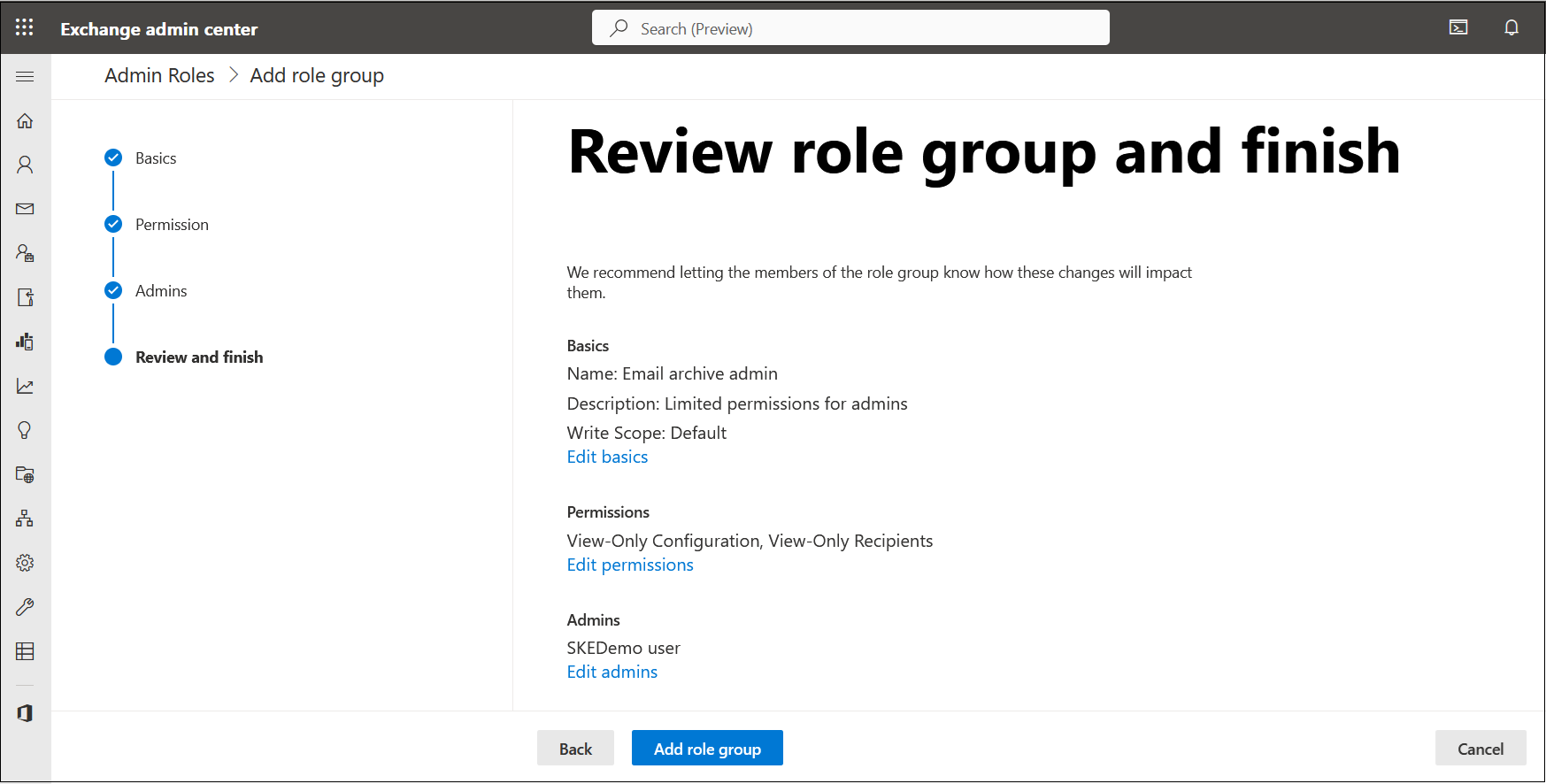
Review and finish — Review the settings, make any necessary edits, and click Add role group to complete the process.
-
Connect to Exchange Online using PowerShell
Once the role group has been configured, connect to Exchange Online using PowerShell.
Note: The Exchange Online PowerShell module must be installed before you can connect. For more details, see Installing the Exchange Online PowerShell module.
-
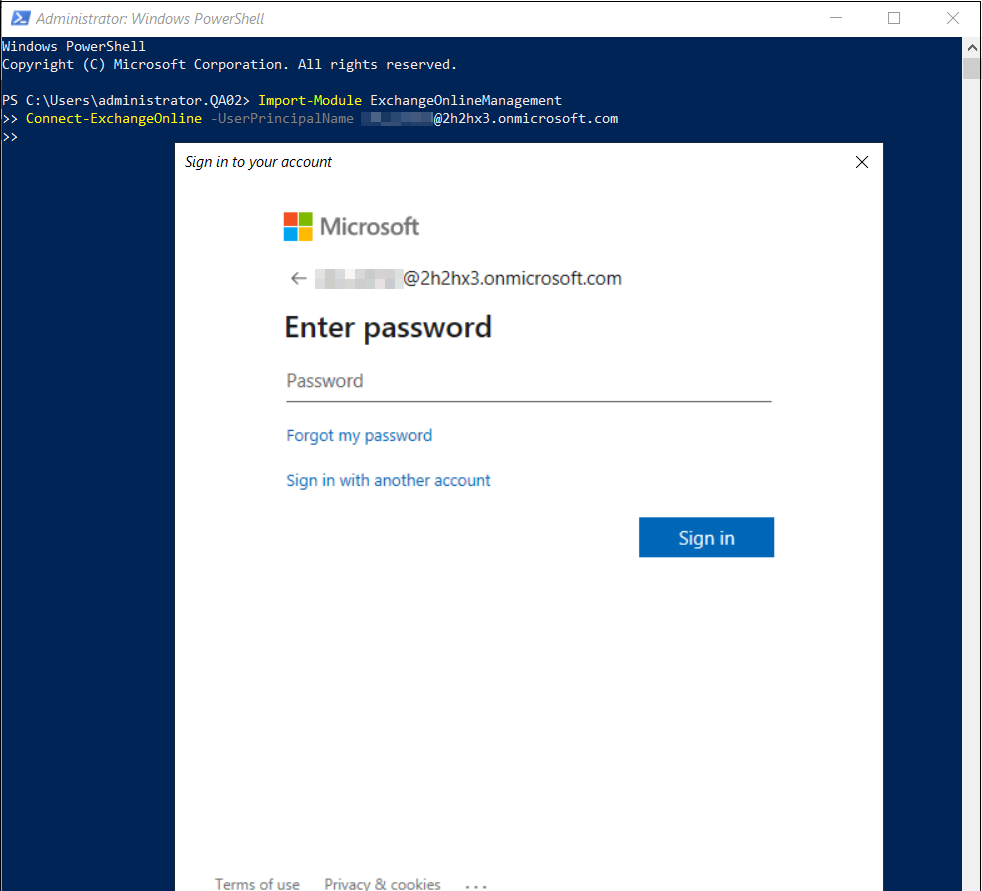
Open a PowerShell window and load the module by running:
Import-Module ExchangeOnlineManagement -
Connect and authenticate using:
Connect-ExchangeOnline -UserPrincipalName example@youraccount.comFor a detailed explanation of this step, see Connect to Exchange Online PowerShell.
Create a service principal for the App registration in Exchange Online
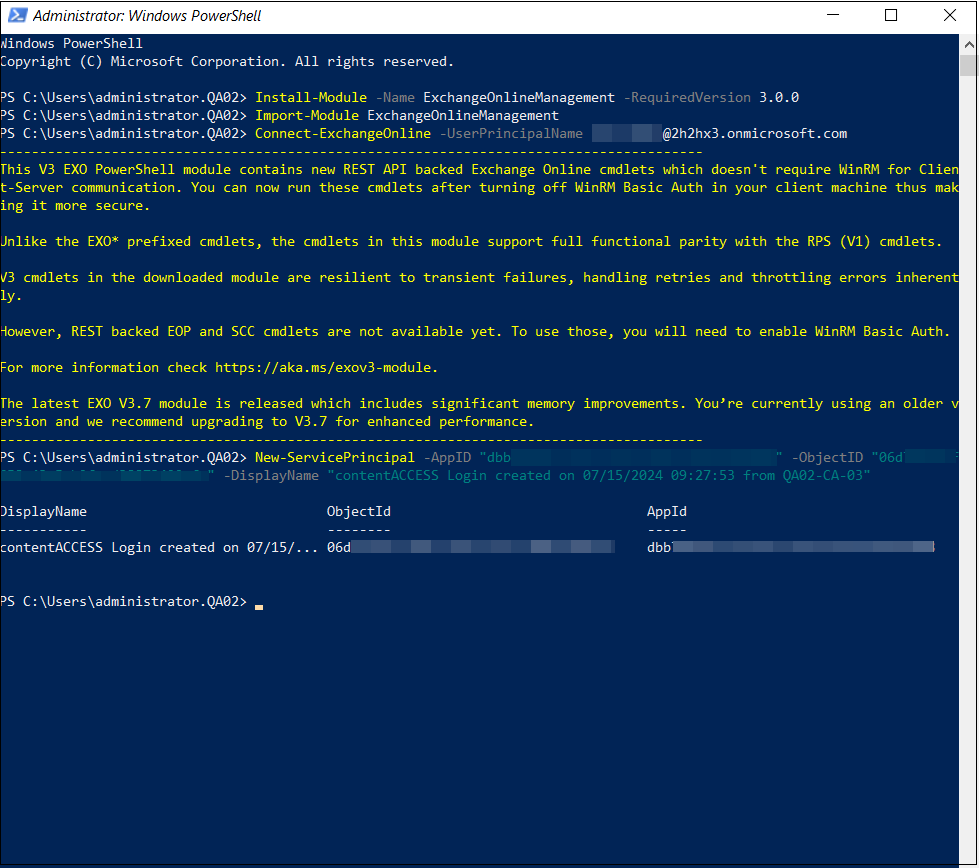
Once the connection is established, create a service principal using the Application ID, Object ID, and display name of the application collected earlier:
New-ServicePrincipal -AppID "AppID" -ObjectID "ObjectID" -DisplayName "Display name"
Assign the service principal to the custom administrator role
As the final step, assign the service principal to the role group:
Add-RoleGroupMember -Identity "Email Archive Admin" -Member "Object ID"
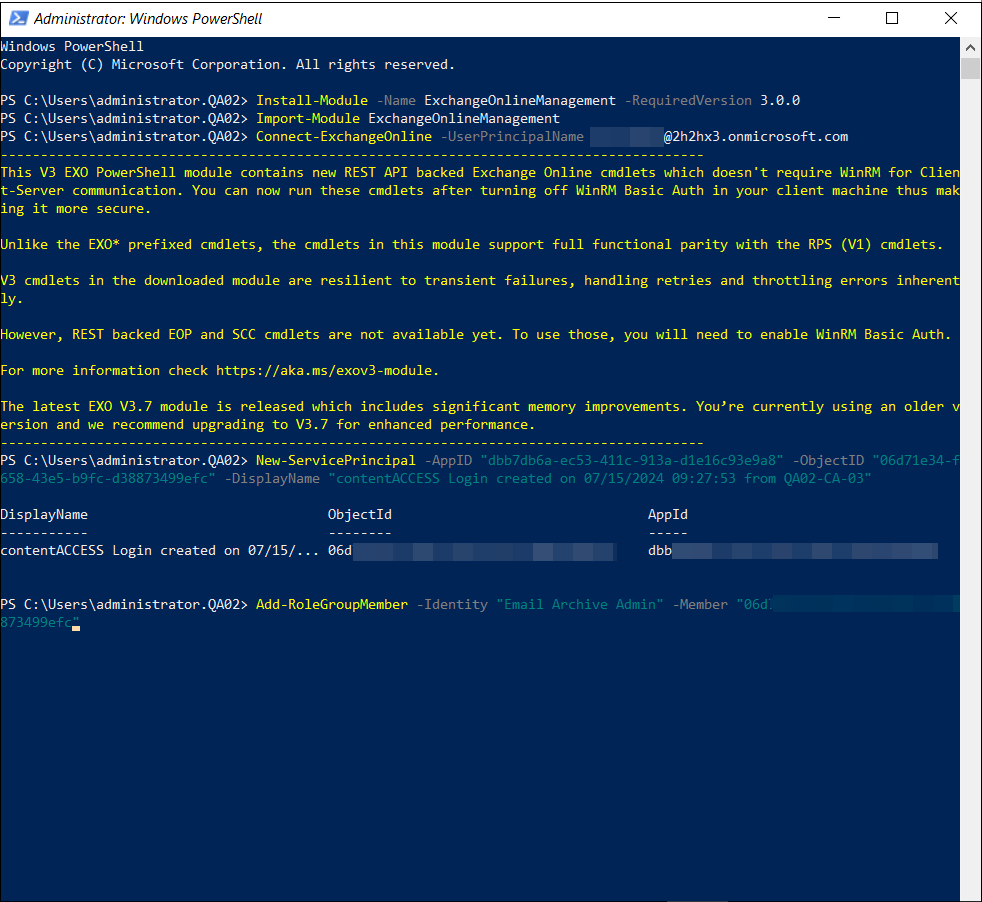
If the service principal is successfully assigned to the custom administrator role, PowerShell will not return any message. To verify the assignment, run:
Get-RoleGroupMember -Identity "insert identity here"
Important: If the permissions are not configured correctly, Microsoft 365 may return the following error message: "The role assigned to application 'your Application ID' isn't supported in this scenario. Please check online documentation for assigning correct Directory Roles to Azure AD Application for EXO App-Only Authentication."