How to reconfigure your email archive to use modern authentication for PowerShell
Introduction
Modern authentication for PowerShell allows contentACCESS to continue connecting to Exchange Online after Microsoft retires the Remote PowerShell (RPS) protocol. This page describes how to reconfigure the contentACCESS Exchange connection to use modern authentication for PowerShell, so that email archiving continues to work once RPS is deprecated.
This page covers:
- Background on the RPS protocol retirement.
- How to configure the Azure App registration for PowerShell access.
- How to grant access to Exchange objects for the Azure App registration.
- How to configure the contentACCESS Exchange connection to use modern authentication.
Background
Microsoft is retiring the RPS (Remote PowerShell) protocol for Exchange Online starting from June 2023. After this date, clients will no longer be able to use the RPS protocol to connect to Exchange Online. This means that the contentACCESS configuration must be changed to connect to Exchange Online PowerShell using modern authentication.
For more information about the deprecation of Remote PowerShell, read this article.
App registration changes
contentACCESS can use modern authentication to connect to Microsoft 365 Exchange Online. This requires an Azure App registration to be configured on the Microsoft 365 tenant. The procedure to create the App registration is described in Azure App registration for Microsoft 365 archiving.
After the App registration has been created, additional permissions are required to access PowerShell.
Add the Exchange.ManageAsApp permission
-
Navigate to your registered application in Azure Active Directory and open the App registration.
-
Navigate to API permissions, and click Add a permission.
-
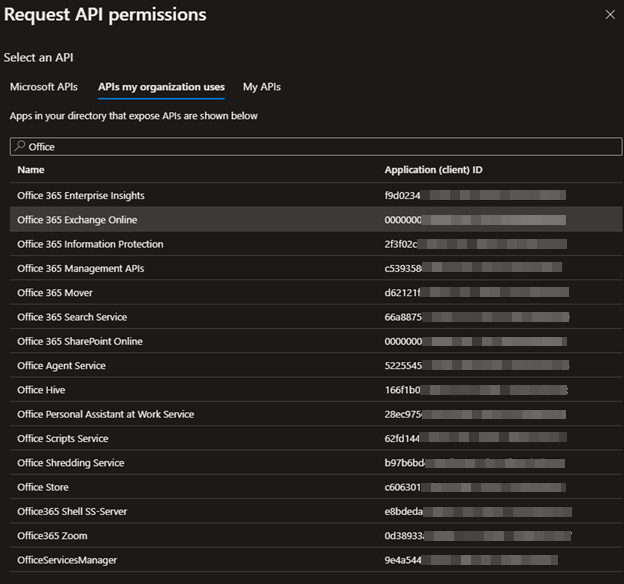
On the Request API permissions panel, search for Microsoft 365 Exchange Online and select it.
-
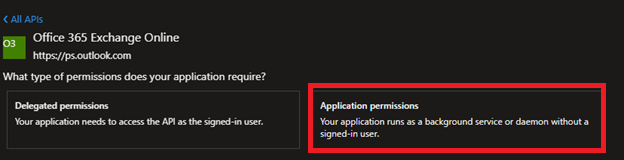
Select the Application permissions box. The available permissions in this category are displayed.
-
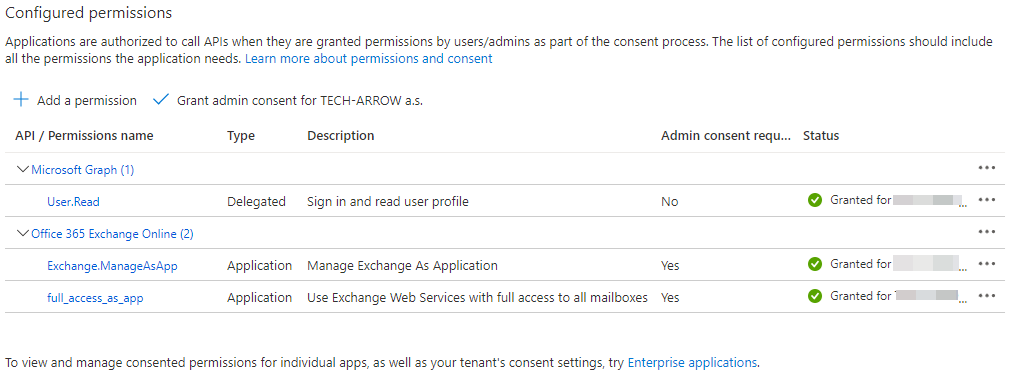
Locate the Exchange.ManageAsApp permission and select it. Click Add permissions to add the permission to the App registration.

The full_access_as_app permission should already be selected in the Application permissions window; the Exchange.ManageAsApp permission will be added alongside it.
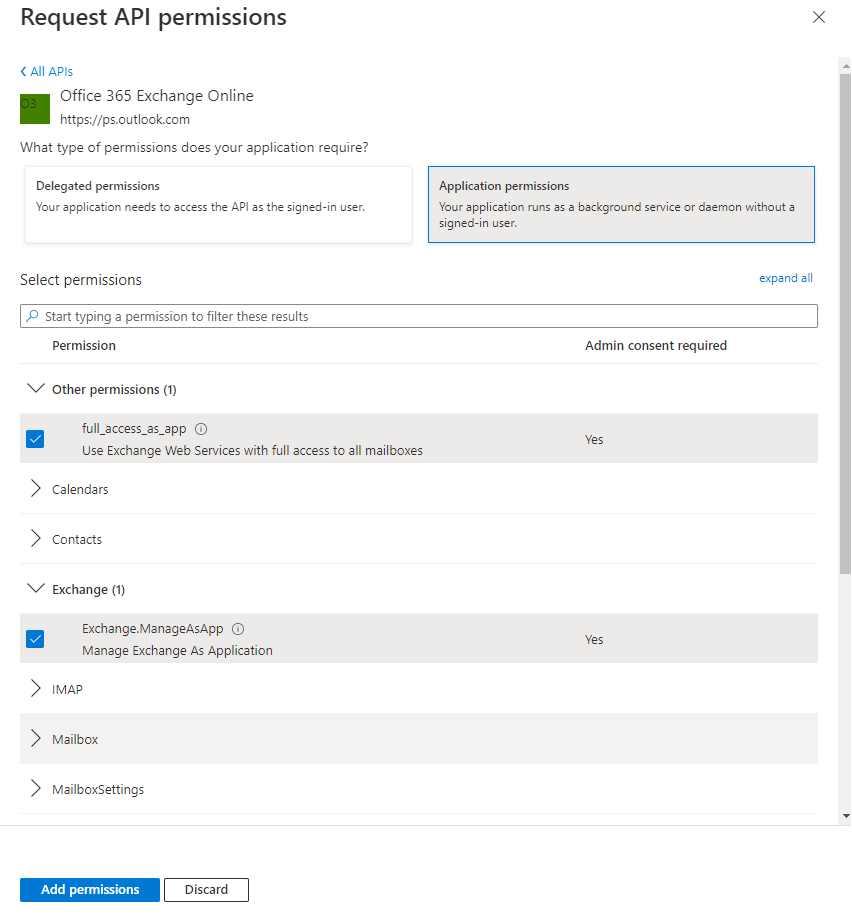
Click Add permissions.
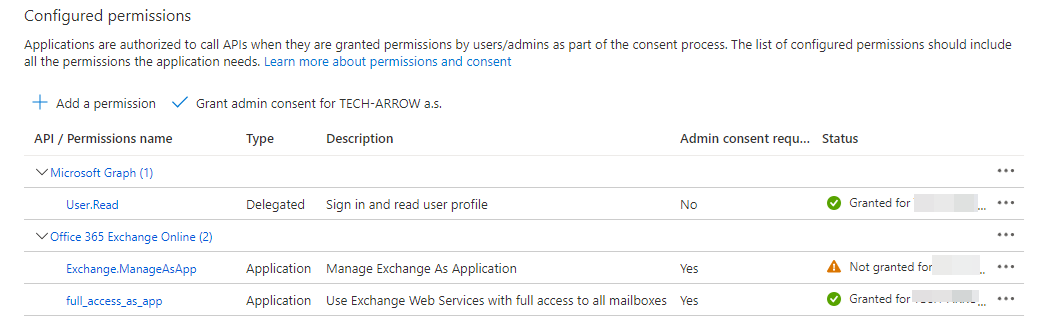
After the permissions have been assigned to the application, the administrator must grant consent for these permissions. Click Grant admin consent for "TENANTNAME".
Exchange Server role changes
The Exchange.ManageAsApp permission allows the application to connect to PowerShell but does not grant access to any PowerShell commands or Exchange objects. Access to Exchange objects is granted through Role Based Access Control (RBAC). This means that the App registration must be granted the Exchange Administrator role or the Exchange Recipient Administrator role.
-
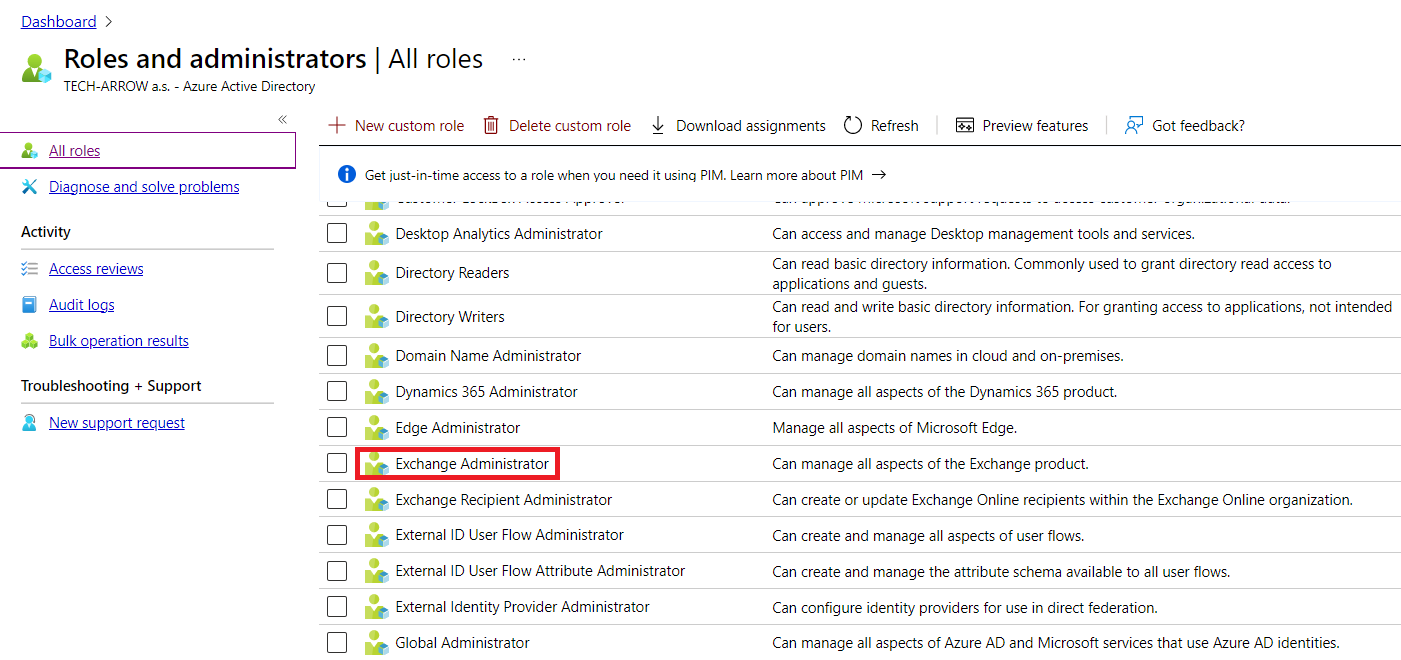
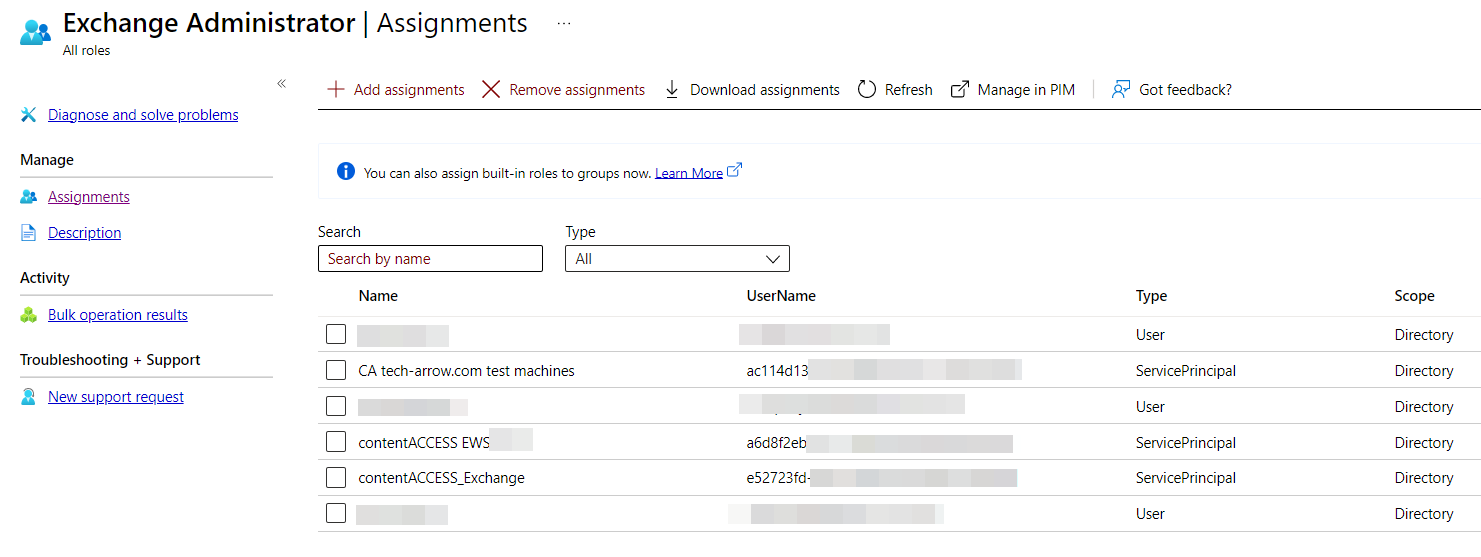
Go to the Roles and administrators | All roles page, select Exchange Administrator from the list, and click on the role.
-
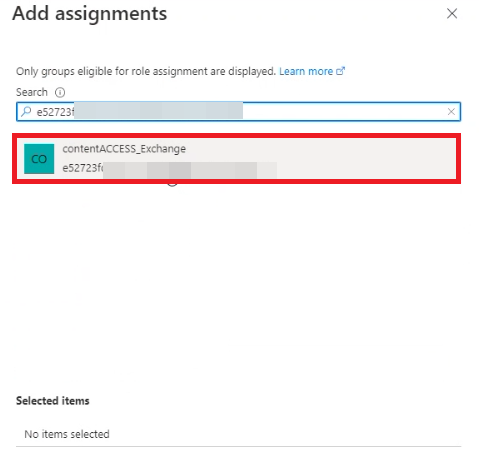
Click Add assignments, then search for your App registration (for example,
contentACCESS Exchange), and assign it to the role.
Note: The App registration is of type "Service Principal".
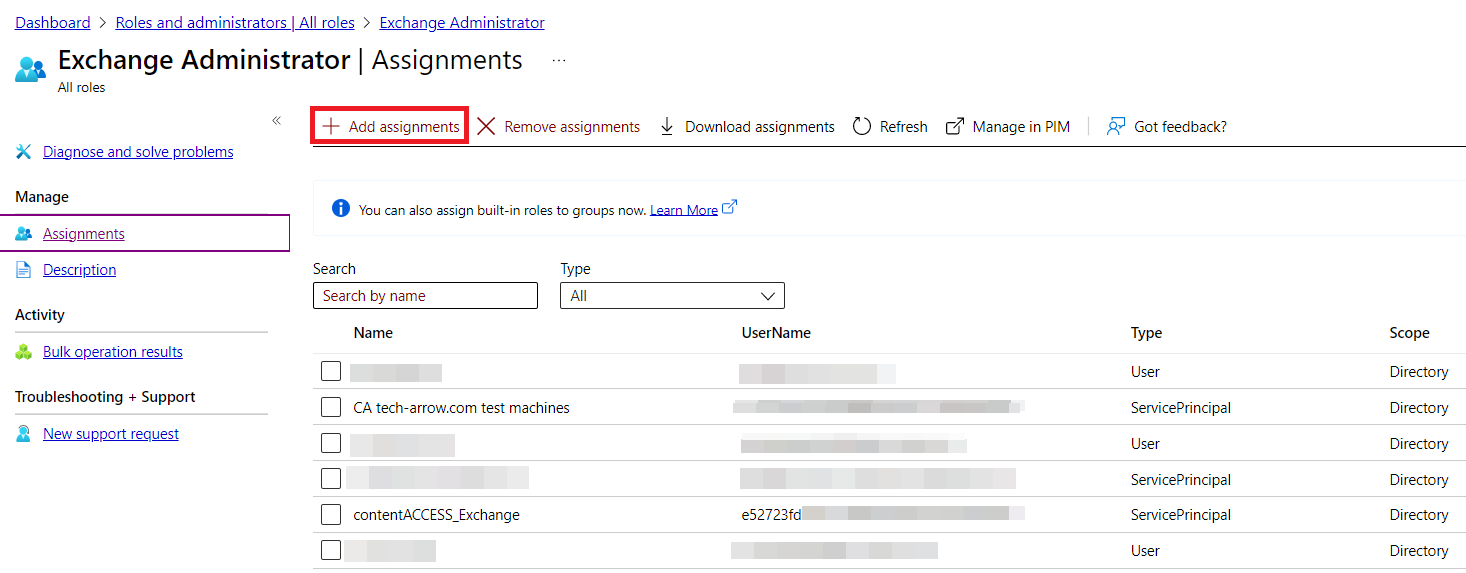
The assigned role will now be listed on the Exchange Administrator | Assignments page.
contentACCESS Exchange connection configuration
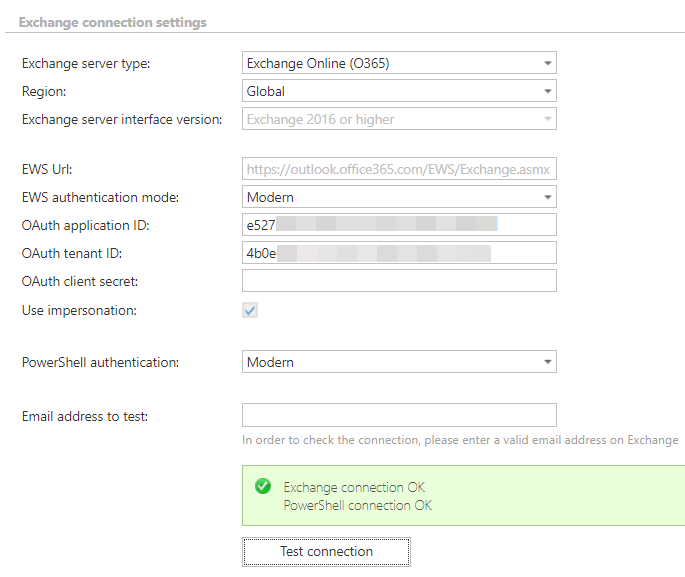
The Exchange connection configuration can be found in multiple places in contentACCESS:
- Email archive – system settings
- Custom jobs – Exchange connections
To use modern authentication for PowerShell, modern authentication must already be in use for EWS. The App registration for EWS and PowerShell must be the same App registration, and it must include the permissions for both EWS and PowerShell.
To enable modern authentication for PowerShell, select the PowerShell authentication mode Modern:
Summary
This page described how to change the Azure App registration to allow connection to PowerShell and grant the App registration permission to read Exchange objects (groups and mailboxes). It also described how to configure contentACCESS to use modern authentication for PowerShell.
Note: The App registration uses a client secret that has a limited lifetime (usually 1 year). It is important to maintain this information: every year a new client secret needs to be generated for the App registration. The updated client secret needs to be applied to all affected contentACCESS configurations.