PowerShell scripts for setting up Email archive
Introduction
The PowerShell scripts on this page help administrators set up the Email archive and verify and grant the permissions required by the superuser account. The page covers connecting to remote PowerShell, the resources and permissions the Email archive requires, and the differences between Delegation and Impersonation when granting access to mailboxes.
Important: Microsoft is retiring the RPS (Remote PowerShell) protocol for Exchange Online from the beginning of June 2023. After this date, clients will no longer be able to use the RPS protocol to connect to Exchange Online. This means the contentACCESS configuration needs to be changed to connect to Exchange Online PowerShell. Read this article for more information about the deprecation of Remote PowerShell.
Solution: contentACCESS can use modern authentication to connect to Microsoft 365 Exchange Online. This requires an Azure App registration to be configured on the Microsoft 365 tenant. The procedure for creating the App registration is described in the Azure App registration for Microsoft 365 archiving chapter.
For more information about how to configure contentACCESS to use modern authentication for PowerShell on Exchange Online, refer to How to reconfigure your Email archive to use modern authentication for PowerShell.
Permissions for Email archive
The Email archive uses one account (referred to as the "superuser" in this section) to connect to the Exchange resources.
The Email archive accesses Exchange resources through remote PowerShell. Remote PowerShell must be enabled on the target Exchange server or Microsoft 365.
There are multiple authentication methods available when connecting to remote PowerShell:
- Kerberos
- Negotiate
- Digest
- Basic
Note: The selected authentication method needs to be enabled on the Exchange Server.
The example below shows how to allow Basic authentication:
# Check if Basic Authentication is already allowed
Get-PowerShellVirtualDirectory | fl *auth*
# Allow Basic Authentication – replace the name of the virtual directory
Set-PowerShellVirtualDirectory -Identity "PowerShell (Default Web Site)" -BasicAuthentication $true
Connecting to remote PowerShell
This section helps you test the connection to remote PowerShell. You can also use this connection to set up the permissions for the Email archive.
The following script prompts for credentials and connects to remote PowerShell. Replace the placeholder with the fully qualified name of the Exchange Server (or ps.outlook.com for Microsoft 365):
$ExServerPSURL = "https:///PowerShell"
$UserCredential = Get-Credential
$Session = New-PSSession -ConfigurationName Microsoft.Exchange -ConnectionUri $ExServerPSURL -Credential $UserCredential -Authentication Basic -AllowRedirection
Import-PSSession $Session
If the connection is successful, it will be possible to execute commands. If the connection is not successful, try using another authentication method, such as Kerberos, and check whether the credentials are correct.
If the connection is no longer needed, it is highly recommended to close the session:
Remove-PSSession $Session
For more information about connecting to Exchange using remote PowerShell, see this page.
Access to resources
The Email archive requires access to the following resources:
- Exchange groups and mailboxes
- Public folders (optional)
- Mailbox permissions
- Organization applications
The superuser account requires an active mailbox on the Exchange Server/Microsoft 365 and the permissions included in the following role groups:
- View only organization management
- Public folder management
- Org Marketplace apps
These built-in role groups allow access to the complete address book information of Exchange and allow installing and uninstalling contentACCESS MailApps for the whole organization.
Recommended permissions
For a smoother and more transparent configuration process, it is recommended to create a new role group specifically for contentACCESS that includes all the necessary roles. The role group is merely a collection of the necessary permissions — if an account is assigned to this role group, it automatically receives all permissions necessary for the Email archive.
The following script can be used to create the role group and add members to it:
New-RoleGroup -Name "contentACCESS Management" -Roles "View-Only Recipients", "View-Only Configuration", "Public Folders", "Org Custom Apps", "Org Marketplace Apps", "User Options" -Members superuser
On-premise Exchange Server
For on-premise Exchange Servers, the superuser requires additional access to the following resource:
- Active Directory users and groups
The connection to Active Directory is configured in System → Services → System, under the Active Directory integration settings section. It is possible to use the same superuser account or a different account.
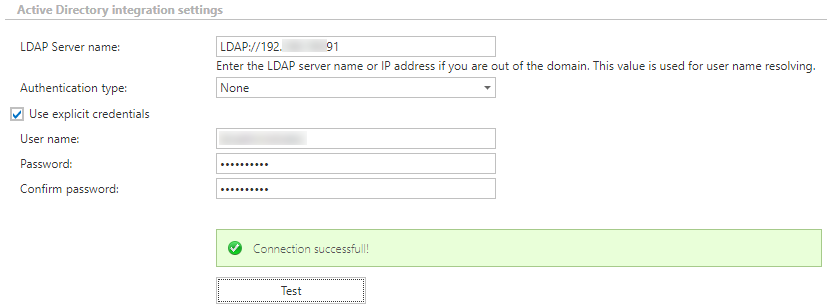
This account connects to the configured domain controller or global catalog to access domain groups and users. The account requires read permission on groups and users, and should be a member of Domain Administrators. If this is not possible, set up a security group with read permissions over the Active Directory objects and add the account to this group.
Microsoft 365
As mentioned above, the connection to Microsoft 365 requires changes due to Microsoft's deprecation of Remote PowerShell. These changes include:
- the use of modern authentication to connect contentACCESS to Microsoft 365 Exchange Online;
- an Azure App registration to be configured on the Microsoft 365 tenant, with additional permissions to access PowerShell;
- the configuration of the contentACCESS Exchange connection settings to use modern authentication for PowerShell and EWS (otherwise, the connection will fail).
In addition, refer to the Prerequisites for Microsoft 365 archiving page for all the necessary information about setting up your Microsoft 365 archiving.
Hybrid Exchange
This option does not have any special requirements. The configuration of Hybrid Exchange is described in full in Hybrid Exchange settings.
Access to mailboxes
The Email archive requires access to mailboxes and, optionally, public folders.
contentACCESS can archive mailboxes using two different methods, each requiring different permissions:
- Delegation
- Impersonation
Delegation
When delegation is used, the superuser account requires full access permission to the archived mailboxes. Exchange throttling is calculated for the superuser account, which might cause archive performance problems on Microsoft 365.
Full access permission can be granted on individual mailboxes or on mailbox databases. If permission is granted on individual mailboxes, newly created mailboxes will not be accessible by the superuser. Therefore, the recommended approach is to set the permissions at the mailbox database level (this process needs to be repeated for newly created mailbox databases).
On-premises Exchange Server
The following script grants access to all mailboxes in all mailbox databases:
# On-Prem Exchange:
# Set the permission for the superuser on all mailbox databases:
Get-MailboxDatabase | Add-ADPermission -User <superuser> -AccessRights 'ExtendedRight' -ExtendedRights 'Receive-As','ms-Exch-Store-Admin' -InheritanceType 'All'
The following script grants access to one specific mailbox:
# Set the permission for the superuser on one mailbox:
Add-MailboxPermission -Identity mailbox@domain.com -User <superuser> -AccessRights FullAccess -InheritanceType All -Automapping $false
Microsoft 365
The following script grants access to all mailboxes currently available:
# Microsoft 365:
# Set the permission for the superuser on all mailboxes:
Get-Mailbox | Add-MailboxPermission -User superuser -AccessRights fullaccess -InheritanceType all
The following script grants access to one specific mailbox:
# Set the permission for the superuser on one mailbox:
Add-MailboxPermission -Identity mailbox@domain.com -User superuser -AccessRights FullAccess -InheritanceType All -Automapping $false
Impersonation
Impersonation has multiple benefits:
- if a new user is added to Exchange, the superuser automatically has permissions to it;
- it is easy to set up.
Impersonation has a significant impact on Microsoft 365 archiving. It allows more emails/mailboxes to be archived, since throttling is not calculated for one account but for each archived mailbox individually. Therefore, if multiple mailboxes are archived, throughput will be higher.
When impersonation is used, the superuser account requires one additional role: ApplicationImpersonation. With this role, the superuser account can access all the mailboxes in the organization, and Exchange throttling is calculated for each accessed mailbox individually. This method is recommended when archiving Microsoft 365.
The following script grants the ApplicationImpersonation role to the superuser:
New-ManagementRoleAssignment -name:contentACCESSImpersonation -Role:ApplicationImpersonation -User:superuser
Note: If the Microsoft 365 user has a "desktopless" license, their account cannot be used for impersonation. This is because EWS access is disabled for such users, so they are unable to connect to EWS.