Publishing Outlook forms through GPO
Introduction
Outlook forms are customizable templates that extend Outlook’s functionality. contentACCESS uses Outlook forms to provide users with transparent access to archived emails. When a user double-clicks on an archived email shortcut, the Outlook form automatically retrieves the original email from the archive and displays it seamlessly in Outlook. In addition, the forms provide custom icons for archived emails, making it easy to distinguish them from regular messages.
Normally, custom Outlook forms are distributed centrally through the Organizational Forms Library so that all users in the organization can access them. However, in some environments—due to policy restrictions, permissions, or technical limitations—this shared library cannot be used.
The Organizational Forms Library is a central repository on an Exchange server where custom Outlook forms can be published and shared with all users in the organization. This ensures consistency, easier updates, and reduced administrative effort. If the Organizational Forms Library is unavailable, each user must instead store the required forms in their Personal Forms Library, which is tied to their Outlook profile.
This page provides a guide on how to deploy contentACCESS Email Archive Outlook forms in environments where the Organizational Forms Library is not available using the PublishOutlookForms.vbs script to automatically deploy the forms into each user’s Personal Forms Library.
For more information about the Outlook forms and their installation, see Installing Outlook forms.
Publishing Outlook forms through Group Policy (GPO) and the script
The PublishOutlookForms.vbs script enables automated deployment of contentACCESS Outlook forms into the user’s Personal Forms Library. This method ensures that every user has the required forms even without a central forms library.
How it works
- The script launches Outlook in the context of the logged-in user.
- It checks for the presence of the required
.oftform files in a specified local folder. - It compares the version of the forms (hardcoded in the script) with the version last published to the user’s roaming folder.
- If the local version is newer, the forms are republished; otherwise, no action is taken.
- A version file in the user’s roaming profile tracks the last deployed version.
Deployment steps
- The user logs on to their machine.
- The logon script executes
PublishOutlookForms.vbs. - The script checks the version file in the user’s roaming folder.
- If the version is outdated or missing, the forms are published to the Personal Forms Library.
- The script updates the roaming version file after successful deployment.
Requirements
- Microsoft Outlook must be installed and available on the client machine.
- The required
.oftfiles must be accessible locally (recommended location enforced via Group Policy (GPO)). - The script must run in the context of the user (for example, as a logon script).
Getting the contentACCESS form files (.oft)
There are three contentACCESS Outlook forms available for each user. For correct functionality, all of them must be installed.
CA.oft– used to transparently open standard archived messages.CA_F.oft– used to transparently open forwarded archive messages from the mailbox.CA_R.oft– used to transparently open replied archive messages.
Each .oft file can be generated by the Form Installer tool. The tool is available in the Tools section of the contentACCESS installation package.
Install the Outlook forms tool
The contentACCESS installation package includes the tool used to install the Outlook forms: C:\TECH-ARROW\contentACCESS_Package\Setups\Forms\GATE.FormsSetup.exe.
Before you begin, make sure that contentACCESS is already installed and configured.
Continue in GATE.FormsSetup.exe and select the option Publish manually.
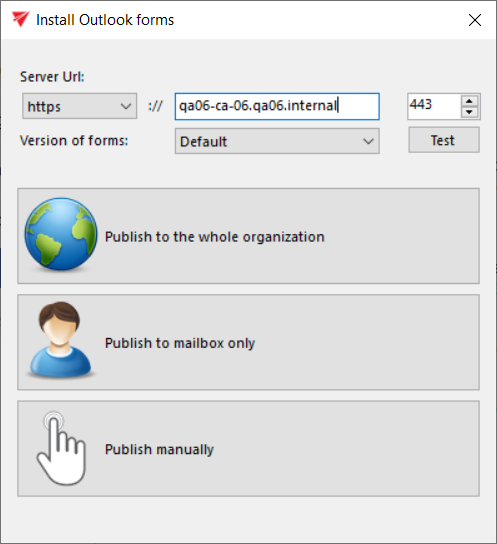
Fill in the server URL and test the connection. Please note that this address will be used by all users and must be accessible to everyone.
By clicking the Publish manually button, the Outlook forms are prepared in the folder you select:
- CA_techarrow.oft
- CA_F_techarrow.oft
- CA_R_techarrow.oft
Save the files and rename them to have the expected names:
- CA.oft
- CA_F.oft
- CA_R.oft
These files must be distributed by GPO to the folder whose path is entered in the VBS script below.
Installing the forms through the script
First, download the script. The latest version of the PublishOutlookForms.vbs script can be found here:
Download PublishOutlookForms.vbs
Configuration
-
Forms location
Update the script constant to define where the.oftfiles are stored:Const cTempFolder = "C:\Temp\Forms"Tip: Use GPO to ensure that the forms are distributed to this local folder on all user machines.
-
Versioning
Update the script constant to reflect the deployed version:Const cVersion = "3.6.50"Change this value when releasing new forms. The script will only republish forms if the hardcoded version is newer than the stored one.
Notes
- This solution is specifically designed for environments without an Organizational Forms Library.
- All actions occur within the logged-in user’s Outlook profile.
- For script details and advanced customization, review the comments in
PublishOutlookForms.vbs.