Solution for Outlook security patches through GPO
Introduction
The Solution for Outlook security patches through GPO describes how to resolve the Outlook security patch issue affecting the contentACCESS email archive by deploying the required registry changes across multiple machines using a Group Policy Object (GPO).
The security updates for Outlook released on September 12, 2017 disabled Outlook form scripting by default. As a result, users are no longer able to open original archived messages from shortcuts — only the shortcut itself opens. This affects all programs and applications using custom Outlook forms, including third-party applications archiving emails such as contentACCESS.
Outlook form scripting can be re-enabled using registry keys. For general information about this issue and the registry-based solution, see Solution for Outlook security patches.
This page describes how to apply the same solution across multiple machines using a GPO, which consists of three steps:
- Preparing the distribution point.
- Creating the group policy object and assigning it to the affected machines.
- Checking the changes.
Preparing the distribution point
To use the GPO for the solution, a distribution point has to be created on the publishing server:
- Log on to the server computer (domain controller) as an administrator.
- Create a shared network folder that will contain the CustomFormFix folder that you want to distribute.
- Extract CustomFormFix.zip to this folder.
Note: The registry key for MS Outlook 2016 also works with MS Outlook 2019.
- Set permissions on the shared folder to allow access to the distribution point (everyone should have at least read access).
In this example, the distribution group path is SharedFolder.
Note: Do not use special characters in setup names, and be careful with long UNC paths.
Creating the group policy object and assigning it to the affected machines
To apply the solution, a new group policy object must be created, with the CustomFormsFix.ps1 PowerShell script set in the GPO:
- Start the group policy management console on the domain controller.
- Create a new group policy object in your domain.
- Link the newly created GPO object to your domain.
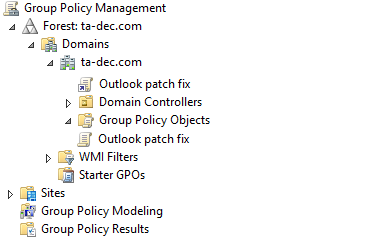 Figure 1: The created GPO object "Outlook patch fix" is linked to the ta-dec.com domain.
- Set the Security filtering for the required computers (in this example, the Domain computers group is used).
- Right-click the new GPO and choose Edit.
- Navigate to Computer configuration → Windows Settings → Scripts → Startup.
- In the Startup properties window, select the PowerShell Scripts tab.
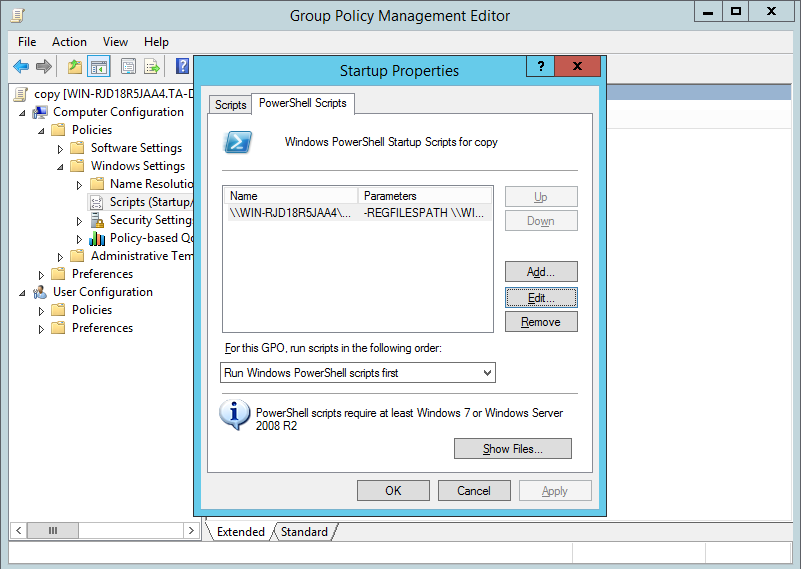 Figure 2: The GPO for Computer Startup configuration window.
- Click Add and create a new configuration:
- Script name:
ShareFolderCustomFormFixCustomFormFix.ps1(the shared path of the extracted PowerShell script). - Script parameters:
-REGFILESPATH ShareFolderCustomFormFix(the–REGFILESPATHparameter plus the shared path of the previously created CustomFormFix folder).
- Script name:
 Figure 3: The configuration for the GPO.
Checking the changes
To verify that the configuration and GPO deployment were successful, restart the client machine that was included in the security filtering, then check the registry:
- Open the Registry Editor (
regedit.exe). - Navigate to
HKEY_LOCAL_MACHINE\SOFTWARE\Microsoft\Officeand open the Outlook key created by your Office version, for example:
HKEY_LOCAL_MACHINE\SOFTWARE\Microsoft\Office\15.0\Outlook - Confirm that two new keys exist in this folder: Forms and Security.
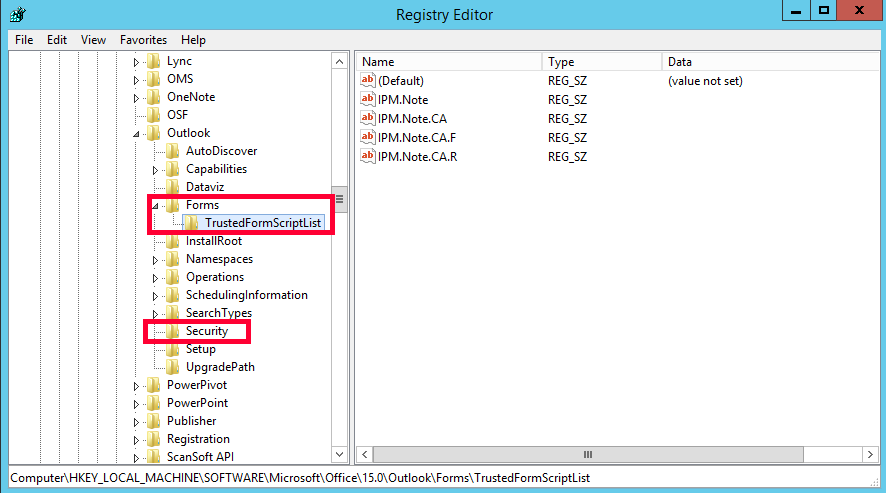 Figure 4: The deployed registry changes.