Configuration of File archive retention changer job
Introduction
The File archive retention changer job changes the retention time of selected files, provided that retention changes are allowed at storage level. Storages that support this change are Disk, Azure, and Amazon S3.
This page explains how to create and configure a File archive retention changer job, including its running mode, scheduling, retention, folder, filtering, notification, and resource settings.
Create the job
- Go to Jobs.
- Click + new.
- Select File archive retention changer.
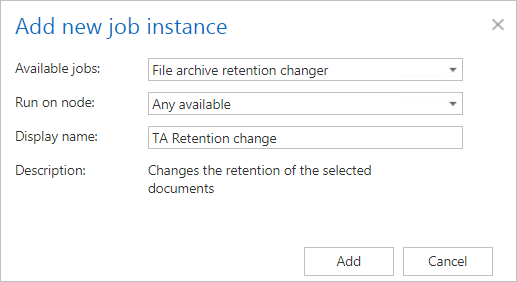
On the job's configuration page, go through the following sections.
Running mode settings (mandatory)
The job can run in three modes:
-
Immediate processing: Collects the documents and changes their retention.

-
Create report: Collects the documents and provides a CSV file with a list of documents. The administrator can review and edit the list of affected documents.

-
Apply report: Requires a CSV file with a list of documents to be processed to be uploaded. The administrator can delete documents from the list before running the job — only documents that remain on the list will be processed. The job reads the list and changes the retention of the documents it contains.

Scheduling settings (mandatory)
Select the running times of the Retention changer job. You can either select a scheduler from the list or create a new scheduler via the Create new … option.

Retention settings (mandatory)
Select the new retention to be applied to the documents.

Folders to process (mandatory)
Select the folder(s) where the archived data is located. The list of folders can be specified in two ways:
-
Add folders via the +new option: Add folders manually one by one.
- Click +new to open the File Path dialog.
- Click new to specify the folder that contains the files whose retention should be changed.
- In the Folder to process dialog, unroll the list of already created roots and select the required one. This dropdown lists the roots already configured under File Archive ⇒ Settings ⇒ Root folders.
- Enter the Relative path if necessary, test the path via the Test button, and click OK.


-
Import the folder list from a file: The imported file must contain the list of folders to be processed.
- Click the import button to open the Import file location dialog.
- Specify the required settings as described in Importing contentACCESS configurations from files.


Filtering settings (optional)
Click the Change filter button and set the filtering according to your needs and/or regulations. For more information on working with filtering settings, see Filtering in jobs.
Note: Using All text can cause a performance deficit, as it requires searching through large amounts of text data instead of a more focused subset.
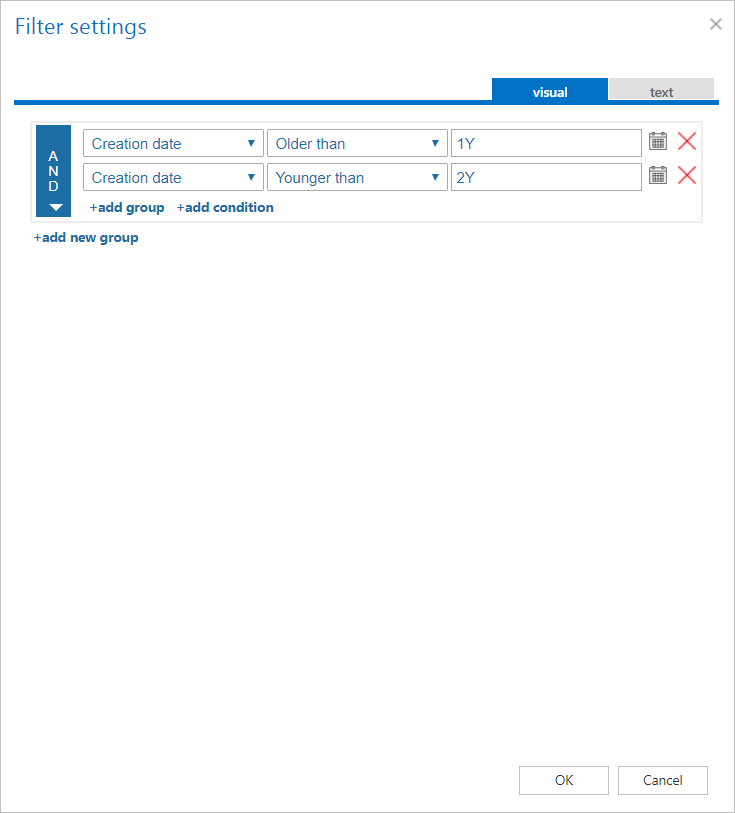
Note: In certain cases, the creation date of a file is set to a more recent date than the modification date of the file. This happens when a file is copied to another external disk (for example, from disk G to disk I) — the creation date is set to the date of the copy action. Because of this, we recommend always checking the Filtering settings if something does not get processed.
Notification settings (mandatory)
Select when you need to receive notification emails from the Retention changer job. You can configure notifications to be sent always, never, or only if an error or warning occurred during processing — for example, if the retention change of one or more items failed. In the Recipient list textbox, enter the email addresses of the people who should receive these emails. If there are multiple recipients, separate the addresses with , or ;.

Resource settings (mandatory)
Set the value that determines how many items will be processed simultaneously by the Retention changer job. The recommended value is 2.

Once all sections are configured, click Save in the upper-left corner of the UI to save your job configuration.