Configuration of File System Archive Job
Introduction
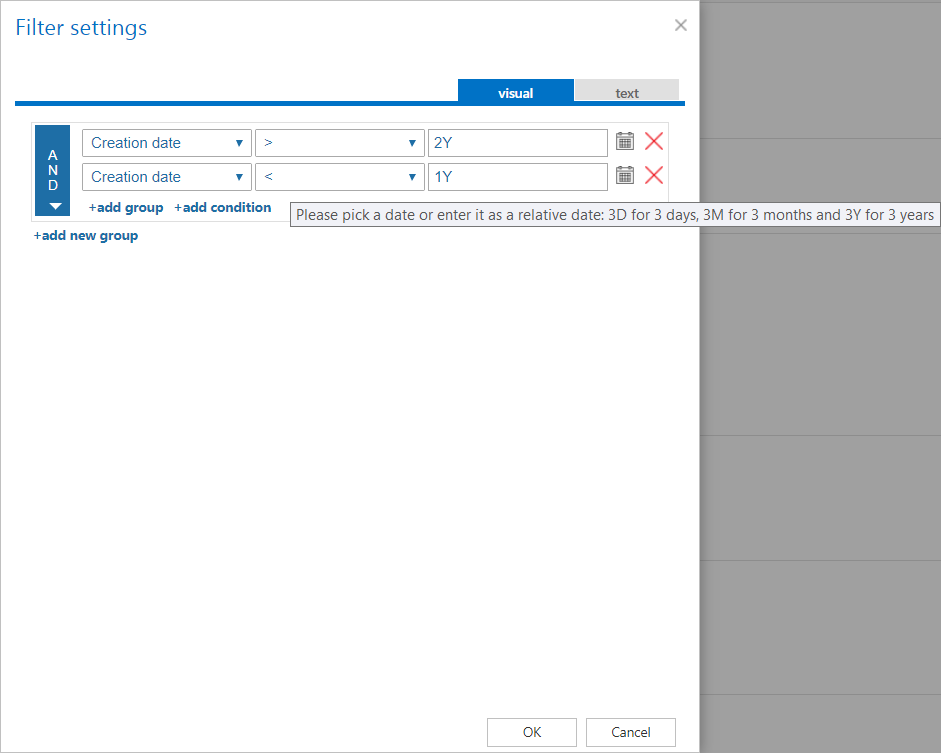
The File system archive job in File Archive allows administrators to configure automated archiving of files from local folders or remote shares. As an example, this page walks through the configuration of a job that runs every day from 6 PM, archives files that are 1–2 years old, and replaces the archived files with shortcuts. This walkthrough assumes that the database, storage, root folder, retention, and scheduler have already been configured.
The following topics are covered:
- Creating a new File system archive job
- Configuring report mode, scheduling, retention, filtering, and shortcut settings
- Selecting folders to process and folders to exclude
- Configuring filtering, notification, and resource settings
- Where end users can find their archived files
Create the job
- Navigate to File Archive ⇒ Archive ⇒ Jobs.
- Click +new.
- In the Add new job instance dialog, select File system archive from the Available jobs dropdown list.
- From the Run on node list, select the node on which the job should run. To run the job on any available node, select Any available.
- Enter a Display name.
- Click Add.

On the job's configuration page, go through the following sections. Most of them are mandatory; the filtering settings are optional.
Report mode settings
If the Use report mode checkbox is checked, the job runs in report mode. After the job finishes running in this mode, the user can download a .csv report file from this section. The file contains a list of files belonging to the folder(s) selected in the Folders to process section, along with information about them, including whether they will be processed or not.

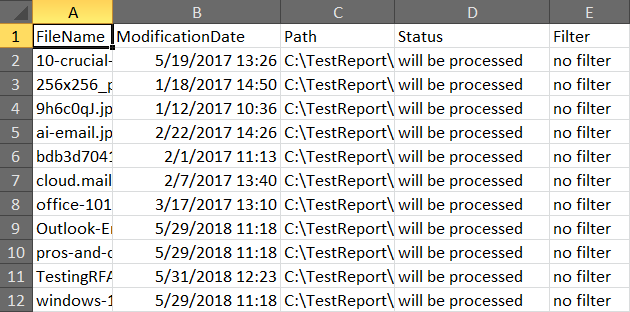 Screenshot: Report file preview
Scheduling settings
In this step, select the running times of the archive job. You can either select an existing scheduler from the list or create a new one via the new option. For archiving jobs, it is recommended to set up a scheduler that runs continuously or at specific times during the week. In this example, the job runs every day from 6 PM until midnight, after business hours.
For more information about how to set schedules, refer to the Schedules page.

Retention settings
Under retention settings, select a previously configured retention period. During this time, it will not be possible to delete the archived items from the storage. It is recommended to set a time interval based on data recording regulations required either by national law or by internal company policy. In this example, the required retention time is 10 years.
For more information about how to set retentions, refer to the Retentions page.

Filtering and shortcut settings
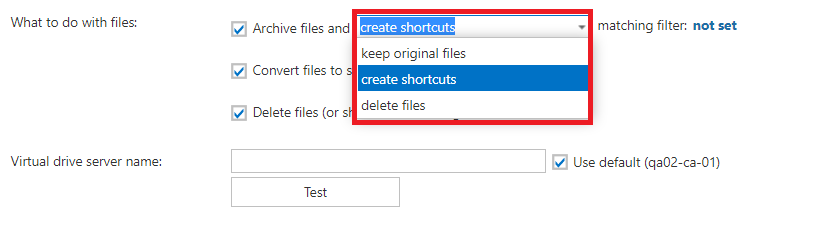
In this section, configure what will be archived and how it will be archived. It is also possible to create shortcuts from already archived files or delete them. There are three options available in the Filtering and shortcut settings section:
1. Archive files and … With this option, the job archives not-yet-archived (new) files from the selected folder(s), or creates new versions of already archived items. You can combine this option with Keep original files, Create shortcuts, or Delete files (described below). If the folder items have not been archived yet (this is their first archiving run), check the Archive files and … checkbox. You can define which files will be archived using the filtering settings by clicking not set or Change filter.

2. Convert files to shortcuts. If files are already archived using the Keep original method but need to be replaced with shortcuts, check this checkbox. When this checkbox is selected, the Virtual drive server name must also be selected. For more information about virtual drive configuration, refer to the Virtual drive page. You can define which files will be replaced using the filtering settings by clicking not set or Change filter. The first two options can also be configured within one job. In this case, the job runs in two stages: on the first run the items are archived, and on the second run the archived files are replaced with shortcuts.

3. Delete files (or shortcuts). This option deletes already archived items from the original folder. The delete function also handles orphan shortcuts (shortcuts that were already deleted from the archive but still exist in the folder). You can define which files will be affected using the filtering settings by clicking not set or Change filter.

Shortcut types in File archive
There are three shortcut types available in the file system archive:
-
Keep original files: This method (backup files with versioning) is often used on a daily basis. Its main advantage is that documents remain readily available at any time, and versions can be accessed from the archive at any time as well. This method keeps the original item in its original file location.
-
Create shortcuts: Files older than one year are usually archived with this shortcutting method. The main advantage of this method is the space saved on the computer. When needed, documents can be easily retrieved from the archive by clicking the respective shortcut.
If the user modifies the file and saves it to the original location again, the next archive job creates a new version in the archive and synchronizes the shortcut with this new version. If you use shortcutting, you must also specify the Virtual drive server name — the name of the server on which the virtual drive is installed. It is strongly recommended to use a name under which the server will always be accessible (ideally a DNS alias), since this server name is included in the generated shortcuts.
By using the Use default checkbox, you can automatically select the virtual drive that is already configured in System ⇒ Client Applications ⇒ Virtual Drive configuration. This option is useful because if the virtual drive server name changes, you only need to update it on the Virtual Drive configuration page. On the job's configuration page, the default Virtual Drive will be prepopulated.
To check whether the connection to the virtual drive server was established, click the Test button.
infoNote: Virtual drive is included in the contentACCESS setup package. It must be configured on the Virtual drive configuration page (System tab ⇒ Client applications ⇒ Virtual drive configuration button on the ribbon). After these steps, it will appear among the other drives (by default, the virtual drive will be the Z drive).

-
Delete files: With this method, the file is deleted from its original location when it is archived. This processing type is often used when a document is no longer in use but must remain restorable until a date required by the general records retention regulations of the country.
The most suitable method depends on the situation. You can use all methods simultaneously to achieve daily backup behavior — creating versions when files change, archiving with shortcutting, or deleting the original in the case of older files.
 info
infoNote: The shortcuts used in the file archive system are also compatible with the Macintosh operating system. TECH-ARROW's WinShortcutter application must be installed on every client machine. It can be downloaded either from the Tools section of the contentACCESS setup, or from our website, here.
infoNote: Archiving an HTML file with the shortcutting method in contentACCESS File Archive has certain technical limitations. If an HTML file to be archived contains pictures, these pictures will not be visible when the HTML file is opened via the shortcut in the original location after archiving. However, the pictures remain accessible when opening the HTML file from the virtual drive.
Folders to process
In this section, select the local folder(s) or remote share(s) where the data to be archived is located. There are two available options for specifying the list of folders:
-
Add folders manually via the +new option. Click +new to open the File Path dialog. In the Folder to process dialog, expand the list of already created roots and select the one to apply. This dropdown lists the roots already configured in File Archive ⇒ Settings ⇒ Root folders. Enter the Relative path if necessary, test the path using the Test button, and click OK.


-
Import the folder list from a file. The file to be imported must contain the list of folders to process. Click import to open the Import file location dialog. Specify the required settings as described in Importing contentACCESS configurations from files.


Important: It is recommended to specify a file path that can be accessed from anywhere. This is especially important when contentACCESS is installed in a distributed environment using multiple cluster nodes.
Exclude folders
Use this function to specify which folders or subfolders should not be archived. If you do not need to exclude any folders from the archiving process, you can skip these settings.
Folders can be excluded using one of the following methods:
- Added manually via the +new option.
- Imported in one of the available file formats via the import option.

-
Add folders to exclude manually: Click +new. In the Exclude folder dialog's textbox, specify the folder(s), using the hints listed in the same dialog.
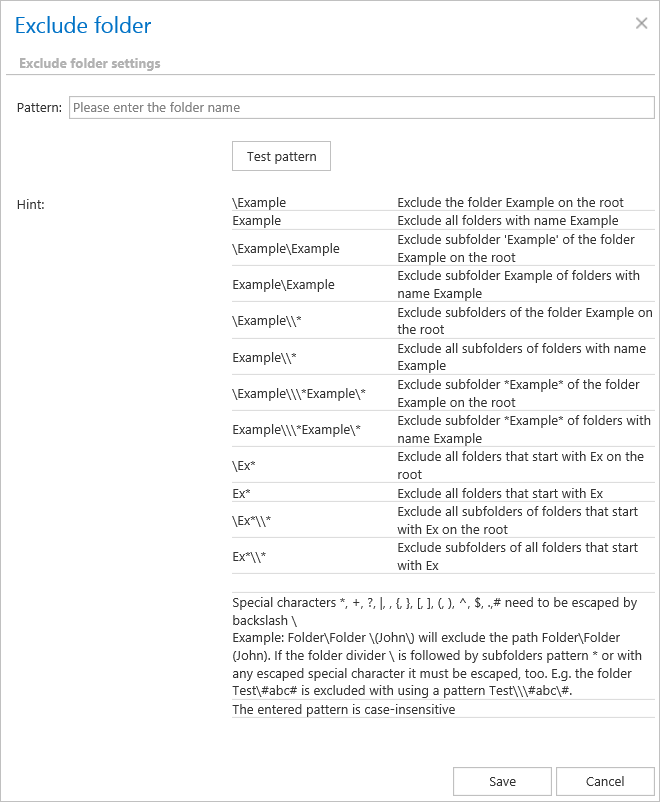
Test pattern button: Use this button to check whether the entered pattern is suitable for the path you want to exclude from the archiving process. Click Test pattern to open the Manual test of pattern matching window, enter the folder path into the Folder path field, and click Test. The test is successful if the pattern was correctly entered in the Exclude folder window.

-
Import the list of exclude folders: Lists of folders to be excluded can be imported as files in one of the available formats: CSV, XML, tab-delimited, or space-delimited files. The file to be imported must contain the list of folders to exclude. For more information, refer to Importing contentACCESS configurations from files.
Excluding folders with special characters
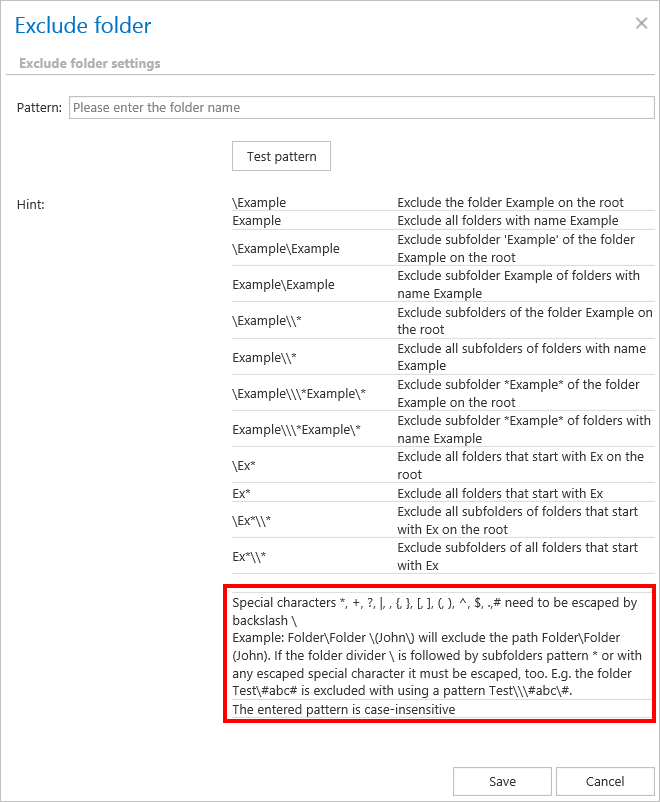
Folders containing special characters, such as brackets, hyphens, or question marks, can also be excluded from the archiving process. To exclude such folders, the special characters must be preceded by the backslash (\) escape character in the Exclude settings of the archive job's configuration page.
For example, if you have a folder named (folder) and need to exclude it (the special characters being the brackets), you must specify it as \(folder\).
This information is also available at the bottom of the Exclude folder window:
Filtering settings
Click Change filter and set the filtering according to your needs and/or regulations. To learn more about working with filtering settings, see Filtering in jobs.
Note: Using All text can cause a performance deficit, as it requires searching through large amounts of text data instead of a more focused subset.
Note: In certain cases, the creation date of a file is set to a more recent date than its modification date. This happens when a file is copied to another external disk (for example, from disk G to disk I) — in this case, the creation date is set to the date of the copy action. Because of this, it is recommended to always check the Filtering settings if a file does not get archived as expected.
Important: When a user modifies the content of an already archived file — for example, by deleting a picture and saving the file to its original location, reducing its size from 110 kB to 85 kB — and a file size filter is set to >100 kB, the File archive job will not archive the newly created item during the next processing run. The newly created item will remain in the original location, and the old shortcut will still be present there, linking to the old, unchanged file.
For this reason, it is recommended to always check the size filter settings if a file has not been archived during the next archiving process.
Notification settings
Select the cases in which you want to receive notification emails from the File archive job. You can configure notifications to always be sent, never be sent, or only be sent if an error or warning occurred during the archiving process — for example, if one or more items failed to archive. In the Recipient list textbox, enter the email addresses of the people who should receive these emails.
Since files may be modified frequently, resulting in a large number of versions, the Notify if version count reaches option lets you define a maximum number of versions, beyond which notifications are sent. It is recommended to set a relatively high value here. This feature can also be used for troubleshooting purposes — for example, if the number of versions exceeds the specified value, an error may have occurred during processing. In the example configuration shown, notifications are sent to Walter White if any errors or warnings occur, or if the version count reaches 50.

Resource settings
Set the value that determines how many items will be processed simultaneously by the file archive job. The recommended value is 2.

Always save your job configuration when finished by clicking Save in the upper-left corner of the UI.
Once saved, the job runs according to its scheduler — in this example, at 6 PM. You can check its running status in the file archive jobs grid.

Where an end user can find their file system archive
An end user has multiple options for viewing archived files. They can either browse for them on the virtual drive or view them in contentACCESS Portal, the archive interface of contentACCESS. The virtual drive is a special contentACCESS extension developed by TECH-ARROW. Even if an archived item is not present on this drive, it will still be present in contentACCESS, and the user can browse for it there. A file opened through the virtual drive is opened in read-only mode. This drive can be shared with other users, giving them easy access to the archived files. Shortcuts that replace the originals can be opened from the original file location and link to the virtual drive.