Configuration of File system recovery job
Introduction
The File system recovery job allows administrators to re-generate a file system from the archive back into its original file location. This job type is useful when:
- The entire folder structure has been deleted.
- One or more folders have been deleted.
- One or more documents from the folder(s) have been deleted and need to be restored from the archive.
The File system recovery job can reconstruct the entire folder structure from the archive, restoring already archived items to their source location and recreating any folders that were deleted. It is possible to recover any part of the structure, including:
- One or multiple folders.
- A recursive folder structure.
- One or more folder contents.
The job checks for duplicates, so the same recovery job can be run safely multiple times without creating duplicate files:
- If a shortcut for the recovered file already exists in the folder, the file will not be recovered.
- If the file is already present in the folder, it will not be recovered.
- If the same file was archived multiple times into the same folder, only the most recent version will be recovered.
Administrators can choose whether to recover the original file or a shortcut. The recovery job can also be used when files were archived using the "delete" method and need to be put back into the file system.
This page describes how to create and configure a File system recovery job, including its report mode, scheduling, processing, folder, filtering, notification, and resource settings.
Create a recovery job
To create a recovery job:
- Navigate to File Archive ⇒ Archive ⇒ Jobs and click the +new control button.
- In the Add new job instance dialog, select File system recovery from the job type dropdown list.
- Select a node from the Run on node dropdown list where the job should run. If you do not want to specify a node and the job should run on any available node, select Any available.
- Enter a Display name.
- Click Add.

On the File system recovery job's configuration page, the following sections must be configured.
Report mode settings
If the Use report mode checkbox is checked, the job will run in report mode. After the job finishes running in this mode, a .csv report file can be downloaded from this section. The file contains a list of files that belong to the folder(s) selected in the Folders to process section, along with information about whether each file will be processed or not.

Scheduling settings
In this section, select the running times of the recovery job. You can either select an existing scheduler from the list or create a new one using the create new option.
Recovery jobs are run only in specific cases. In most cases, it is recommended to set a One time scheduler for the recovery job (for example, with a start date of the 7th of September at 6 PM), or to start the job manually from the status bar.
For more information about how to set schedulers, see Schedules.

Processing settings
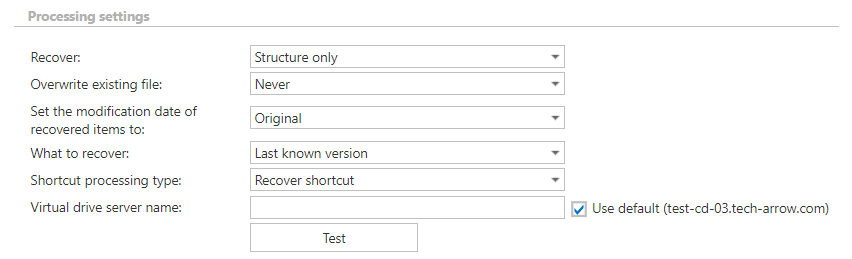
In this section, configure what will be recovered and how it will be recovered.
- Recover: determines what will be recovered.
- Files and structure: the job creates the archived folder structure and recovers the files from the archive.
- Structure only: the job creates the archived folder structure, but no files will be recovered.
- Overwrite existing file: determines when to overwrite a file that already exists in the target location.
- Never: do not overwrite existing files with the archived version.
- Always: always overwrite existing files with the archived version.
- If older than the archived version: overwrite only if the modification date of the existing file is older than the modification date of the archived file.
- If newer than the archived version: overwrite only if the modification date of the existing file is newer than the modification date of the archived file.
- Set the modification date of recovered items to: determines which date is applied to recovered files.
- Original: the modification date of the archived item is set on the recovered file.
- Recovery date: the date on which the recovery job runs is set on the recovered file.
- What to recover: determines which version of the item is recovered.
- Last known version: the job recovers the latest version of the item from the archive.
- Specific date: the job recovers the version that was valid at the specified time, meaning the version with a modification date older than or equal to the specified date.
- Shortcut processing type: determines whether the original file or a shortcut is recovered.
- Recover original: the job recovers the original file.
- Recover shortcut: the job recovers the shortcut. If this option is selected, the Virtual drive server name must also be specified. Using the Use default option automatically preselects the Virtual Drive already configured on the Virtual Drive configuration page. It is recommended to use this option, because if the settings are changed on the Virtual Drive configuration page, the new value will be automatically used by the job as well, without requiring changes to the job's settings.
Folders to process
In this section, specify one or multiple archive folder(s), or recursive folder structure(s), that were deleted and need to be recovered from the archive. There are multiple ways to add new source location(s) with content that needs to be recovered.

Add folders manually
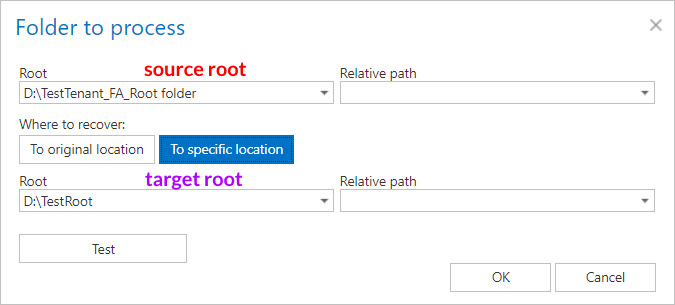
- Click + new. The Folder to process dialog opens.
- Select the Root (source) file path from the dropdown list and, if necessary, enter the subfolder in the Relative path text box.
- Select where the files from the folder will be recovered to:
-
To original location – items are recovered to the place from which they were archived. Click To original. You can test the accessibility by clicking Test. Click OK.

-
To specific location – items are recovered to a different folder. Click To specific location. A new dropdown list appears. Select the destination folder for the recovery (it must also be previously configured as a Root folder). You can also enter the subfolder in the Relative path text box if necessary. You can test the accessibility by clicking Test — in this case, it checks the accessibility of both the source and target locations. Click OK.
-
Import folders to process
It is also possible to import the files to recover from a file in which the file path(s) are specified. To import this file, click import and follow the steps described in Importing contentACCESS configurations from files.
Important: It is highly recommended to specify the file location as a path that can be accessed from anywhere. This is particularly important if contentACCESS is installed in a distributed environment using multiple cluster nodes.
Exclude folders
Use this function to set which folders/subfolders should not be recovered. The same rules apply here as in the file archive job. If you do not want to exclude any folder from the recovery process, you can skip these settings.
Folders may be excluded using one of the following methods:
- Added manually via the + new option.
- Imported in one of the available file formats via the import option.

Add exclude folders manually
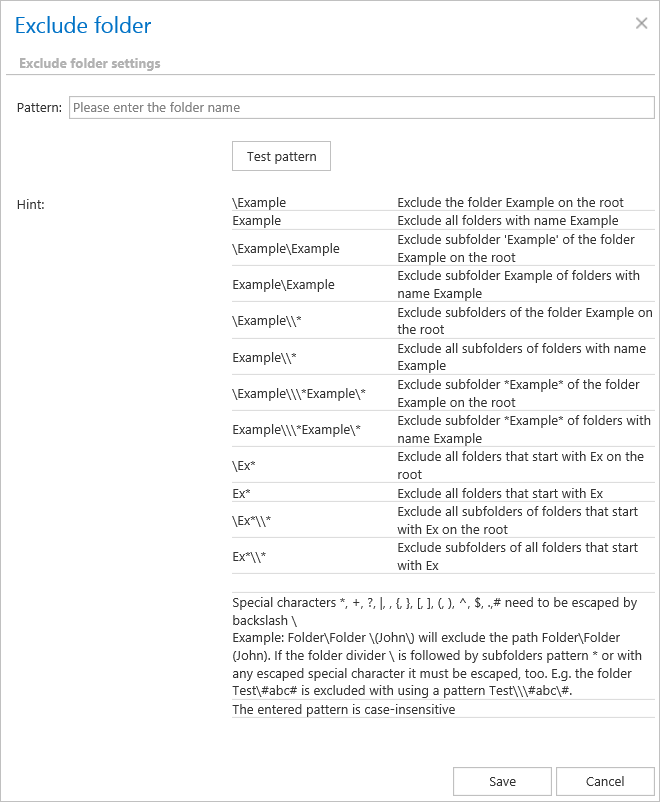
Click + new. In the Exclude folder dialog's text box, specify the folder(s) to be excluded. Use the hints provided in the dialog.
Import the list of exclude folders
Exclude folders may be imported as files in one of the available formats: CSV, XML, tab-delimited, or space-delimited. The imported file must contain the list of folders. For more information, see Importing contentACCESS configurations from files.
Filtering settings
Click Change filter and set the filtering according to your needs and/or regulations. To learn more about working with filtering settings, see Filtering in jobs.
Note: Using All text can cause a performance deficit, as it requires searching through large amounts of text data instead of a more focused subset.
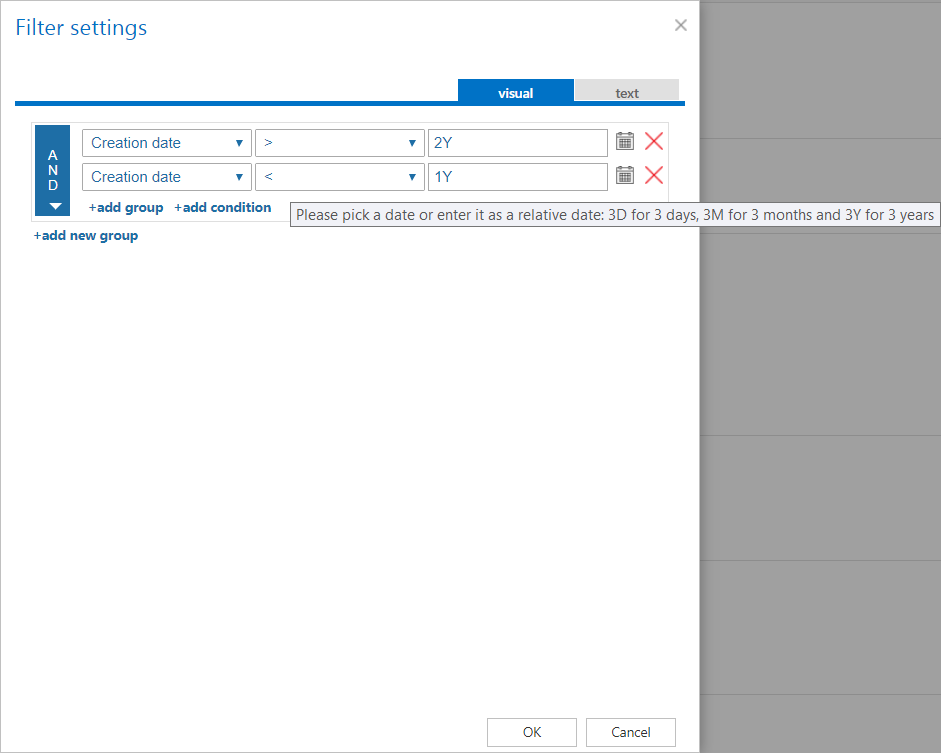
Note: In certain cases, the creation date of a file is set to a younger date than the modification date of the file. This happens when a file is copied to another external disk (for example, from disk G to disk I) — the creation date is set to the date of the copy action. Because of this, always check the Filtering settings if something does not get processed.
Important: When the content of an already archived item is changed — for example, a picture is deleted from the file and the file is saved back to its original location, reducing the file size from 110 kB to 85 kB — and the file size filter is set to greater than 100 kB, the job will not process the item during the next run. For this reason, always check the size filter settings if an item has not been processed.
Modification date
Files can be recovered either with the original modification date or with the recovery date. It is recommended to set the recovery date if the folder is already processed by an archive job and you want to prevent the folder from being re-archived.

Notification settings
Select the cases in which you need to receive notifications from the recovery job. Notification emails can be set to be sent only in case of errors or warnings, or in all cases. In the Recipient list text box, enter the email addresses of the people who should receive these emails. Notification emails can be useful as a troubleshooting tool.

Resource settings
Set a value to determine how many items will be processed simultaneously by the recovery job.
