Configuration of File system shortcut synchronization job
Introduction
The File system shortcut synchronization job processes and updates shortcuts that point to files in the archive. It keeps shortcut permissions, folder paths, and orphaned shortcuts synchronized with the current state of the archived files.
This page describes how to create and configure a File system shortcut synchronization job, including its scheduling, retention, processing, folder, and resource settings.
Create the job
Go to Jobs → Add new → File system shortcut synchronization.
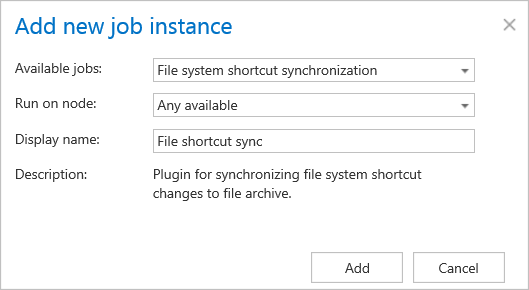
On the job's configuration page, go through the following sections.
Scheduling settings
Select the running times of the job. You can either select an existing scheduler from the list or create a new one using the Create new … option.

Retention settings
Select an already configured retention time from the dropdown list. Archived files are stored for this period in the storage and cannot be deleted during that time. It is highly recommended to select a retention time that meets the legal requirements of your country.
For more information on how to set retentions, see Retentions.

Processing settings
The processing settings specify the functions that should be executed by the job:
- Allow to update folder and file permissions: Enables permission updating for folders and files.
- Allow to update folder path based on the shortcut location: Turns folder path synchronization on or off.
- Allow to clean up orphaned shortcuts: Turns on or off the function that deletes shortcuts pointing to files that were deleted (purged) by the Delete job.

Folders to process
Select the folder(s) to be involved in the job. There are two ways to specify the list of folders:
Add folders manually
Add the folder(s) one by one using the +new option.
- Click +new to open the File Path dialog.
- In the Folder to process dialog, unroll the list of already created roots and select the one that should be applied. This dropdown lists the roots that are already configured in File Archive → Settings → Root folders.
- Enter the Relative path if necessary.
- Test the path using the Test button.
- Click OK.


Import the folder list from a file
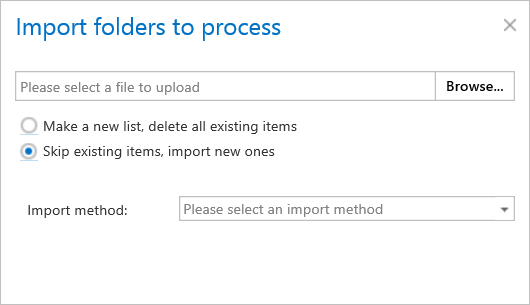
The folder list can also be imported from a file containing the list of folders that should be processed.
- Click the import button to open the Import file location dialog.
- Specify the required settings as described in Importing contentACCESS configurations from files.

Resource settings
Set the value that determines how many items will be processed simultaneously by the job. The recommended value is 2.

Once all sections are configured, click Save in the upper left corner of the UI to save the job configuration.