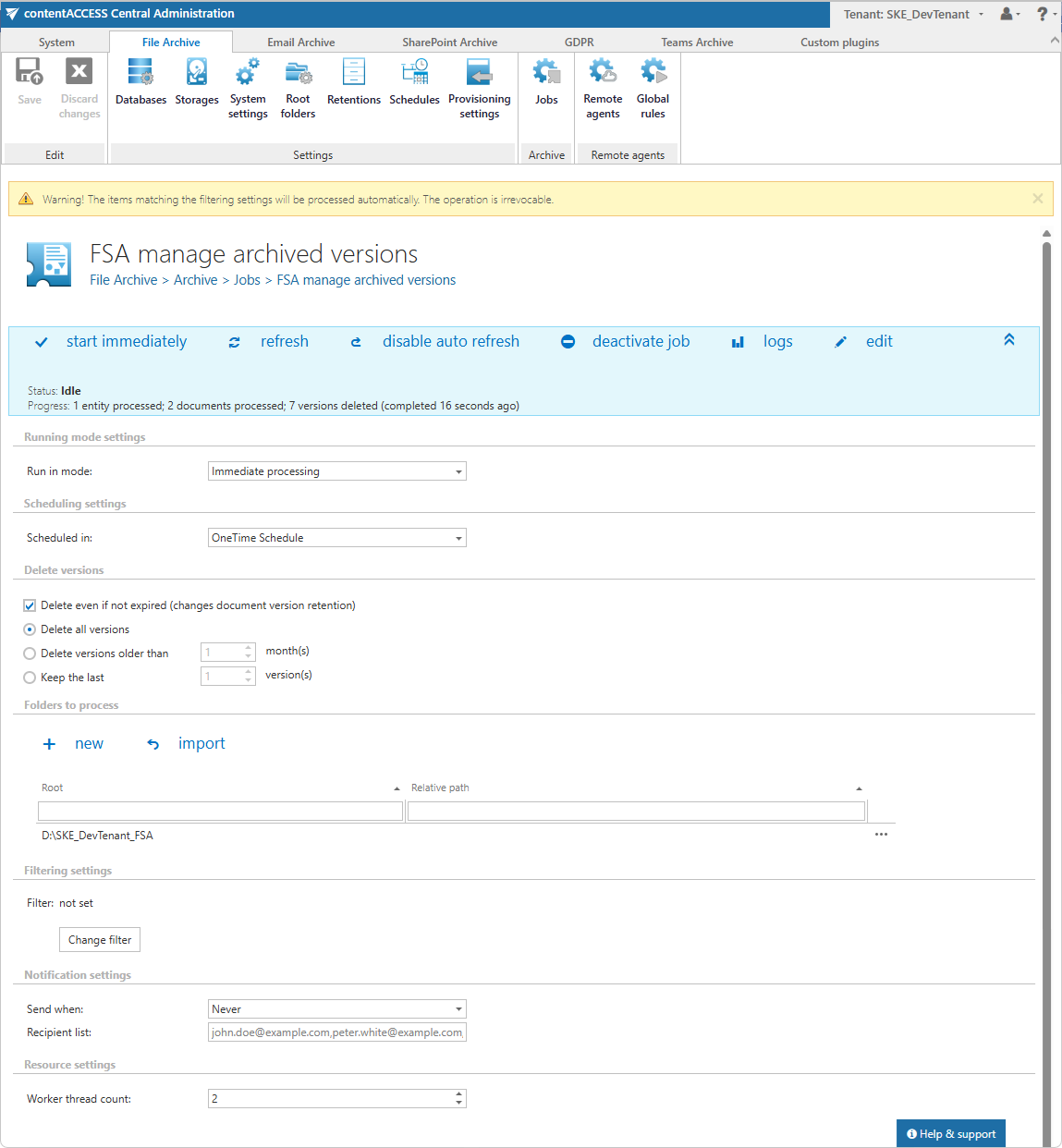
Configuration of Manage archived versions job in File system archive
Introduction
The Manage archived versions job removes archived file versions in File system archive. By default, it processes only versions whose retention period has already expired. Administrators can optionally enable an override option so the job also processes versions that have not yet expired; this override is license-dependent and requires a valid Retention changer license.
With this job, you can control how archived versions are removed, for example by keeping the last X versions of each archived file, or by keeping only versions younger than a selected threshold (a fixed date or X months). The job supports three running modes — Immediate processing, Create report, and Apply report — enabling a controlled workflow where affected items can be reviewed before deletion.
This page describes how to create and configure a Manage archived versions job, including its running mode, scheduling, version deletion rules, folder selection, filtering, notifications, and resource settings.
Create a new job
- Navigate to File Archive ⇒ Archive ⇒ Jobs.
- Click +new.
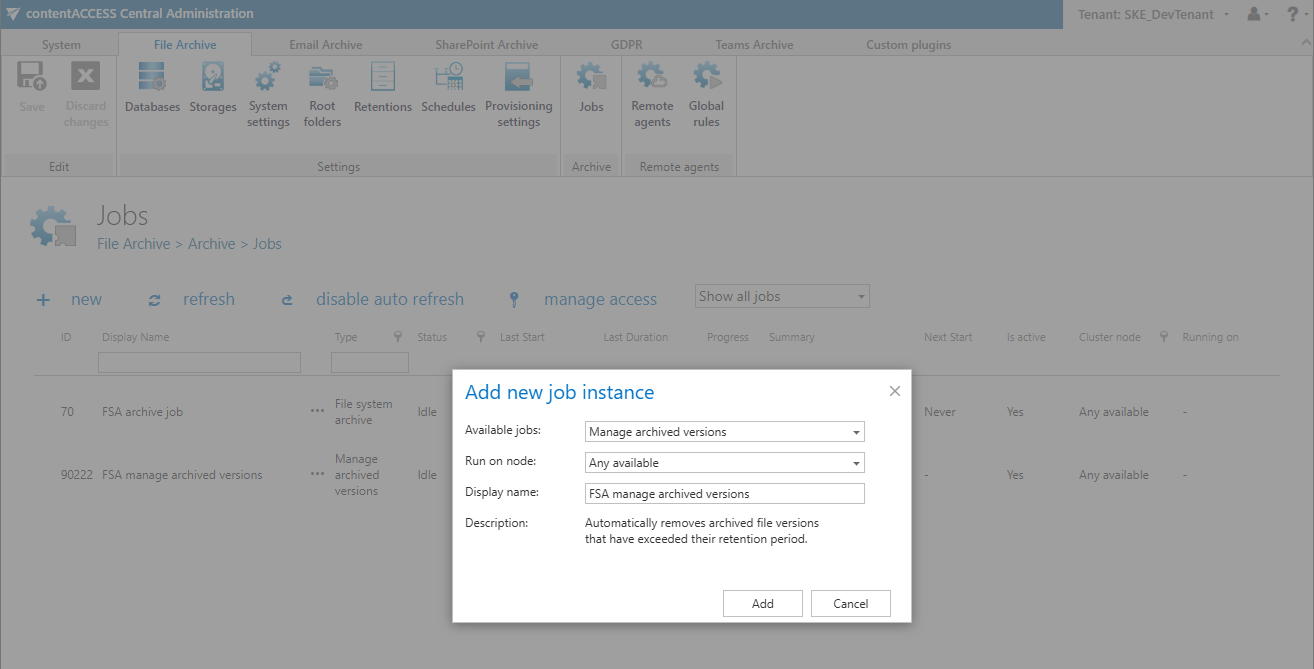
- In the Add new job instance dialog, select Manage archived versions from the Available jobs dropdown list.
- Select the node where the job should run from the Run on node list. If you do not want to specify a dedicated node, select Any available.
- Enter a Display name.
- Click Add.
Configure the job
On the job configuration page, review the following sections. Most of them are mandatory, while filtering settings are optional.
Running mode settings
The job can run in three modes:
-
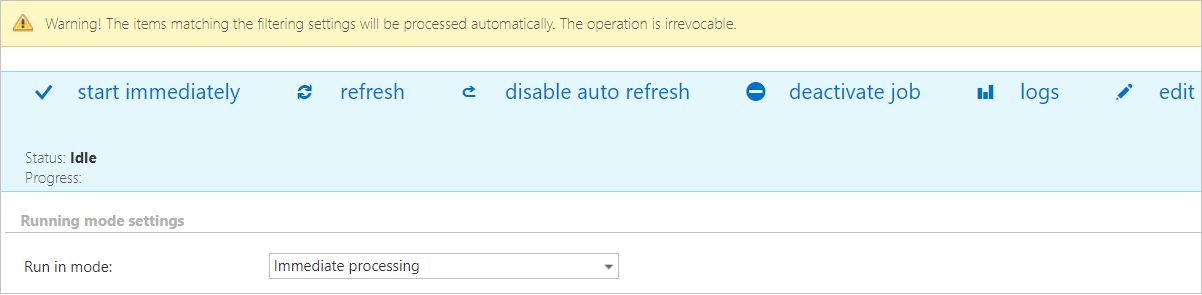
Immediate processing — Collects all archived file versions matching the filtering criteria and deletes them immediately.
-
Create report — Collects archived file versions matching the filtering criteria and generates a CSV report listing the affected items. The administrator can review and edit the list before any deletion takes place.

-
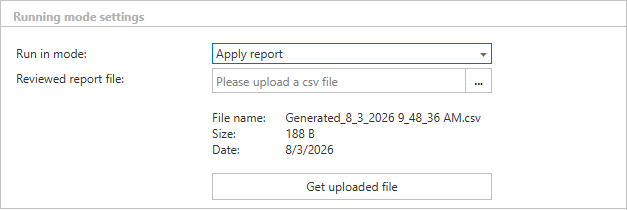
Apply report — A CSV file previously generated in Create report mode must be uploaded here. The administrator can remove items from the list before running the job; only the versions listed in the file will be processed and deleted.
Scheduling settings
In this section, the job schedule must be configured. The job can run either as a one-time task or on a recurring schedule. You can select an existing scheduler from the Scheduled in dropdown list or create a new one by clicking Create new.... For more information on configuring schedulers, refer to the Schedules section of this guide.

Delete versions
In this section, you can define which archived file versions should be removed.
- Delete even if not expired (changes document version retention) — If checked, the job will delete versions regardless of whether their retention period has expired. Enabling this option overrides the document version retention setting. This option is license-dependent and is only available if the tenant has a valid license for the Retention changer feature.
When this checkbox is unchecked, the options below apply only to expired versions:
- Delete all expired versions — All archived versions whose retention period has already expired will be deleted.
- Delete expired versions older than [X] month(s) — Only expired versions that are older than the specified number of months will be deleted.
- Keep at least the last [X] version(s) — Regardless of expiry, the specified number of most recent versions will always be retained.

When this checkbox is checked, the retention period is no longer considered, and the options apply to all versions:
- Delete all versions — All archived versions will be deleted regardless of their retention status.
- Delete versions older than [X] month(s) — Versions older than the specified number of months will be deleted.
- Keep the last [X] version(s) — The specified number of most recent versions will always be retained.

Folders to process
In this section, you can define which folders should be processed by the job. There are two ways to specify the folder list.
Add folders manually
Folders can be added via the +new option.

The +new option opens a dialog where you can select from the already configured roots in File system archive (File Archive ⇒ Settings ⇒ Root folders). You can select one or more roots and optionally specify a subfolder for each root. If no subfolder is specified, the job processes all archived files in the selected root. You can also test the connection with the Test button, then click OK.

Import the folder list
The folder list can also be imported from a file.

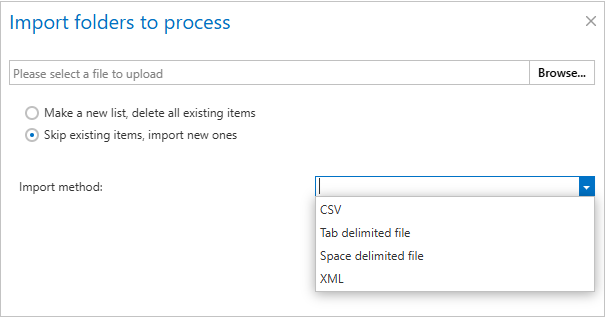
This file must contain the list of root folders that should be processed by the job. Click Import to open the Import folders to process dialog. In the Import method dropdown, select the required file format (for example CSV, XML, Tab delimited, or Space delimited), then configure the related import settings. You can also choose how the list should be handled during import (for example creating a new list or skipping existing items). Configure the required settings according to the Importing contentACCESS configurations from files section of this guide. After import, the list of folders is displayed in the Folders to process section.
Filtering settings
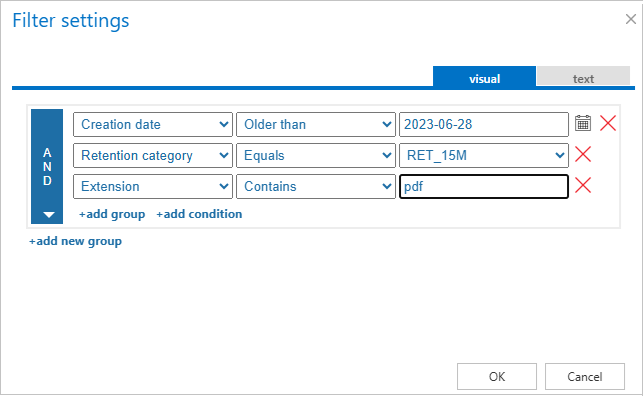
Click Change filter and configure filtering according to your needs and/or regulations. To learn more about filtering, refer to the Filtering in jobs section of this guide.

Notification settings
In this section, you can configure job notifications. You can choose whether notification emails are sent always, never, or only when an error or warning occurs. In the Recipient list textbox, enter the email address(es) of the recipients. If there are multiple recipients, separate the addresses with a "," or ";" character.

Resource settings
In this section, you can configure job resource settings. Set the value that determines how many items are processed simultaneously. The recommended default value is 2.

Save the job
Once the job is configured, click Save. The job will be listed in the Jobs list and will run according to the defined schedule.