Configuration of Remote shortcutting job
Introduction
The Remote shortcutting job is a special job type used together with the File system archive job. It is designed for environments where several remote locations are synchronized with a central data center: files are archived in the data center using a File system archive job, and the corresponding remote files are then replaced with shortcuts by the Remote shortcutting job to spare storage space on the remote shares.
contentACCESS is installed on the data center and continuously archives the files that have already been copied there. The archiving itself is performed by a standard File system archive job, while the Remote shortcutting job is responsible for creating shortcuts on the remote shares. Archiving from the data center can be done using the shortcutting, journal, or keep original method — all archiving types are supported.
This page describes the shortcutting process and explains how to configure a Remote shortcutting job, including its scheduling, processing, remote location, filtering, notification, and resource settings.
Note: The Remote shortcutting job can replace remote files with shortcuts only if the matching file in the data center (where contentACCESS is installed and the file archive job is running) has already been archived. The modification date of the remote file and the data center file must be the same; otherwise, the shortcutting job will skip the file and record this information in the .log file.
Shortcutting process overview
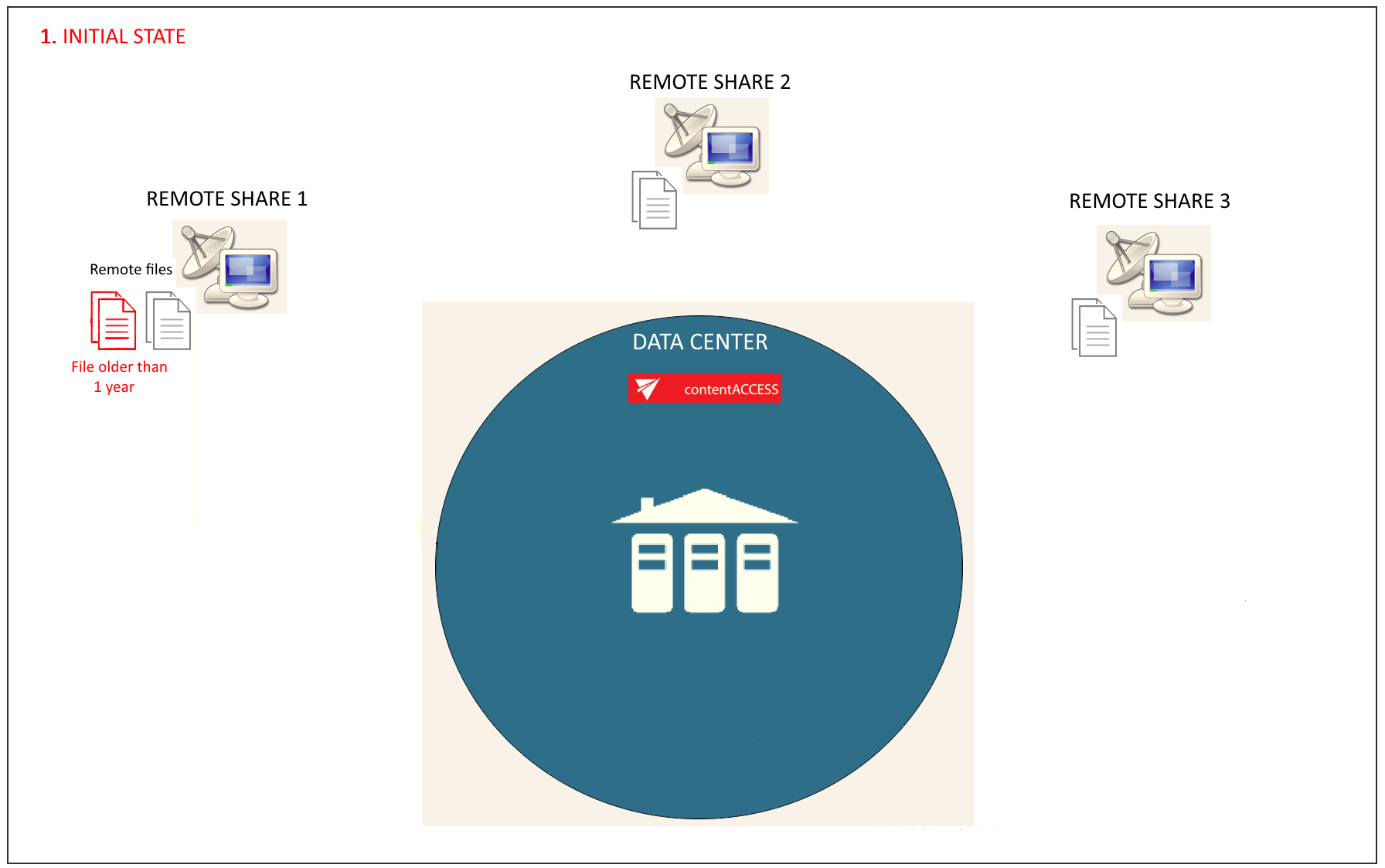
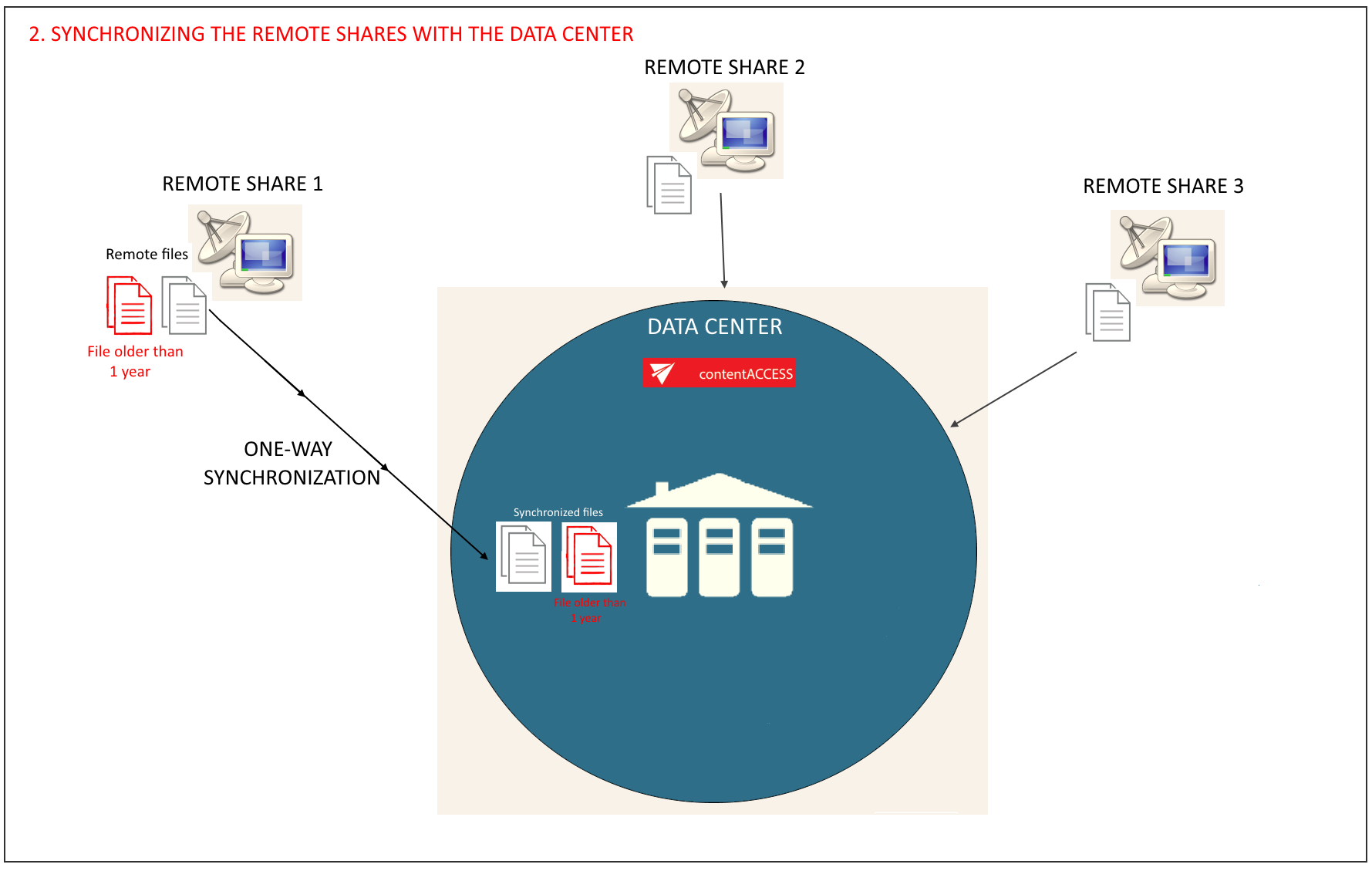
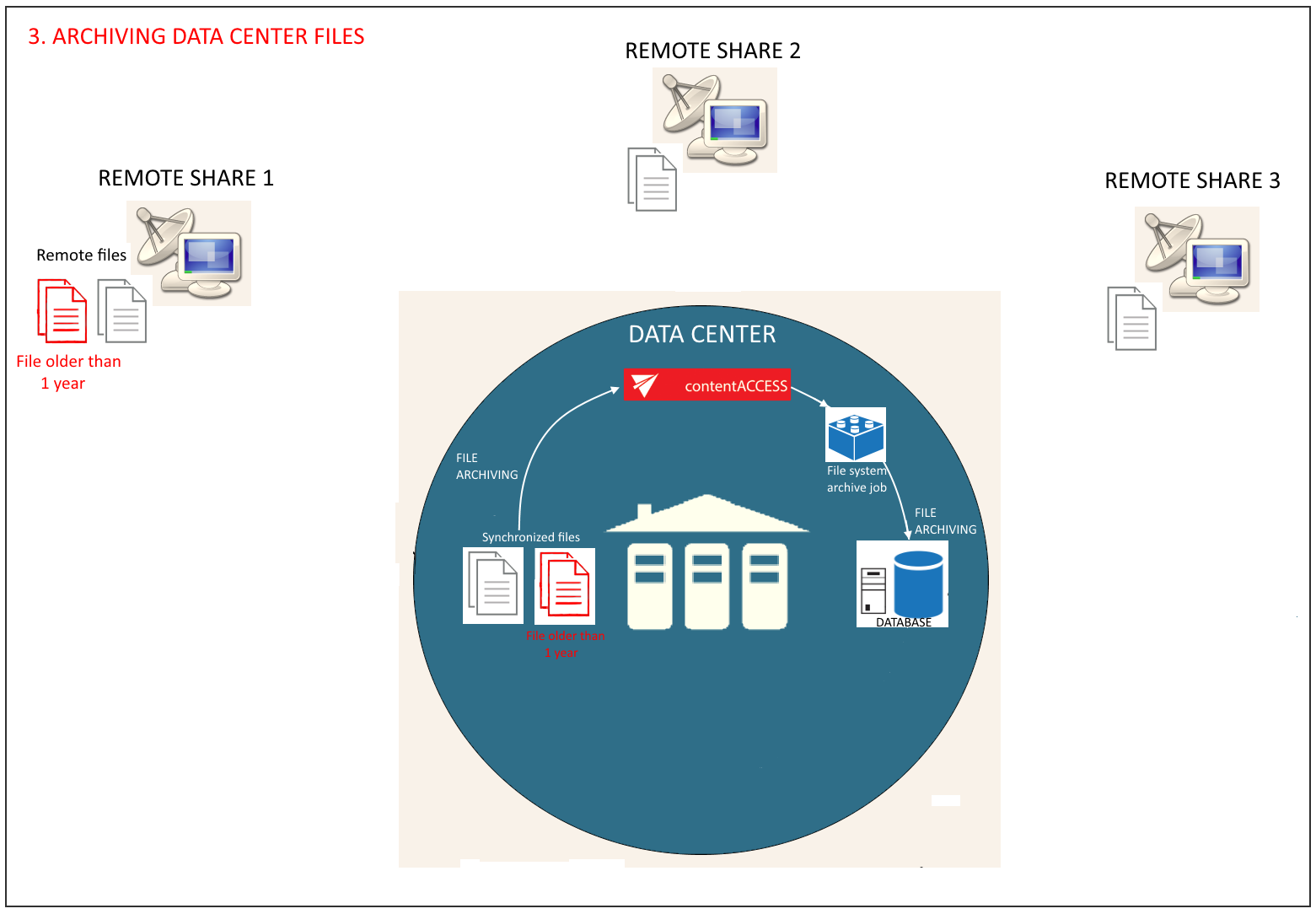
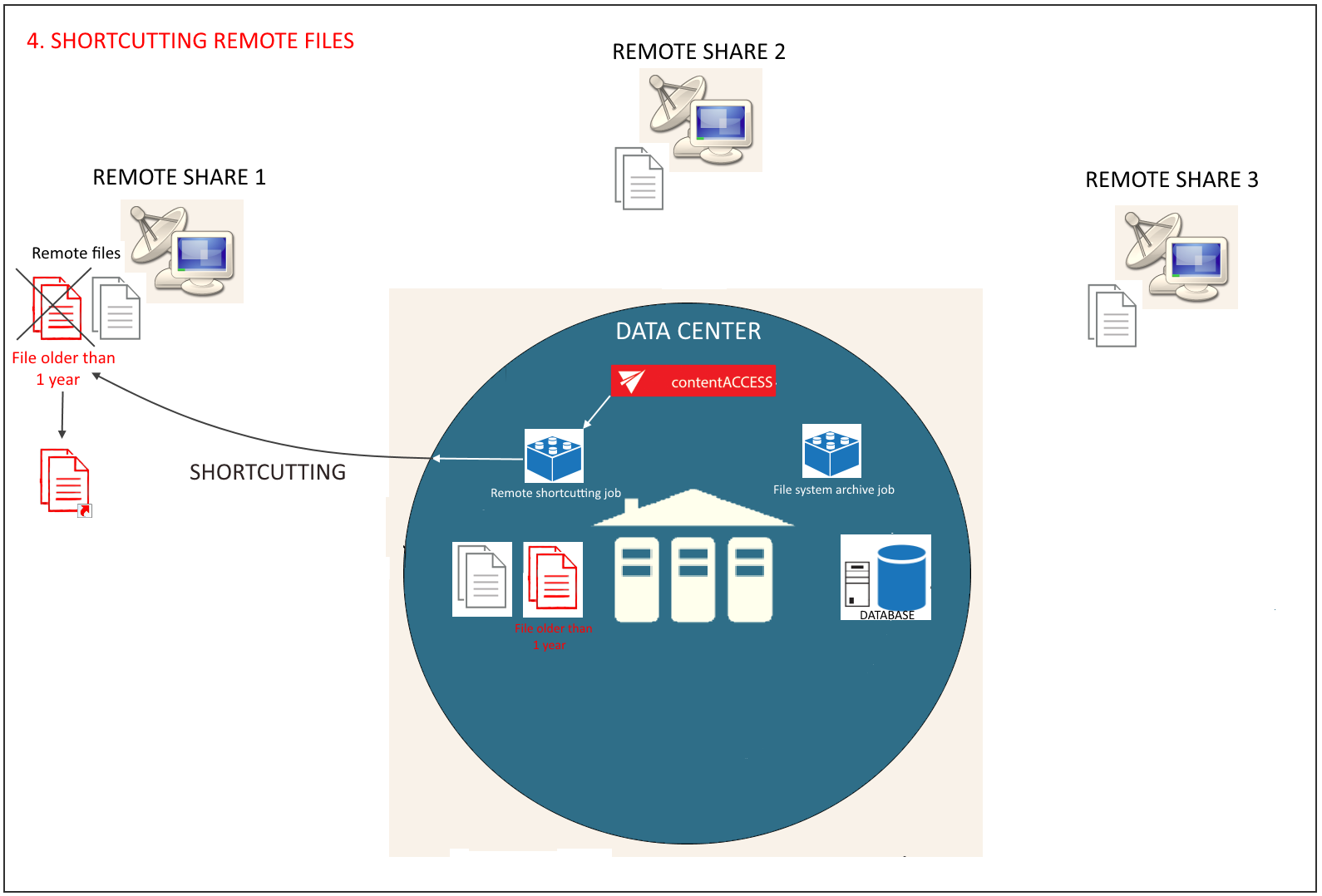
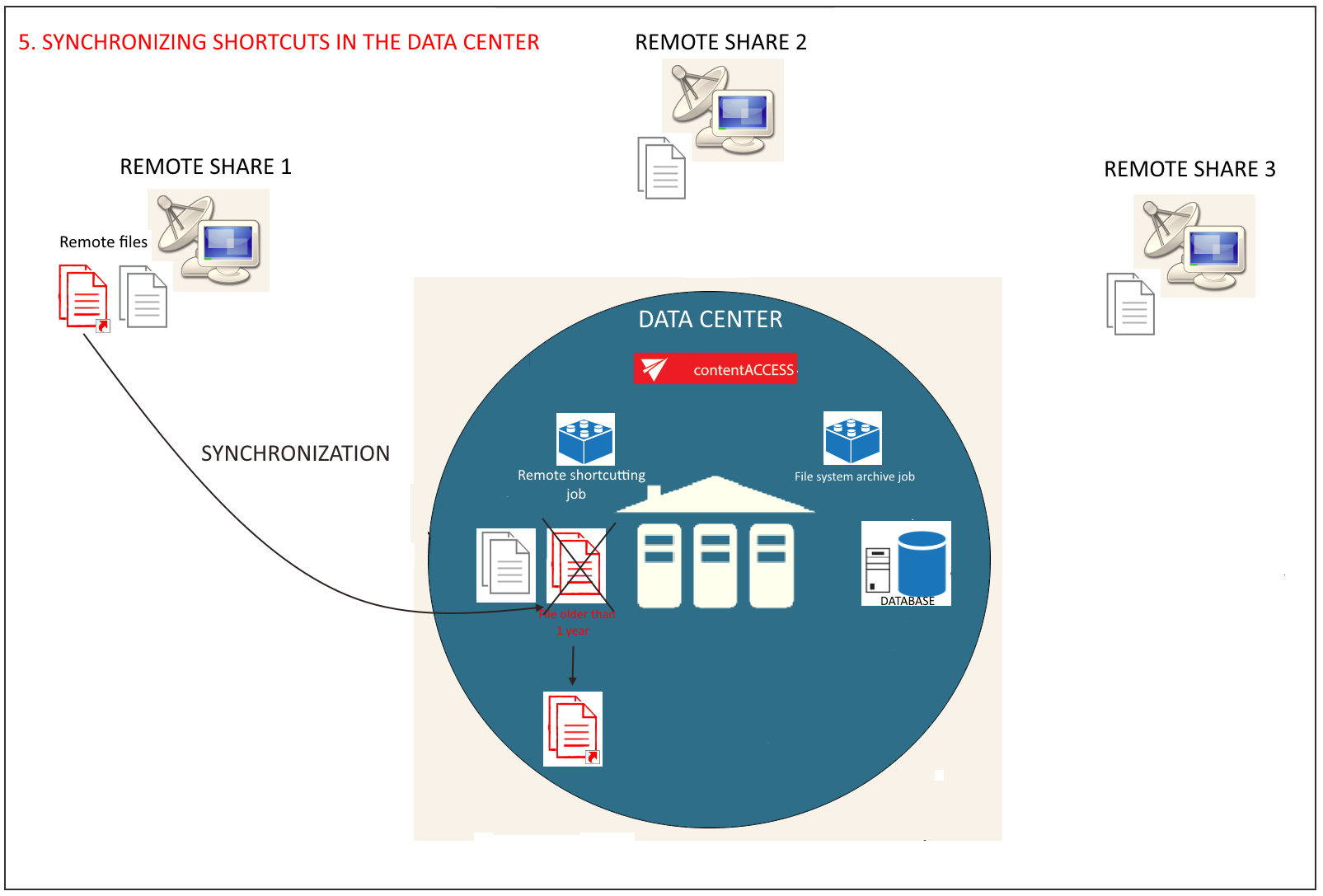
The following diagrams illustrate the phases of the shortcutting process. In this scenario, the contentACCESS server is installed on the data center only.
-
The first chart illustrates the initial state of the remote shares and the central data center, before the remote files are synchronized.
-
The second chart shows how the remote shares are synchronized with the data center (that is, files from the remote share(s) are copied to the data center).
-
The third chart shows how the File system archive job archives the files in the data center into the contentACCESS database.
-
The fourth chart shows how already archived files older than the age specified in the Remote shortcutting job (in this example, more than 1 year old) are replaced with shortcuts on the remote share. This process is executed by the Remote shortcutting job.
-
The last chart illustrates how the shortcuts on the remote share are synchronized with the data center files (that is, the data center files are also replaced with shortcuts).
Prerequisites
Before configuring the Remote shortcutting job used in this example, make sure that:
- The remote files have already been synchronized with the files in the data center and have already been archived.
- The archive database is already configured in contentACCESS. For more information, refer to the Databases section.
- The remote share's file path and the data center's file path have been configured on the Aliases page. For more information, refer to Configuring aliases.
In this example, we will configure a Remote shortcutting job that runs every day from 6 PM and replaces remote files that have not been modified for a year (modification date is more than 1 year old). The remote files are located in tawin10\...\Test documents for Remote shortcutter job.
Create the job
Navigate to File Archive ⇒ Archive ⇒ Jobs and click +new. In the Add new job instance dialog, select Remote shortcutting from the Available jobs dropdown list. Select the node on which the job should run from the Run on node list — in this example, no specific node is required, so Any available is selected. Name the job and click Add.

On the job's configuration page, go through the following sections. Most of them are mandatory; filtering settings are optional.
Scheduling settings
Select the running times of the shortcutting job. You can either select a scheduler from the list or create a new one using the create new… option. It is recommended to set up a scheduler that runs continuously, or at specific times during the week. In this example, the job runs every day from 6 PM until midnight, after business hours.
For more information about configuring schedulers, refer to the Schedules section.

Processing settings
Enter the server name where the Virtual Drive has been installed (a DNS alias is recommended). The Virtual Drive is used to open the shortcuts linking to the archived files.
By using the Use default option, the Virtual Drive already configured on the Virtual Drive configuration page will be automatically preselected. This option is recommended because if the settings are later changed on the Virtual Drive configuration page, the updated value will be used automatically by the job, without requiring changes to the job's settings.

Remote file system locations
Specify the remote share(s) containing the files to be replaced with shortcuts. Multiple remote shares can be specified. Only the remote file path(s) already specified on the Aliases page will be listed in the dialog. For more information, refer to Configuring aliases.
Click +new to open the Remote file path dialog. Expand the Alias dropdown list and select the alias that the job should use. Set the relative folder path in the Path extension text box.
Item filtering
This configuration allows you to filter the items to be shortcut by three criteria: age, size, or file type. Multiple filters can be used simultaneously. To filter documents according to any of these criteria, select the checkbox next to the corresponding filter button, then click the activated button.
Age filter
This filter allows you to configure how old files must be to be processed by the shortcutting job. You can either:
- use the Use dates option and select a date from the calendar; or
- enter a value into the days/months/years text box to process files that are younger than, older than, or fall within a time interval.
The shortcutting job checks whether the modification date of the remote file matches the modification date of the data center file. If the dates match, the job replaces the remote file with a shortcut. If the dates differ, it skips the remote file and records this information in the .log file.
In this example, since we want to replace remote files older than 1 year with shortcuts, Modification date is older than 1 year is set in the Age filter window.
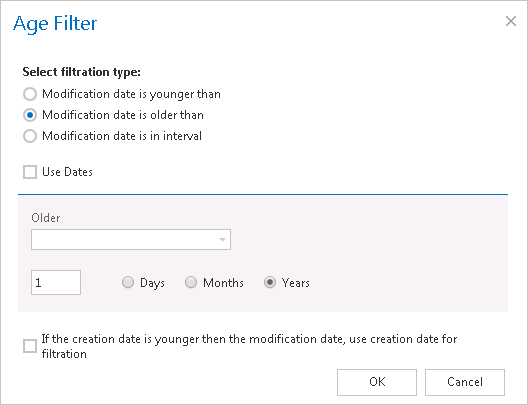 Screenshot: Remote files older than 1 year will be replaced with shortcuts.
Size filter
This filter can be used to replace with shortcuts only files of a certain size. To use it, select the checkbox next to the Size filter button, then click the activated button.
In the Size filter dialog, choose a filtering type (Bigger than, Smaller than, or Between values), enter the size (in kilobytes), and click OK.

If you want to process all files on the remote share, you can skip this filter setting (as is the case in this example).
Important: When a user changes the content of a file — for example, by deleting a picture from the file and saving it to the original location — the file size may be reduced (for example, from 110 KB to 85 KB). If the size filter is set to greater than 100 KB, the shortcutting job will not process the newly created item during the next run. The newly created item will remain in the remote location, and the old shortcut will still be present there as well, continuing to link to the old, unchanged file.
For this reason, it is recommended to always check the size filter settings if a file has not been replaced by the shortcutting job.
File type filter
This filter allows you to select specific file types for processing. To filter documents according to this criterion, select the checkbox next to the File Type filter button, then click the activated button.
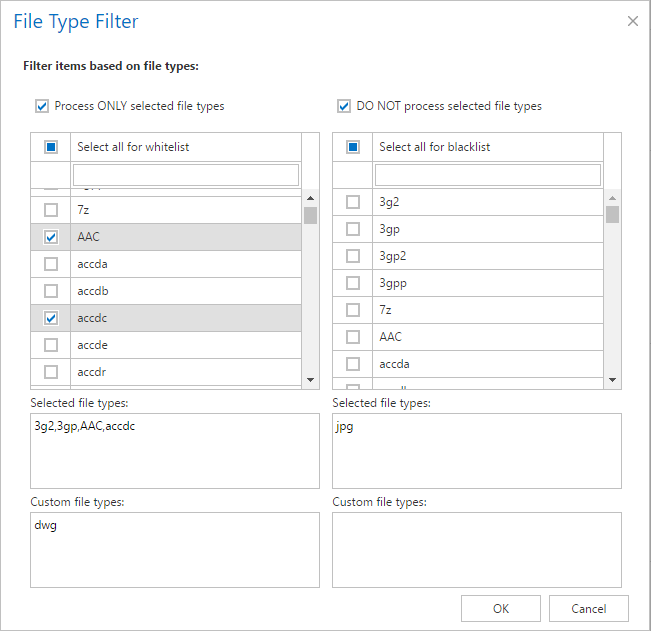
In the File Type filter dialog, you can either:
- select the file types that need to be processed (Process ONLY selected file types); or
- specify file types that should be excluded from processing (DO NOT process selected file types).
The file types selected in the whitelist/blacklist are displayed below the grid in a read-only text box. Any file type — including types not included in the whitelist and/or blacklist — can be specified in the Custom file types text box (in this example, dwg). If no file types are selected or deselected, every file type will be processed automatically. If you need to process all files on the remote share, skip these settings.
Notification settings
Select whether you want to receive notification emails from the Remote shortcutting job, and in which cases such emails should be sent.
In the Recipient list text box, enter the email addresses of the people who should receive these notifications.

Resource settings
Set the value that determines how many items will be processed simultaneously by the job. The recommended value is 2, as used in this example.

Always remember to save your job configuration when finished: click Save in the upper-left corner of the UI.