Global rules (remote file archive)
Introduction
The Global rules page allows administrators to define and manage global remote file archive rules for Remote agents. Unlike agent-specific rules, global rules can be created once and then assigned to selected agents or to all available agents. Once assigned, they appear in the list of rules on the Archive tab.
This page describes how to create and configure a global rule, including scheduling, retention, remote locations, item filtering, and resource settings, as well as how to assign rules to agents and manage existing rules.
Go to File archive ⇒ Remote agents ⇒ Global rules to access this page.
Create a global rule
To create a new rule, click + new rule. Fill in the display name and check the Is enabled checkbox if you want the rule to be available for assignment to remote agents.
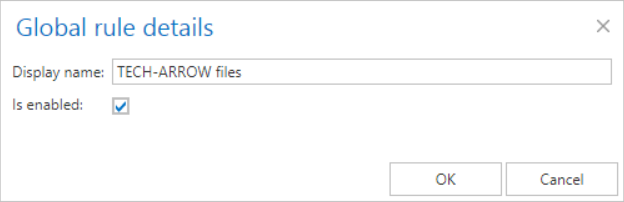
When the rule's configuration page opens, a warning is displayed indicating that you are configuring a global rule.

On the configuration page, go through the following sections. Most of them are mandatory; filtering settings are optional.
Scheduling settings
Select the running times of the rule. You can either select a scheduler from the list or create a new one using the Create new option. For more information about configuring schedulers, refer to Schedules.

Retention settings
Select a previously configured retention period. During this time, it will not be possible to delete the archived items from the storage. It is recommended to set a time interval based on data recording regulations required either by law or by internal company policies. For more information about configuring retentions, refer to Retentions.

Remote locations
Select the remote share(s) where the data to be archived is located.
- Click + new to open the File Path dialog.
- Specify the remote folder location.
- If necessary, check the Use explicit credentials checkbox and enter the applicable user credentials. This is highly recommended for remote folders.
- Click OK.

Important: It is recommended to specify a file path that can be accessed from anywhere. This is particularly important when contentACCESS is installed in a distributed environment using multiple cluster nodes.
Item filtering
This configuration allows filtering items by three types of criteria: age, size, or file type. Multiple filters can be used simultaneously. To filter files according to any of these criteria, activate the filter by checking the checkbox next to it, then click on the activated button.
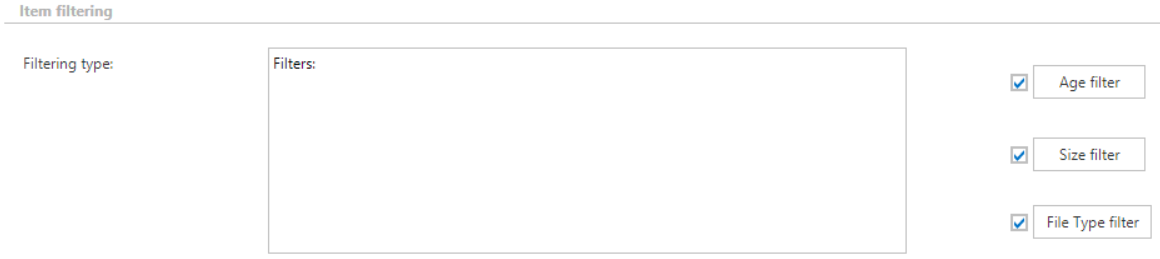
Age filter
This filter allows selecting files of a specific age to be processed. You can select the filtration type from the list, and either:
- use the Use dates option and pick a date from the calendar, or
- enter a value into the days/months/years textbox to search for files that are younger than, older than, or fall within a specified time interval.
Using the creation date or modification date for filtering: By default, the modification date is the determinative date. This can be changed by checking the If creation date is younger than the modification date, use creation date for filtration checkbox. In certain cases, the creation date of a file is set to a younger date than the modification date. This happens when a file is copied to another external disk (for example, from disk G to disk I) — in this case, the creation date is set to the date of the copy action. If you want to use this file in the future and do not want to archive it, this feature can solve the problem by excluding the file with the newer creation date from the process. When creating an archiving policy, take these rules into consideration.
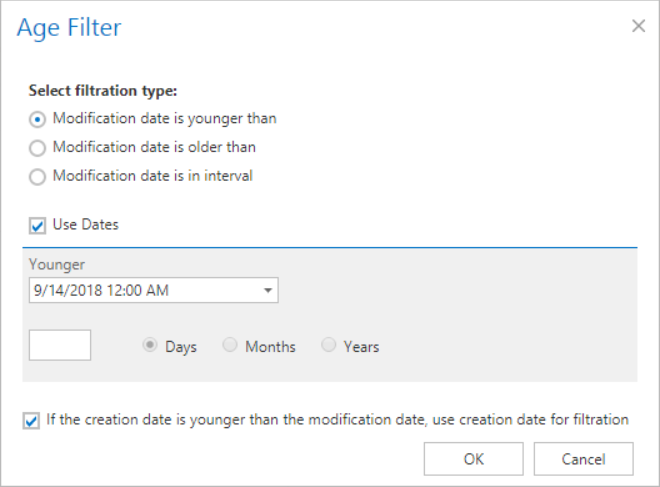
If the age filter has been set, click OK.
Size filter
This filter can be very useful because it enables finding the biggest files to archive and save space. To filter files according to this criterion, activate the Size filter button by checking the checkbox next to it, then click on the active button.
In the Size filter dialog, choose a filtering type (Bigger than, Smaller than, or Between values), enter the size in kilobytes, megabytes, or gigabytes, and click OK.
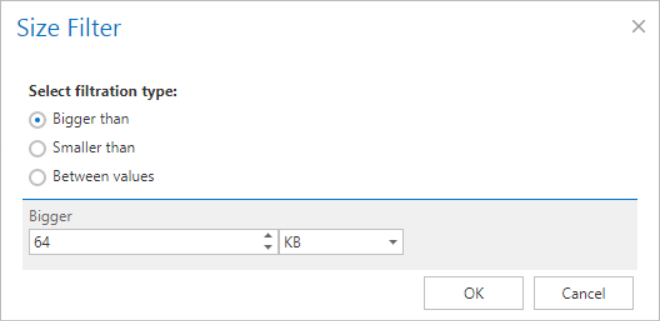
Important: When the content of an already archived item is changed — for example, a picture is deleted from the file and the file is saved to its original location, reducing the file size (for example, from 110 to 85 kB) — and the size filter is set to greater than 100 kB, the rule will not archive the newly created item on the next processing run. The newly created item will remain in the original location, and the old shortcut will still be present there, linking to the old, unchanged file.
For this reason, it is recommended to always check the size filter settings if a file has not been archived by the next run of the rule.
File type filter
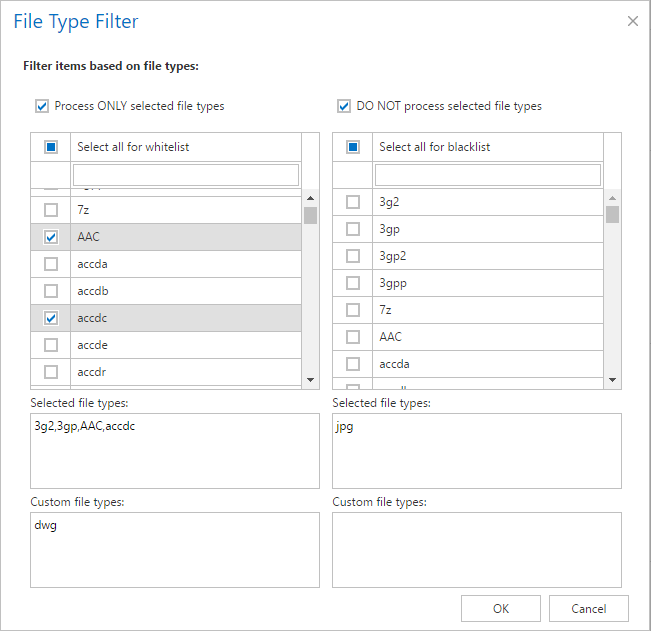
This filter allows selecting certain file types for processing. To filter documents according to this criterion, activate the File Type filter button by checking the checkbox next to it, then click on the active button.
In the File Type filter dialog, you can either select the file types that need to be processed (Process ONLY selected file types), or specify file types that should be excluded from processing (DO NOT process selected file types).
The file types selected in the whitelist/blacklist are displayed below the grid in a read-only text box. Any file types, including those not included in the whitelist and/or blacklist, can be specified in the Custom file types text box.
Resource settings
Set the value that determines how many items will be processed simultaneously by the file archive job. The recommended value is 2.

After everything is configured, save your settings.
Configuration page options
On the configuration page, the following options are also available:
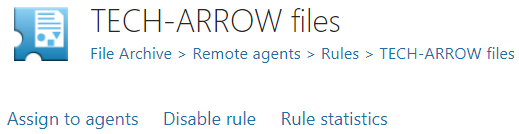
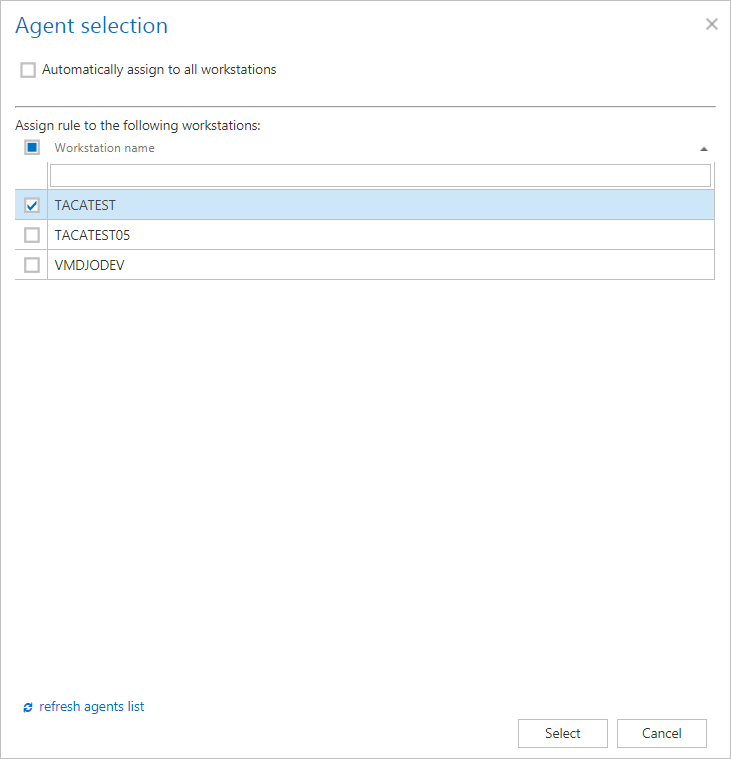
- Assign to agents — assign the rule to selected agent(s) or to all available agents.
- Enable/Disable rule — enable a disabled rule, or disable an enabled rule.
- Rule statistics — check the statistics of the last run of the rule.
Manage global rules
On the Global rules page, the following actions are available from the context menu of a rule:
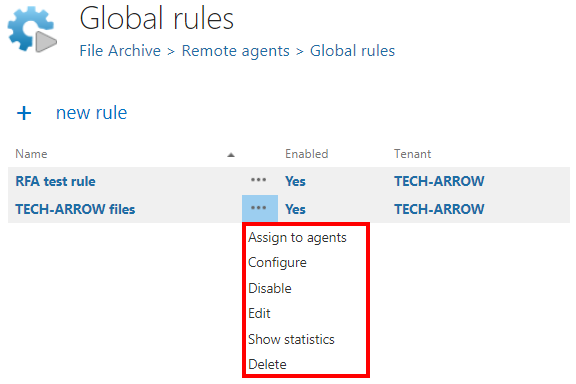
- Assign to agents — assign the rule to selected agent(s) or to all available agents.
- Configure — opens the configuration page of the rule.
- Enable/Disable — enables or disables the rule.
- Edit — allows the administrator to change the name and availability of the rule.
- Show statistics — shows an overview of the last run(s) of the rule on the assigned workstations.
- Delete — deletes the selected rule.