Provisioning settings and managing access to contentACCESS Portal
Introduction
The Provisioning settings page allows administrators to configure the job that synchronizes Active Directory users and groups with contentACCESS, granting them access to the contentACCESS Portal File Archive. From this page, administrators can define which Active Directory objects are provisioned, schedule when the provisioning job runs, assign the role that determines user permissions, and manage access for individual users.
This page also explains how to manually manage File Archive access, how to identify Active Directory objects for provisioning, and how notification settings can be configured for the provisioning job.
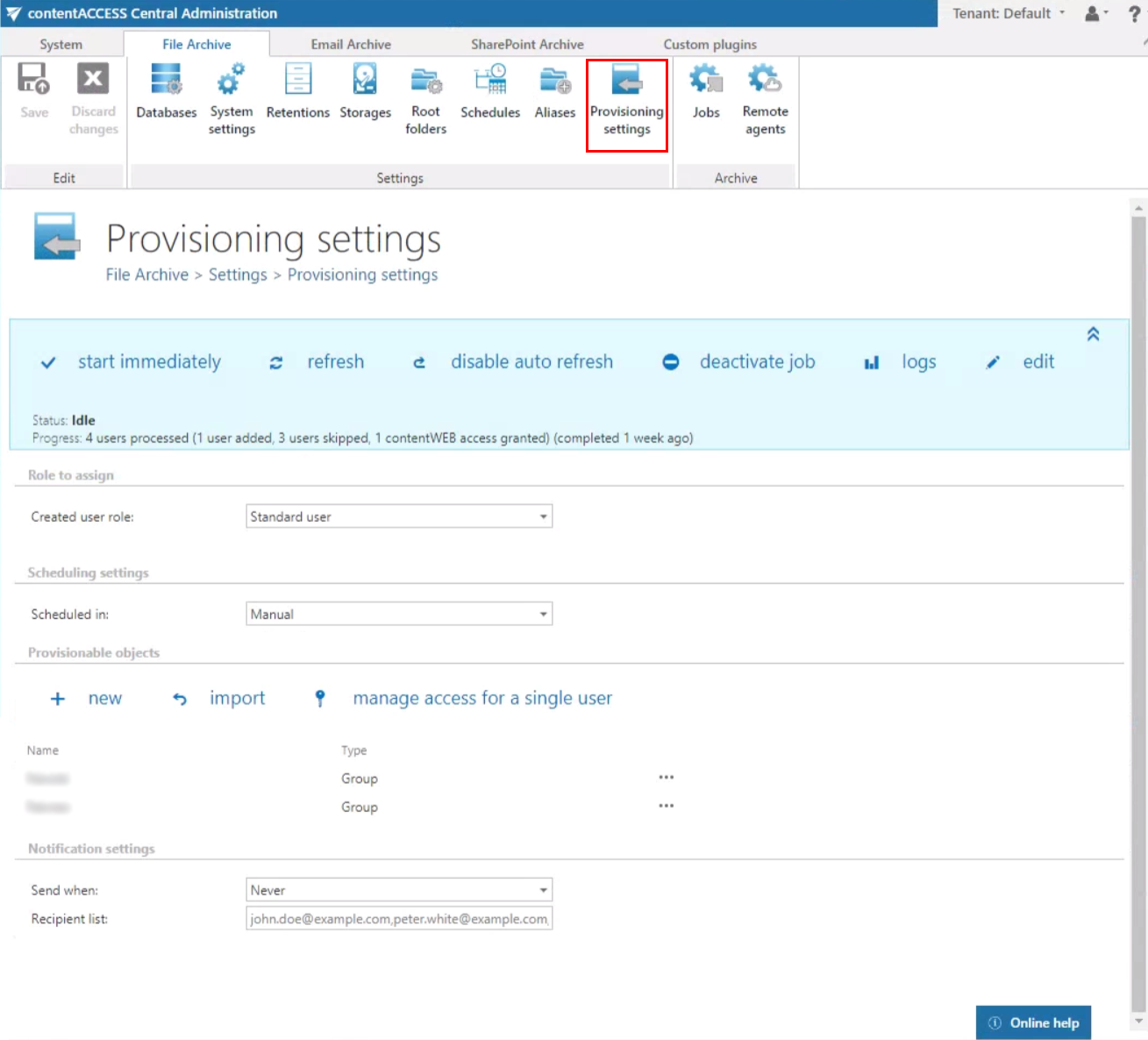
The File Archive provisioning settings are accessible on the File Archive ⇒ Settings ⇒ Provisioning settings page.
How File Archive provisioning works
The provisioning job that synchronizes Active Directory with contentACCESS is configured directly on the Provisioning settings page.
Note: The system's LDAP settings, specified on the System ⇒ Services ⇒ System page in the Active directory integration settings section, are used to connect to the Active Directory.
When the provisioning job runs, it automatically adds new Active Directory users into contentACCESS based on the provisioning settings. The provisioned objects automatically receive log on rights to the contentACCESS Portal File Archive.
Hint: Access permissions on File Archive folders and items are not granted by the provisioning job. The provisioning job only grants log on rights to the contentACCESS Portal File Archive. Access rights to files and folders are evaluated and updated by the file system archive job. For more information, see Introduction to File system archive, section "Synchronization of rights to a folder/file".
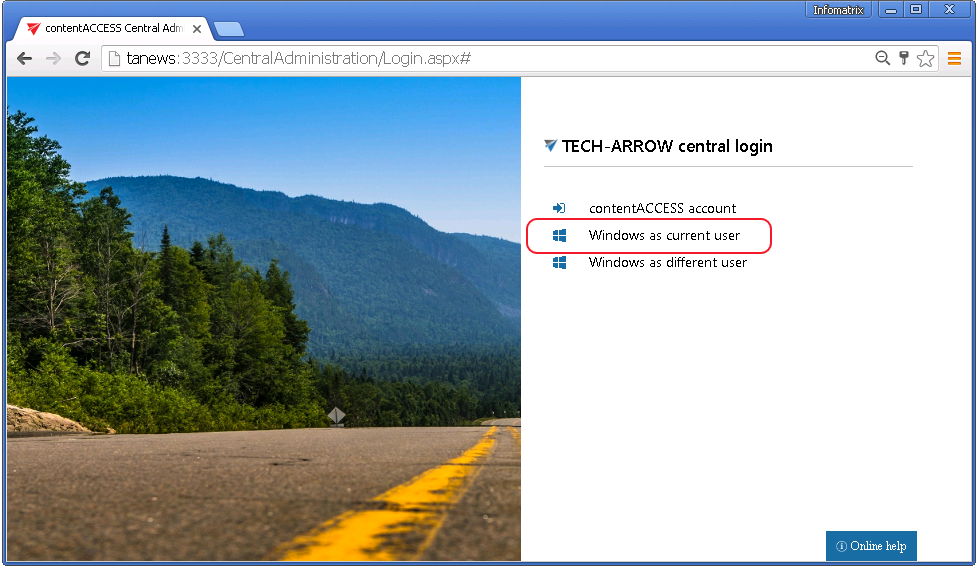
contentACCESS Portal users can log in to the Portal using Windows authentication.
Managing access for individual users
The existing contentACCESS Portal users can be viewed by clicking manage access for single user on the Provisioning settings page:

Users that have already been provisioned are marked with an automatic flag, while manually added users are marked with a manual flag:
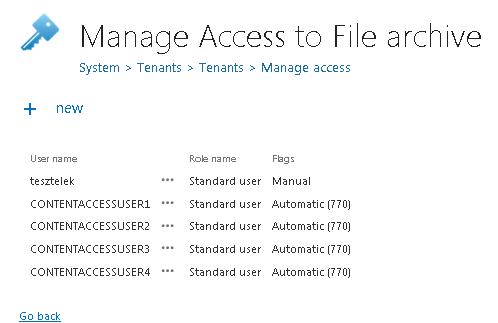
New contentACCESS Portal users can be manually added to the contentACCESS File Archive using the + new option on the same Manage access to File archive page. File Archive access rights can be granted to an already existing or a new contentACCESS user.

Note: This manage access option is available to the logged-on administrator only if their role assignment includes the Manage tenant permission on the assigned tenant, as well as View archive folder rights. For more information, see Managing access to contentACCESS objects.
Configuration of File Archive provisioning
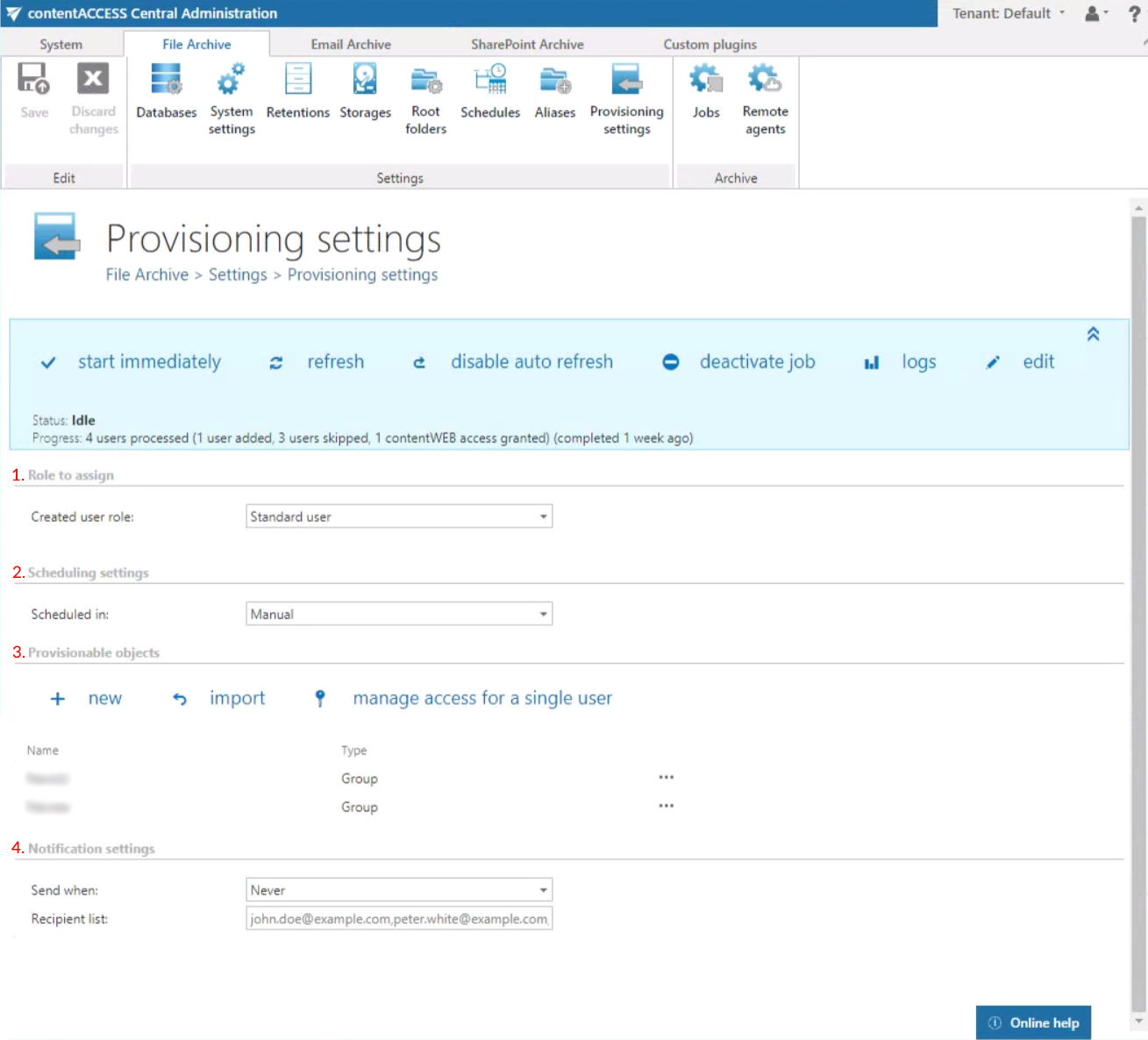
To configure File Archive provisioning, the administrator must set:
- Role: Defines the File Archive user's permissions in the contentACCESS Portal. The Standard user role is available in the list by default; other roles with different permissions must first be configured on the Roles page.
- Scheduling settings: Defines the time periods when the provisioning job will run.
- Provisionable objects: Defines the objects to be provisioned.
- Notification settings (optional).
Adding provisionable objects
Provisionable objects can be added:
- from importable files, using the import function, as described in Importing contentACCESS configurations from files;
- manually, using the new button.
To add an object manually, click + new and specify the object in the respective dialog. You can select a group that contains the objects to be provisioned, or you can select an Active Directory container and synchronize all users inside this container. Choose the object type and enter the data in the following format:
- for a Group: enter the name of the group;
- for a Container: enter the distinguished name (DN), as shown in the sample.
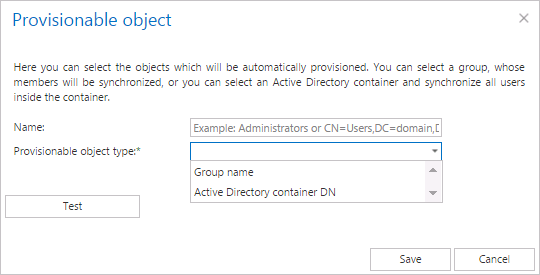
It is recommended to use the Test button to verify that the Active Directory container DN or group name has been entered correctly in the first text box.
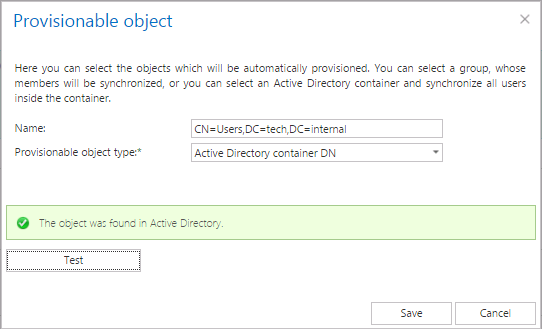 Screenshot A: Selecting an AD container to be provisioned
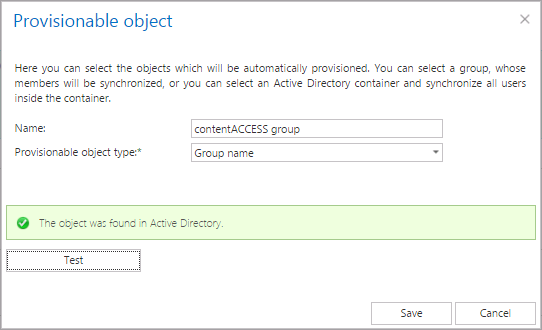 Screenshot B: Selecting an AD group to be provisioned
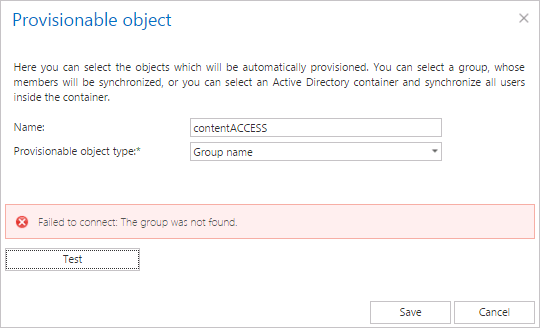
If incorrect data is entered, the provisionable object is not found and the user is warned about this:
The provisioning job:
- adds all users involved in the container or group into contentACCESS;
- grants contentACCESS Portal File Archive permissions (based on the selected role) to the users involved in the LDAP path or group.
Finding the distinguished name (DN) of an Active Directory object
Objects are located within Active Directory domains according to a hierarchical path, which includes the labels of the Active Directory domain name and each level of container objects. The full path to the object is defined by the distinguished name, also known as a "DN".
If the object to be provisioned (synchronized) into contentACCESS is an Active Directory container, it can be located in Active Directory using its DN. The distinguished name of an Active Directory object can be found using the dsquery command line application. For more information about dsquery, read this guide.
Identifying the "Users" container in Active Directory:
-
Open a Windows command prompt.
-
Type the command
dsquery group –name Users(example:dsquery group –name [known object name]). -
The result will look like
CN=Users, CN=Builtin, DC=MyDomain, DC=com:
Identifying the "Test" organizational unit in Active Directory:
-
Open a Windows command prompt.
-
Type the command
dsquery OU –name Test(example:dsquery OU –name [known object name]). -
The result will look like
OU=Test, DC=MyDomain, DC=com:
Notification settings
File Archive provisioning's notification settings are used to send automatic email notifications to specific addresses if any warnings or errors occur. Set the notification emails if necessary and save your settings.