Remote agents (file archive)
Introduction
The Remote agents tab in File Archive allows administrators to manage remotely installed agents that archive files located on network shares or upload PST files for later import. From this page, you can view the list of registered remote agents, download the Remote File Archiving agent and contentACCESS Proxy setup packages, generate agent configuration files, and manage the archiving rules assigned to each agent.
Access the Remote agents tab
Go to File Archive -> Remote agents -> Remote agents.
The list of remotely installed agents, which are archiving files located on network shares or uploading PST files, can be found on this tab.
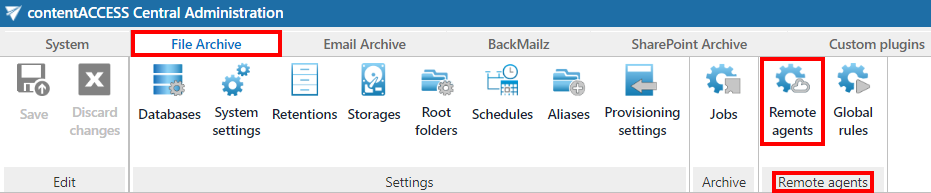
- Refresh: Refreshes the list of remote agents.
Download agent and proxy setup
From this tab, you can download the Remote File Archiving agent (application) and the contentACCESS web services (Proxy) setup, as well as the agent configuration (.XML) file.

- Remote File Archiving agent: Used to archive files that are not accessible to the contentACCESS server, and for which no regular archiving job can therefore be defined, or to upload PST files for later PST import. After it has been installed and configured on a computer (for more information, see the Remote File Archiving manual), the agent appears in the agent list and can be configured either from the Remote File Archiving client application locally or by using contentACCESS Central Administration.
- contentACCESS Proxy: A web service that ensures communication between front-end applications and the contentACCESS server through a secure channel (using the HTTPS protocol, if configured that way). It forwards application requests to the contentACCESS server and isolates the server from the outer world.
Agent configuration
Since you can download the agent configuration file from Central Administration, it is very easy to install remote agents with GPO.
You have to select the user and the models. The Remote File Archiving agent will be logged in under the selected user and will support the features based on the selected models. You can also disable the logout option by checking the Disable logout checkbox. It is also possible to pick a Database, Storage, and Index zone from the respective dropdown lists.
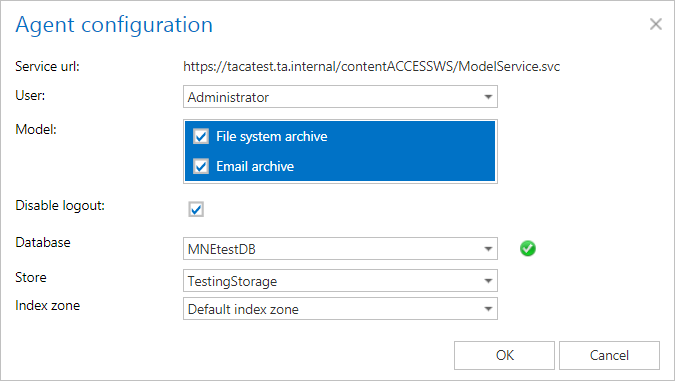
Remote File Archiving configuration
Note: The agent must first be installed and registered, otherwise the list will be empty.
After clicking on the context menu of the selected agent, the list of rules assigned to that agent will appear. The RFA rule is identical to the File archive job configuration. The context menu of the agent also allows you to:
- Assign a database, storage, and index zone.
- Enable or disable the agent.
- Create a new rule.
- Open the Active Directory settings.
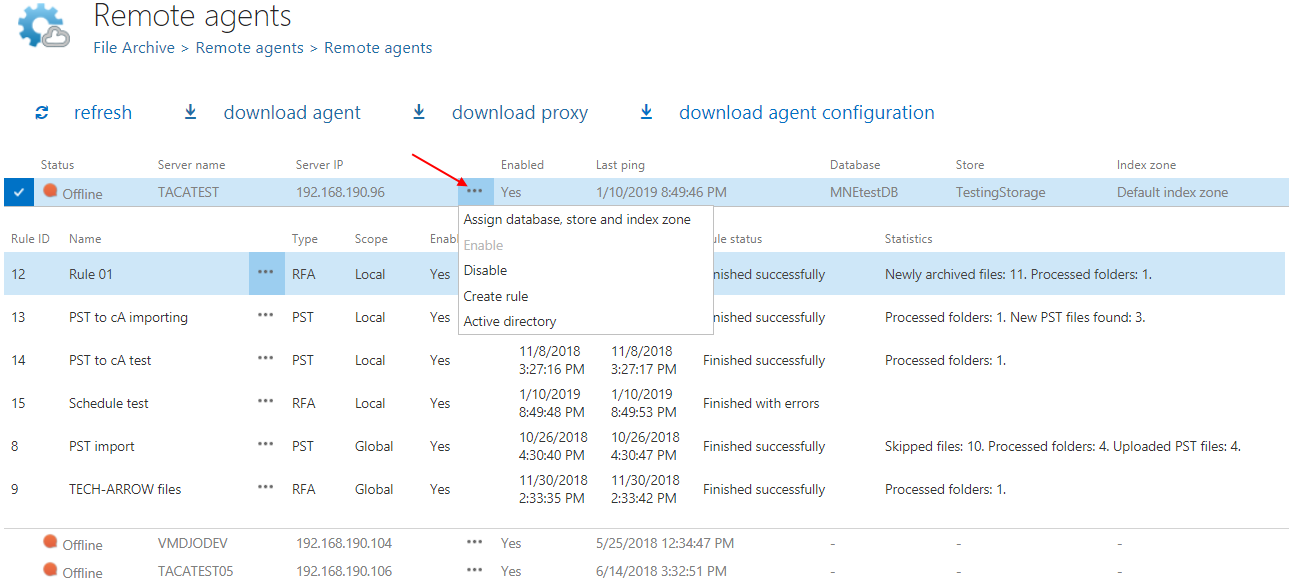
The context menu of the rule allows you to edit it, configure its settings, or delete it (a PST rule can only be configured).

Note: For more information about remote agents and Remote File Archiving, see the Remote File Archiving manual.