GDPR Applications
Introduction
The Applications page, available under GDPR ⇒ Processing ⇒ Applications, allows administrators to configure the settings used by the GDPR Application job. From this page, you can define the database where application metadata is stored, assign an index zone, and add or edit the applications to be processed. Adding an application involves specifying its database connection, selecting the source tables or views, and mapping the columns used for identification and display.
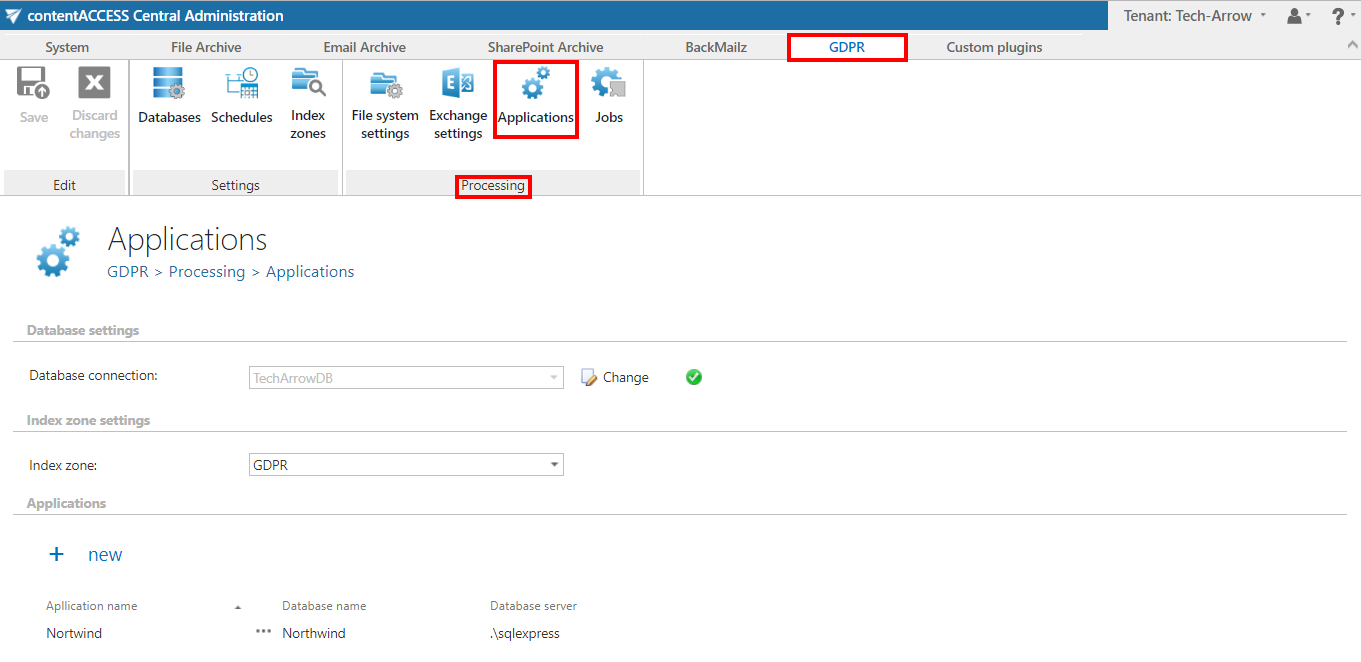
Configure the GDPR Application job settings
Database settings
Select an already configured connection from the dropdown list. This is the database where the metadata will be stored. For example, a database named TechArrowDB can be configured specifically for the GDPR job.
For more information on setting up database connections, refer to the Databases page.
Index zone
Select the index zone that will be assigned to the applications by the GDPR Application job from the dropdown list.
To configure a new index zone, navigate to GDPR ⇒ Settings ⇒ Index zones.
Applications
The applications to be processed by the GDPR Application job are added and edited here.
Add a new application
To add a new application:
-
Click + new.

-
Enter the name of the application and click Next.

-
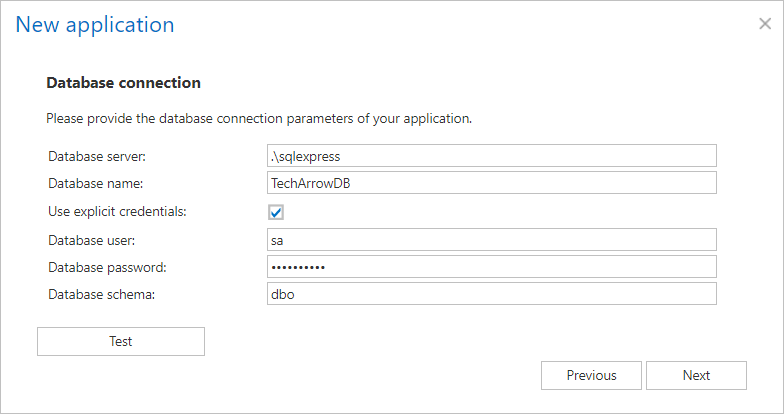
Specify the database connection parameters.
By default, contentACCESS connects to the database using the credentials of the user account under which contentACCESS is running. If you want to use SQL credentials that differ from these, check the Use explicit credentials checkbox and enter the User and Password to be used for the database connection. You can verify the connection using the Test button in the left corner of the window.
-
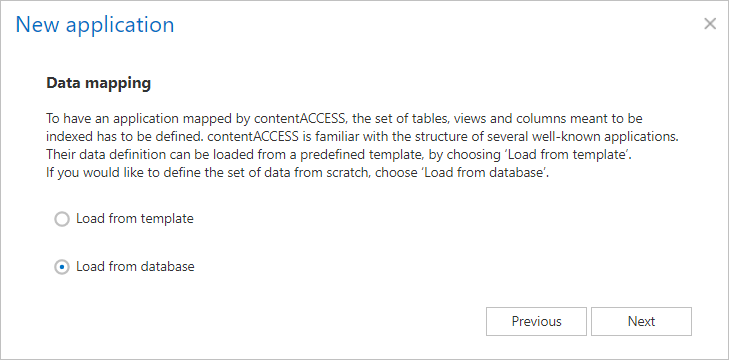
Choose whether the data should be loaded from a template (a well-known application with a predefined template) or from a database (defining the set of data from scratch). Click Next.
-
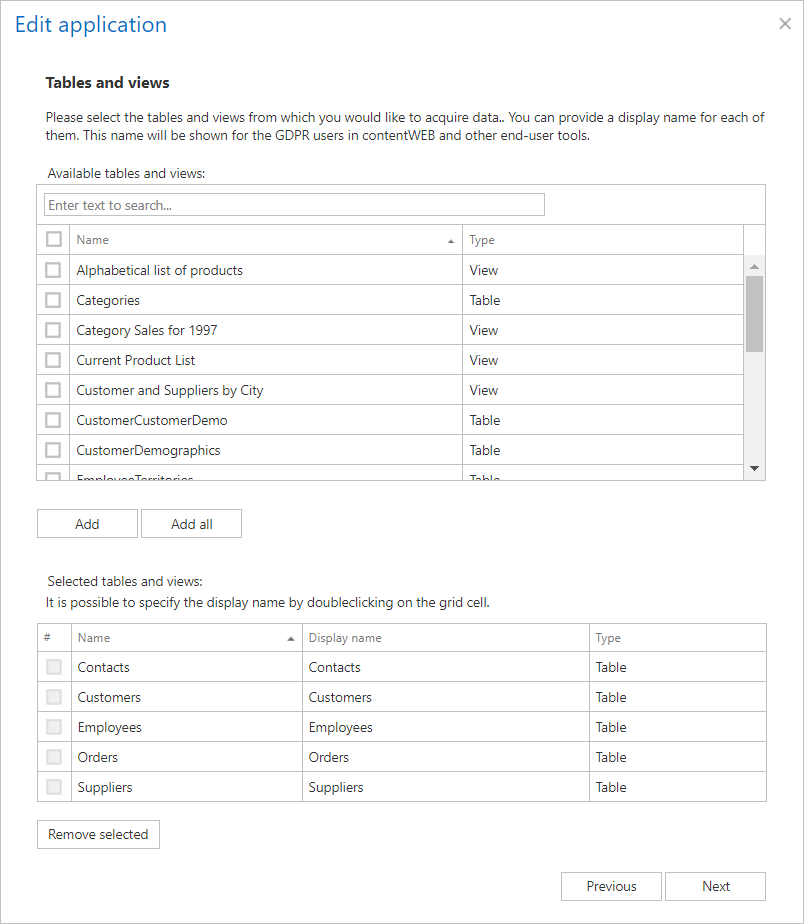
Select the tables and/or views from which you would like to acquire data and click Add. To add all items, click Add all.
The selected tables and views are added to the lower table. To remove items from the list, select them and click Remove selected below the table. Click Next.
-
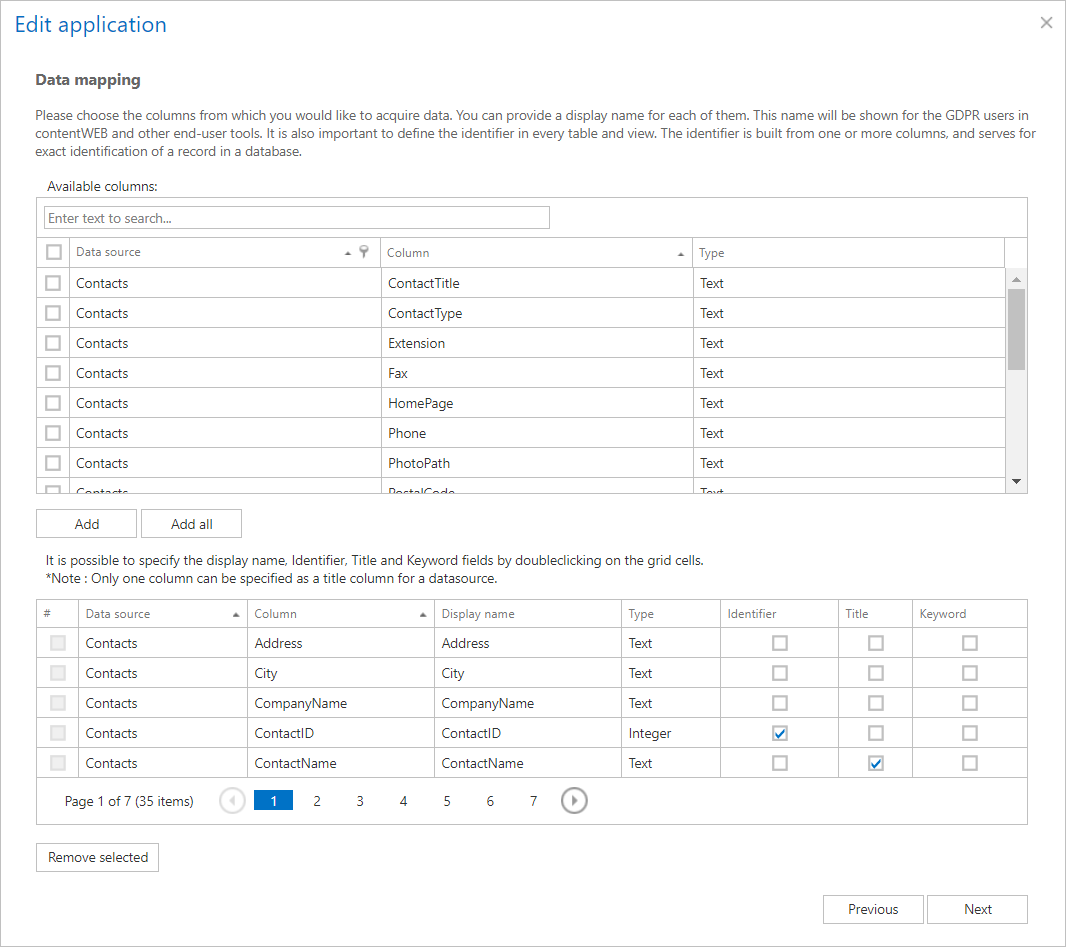
Choose the columns from which you would like to acquire data. These columns correspond to the columns displayed for items in contentACCESS Portal and other end-user tools.
It is also important to define the identifier for every table and view — for example,
ContactIDfor the Contacts table, as shown in the screenshot below. The identifier is used to uniquely identify a record in the database.In the lower table, specify the Display name, Title, Identifier, and Keyword fields. If more than one column is specified as the title, you will be warned about this. Click Next.
Based on the columns selected above, the contentACCESS Portal columns for the Contacts data source will look like this:

-
Optionally, check the Save as template checkbox to save the configuration as a template for later use.
-
Click Save application.

The application is now ready for use in the GDPR Application job.