GDPR Exchange settings
Introduction
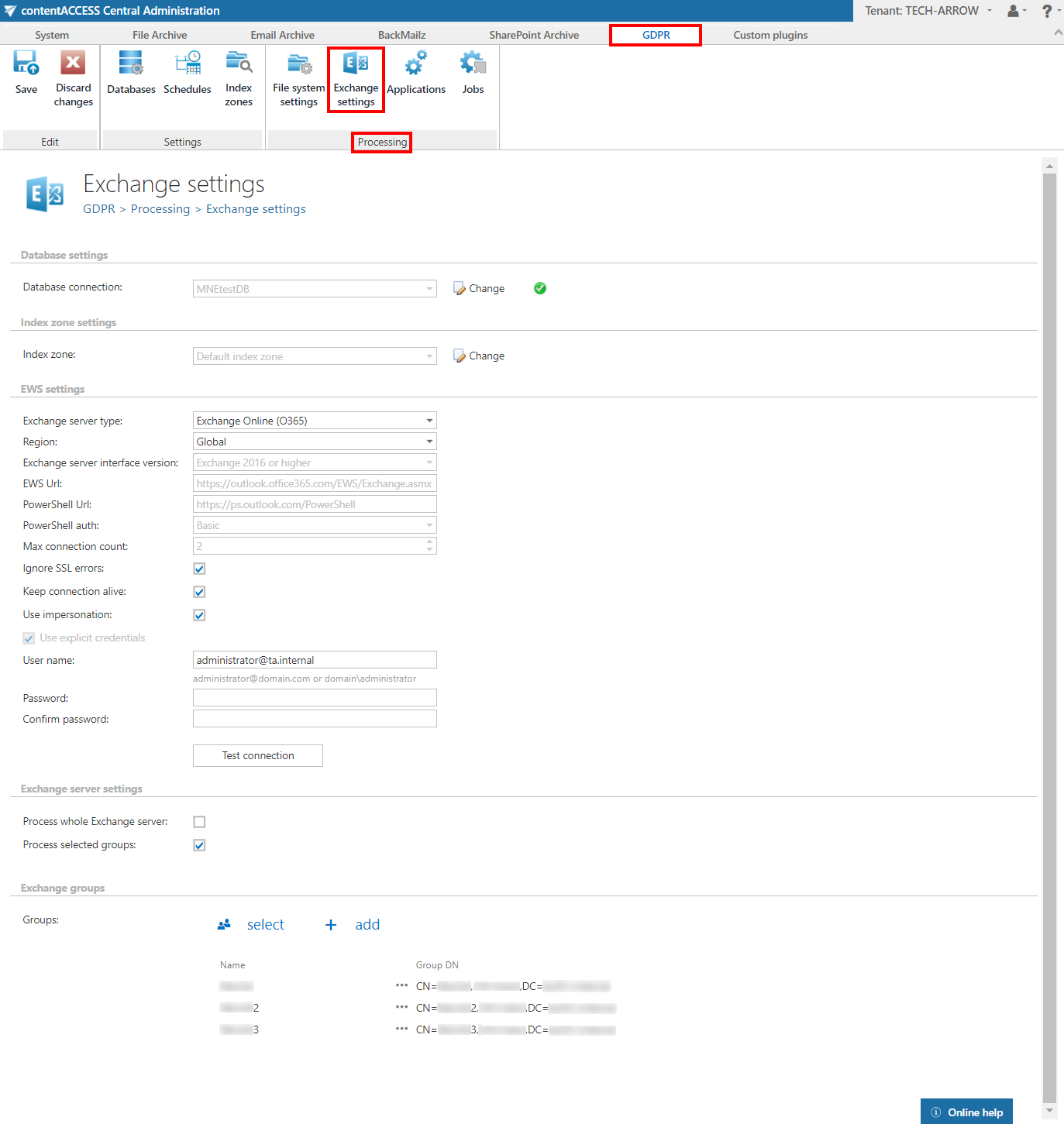
The Exchange settings page allows administrators to configure the settings used by the GDPR Exchange job to connect to Exchange, synchronize mailbox metadata, and determine which groups or servers are processed.
On this page, administrators can configure:
- the database used to store synchronization metadata;
- the index zone assigned to Exchange groups and servers;
- the EWS and PowerShell connection settings;
- the scope of the Exchange server to process.
To access the page, navigate to GDPR ⇒ Processing ⇒ Exchange settings.
Database settings
Select the GDPR database from the dropdown list. This database must have been previously configured on the GDPR ⇒ Settings ⇒ Databases page (in this example, the database "TechArrowDB").
The selected database will be used by the GDPR Exchange job to store metadata during the synchronization process.
Index zone settings
Select the index zone that will be assigned to the Exchange groups/servers by the GDPR Exchange job from the dropdown list.
If you need to configure a new index zone, navigate to GDPR ⇒ Settings ⇒ Index zones.
EWS settings
Configure the following settings to connect to the Exchange server:
- Exchange server type and Exchange server interface version: Select the type and version of the server where your email provider is running.
- EWS URL, PowerShell URL, and PowerShell authentication: Enter or select these values as provided by your email provider. These configuration properties are the same for On-premise and Hosted Exchange.
- Region: If the user has or uses a German cloud (a dedicated and isolated Microsoft Azure version for Germany), select Germany in this dropdown list.
- Max. connection count: Defines how many parallel connections the system maintains when connecting to PowerShell.
- Ignore SSL errors: Check this option if you do not have a valid certificate.
- Keep connection alive: If this option is turned on, the connection between contentACCESS and the Exchange server is cached, which increases performance. If the Exchange environment is load balanced, some requests can land on a different Exchange server, which can cause errors in contentACCESS. In these cases, unchecking this option will destroy the connection after each request and rebuild it on the next request.
- If you are communicating with one Exchange server, turn this option on to increase performance.
- If you have a load balanced Exchange environment and experience communication problems with the Exchange server, it is recommended to turn this option off.
Enter the applicable User name and Password to connect to the Exchange server (use explicit credentials or log in using service credentials).
Important: The user configured under Exchange connections must have impersonation rights for the mailbox(es) they need to process.
We recommend running a test connection using the Test button.
Exchange server settings
Select whether to process the whole Exchange server or only selected groups.
Exchange groups
This section appears only if Process selected groups was selected in the Exchange server settings section.
Groups to be processed can be added in one of the following ways:
- Click select, then pick the required groups from the Exchange server.
- Click add, then enter the name of the group.