GDPR File system settings
Introduction
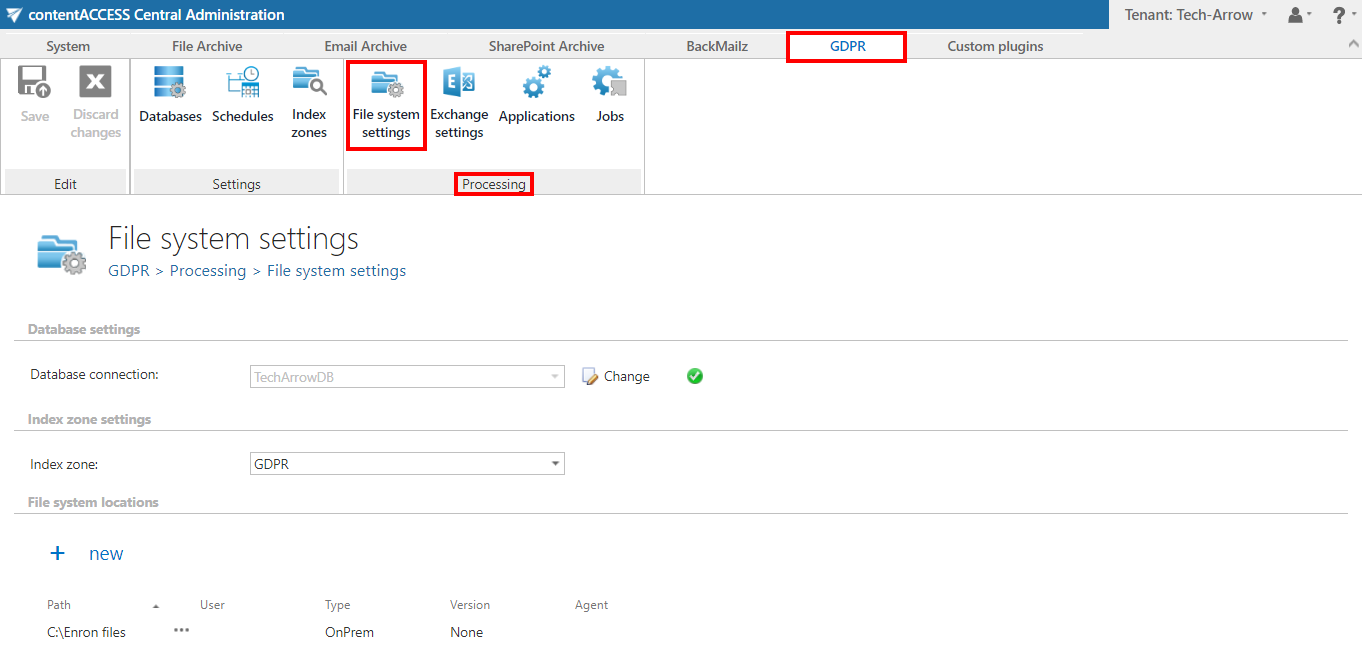
The File system settings page in GDPR ⇒ Processing allows administrators to configure the settings used by the GDPR File system job. These settings determine where processing metadata is stored, which index zone is applied, and which file system locations are scanned for personal data.
Navigate to GDPR ⇒ Processing ⇒ File system settings to access this page.
Configure the database settings
Select an already configured database connection from the dropdown list. This database is used to store the metadata generated by the GDPR File system job.
For example, a database named TechArrowDB can be configured specifically for the GDPR job.
For more information on how to configure database connections, see the Databases page.
Configure the index zone
Select the Index zone that will be assigned to the File system locations by the GDPR File system job from the dropdown list.
If you need to configure a new index zone, navigate to GDPR ⇒ Settings ⇒ Index zones.
Configure file system locations
The File system locations section defines which locations are processed by the GDPR File system job.
To add a new location:
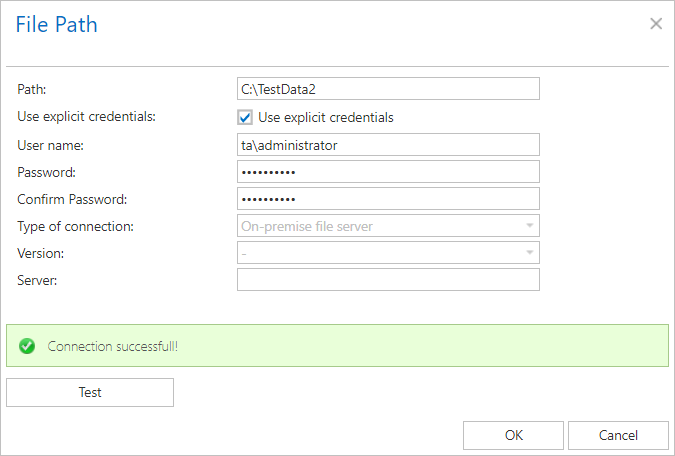
- Click + new. A pop-up window appears.
- Enter the file path (the location of the folder).
- Enter the applicable user credentials.
- Select the Type of connection, indicating whether the files to be processed are located on the server (on-premise) or on network shares (remote).
- Select the Version, either Business or Private.
- If the folder is located on a network share, the Server column displays the name of the server where the folder is located.
- Click Test connection to verify that the connection works correctly.
Note: It is recommended to always test the connection using the Test connection button before saving a new file system location.