Distributed environment in contentACCESS — Clusters
Introduction
Clusters in contentACCESS enable a distributed environment in which independent servers (nodes) work together as a single system to provide high availability and scalability for job processing. This page explains why clustering is used, how node roles and cluster groups are configured, how to install and manage additional nodes, and how the nodes' grid in Central Administration can be used to monitor and control node status, load, roles, and job assignments.
Why use clusters
A server cluster is a group of independent servers (nodes) working together as a single system to provide high availability of services for clients. When a failure occurs on one server in a cluster, resources are redirected and the workload is redistributed to another node in the cluster. For example, if a processing job is running on a node and that server fails, an alternative node (with a Job runner or Universal role) can pick up the task to finish the archiving process. To achieve this, the job must be allowed to run on any available node.
contentACCESS's cluster technology guards against the following types of failure:
- System and hardware failures, which affect hardware components such as CPUs, drives, memory, network adapters, and power supplies.
- contentACCESS application and service failures, which affect the software, its applications, and essential services.
Clustering in contentACCESS makes job processing scalable and improves overall performance. Administrators can decide how nodes are used and how work is divided between them:
- Jobs can be run on a specific node or on any available node.
- The full contentACCESS installation can be placed on one node, with the contentACCESS server component installed on other nodes, to improve performance for both job processing and the system as a whole.
- Nodes can be used in a balanced mode, where nodes are selected according to their memory and CPU usage. The number of jobs currently running on a node is also taken into account.
Node roles
There are three main node roles available in contentACCESS. The role of a node can be adjusted from its context menu.
- Universal: Can be used for all operations performed in contentACCESS.
- Model provider (retriever): Used to publish models, i.e., to connect client applications with contentACCESS and retrieve items through these client applications.
- Job runner (processing): Used to run jobs in contentACCESS.
The administrator decides which role to assign to each node, how work is divided between nodes, and how to make processing more effective. A typical use case is installing the contentACCESS server, Central Administration, and contentACCESS Portal on one node, and the contentACCESS server only on a second node. The first node is then set to Universal, the second to Job runner; file system archive jobs are assigned to the first node, and email archive jobs to the second node.
Example: adding a second node
Assume contentACCESS is already installed on a first, "main" node (TANEWS), where file system archive jobs are running. The customer decides to purchase TECH-ARROW's Email archive and wants to run email archive jobs on a second node. To achieve this, the contentACCESS server must be installed on a second node (for example, TECHNB0002).
Before installing any contentACCESS component on a second node, it is recommended to set the node to disabled, to prevent the new node from picking up new tasks before it is fully configured. In this example, the default role type is set to Job processing, since the node will be used to run email archive jobs. For more information about default cluster settings, refer to the "Cluster settings" section of the System page.

Install the contentACCESS server on a second node
-
Run the contentACCESS setup package on the selected server (
TECHNB0002). -
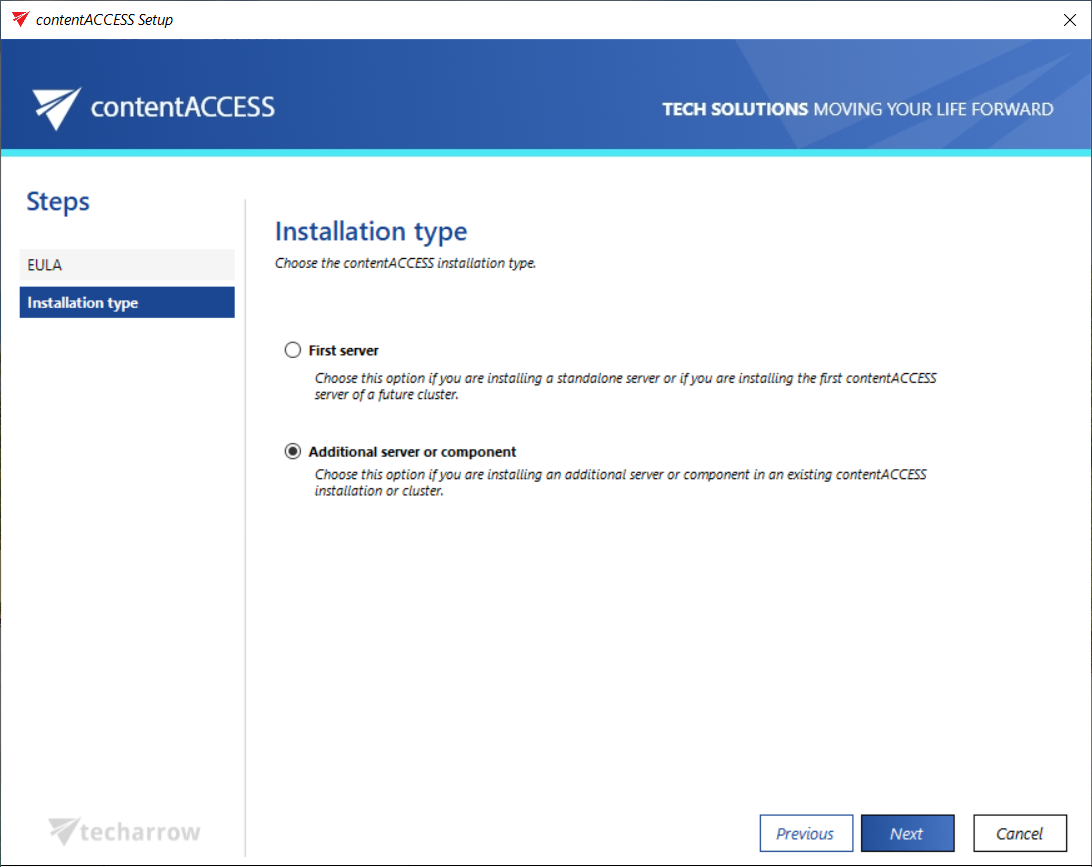
When prompted for the installation type, since this installs a contentACCESS component (a node) into an existing contentACCESS environment, select Additional component.
-
Specify the central database connection already in use. Enter the server name where the database is installed (in this example, the first node,
TANEWS), the name of the existing system database (in this example,contentaccessDB, which can be checked on the SQL server), and the database user credentials and schema.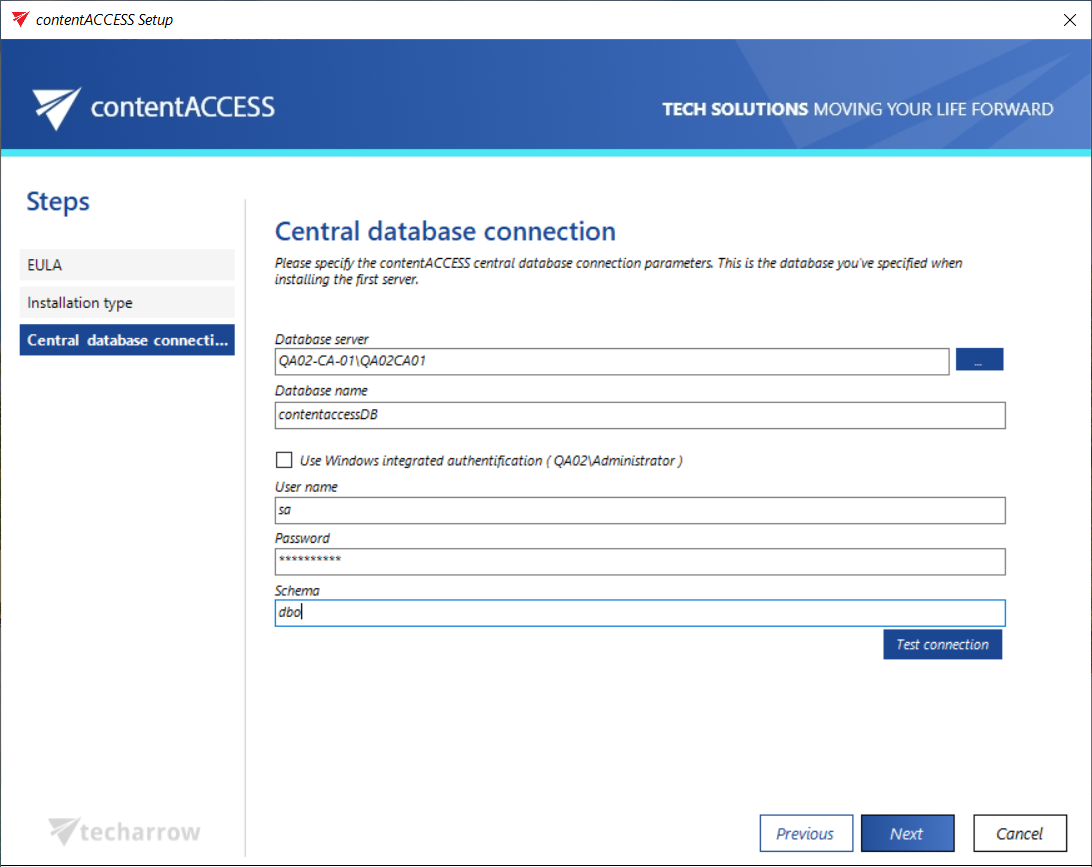 warning
Important: In the database connection settings, either a domain user must be specified (if Windows authentication is used), or SQL user credentials must be provided to connect to the database.
-
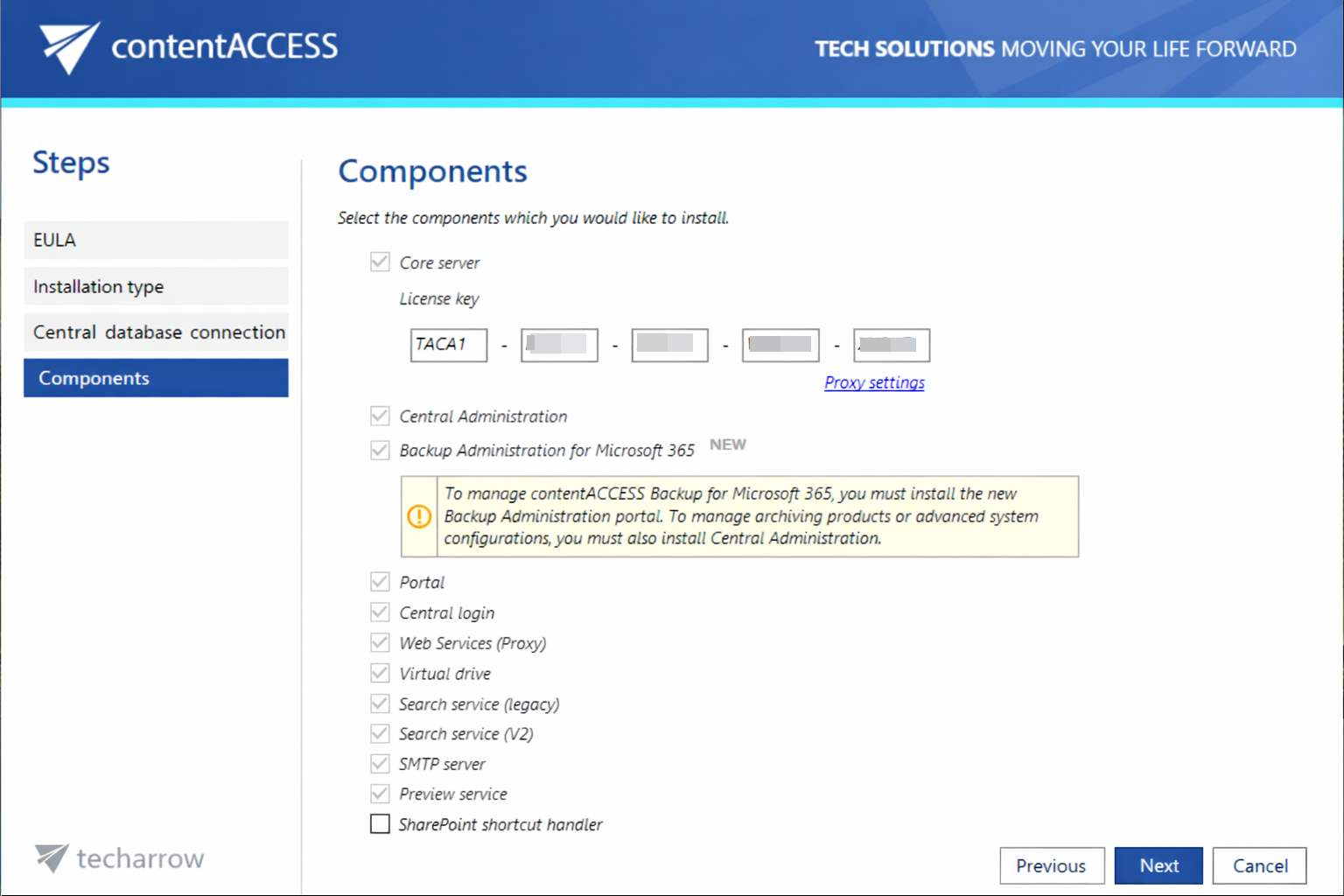
Select the components to install. In this example, select the contentACCESS server to install on the second node.
-
Finish the installation process for the second node.
After installation, the available nodes can be reviewed in Central Administration.
Nodes' grid
Nodes on which contentACCESS components are installed can be viewed by navigating to System ⇒ Services ⇒ Cluster, in the nodes' grid below the status bar.
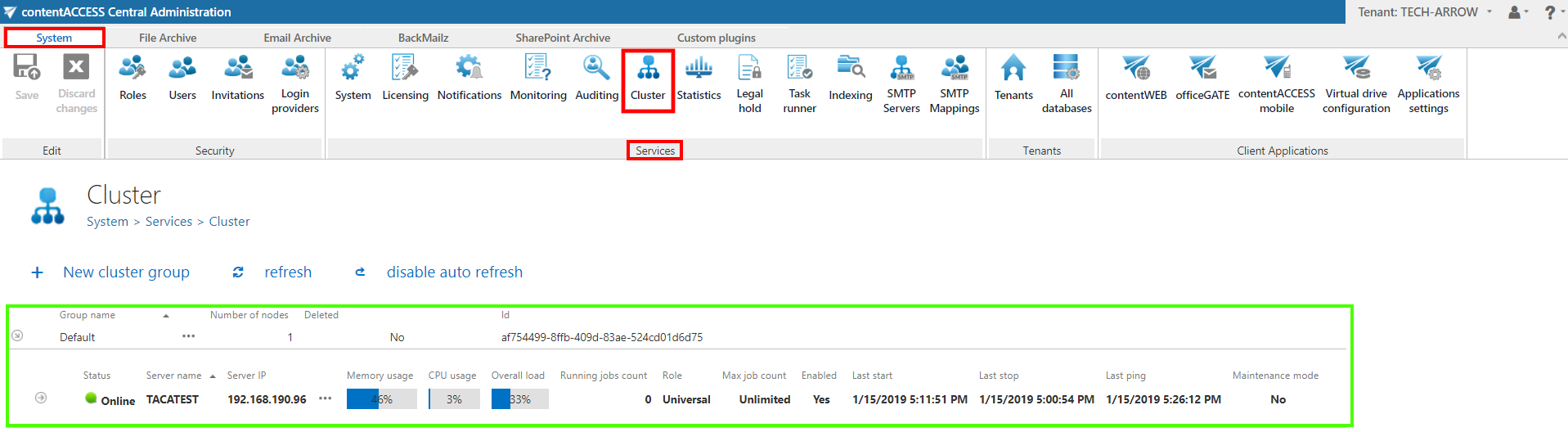 Screenshot: Nodes' grid
Three control buttons are available in the status pane of the available nodes:
- + New cluster group: Allows the administrator to create new cluster groups.
- Refresh: Reloads the last cluster status from the database.
- Disable auto refresh / Enable auto refresh: Disables or enables automatic refresh (every 5 seconds) of the last state from the database.
The node on which contentACCESS Central Administration is installed is marked in bold black.

Create and manage cluster groups
- Click + New cluster group. A pop-up window opens.
- Specify the name of the group and, optionally, a description.
- Click OK.

Nodes can be added to a cluster group using the Manage nodes option from the context menu.

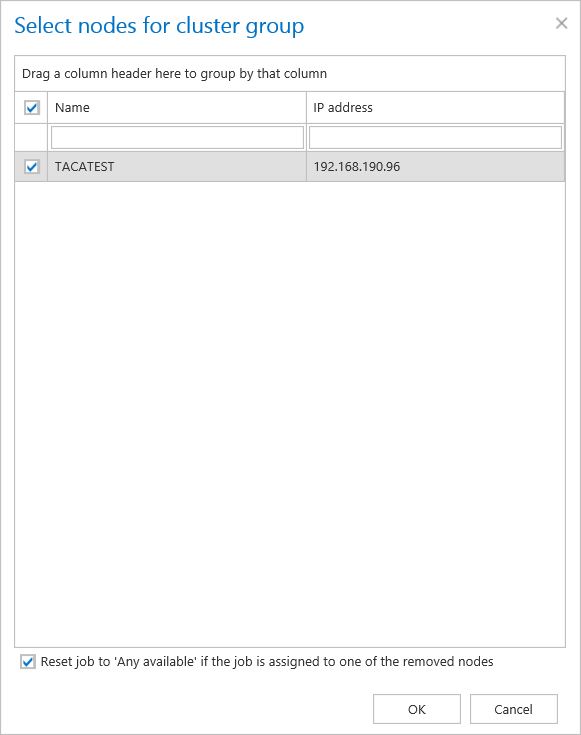
A cluster group can be assigned to tenants, so that the tenant's jobs run only on the nodes assigned to that tenant's cluster group. This is useful for hosting solutions where contentACCESS nodes are located in multiple data centers: the tenant's data is processed by the nodes that are geographically closest to the tenant's resources.
Configure a node
Node configuration is available from the node's context menu by clicking Edit, which opens the Change node dialog.
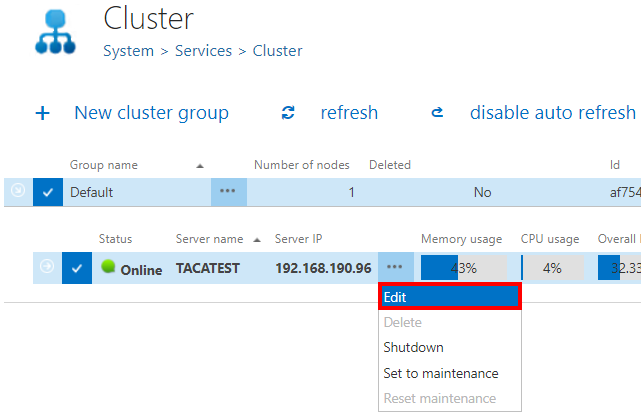

The following configurations are available in this dialog:
- Enable: Enables or disables the node.
- Role: Changes the role assigned to the selected node.
- Max. job count: Sets the maximum number of jobs that can run in parallel on the node.
- Maintenance mode: Puts the node into maintenance mode.
Nodes' grid columns
The nodes' grid displays the following information, from left to right.
Status
Indicates whether the selected node is online or offline, i.e., whether it is ready to process tasks.

A node can have one of three statuses:
- Green (
 ): The node is enabled — its service is running and it is ready for processing.
 - Yellow (
 ): The node is disabled — its service is stopped and no job can be run on it, although the server itself is still running. The yellow indicator also appears when a node is in Maintenance mode.
 - Red (
 ): The contentACCESS server on the selected node is currently turned off. A node in offline status can be started again by starting its service (the
 GATE.contentACCESSWindows service must be started).
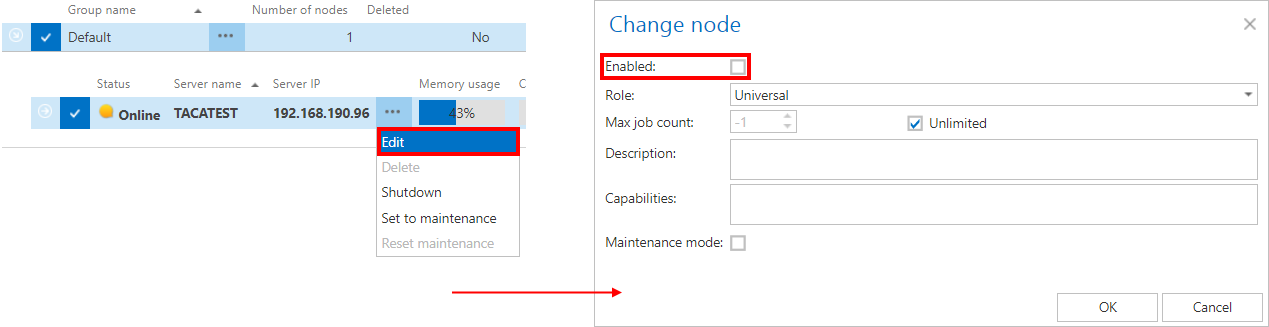
In the example, node TECHNB0002 was installed in disabled mode, indicated by a yellow status:

A node can be enabled or disabled by opening its context menu, clicking Edit, and checking or unchecking the Enabled checkbox in the Change node dialog:
Server name
The name of the server on which the contentACCESS node is installed. In the example, the first node is installed on server TANEWS, and the second node on TECHNB0002.

Server IP
The IP address of the server on which the node is installed.

Memory usage, CPU usage, Overall load
Displays current load information for the selected node. If the cluster selection strategy is set to Balanced, nodes are selected for tasks according to these values. If a node is offline, the value is 0. Values above 70% are highlighted with a red background.

Running job count
Shows the number of jobs currently running on a node. In the example screenshot, two file system archive jobs are running on node TANEWS. Details of these job runs can be viewed by clicking the arrow icon on the left side of the row.

Role
Shows the role assigned to a node: Universal, Job runner, or Model provider. In the example, node TANEWS has the Universal role assigned, and TECHNB0002 has the Job runner role assigned.

Assigned roles can be edited by clicking Edit in the node's context menu and setting the desired role in the Change node dialog.
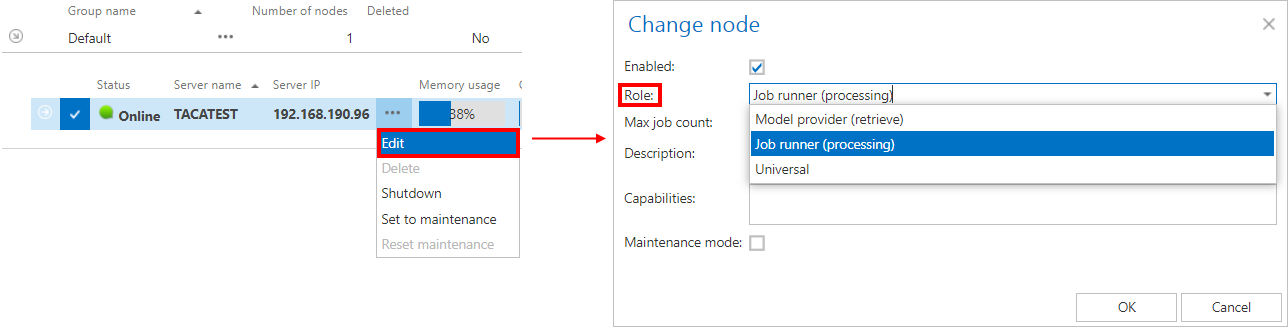
If a node is intended for multiple tasks in the future, its role can be changed to Universal.
Max. job count
Shows the maximum number of jobs that can run in parallel on a node. This value can be limited; by default it is unlimited.

To adjust this value, open the Change node dialog from the node's context menu (click Edit) and set the desired value. In the example, the value is set to 10:

If 10 jobs are already running in parallel on this node and an 11th job is started on it, the new job will remain in waiting status until the node becomes available again.

If the 11th job is allowed to run on any available node, another node will pick it up for processing. Which node a job runs on depends on the job's settings. For more information, see Jobs page: viewing and managing jobs.
Enabled
Indicates whether a node is enabled (online, with its service currently running) or disabled. A disabled node is still running but is unavailable for further processing tasks. By default, nodes are enabled, but it is recommended to disable a node for planned system updates or when a failure needs to be fixed.

To enable or disable a node, open the Change node dialog from the node's context menu (click Edit), and check or uncheck the Enabled checkbox.

The Last start, Last stop, and Last ping times are shown on the right side of the grid.

Maintenance mode
Shows whether the selected node is in Maintenance mode. When a node is in maintenance mode, no new jobs can be started on it, but running jobs continue until completion.
Once the running jobs are finished, the administrator can perform maintenance on the node, such as:
- Update
- Patch
- Restart
- Other necessary actions
The node can continue serving clients while in maintenance. Once maintenance is finished, Maintenance mode should be reset to normal.
A node can be put into or out of Maintenance mode in two ways:
- Context menu → Edit → check the Maintenance mode checkbox.
- Context menu → Set to maintenance / Reset maintenance.

Assign a job to a node
To assign a job to a specific node, for example, to assign an email archive job to node TECHNB0002:
-
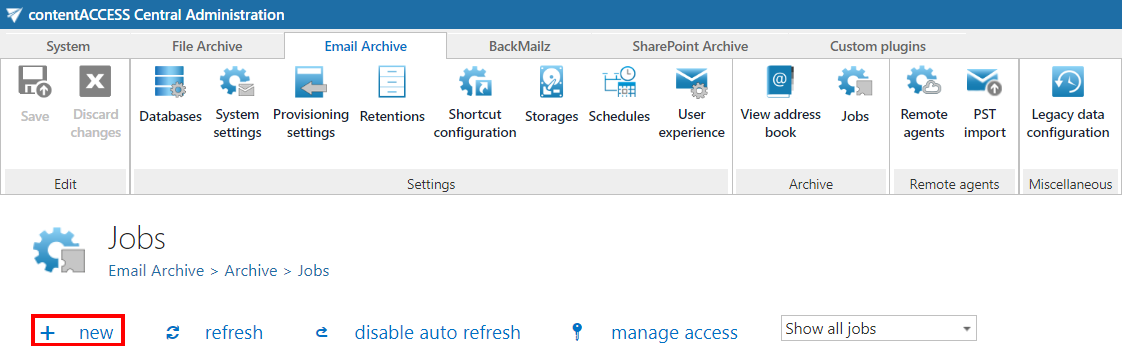
Navigate to Email Archive ⇒ Archive ⇒ Jobs on the ribbon to open the Jobs page.
-
Click + new to create an email archive job.
-
In the Add new job instance dialog, configure the desired job and select
TECHNB0002from the Run on node dropdown list. -
Click Add.

-
Configure the newly added job on its job configuration page. For more information about configuring processing jobs, refer to the respective sections.
-
Enable the
TECHNB0002node.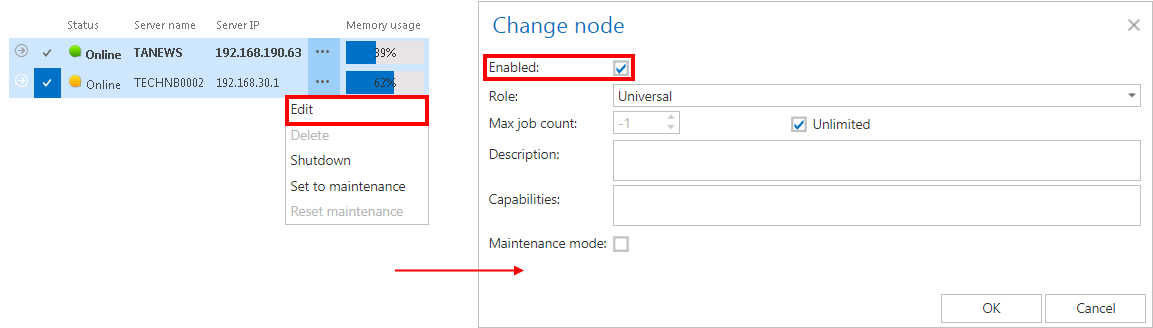
The node will start running the assigned job at the time configured in the job's scheduler settings.
Important: When configuring a job that may run in a cluster, the administrator must specify a storage and a database that are accessible by all the nodes in the cluster. If a node that picks up the job cannot access the configured storage or database, the job will fail and will not execute the task.
- In the database repository settings of the database selected for the job, the administrator must establish the connection with SQL user credentials. If an explicit user is not specified, the contentACCESS service user will be used, and the service must run under the same domain user. This ensures that the database can be accessed by the job, regardless of where it runs.
- The administrator must specify the storage as a network share (for example,
\\ServerName\RootFolder\Subfolder) in the storage repository settings of the storage specified for the job, so that it is accessible by the job from anywhere.
Shut down a node
In certain cases, a node may need to be turned off. This operation is available from the context menu of the selected node.
- Click the ellipsis (…) on the node.
- Select Shutdown from the dropdown list.
This turns off the contentACCESS service on the selected node, and the node's status changes to red (offline). Node shutdown is a deferred action and may take up to 1 minute.

Confirm the action by clicking OK in the following pop-up window:

Note: If you are shutting down the node where Central Administration is running, an additional pop-up window will warn you about this.

Delete a node
A node can be deleted from the node list only when it has offline status. If the contentACCESS service is started up again, the node will reappear on the list.
- Click the node to select it.
- Open its context menu by clicking the ellipsis (…).
- Select Delete.

contentACCESS will ask for confirmation before deleting the node.
