Invitations
Introduction
The Invitations page in Central Administration lists the invitations sent to new or existing users, allowing administrators to track their status and manage them. Invitations are an alternative way of granting access to contentACCESS by inviting:
- New users to create an account with certain roles and permissions, or
- Already existing users to be assigned additional roles and permissions.
This page describes how to send an invitation, how invited users complete the invitation process, and how to view and manage sent invitations.
Send an invitation
To send an invitation to an already existing or potential contentACCESS user:
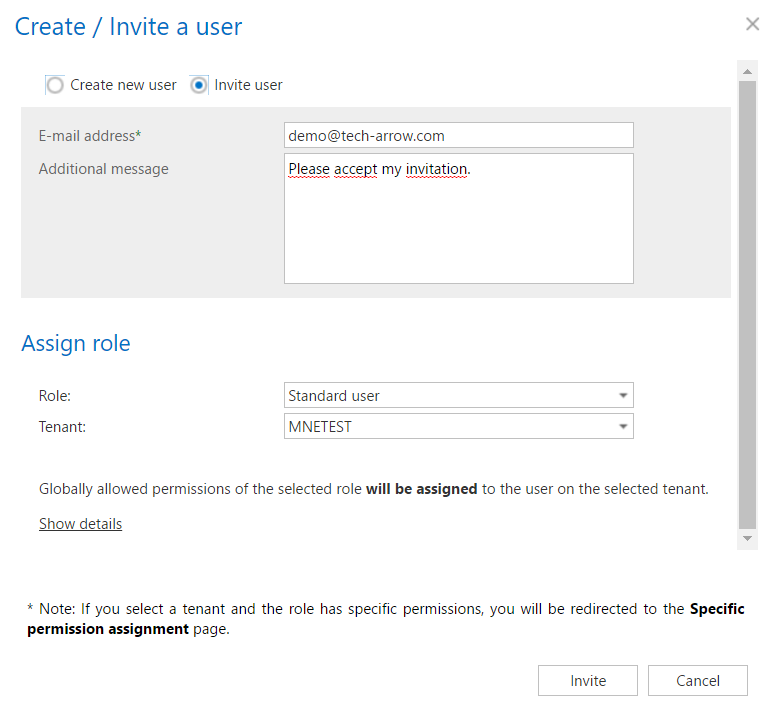
- In the Create/Invite user dialog, select the Invite user option.
- Enter the email address where the invitation will be sent.
- Select the role that should be assigned to the user.
The behavior of the dialog depends on whether the selected role contains specific permissions:
-
If the role does not contain specific permissions, the invitation is sent as soon as the user clicks Invite.
-
If the role does contain specific permissions (see Defining specific permissions of a role assignment), the Save button is replaced by the Invite button. In this case, the invitation is sent only after the user clicks Send invitation.
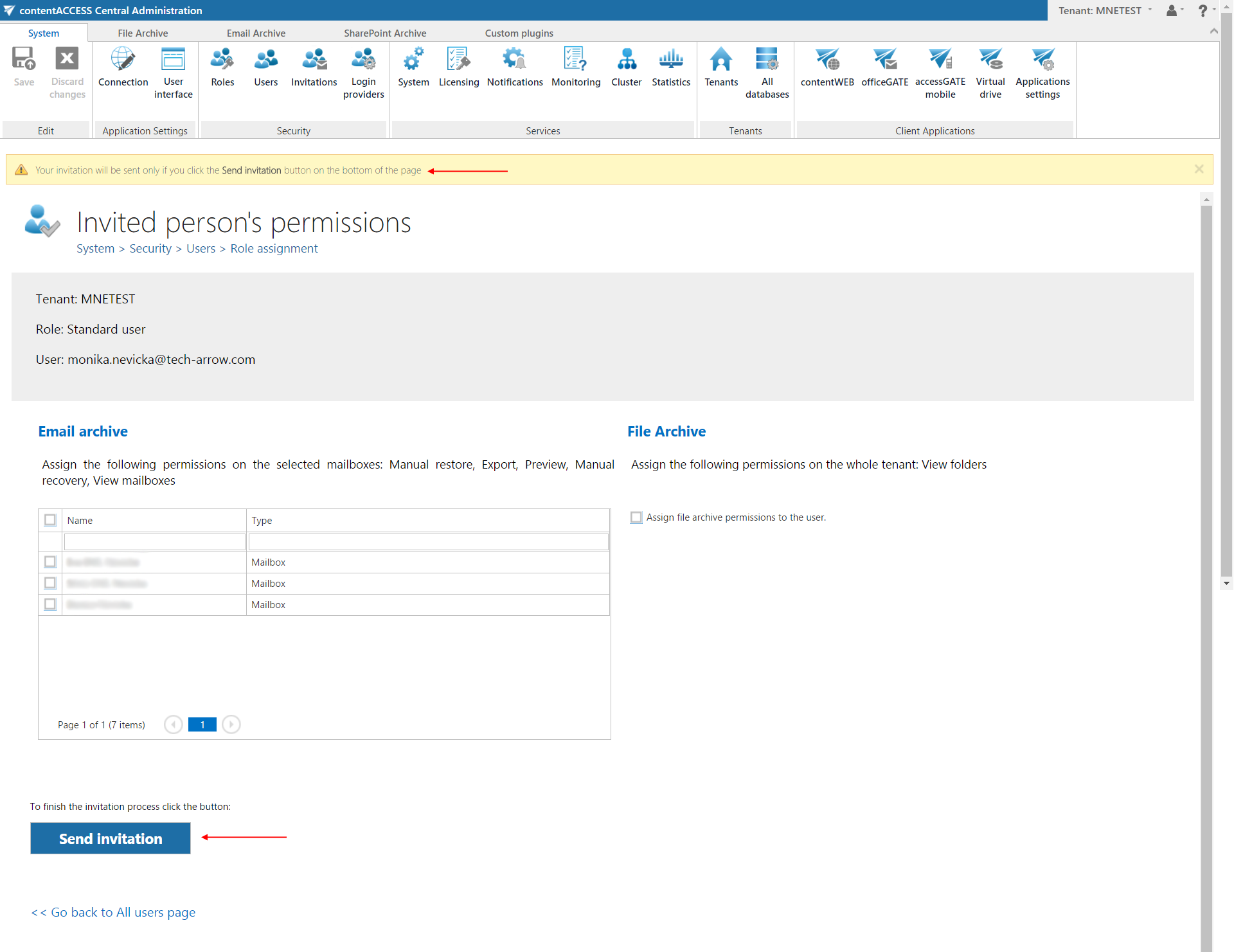
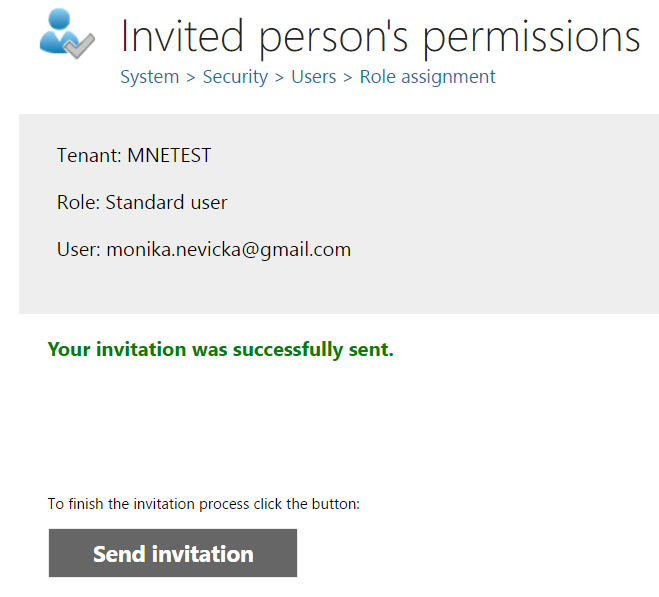
After clicking Send invitation, a notification confirms that the invitation was sent successfully.
Accept an invitation
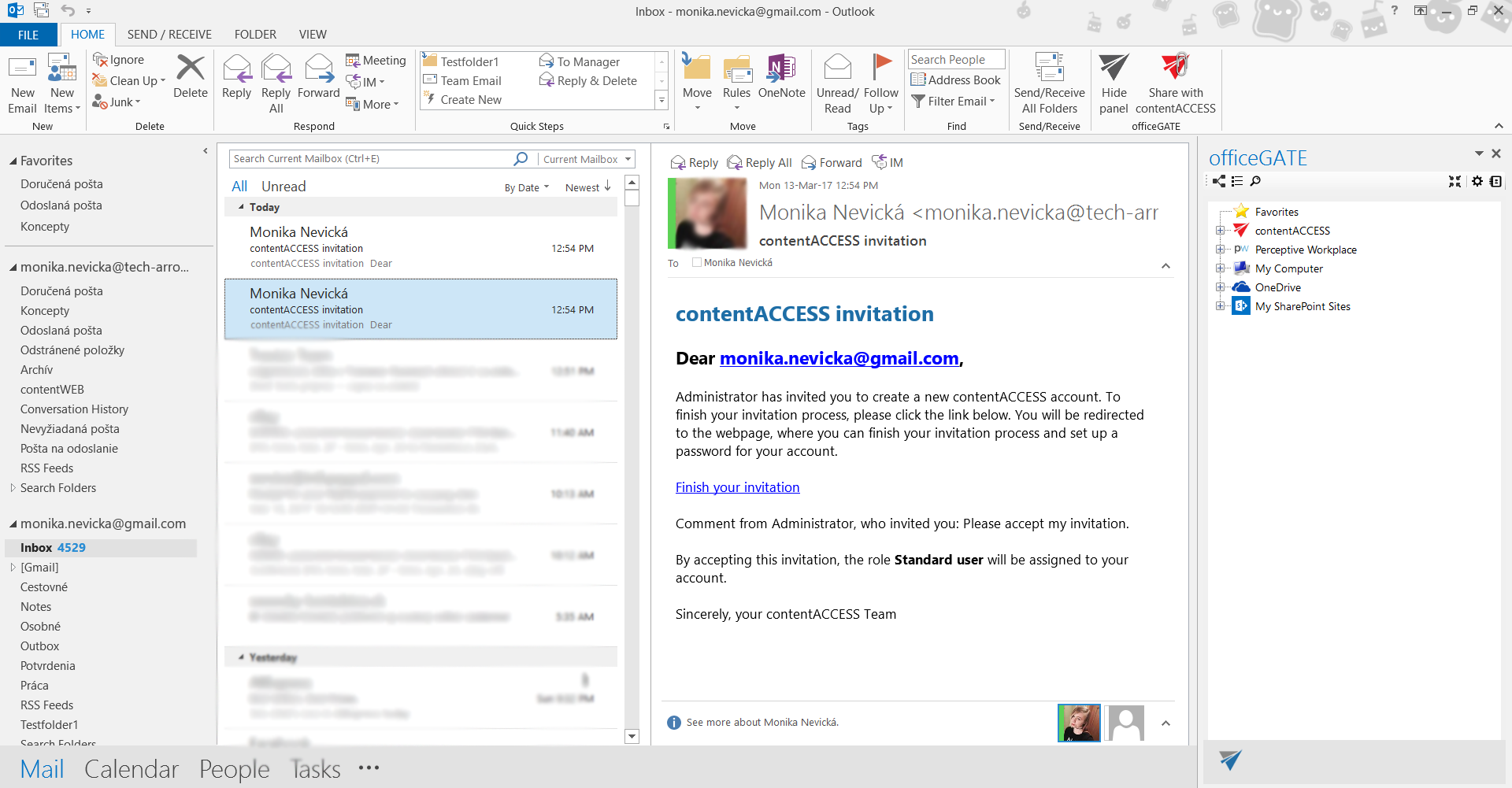
Once the notification job has run, the invited user receives an invitation email informing them that they have been invited to contentACCESS. To accept the invitation, the user clicks Finish your invitation in the email.
The user is then redirected to a webpage where they can complete the invitation process. The available options depend on whether the invited user already exists in contentACCESS and whether they are currently signed in:
- Already signed in user: Since the user is already logged in, no additional sign-in is required.
- Existing user with an existing contentACCESS account: If the user already has a contentACCESS account but is not currently signed in, they can select Use another contentACCESS account to sign in with their existing credentials.
- New user without a contentACCESS account: If the user does not yet have a contentACCESS account, they can select Sign up for contentACCESS account and sign in using any available login provider. The user can either create a new contentACCESS account using Forms authentication, or sign in using any other available authentication provider. After a successful login, the new user is created and the role is assigned. The login used for this first sign-in is saved in the User details.
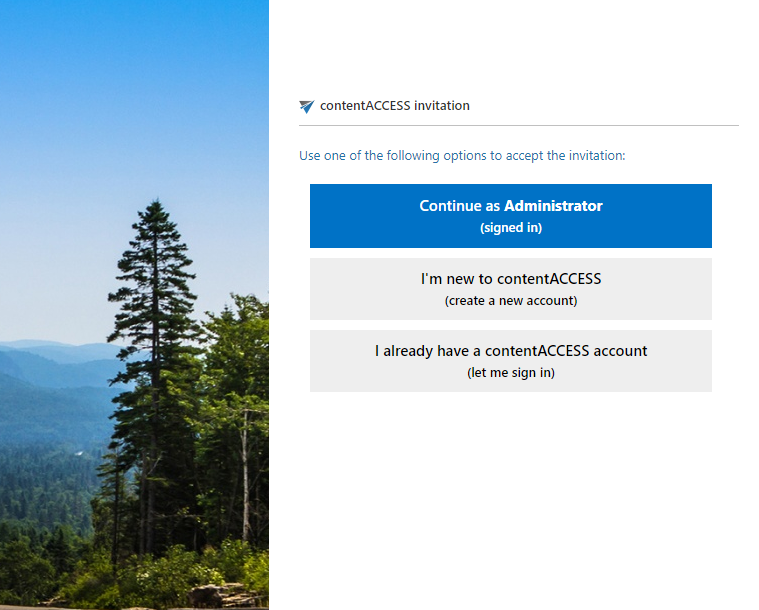 Screenshot: Finishing the invitation process as an already signed in user.
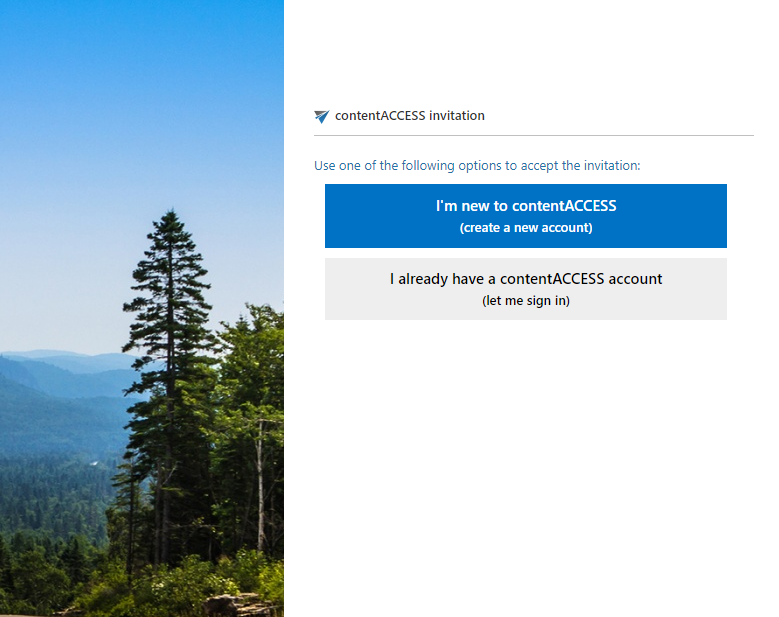 Screenshot: Finishing the invitation process as a new user or when not signed in.
After a successful login, the new user is created (or the existing user is updated), and the role defined in the invitation is automatically assigned.
View invitations
The list of sent invitations can be viewed on the Invitations page, accessible at System > Security > Invitations.
The following columns are displayed in the grid:
- Email: The email address where the invitation was sent.
- Created: The date when the invitation was sent to the user.
- Is accepted: Indicates whether the invited user has accepted the invitation or if it is still pending.
- Assigned user: The user with the assigned role(s).
- Accepted at: The date when the invitation was accepted by the user.
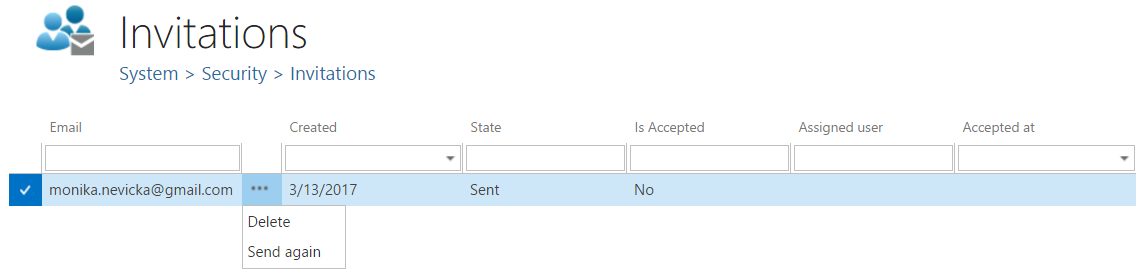
The context menu of each invitation allows you to delete it from the list or resend it, if it has not yet been accepted.