How to activate your license key
Introduction
The License activation wizard allows administrators to activate a new contentACCESS license key. The wizard supports two activation methods — online and offline — depending on whether the contentACCESS server has internet access.
This page explains how to start the license activation process and how to complete it using either the online or the offline activation method.
Start the license activation
To activate a new license, click Activate license, located below the breadcrumbs.

In the License activation wizard dialog, enter your license key into the License key text box, then choose one of the two available activation methods described below.

Online activation
Online activation requires internet access on the contentACCESS server.
- Click Next.
- Click Finish.
The license is activated automatically.

Offline activation
Offline activation does not require internet access on the contentACCESS server.
-
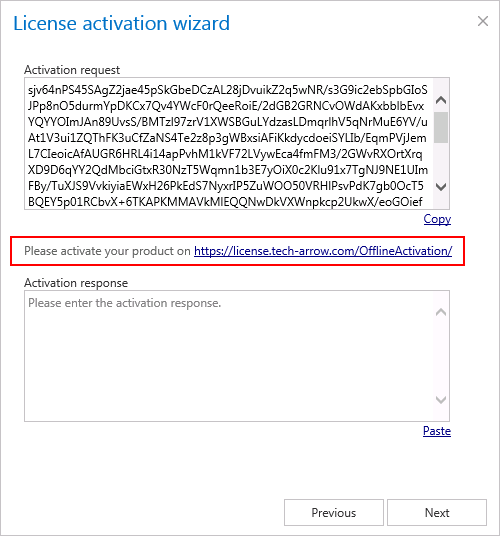
Open the offline license activation page of contentACCESS using the link provided in the dialog.
-
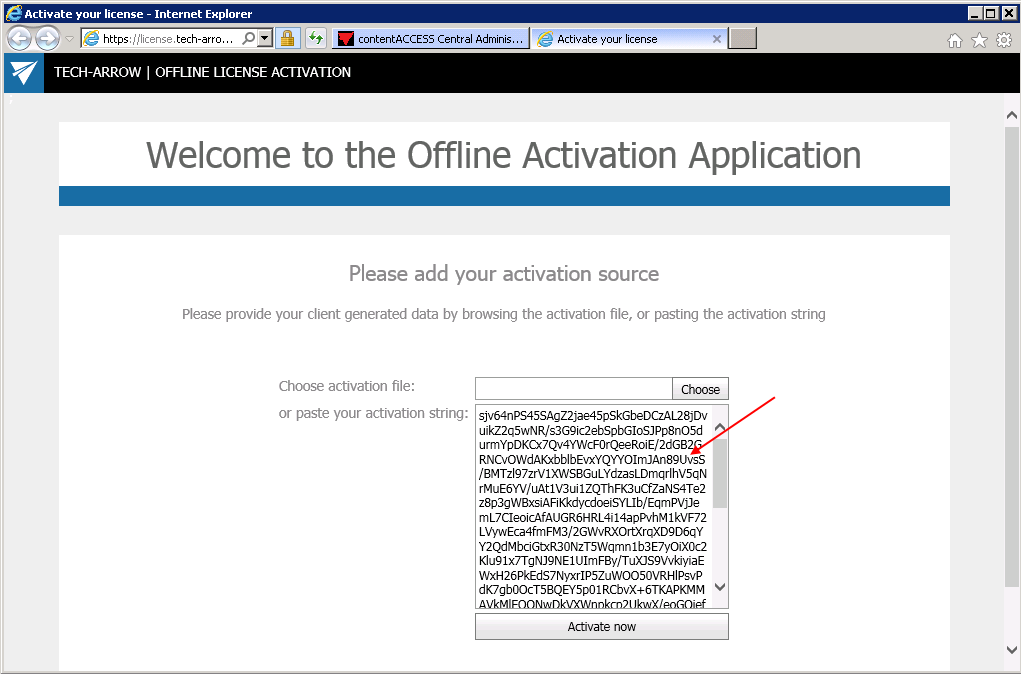
Copy and paste the Activation request from the dialog into the appropriate field on the web page, then click Activate now to generate an activation response.
-
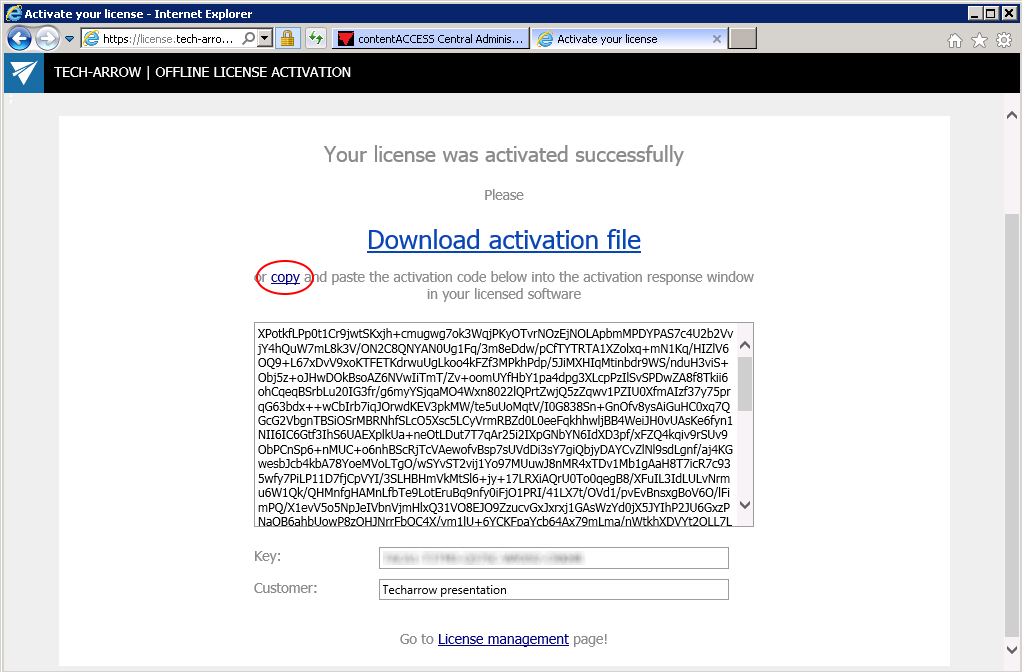
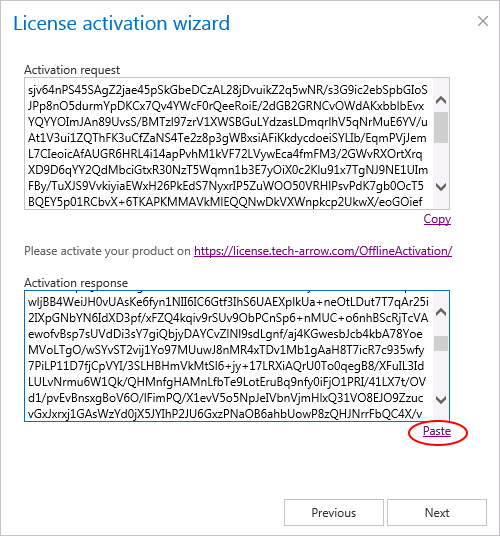
Copy and paste the activation response from the web page into the License activation wizard dialog.
-
Click Next.
The license key is activated successfully.
After activation
After the license is successfully activated, the Allowed jobs, stores and limitations included in the license are updated on the page.