Associating an enabled provider with a user login
Introduction
Associating an enabled provider with a user login allows a user to authenticate using an external login provider, such as Windows, Forms, or Microsoft 365. This page describes how to create a new user login and link it to an enabled and configured login provider.
Note: Provider support for multiple configurations depends on the provider type. You can create only one Windows and one Forms login provider configuration per user login, but you can create multiple configurations for providers such as Microsoft 365.
Prerequisites
The desired login provider must already be enabled and configured before it can be associated with a user login.
Add a login provider to a user
Once the desired provider is enabled and configured, create a new user login for the user who will use the provider.
-
Navigate to System => Security => Users on the ribbon.
-
Click Users to open the Users page.
-
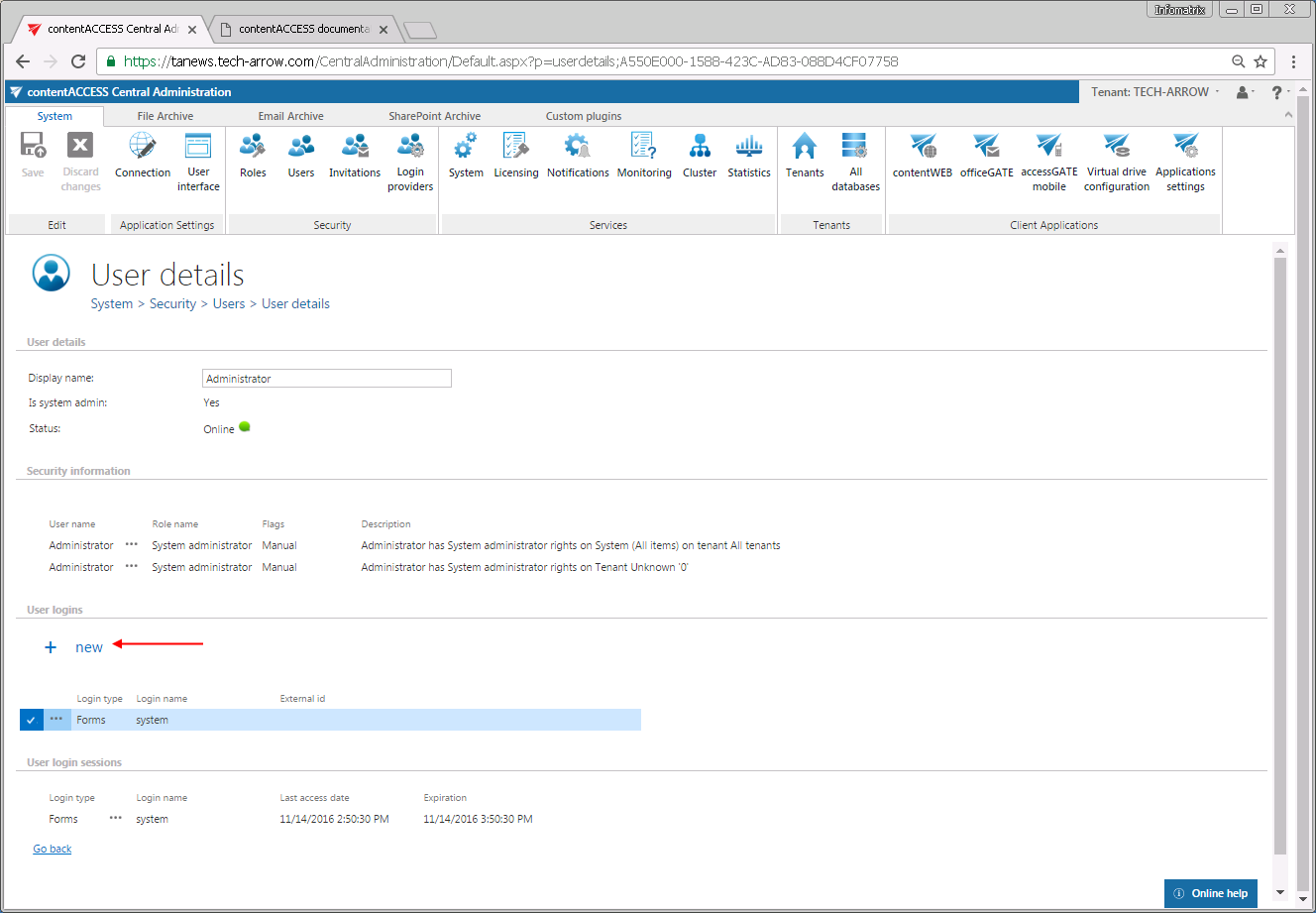
Select the desired user and double-click it to open the User details page.
-
Under the User logins section, click +new.
-
In the Add new login dialog, select the desired provider configuration from the Login provider dropdown list.
-
Fill in the required credentials.
-
Click OK.

Once associated, the external provider becomes available in the login window of the selected applications.