Configuring Google login provider
Introduction
contentACCESS supports Google as an external login provider, allowing users to authenticate using their Google account. To use Google authentication, you must register the contentACCESS application on the Google Developers Console to obtain a Client ID and Client Secret, and then configure a corresponding login provider in contentACCESS Central Administration.
This page describes how to:
- register a project in the Google Developers Console;
- configure the OAuth consent screen and OAuth client ID;
- retrieve the required redirect URLs from Central Administration;
- configure the Google login provider in contentACCESS Central Administration.
Prerequisites
- A Google account.
- Access to the Google Developers Console.
- Access to the Login providers page in contentACCESS Central Administration (System > Security > Login providers).
Register a project in the Google Developers Console
-
Sign in to the Google Developers Console with your Google account.
-
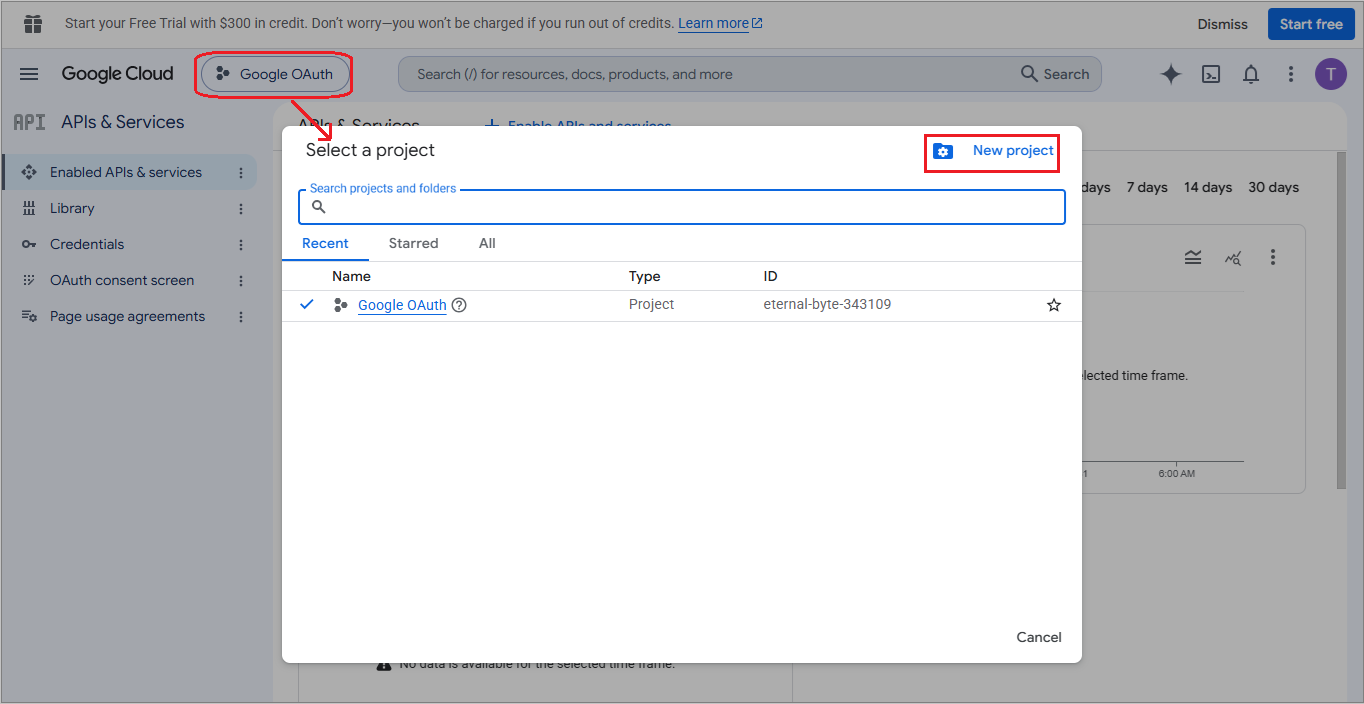
Click Select a project in the upper left corner. If a project already exists, its name is displayed there; click the name to open the Select a project menu.
-
Choose an existing project from the list, or click New project in the upper right corner to create one.
-
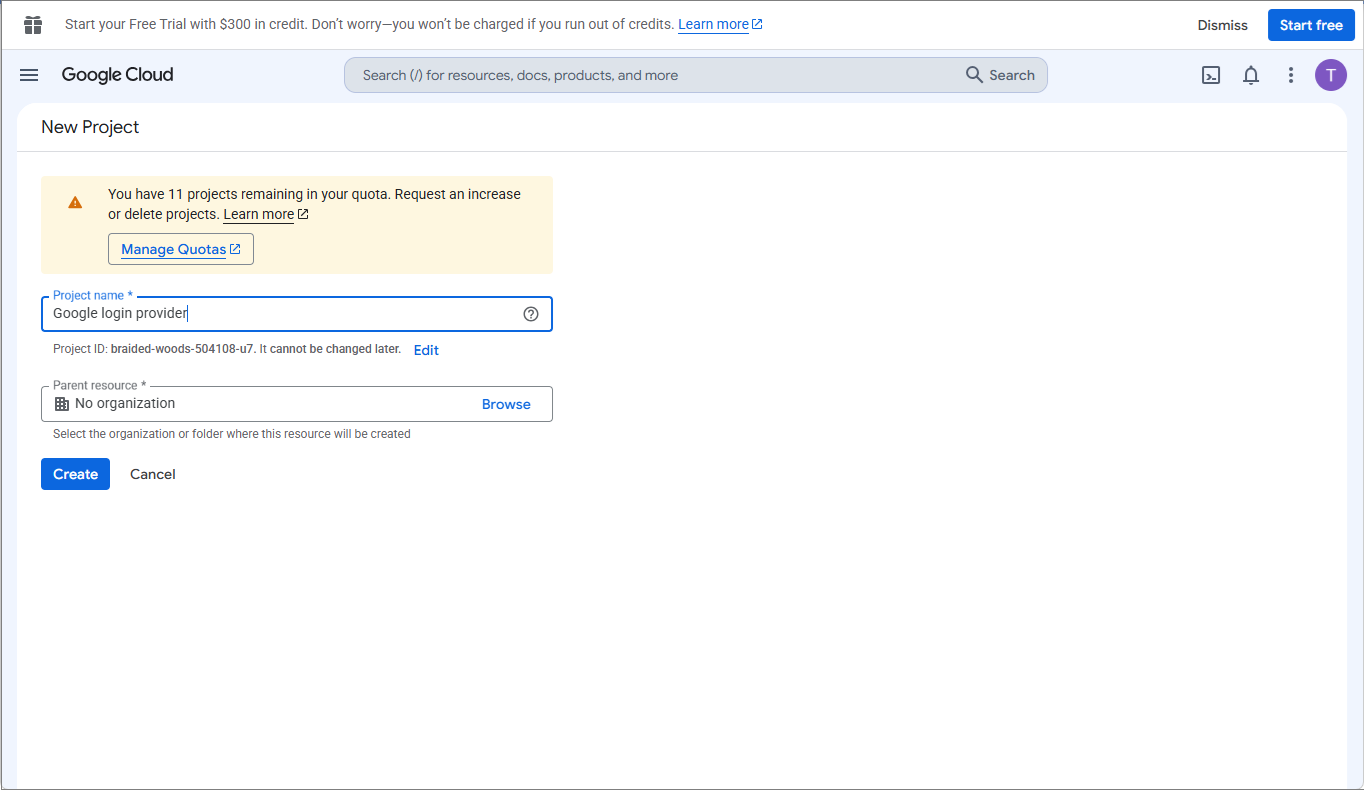
Enter a name for your project, then click Create.
-
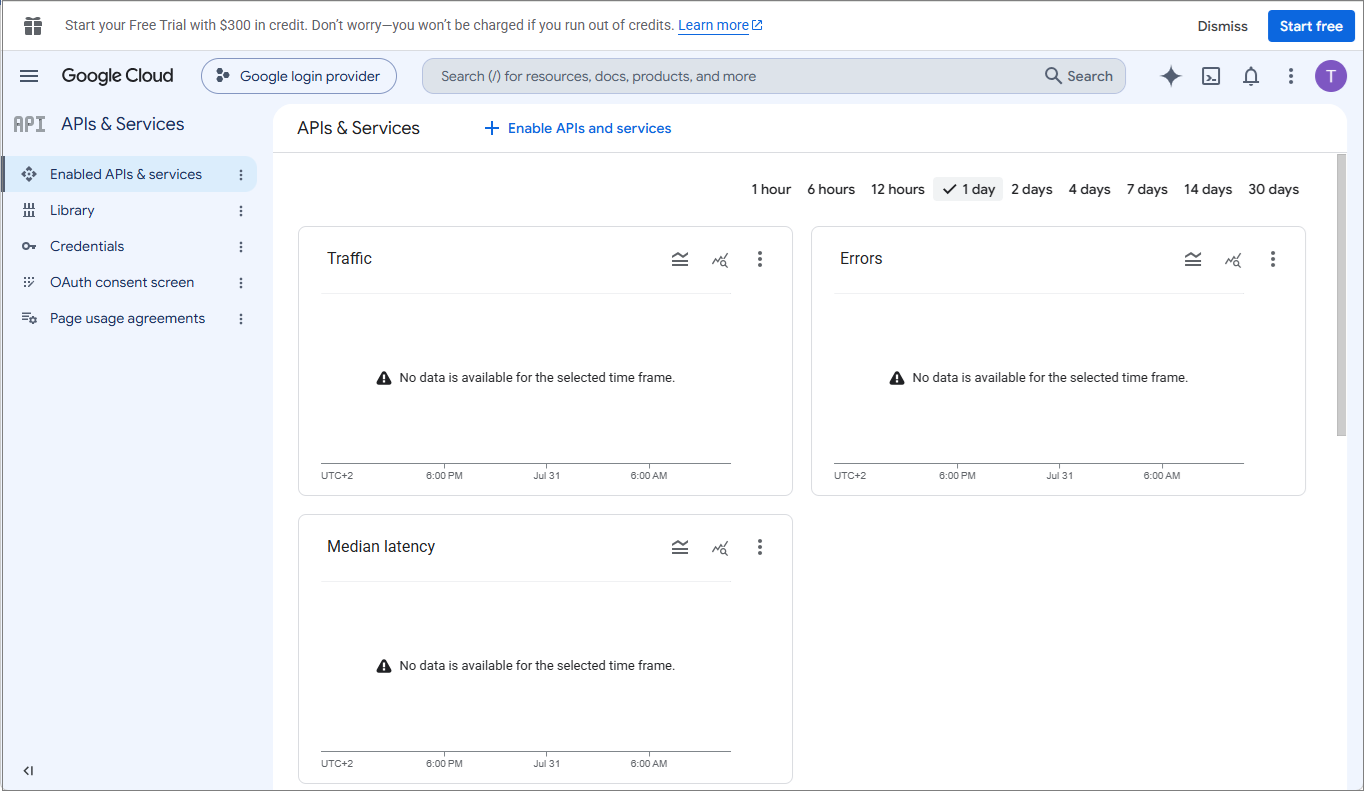
After the project is created, open the APIs & Services page.
Configure the OAuth consent screen
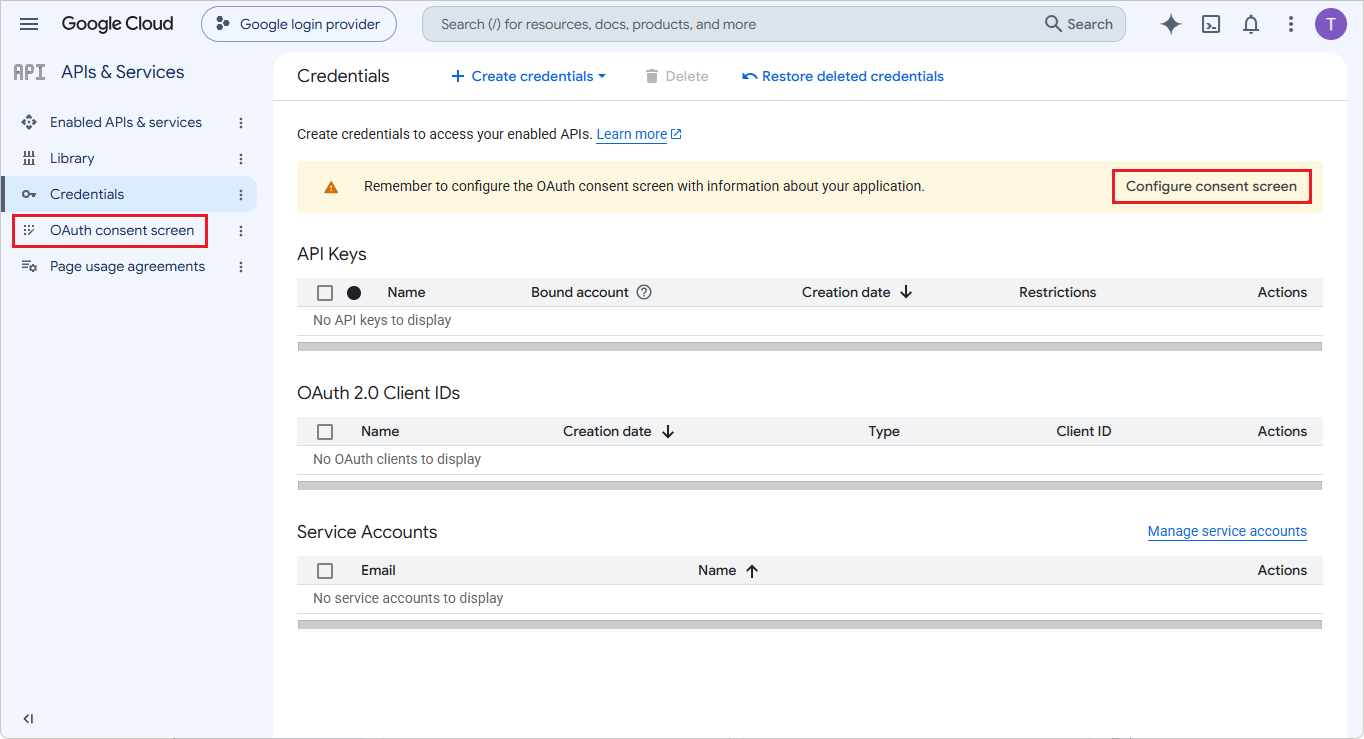
To access enabled APIs, you must create credentials. However, credentials cannot be configured until the OAuth consent screen has been set up. If this is the first time you are creating a client ID, complete the consent screen configuration first.
-
Open OAuth consent screen from the left menu, or click Configure consent screen on the APIs & Services page.
-
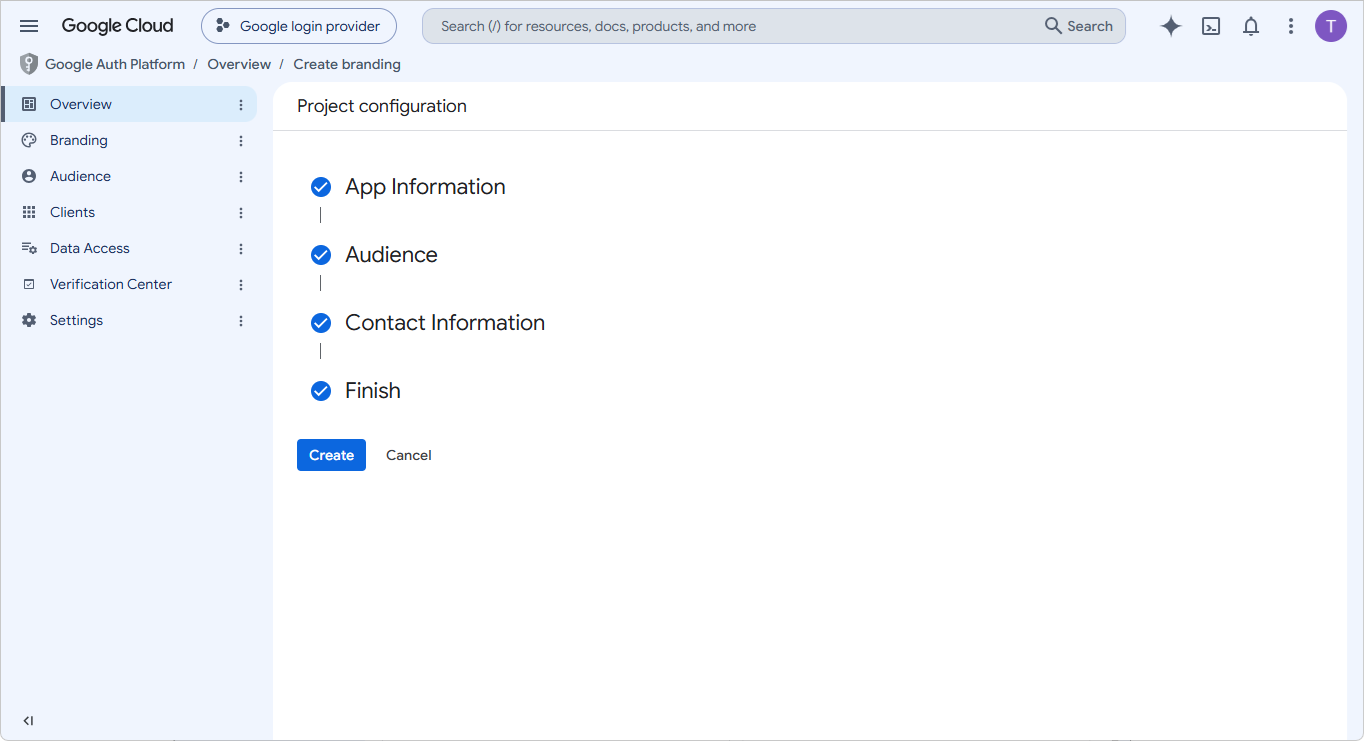
On the OAuth consent screen, enter the required app information (which app is requesting consent, and a user support email).
-
Choose the Audience, and select External.
-
Add contact information so Google can notify you about any project-related changes.
-
Accept the Google API Services policies.
-
Click Create.
Create the OAuth client ID
-
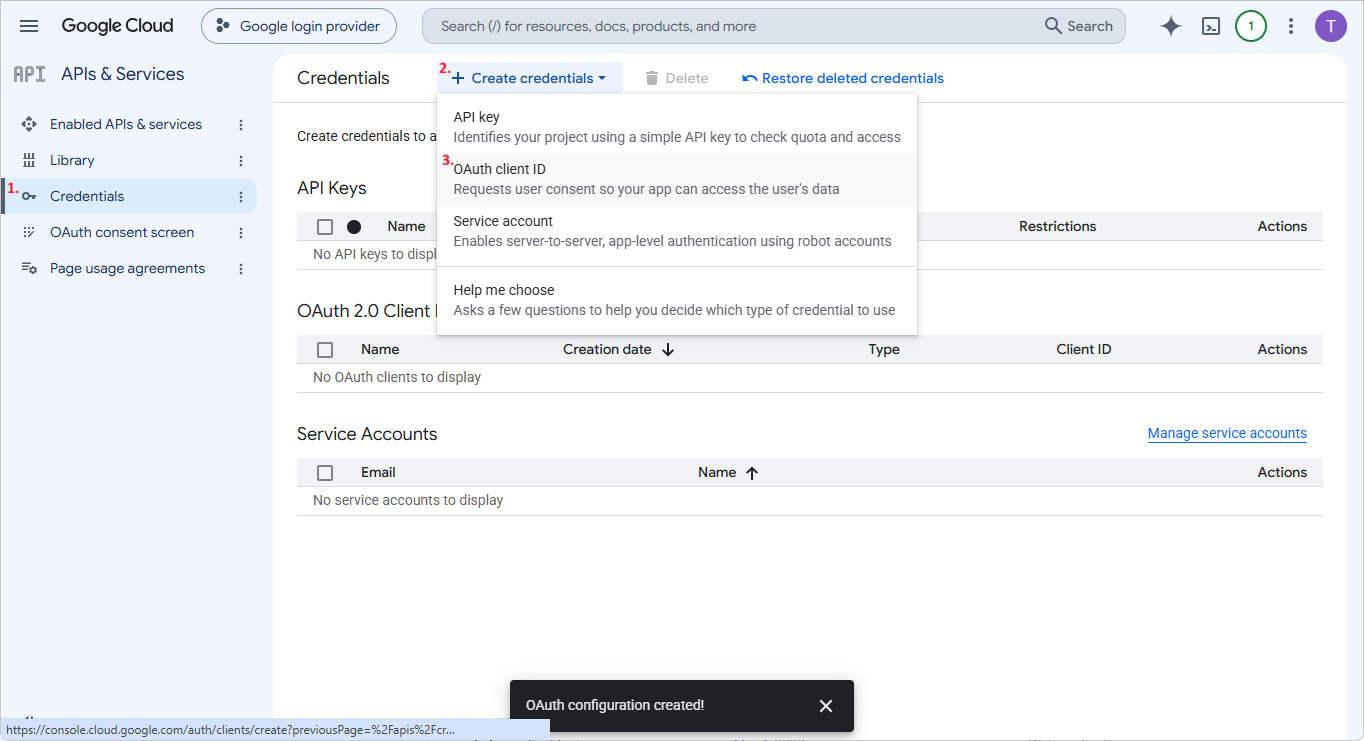
Once the OAuth consent is granted, go back to the APIs & Services page and select Credentials from the left menu.
-
Click Create credentials, then select OAuth client ID from the dropdown menu.
-
Set Application type to Web application, and enter a name for the OAuth client.
-
Add the required values to Authorized JavaScript origins and Authorized redirect URIs.
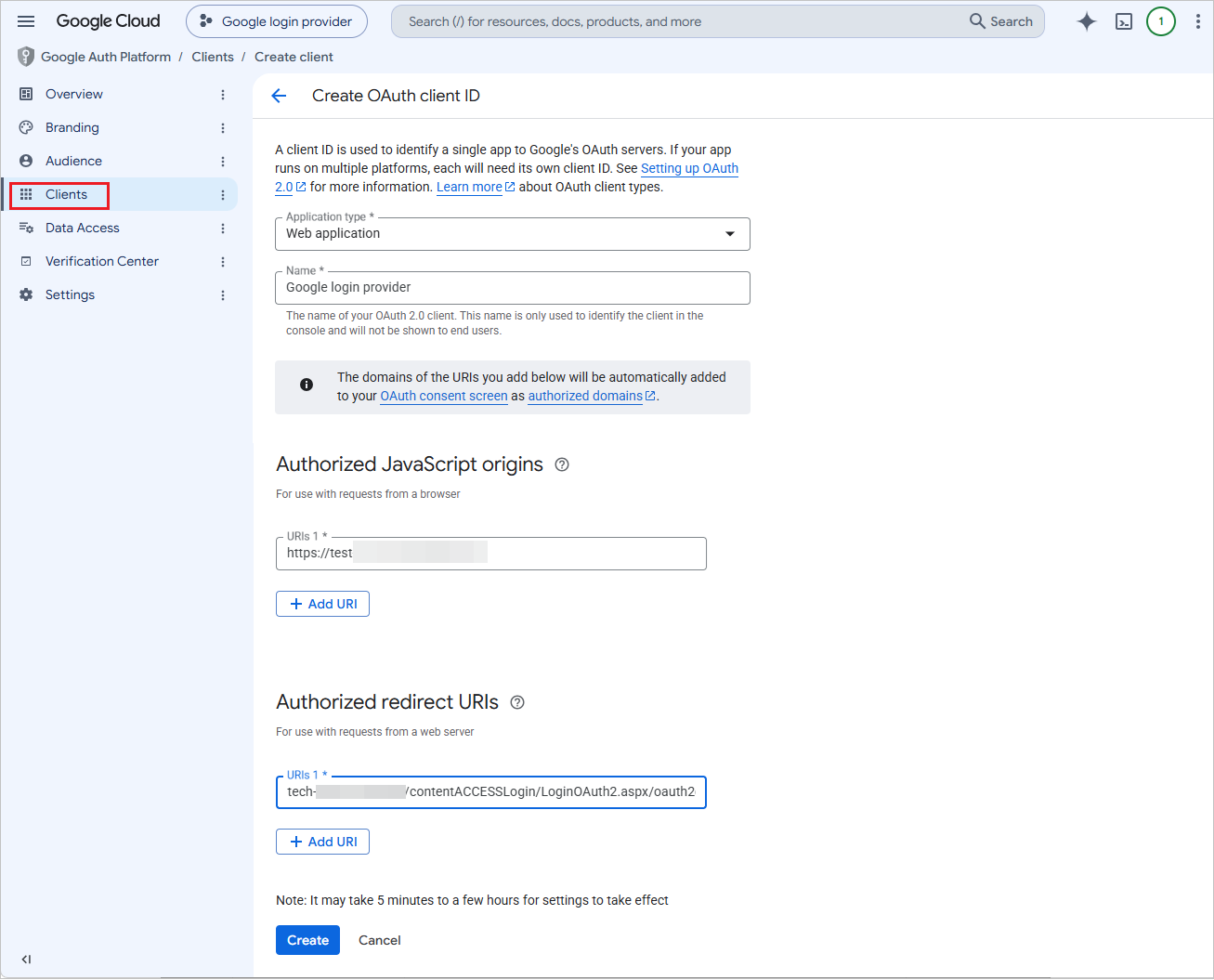
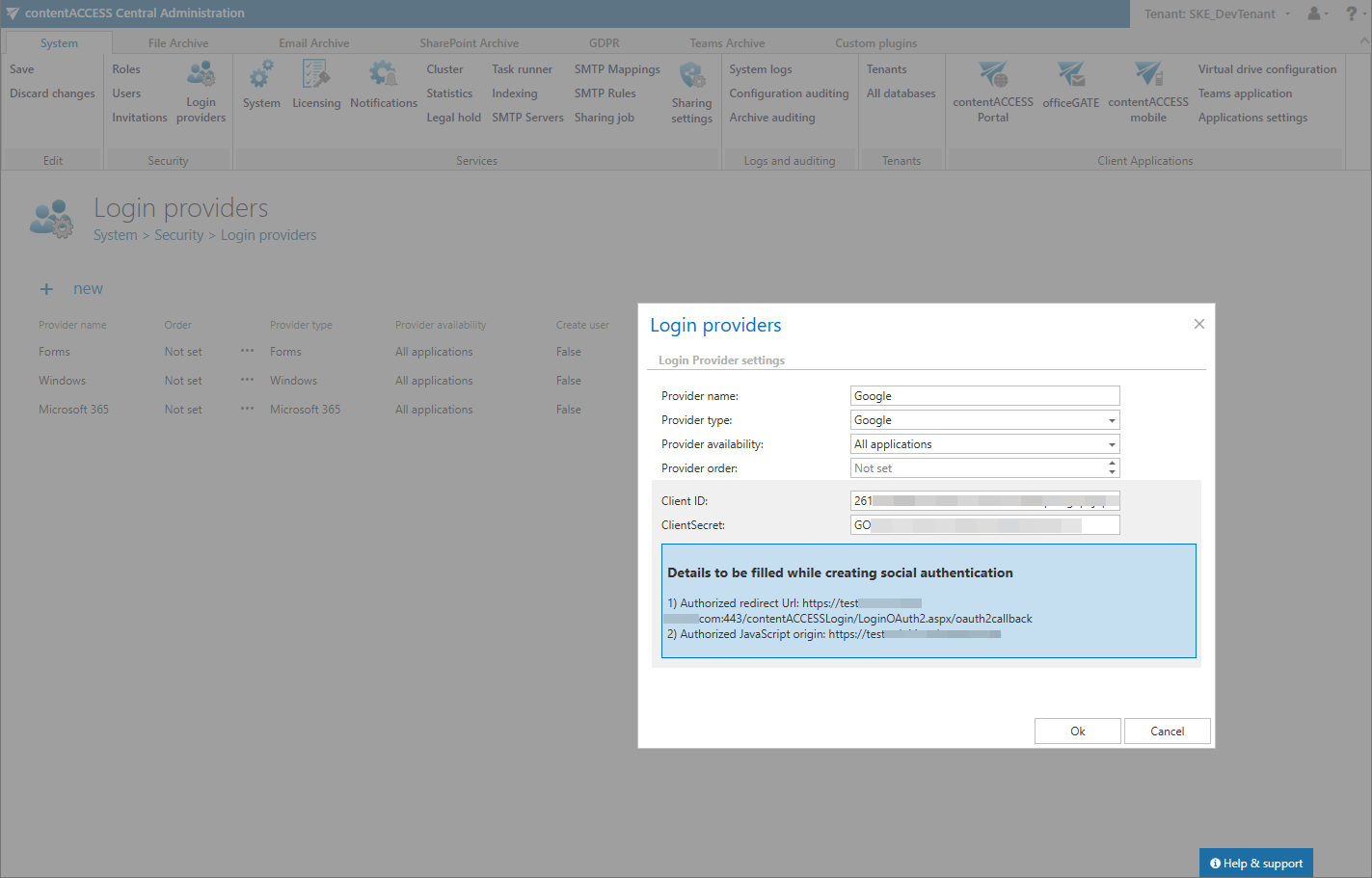
The required URLs can be found in the login provider window in contentACCESS Central Administration:
-
Open the Login providers page in Central Administration.
-
Click New.
-
Select Google as the provider type.
-
Copy the links from the blue frame.
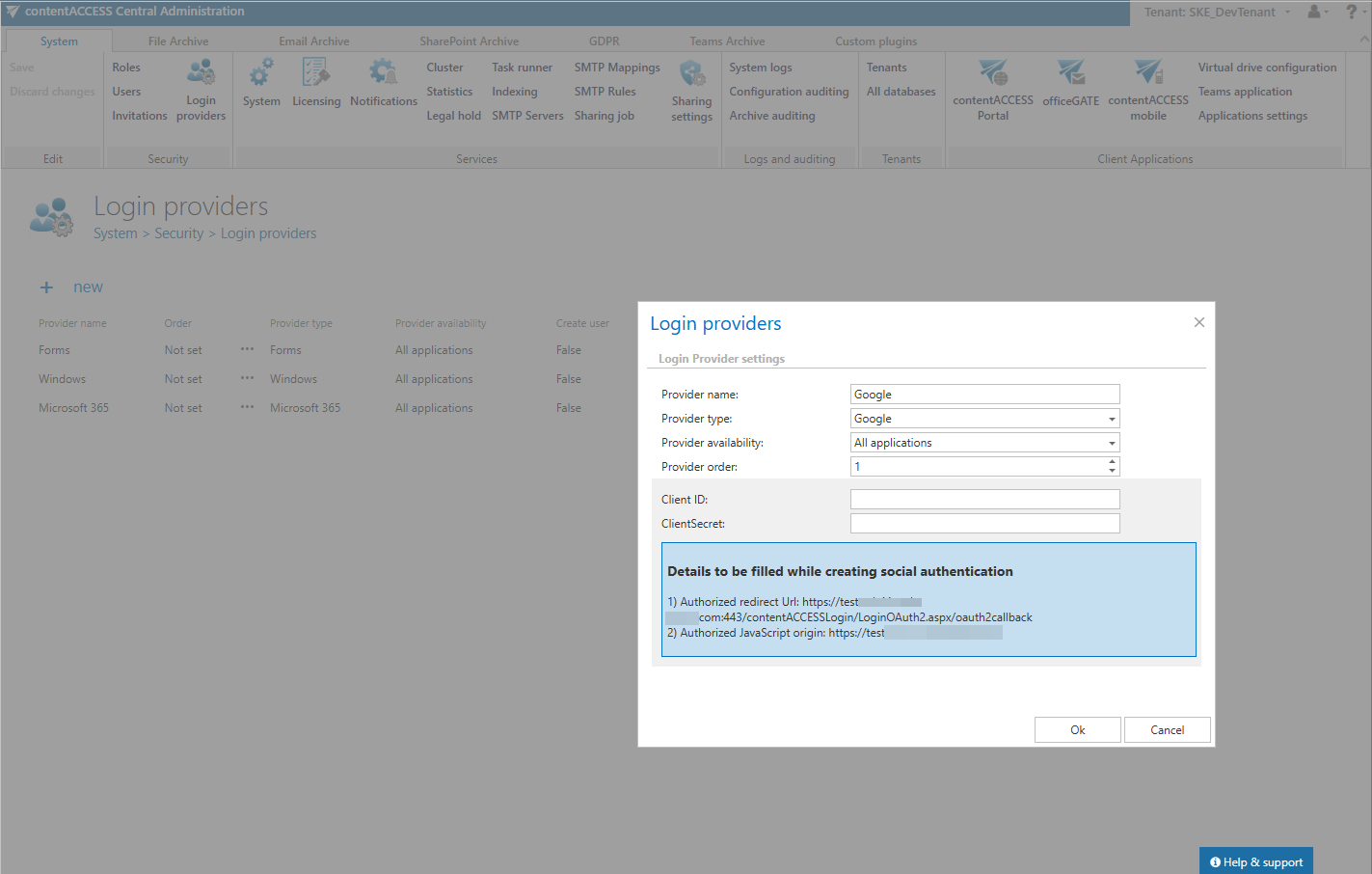
Important: The URLs are case sensitive.
-
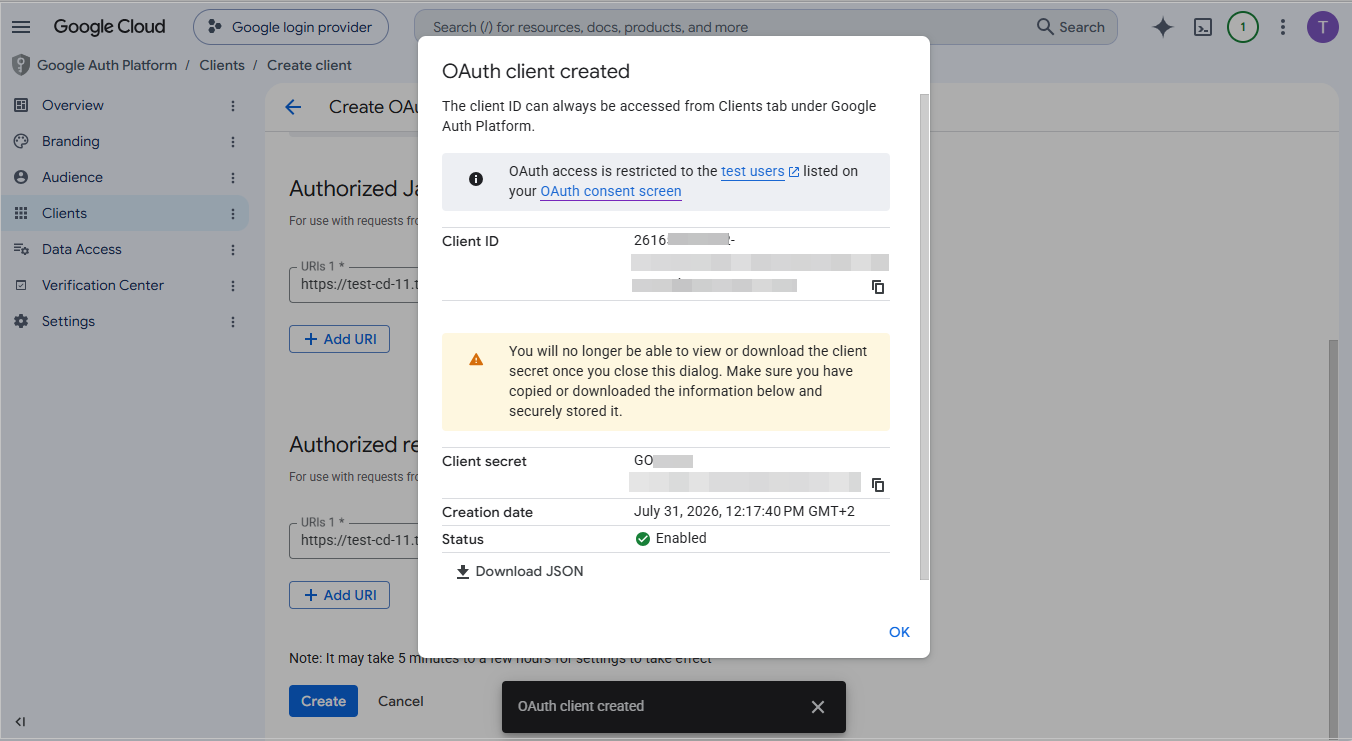
Click Create on the Google Developers Console. The Client ID and Client Secret are generated automatically.
-
Save these values for later use, either by copying them to a text file or downloading the JSON file. You will need them to configure the login provider in contentACCESS Central Administration.
Configure the login provider in contentACCESS Central Administration
-
Open the Login providers page (System > Security > Login providers).
-
Click + New.
-
In the Login providers window, enter a name for the provider.
-
Select Google as the provider type.
-
Choose the application that should use this authentication type.
-
Enter the Client ID and Client Secret obtained from the Google Developers Console into the respective fields.
-
Click OK.
-
Click Save on the Login providers page to apply the changes.