Configuring Microsoft 365 login provider
Introduction
The Microsoft 365 login provider allows users to sign in to contentACCESS using their Microsoft account. Enabling this login provider requires registering an application under your Microsoft account in the Azure portal.
The Microsoft 365 login provider supports two Microsoft Graph API versions, each with its own registration procedure and supported account types:
- API version 1.0
- API version 2.0
Note: The German cloud (the dedicated and isolated Microsoft Azure version for Germany) does not support API v2.0. Only API v1.0 is supported for this region.
API version differences
- API version 1.0: The login application is registered through the Azure management portal (requires a Microsoft Azure subscription) and does not support logins through Microsoft personal accounts — only Work and School accounts are supported.
- API version 2.0: The login application is registered through the Azure management portal and supports all Microsoft login types — Personal, Work, and School accounts.
Important: The registration of the Azure AD application and the configuration of the Microsoft 365 login provider can be executed automatically using the following script:
Set-ExecutionPolicy -ExecutionPolicy Unrestricted -Scope CurrentUser
Invoke-WebRequest -Uri "https://static.contentaccess.cloud/appregistration/Register-contentACCESSAADapp.ps1" -OutFile "Register-contentACCESSAADapp.ps1"
.\Register-contentACCESSAADapp.ps1
Windows PowerShell must be run as Administrator for this process.
Registering API version 2.0
contentACCESS supports login using your Microsoft account. To enable this, you must first register an application (contentACCESS) under your Microsoft account.
-
Log in to the Azure portal: https://portal.azure.com.
-
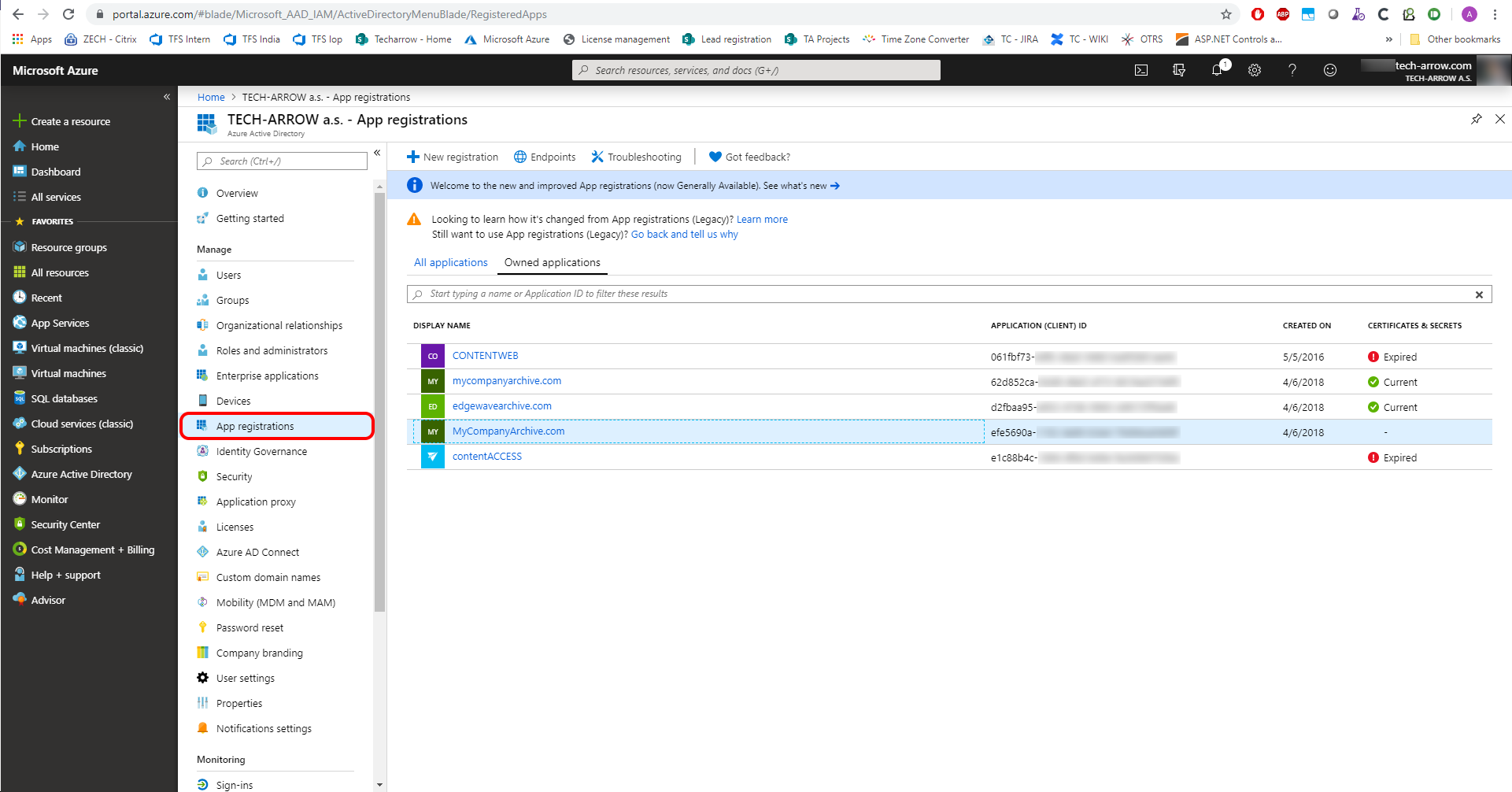
Go to Azure Active Directory > App registrations.
-
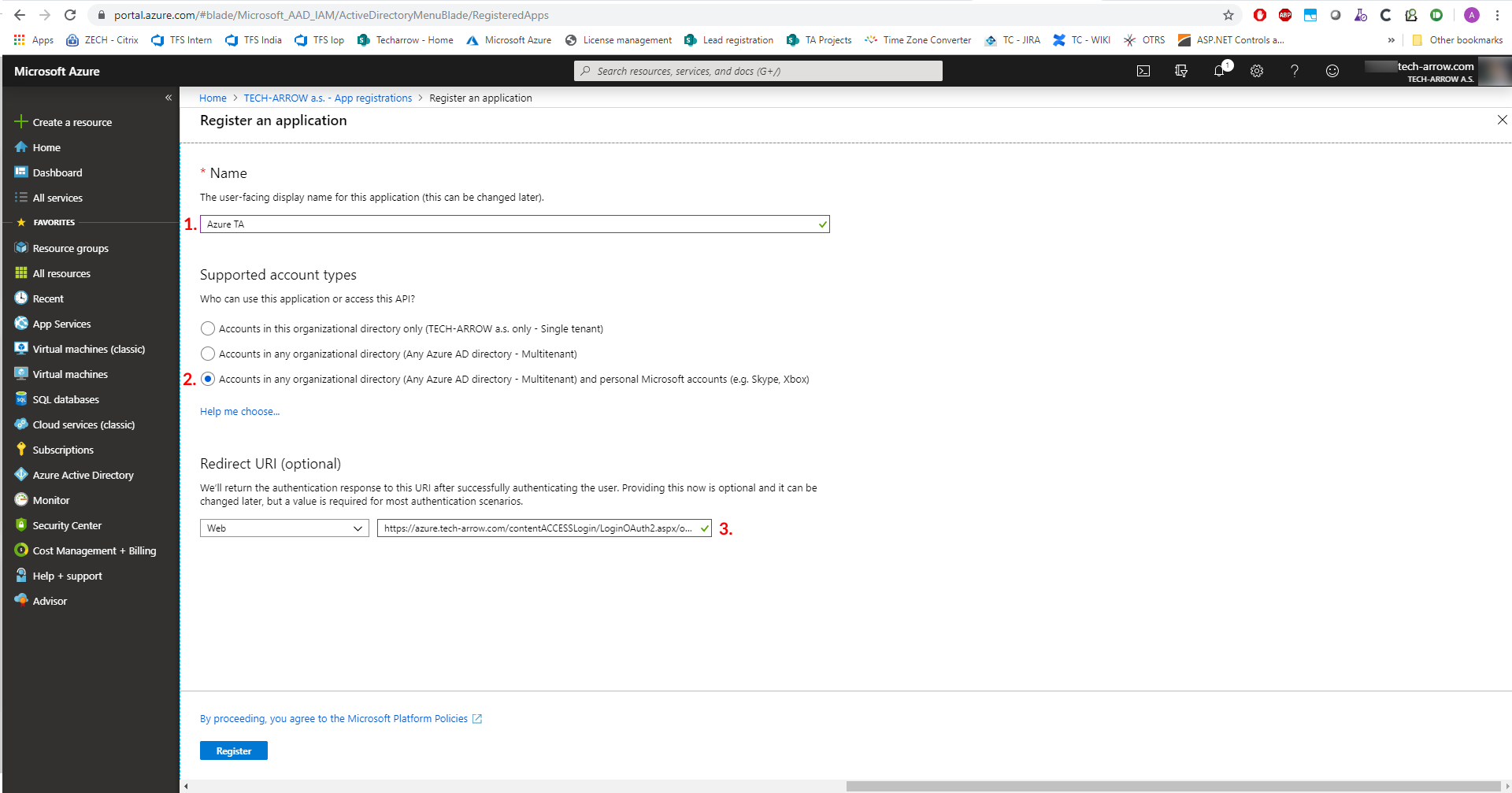
Create a new application registration:
- Name the application. This name is displayed to users when they approve access to their details on first login.
- Select the preferred account types to allow for login.
- Enter the redirect URL. This information is provided in contentACCESS in the Microsoft 365 login provider configuration.
-
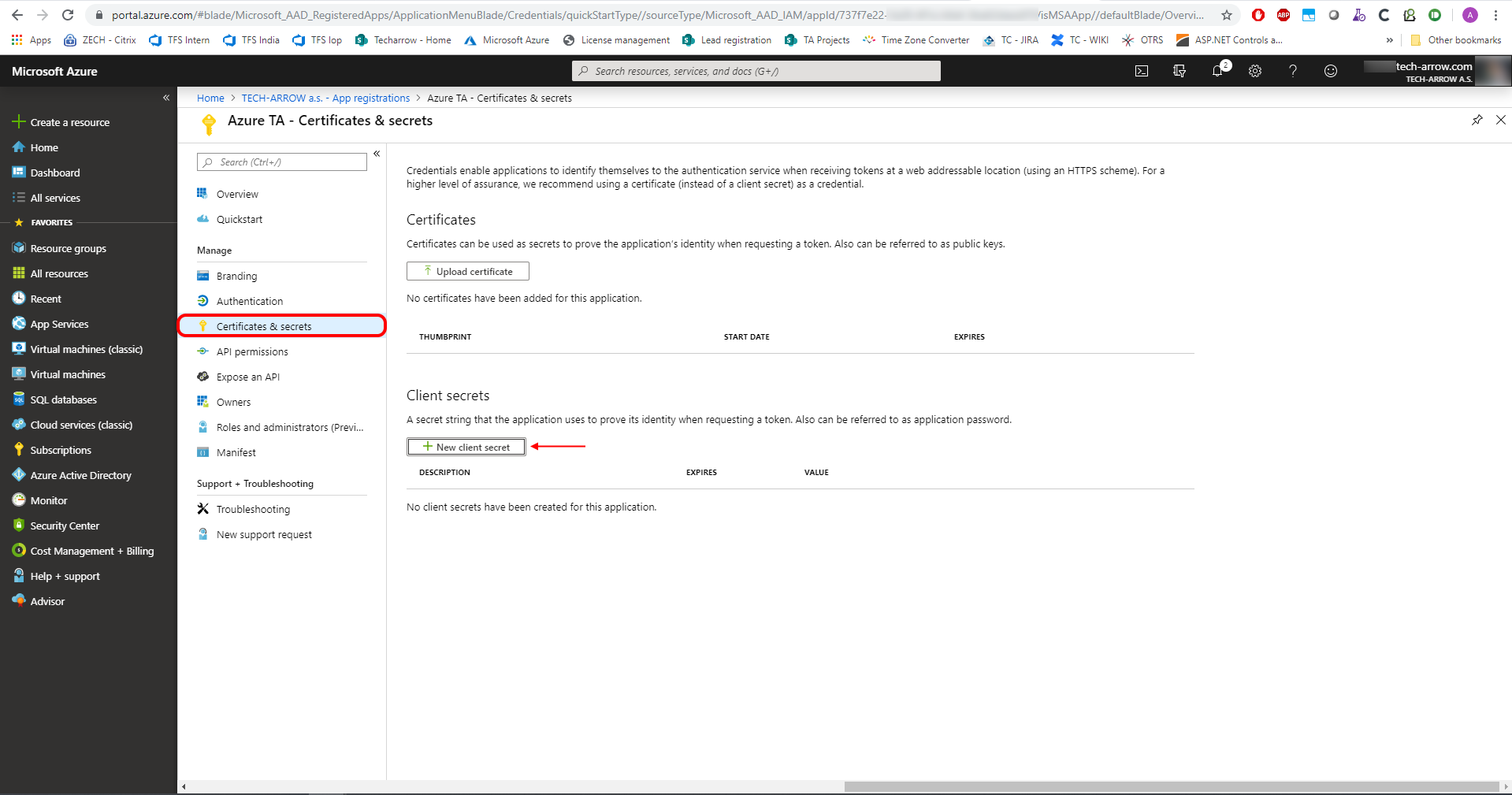
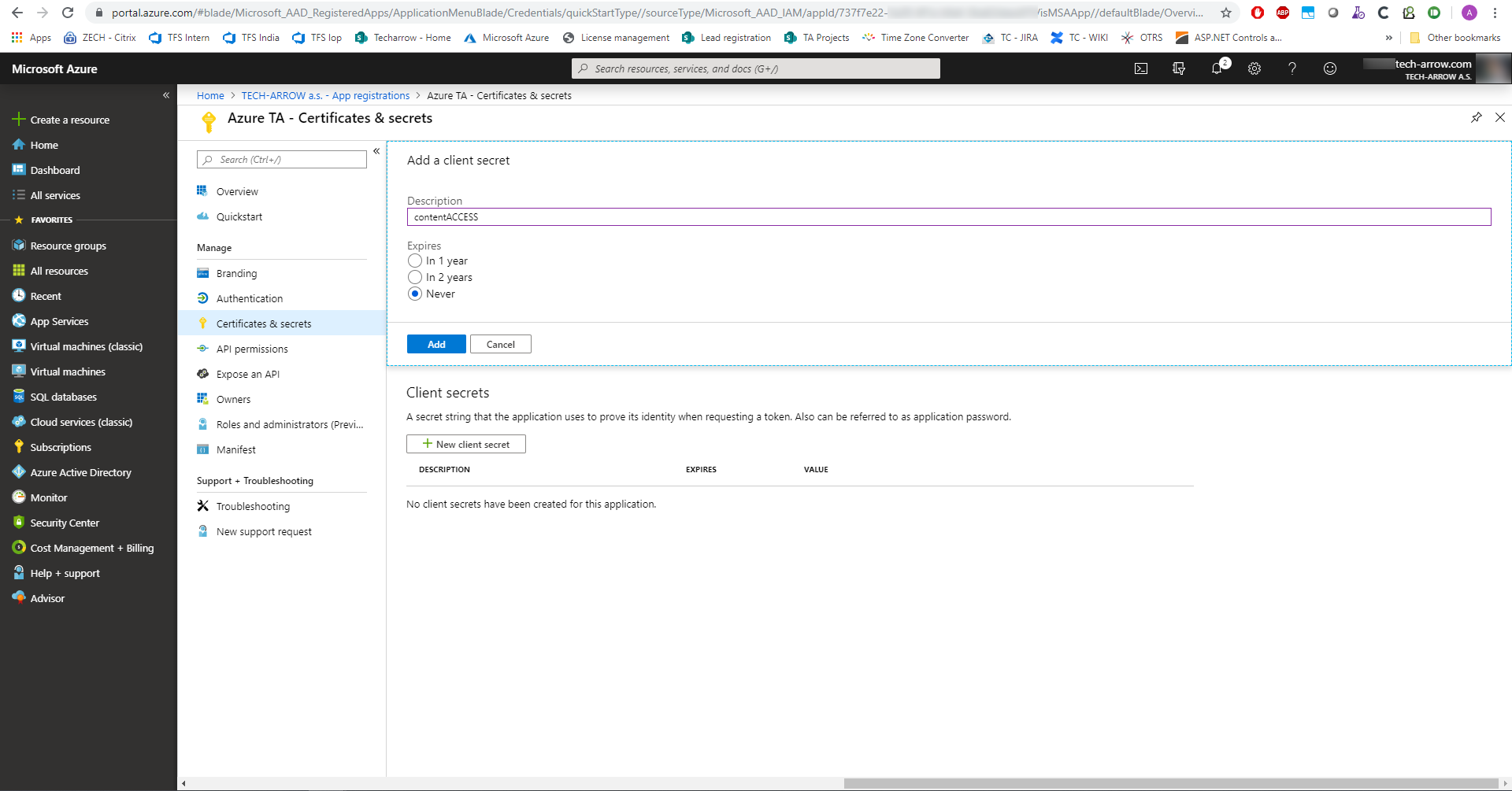
Go to Certificates & secrets and generate a new client secret.
-
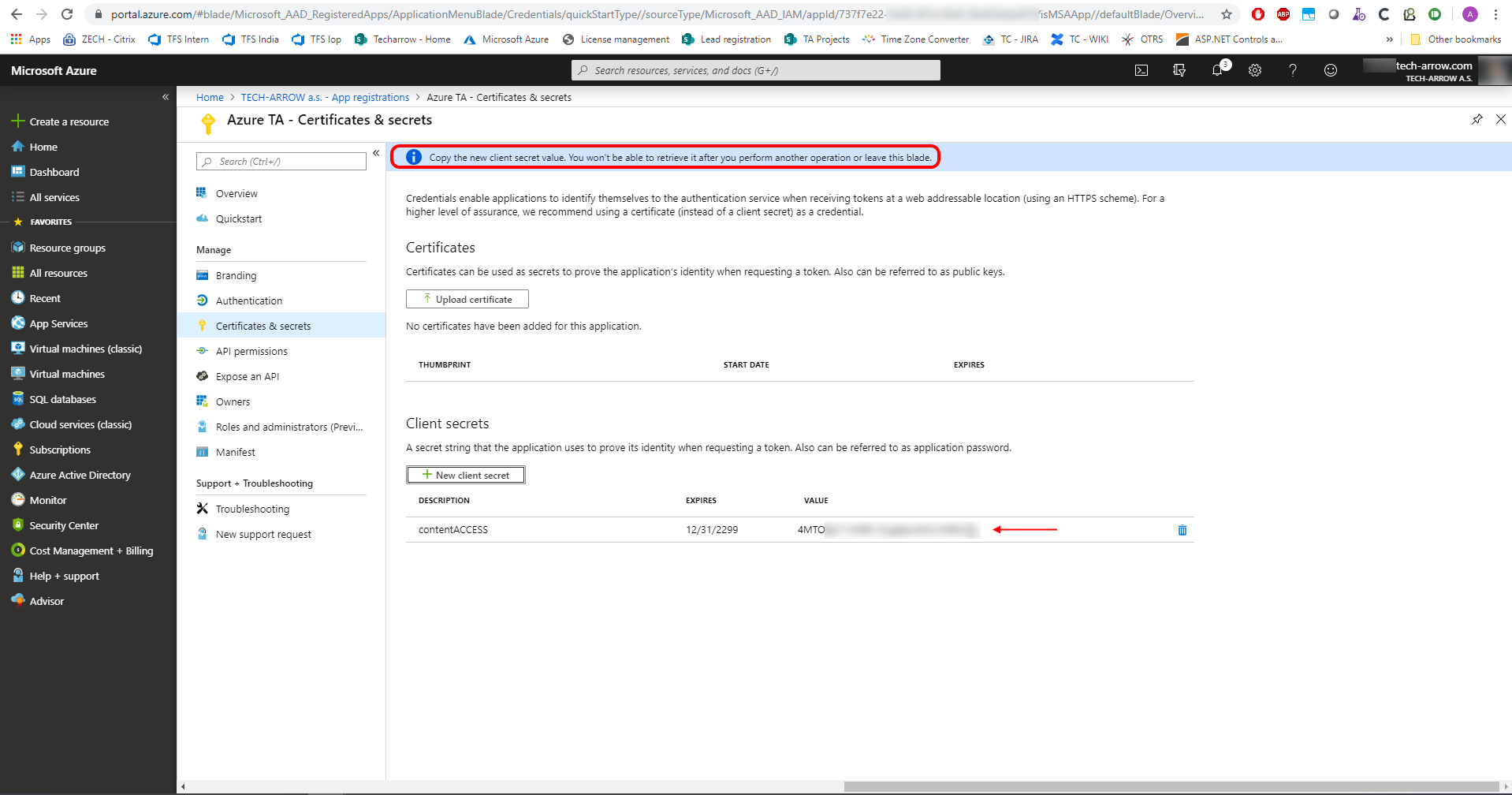
Copy the client secret.
-
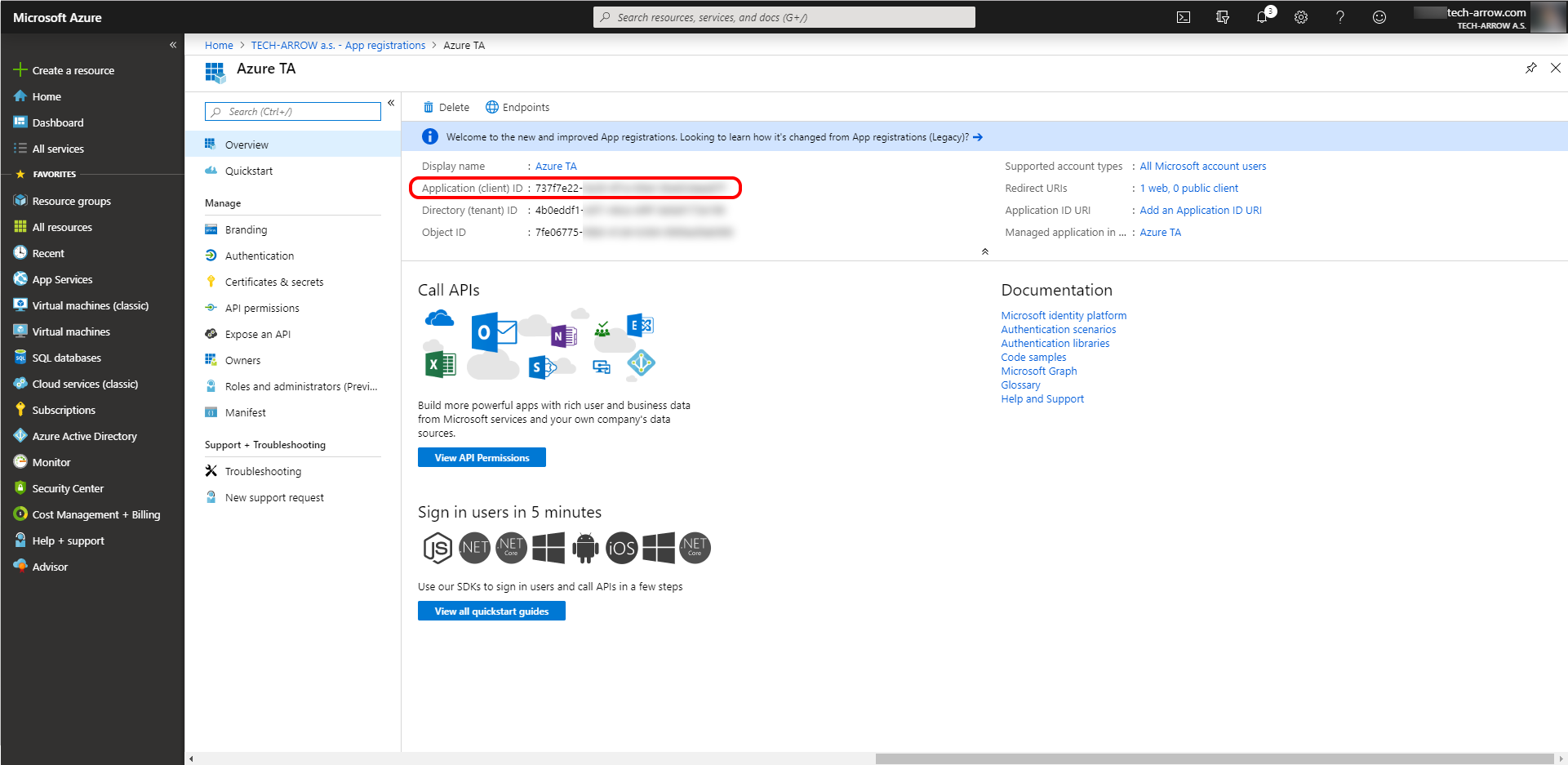
Go to Overview and copy the Application ID.
-
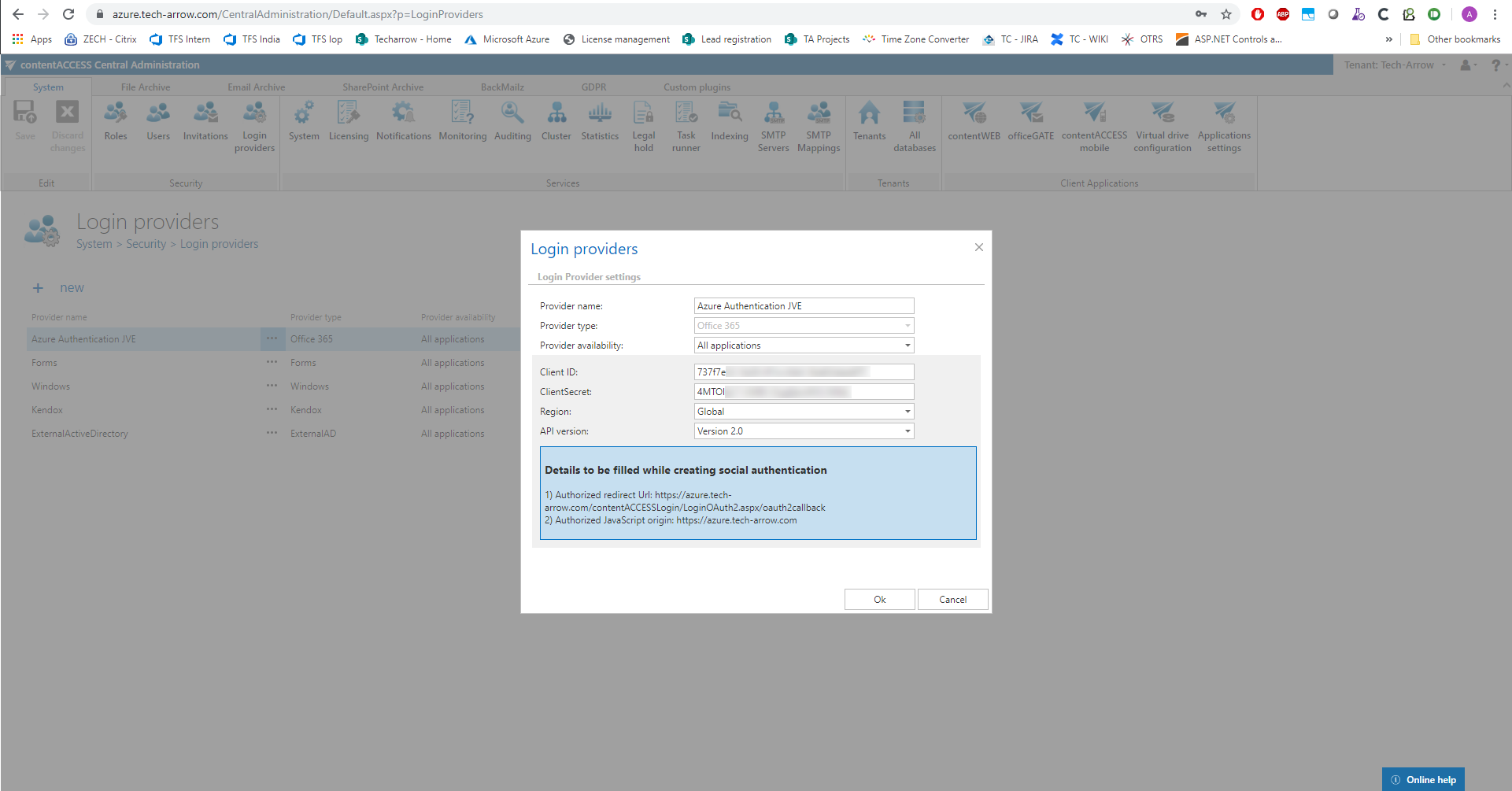
Enter the Application ID and Client Secret into the Microsoft 365 login provider configuration in Central Administration.
Registering API version 1.0 (required for German cloud)
When configuring the Microsoft 365 login provider, if Germany is selected in the Region dropdown list, version 1 is automatically preselected in the API version dropdown list. Do not change this setting, as the German cloud does not support API v2.0.
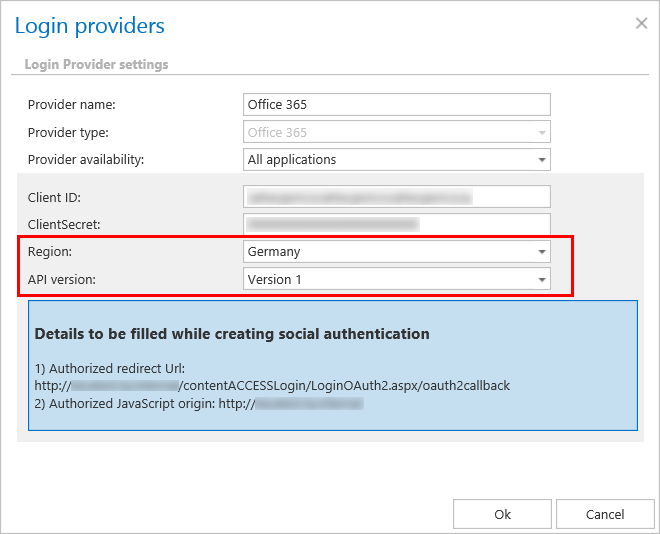
To register API version 1.0:
-
On the Microsoft Azure portal, click Azure Active Directory > App registrations > New application registration.

-
Enter the name, application type (API), and sign-on URL (
https://SERVER_NAME/contentACCESSLogin).
-
Select the created application.
-
Copy the necessary IDs and enter them into the respective fields under Settings > Properties. Set the application as multi-tenanted.
-
Under Settings > Reply URLs, enter the reply URL (
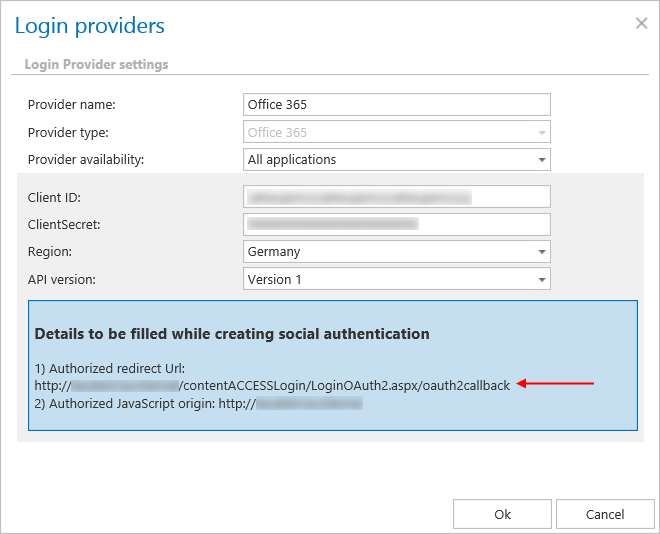
https://SERVER_NAME/contentACCESSLogin/LoginOAuth2.aspx/oauth2callback). This URL can also be found in contentACCESS Central Administration under System > Login providers > Microsoft 365 > Authorized redirect URL.
-
Under Required permissions, click + Add > Select an API > Microsoft Graph.
-
Click Select permissions and check the options Sign in and read user profile and Read all users' basic profiles.
-
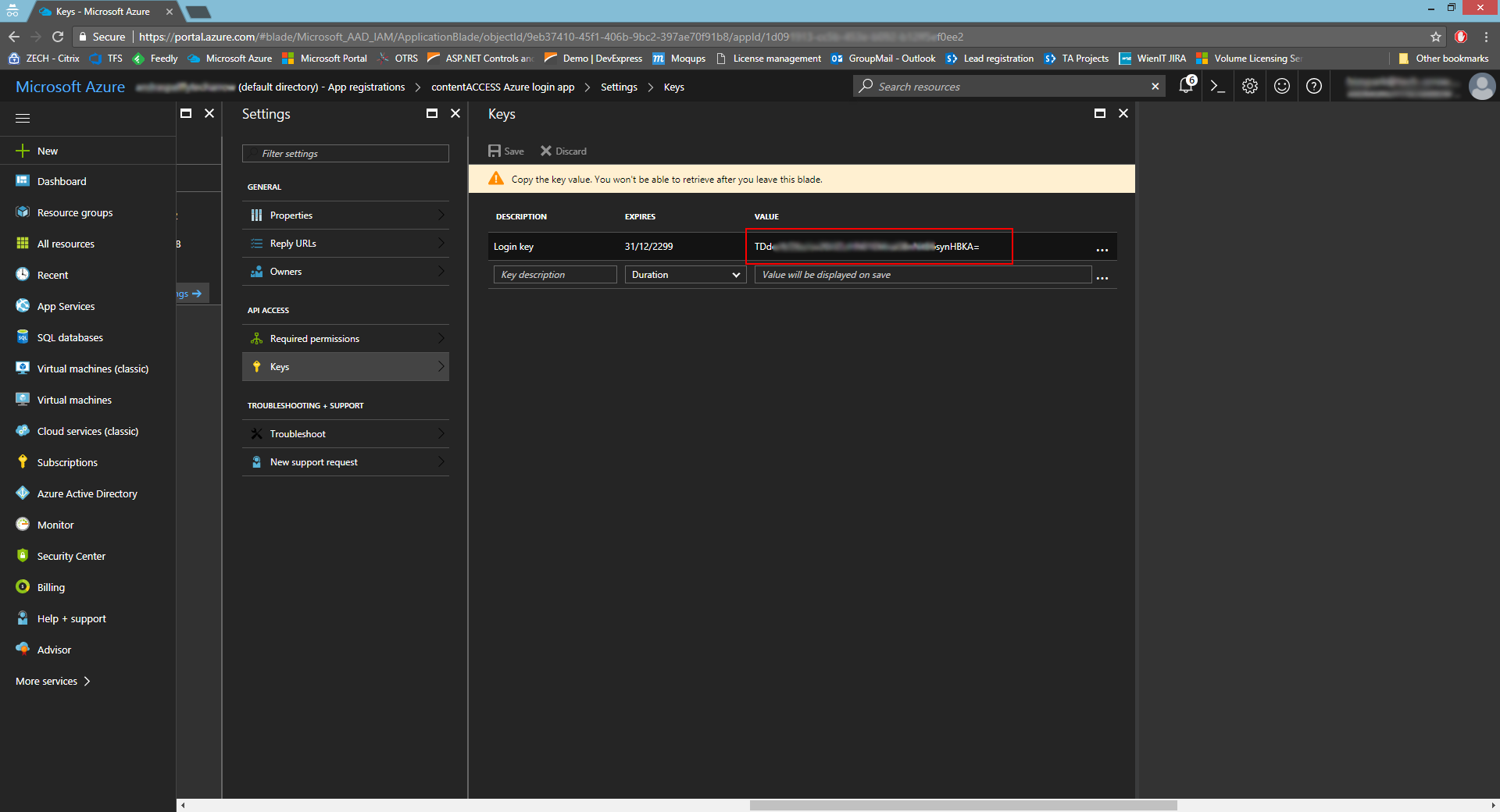
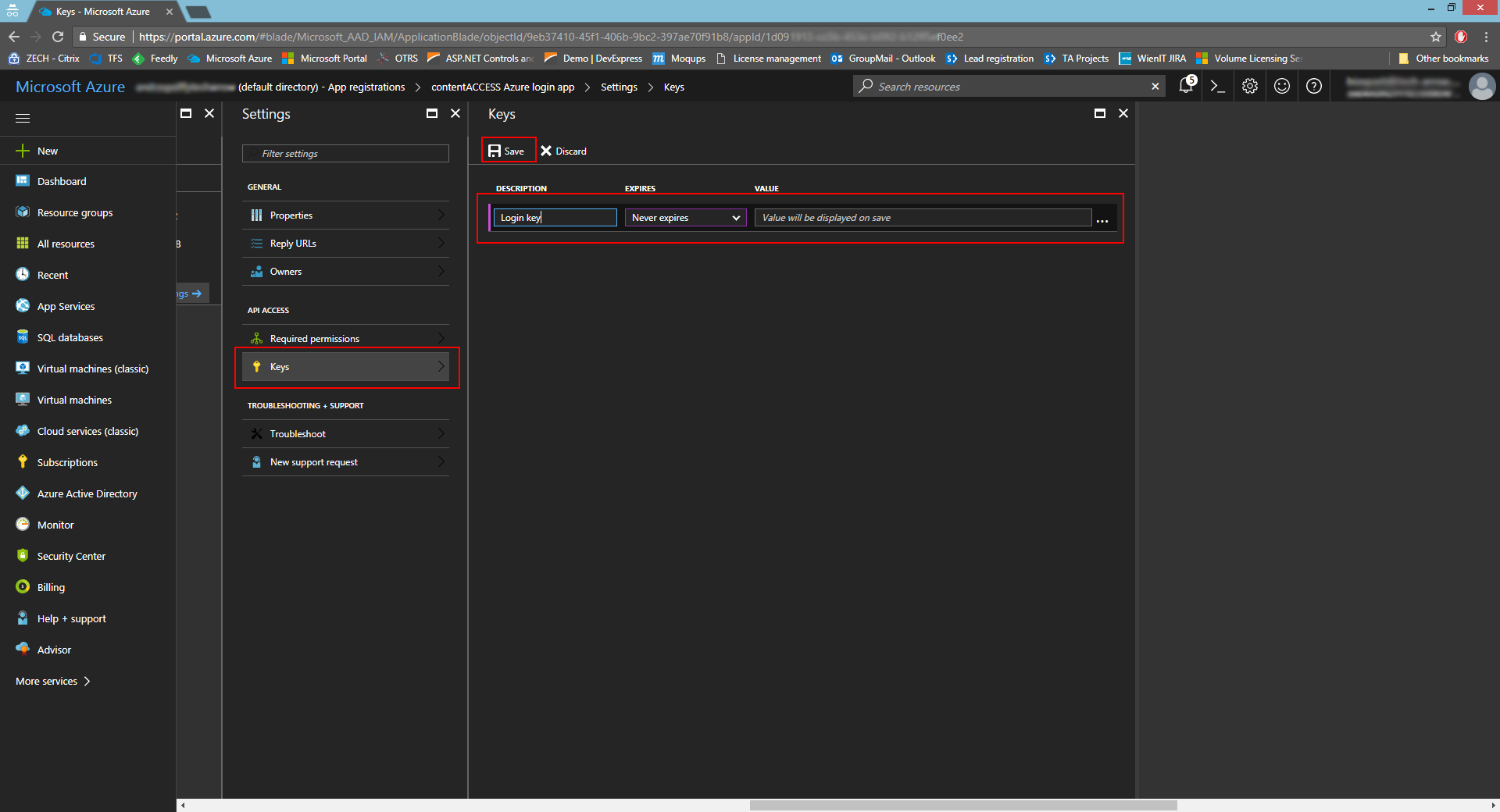
Under Settings > Keys, add the key name/description, select the option Never expires, and click Save.
-
Copy the key value and save it, as it cannot be retrieved afterward. This value must be entered in the Microsoft 365 login provider configuration as the ClientSecret.