General use cases of how to create/assign roles
Introduction
This chapter demonstrates general use cases for working with Roles in contentACCESS, showing how roles and permissions are combined to create users with different levels of administrative and functional access.
As a practical example, this chapter walks through the creation of three contentACCESS users, each with a different role and permission scope:
- System administrator (name: "SysAdmin") — using the default system administrator role.
- Tenant administrator (name: "TAAdmin") — administrator of all tenants, but without rights to edit or delete jobs, repository items, or schedulers, and without rights to manage processed (archived) data.
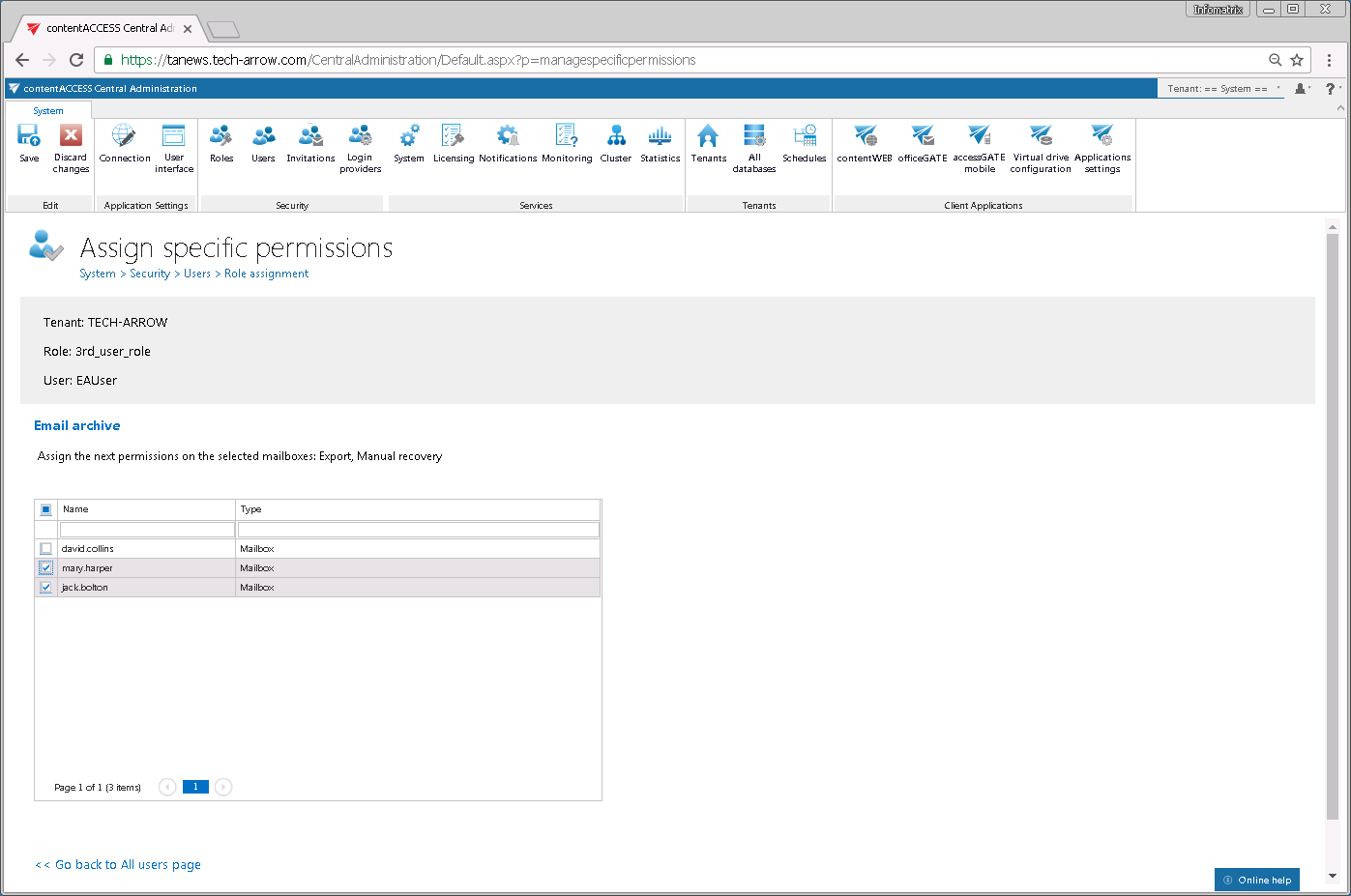
- Email archive user (name: "EAUser") — a user of the TECH-ARROW tenant with rights to view all archive mailboxes, but with limited permissions to work with them (recovery and export allowed only on specific mailboxes of the selected tenant).
The process is divided into two main steps: preparing the roles, and creating the users and assigning the roles (and, where needed, specific permissions) to them.
Prepare roles for the users
Before creating the users, the required roles must be prepared on the Roles page.
System administrator role
For the system administrator, the default role is already created, so this step can be skipped.

Tenant administrator role
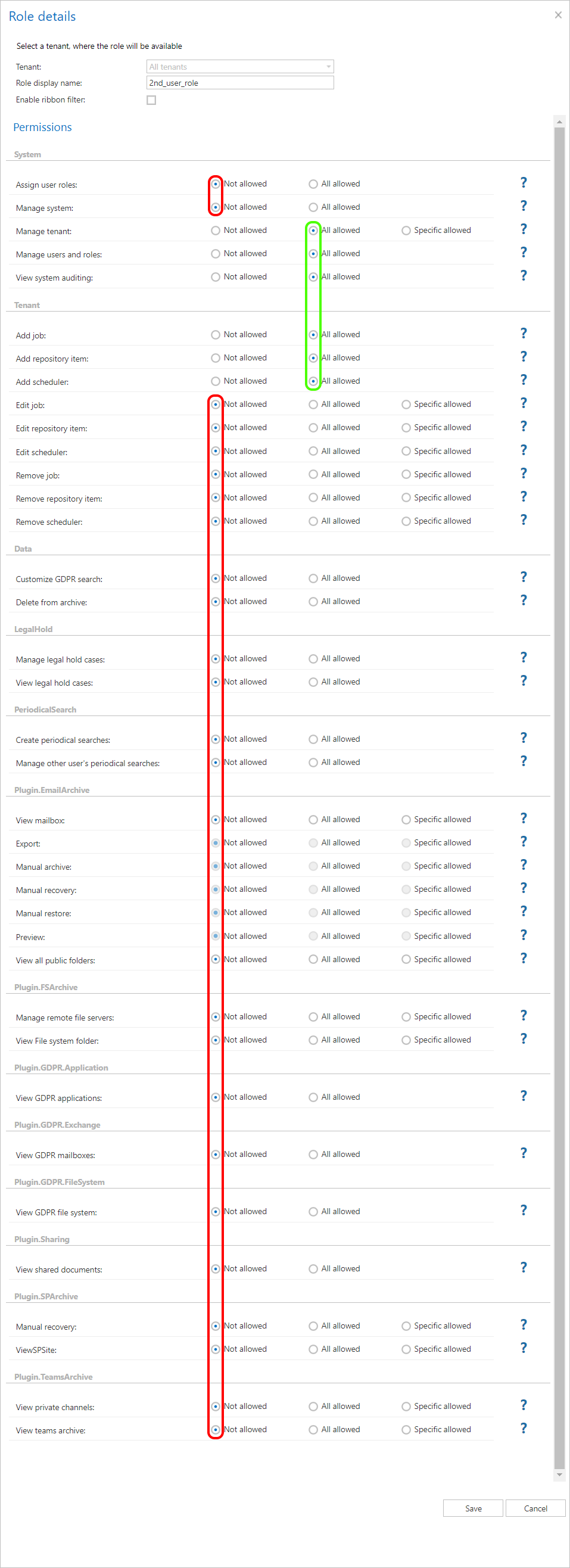
For the second user, the role must be created. Open the Roles page, click + new role, and set the following in the Role details window:
- Role display name: optional ("2nd_user_role" in this use case).
- Manage system permission: "Not allowed".
- Manage tenants: "All allowed" — the associated user will have permissions to manage all tenants.
- Manage users and roles: "All allowed" — without this permission, user and role creation and association are not allowed.
- Under section Tenants: set Add job, Add repository item, and Add scheduler to "All allowed" — the user will be able to create these objects for every tenant — but set Edit and Delete of the same objects to "Not allowed" — the user won't be allowed to edit or delete these objects.
- Under each Plugin section, select option "Not allowed" — the user won't be able to view and/or manage the processed data.
Save the changes, and the role will be added to the Roles grid.
Email archive user role
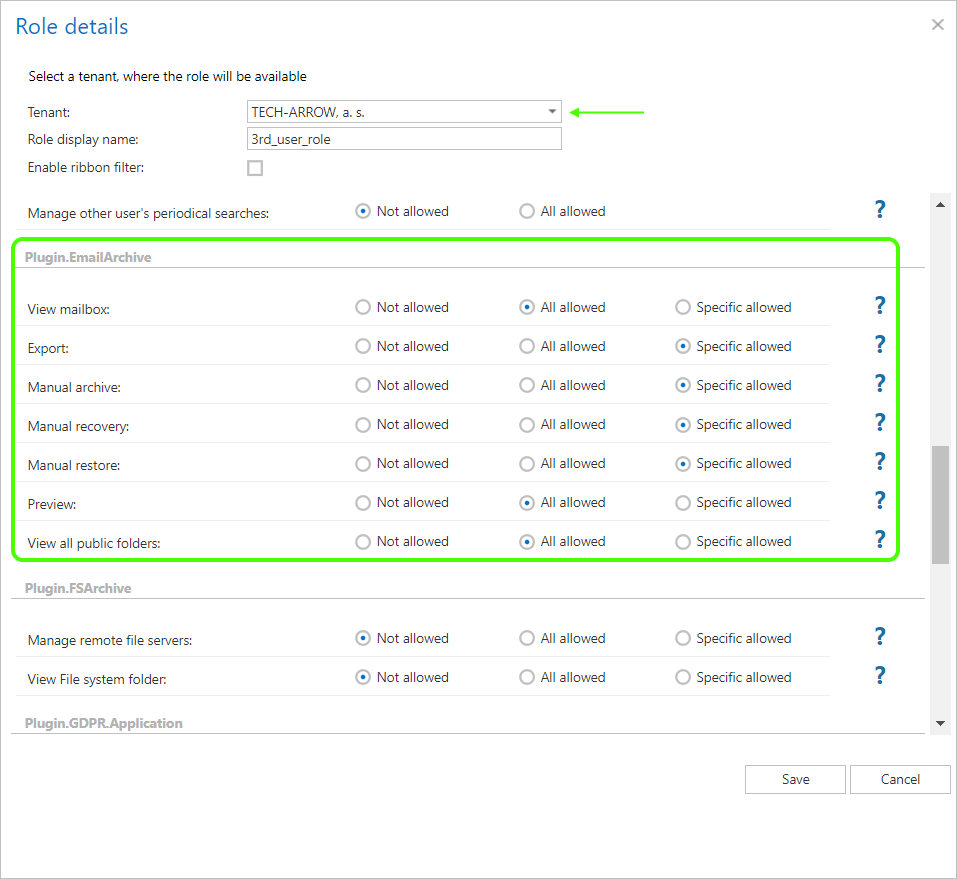
For the third user, the role must also be prepared. Create a new role and define the following settings in the Role details window:
- Role display name: optional ("3rd_user_role" in this use case).
- Tenant dropdown list at the bottom of the window: select "TECH-ARROW".
- Everything must be set to "Not allowed" except the Plugin.EmailArchive section, where:
- View mailboxes, Preview, and View all public folders are "All allowed".
- Export and Manual recovery are "Specific allowed" — only specific mailboxes can be recovered and/or exported from the contentACCESS Portal. The exact mailboxes are set later, on the Assign specific permissions page.
Save the changes.
Create the users and assign roles
With all three roles prepared, the next step is to create the users, assign the corresponding roles to them, and set specific permissions for the email archive user. In this use case, the users are created with the Forms provider.
Go to the Users page (System → Security → Users) and click Create or invite user.
-
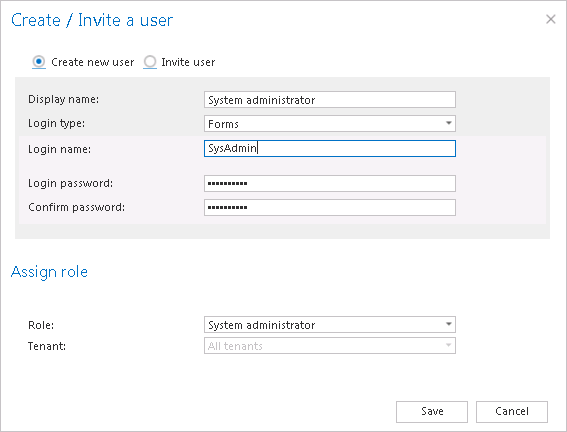
Create the system administrator, set the credentials, and assign the default system administrator role to the user. Save the user.
-
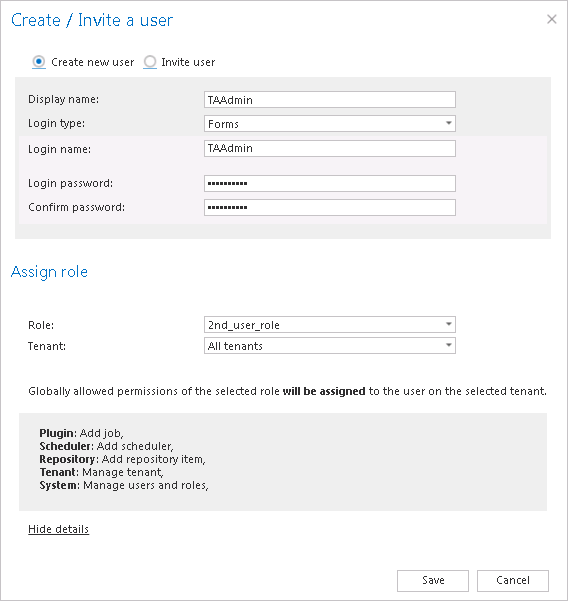
Create the TAAdmin tenant administrator user and assign the 2nd_user_role role to the user. Select "All tenants" from the tenants dropdown list. The Add job, Add scheduler, Add repository item, Manage tenants, and Manage users and roles permissions will be assigned to the user on all tenants. Other permissions set to "Not allowed" won't be granted to the user. Save the user.
-
Create the EAUser email archive standard user and assign the 3rd_user_role role to the user. "TECH-ARROW" is automatically selected in the tenants dropdown list, as this role was created for this specific tenant only.
In the details part of the window, the global permissions allowed for the user on the TECH-ARROW tenant are displayed — the user is able to view all archive mailboxes and public folders, and also use the email archive's preview function in the contentACCESS Portal.
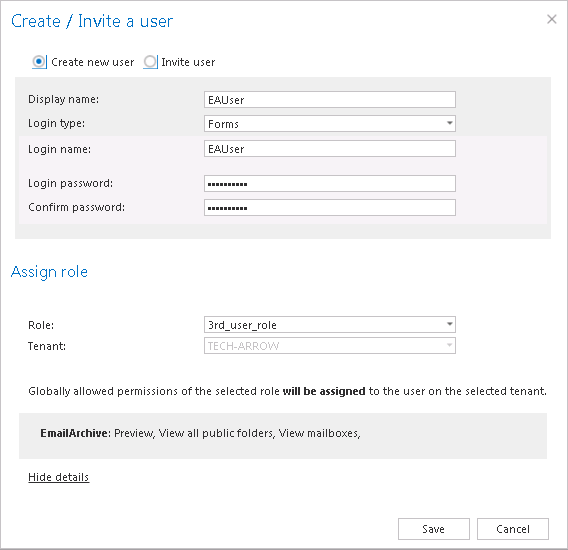
The role assigned to EAUser also includes specific email archive recovery and export permissions on the TECH-ARROW tenant. Because specific permissions are defined in the role, the administrator is automatically redirected to the Assign specific permissions page, where the mailboxes that EAUser will be able to recover and export can be set. In this use case, this permission is granted on mary.harper's and jack.bolton's mailboxes.
Save the changes to complete the setup of the EAUser.