Managing access to contentACCESS objects
Introduction
Managing access to contentACCESS objects allows a logged-on administrator to grant a second user specific permissions to manage individual objects within a tenant, without assigning broader role permissions across the entire system. This is done by assigning a role, containing the relevant permissions, to a second user directly on a selected object.
The following objects support managed access:
- Schedules and repositories of a tenant (database, storage, retention, shortcut, Exchange connection, alias)
- Jobs of a tenant
- Archive mailboxes of a given tenant
- The file archive of a given tenant
- The tenant itself
This page explains what "manage access" means for each object type, the permissions required by the logged-on user to grant access, and how to assign a role to a second user on a specific object.
Definition of terms:
- Logged-on user – the user logged in to Central Administration, who has the permissions to manage access to contentACCESS objects.
- Second user – the explicit user who receives rights (through an assigned role) to manage certain contentACCESS objects.
- Tenant objects – objects such as jobs, repositories, schedulers, and archive mailboxes of the given tenant.
- Tenant repositories – databases, storages, retentions, shortcuts, Exchange connections, and aliases of the tenant.
What "manage access" means for each object type
- Schedules, repositories, and jobs: "Manage access" means that the logged-on user (with the necessary permissions) assigns a role to a second user containing permissions to edit and/or delete the assigned tenant's schedulers, repositories, and/or jobs.
- Tenants: "Manage access" means that the logged-on user grants a second user rights to manage the tenant assigned to them — in other words, the logged-on user gives the second user tenant administrator permissions. The second user's exact permissions on the tenant are defined by the assigned role.
- Archive mailboxes and file archive: "Manage access" means that the logged-on user grants the second user access rights to the archive mailboxes and file system archive on the assigned tenant.
The permissions contained in the assigned role define exactly what the second user will be allowed to manage. For example, if a user called "Job manager" has Edit job – All allowed permission on the TECH-ARROW tenant, but Delete job is not included in the assigned role, the user will be able to edit the tenant's jobs but will not be able to delete any of them.
Required permissions for the logged-on user
The user logged on to Central Administration, who wants to give access to a tenant's objects (for example, the TECH-ARROW tenant) to a second user, must have Manage users and roles and Manage tenant permissions on that tenant, as well as the following, depending on the object type:
- Edit repositories – All allowed permission, to manage access to the repository items of the tenant.
- Edit jobs – All allowed permission, to manage access to the jobs of the tenant.
- Edit schedules – All allowed permission, to manage access to the schedules of the tenant.
- Manage tenant – permission on the tenant, to add tenant administrator rights on the tenant for a second user.
- View mailboxes / View folders / View public folders – All allowed permissions on the tenant, to give a second user access to the tenant's archive mailboxes, file archive, or public folders.
Note: The logged-on user must have equivalent or greater permissions than the role being assigned to a second user. For example, the logged-on user cannot assign a role containing the Delete job permission to a second user if that permission has not been granted to them as well.
Access the Manage access option
The Manage access option is available to the logged-on user on the respective pages of Central Administration.
For repository items, schedules, jobs, and tenants, the option is available above the list of items:
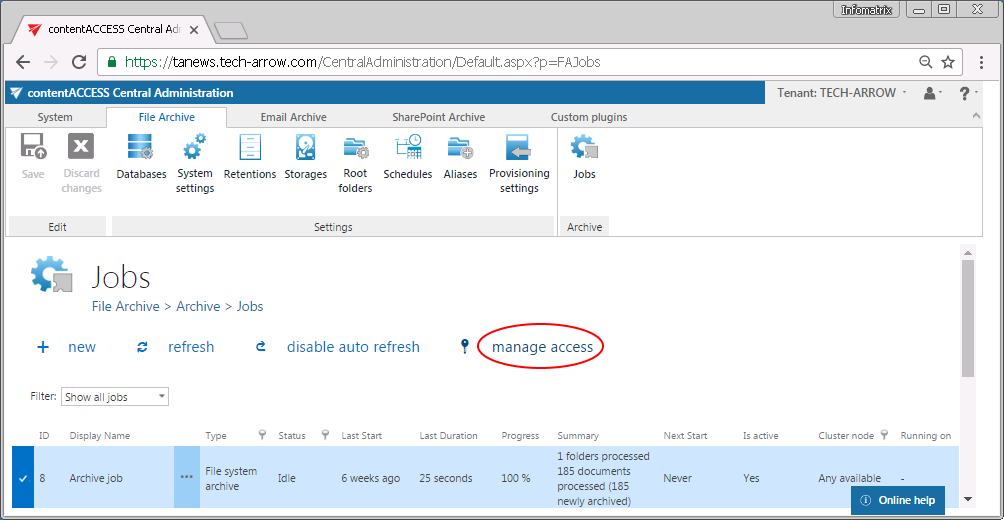
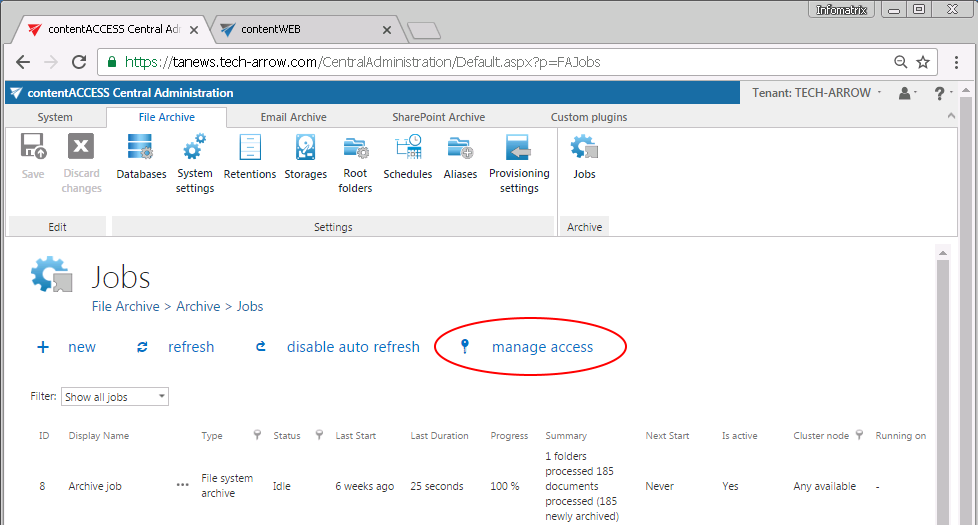 Screenshot A: Manage access to the TECH-ARROW tenant's file archive jobs.
For archive mailboxes, the option is available in the Address book, in the context menu of the given Exchange mailbox:
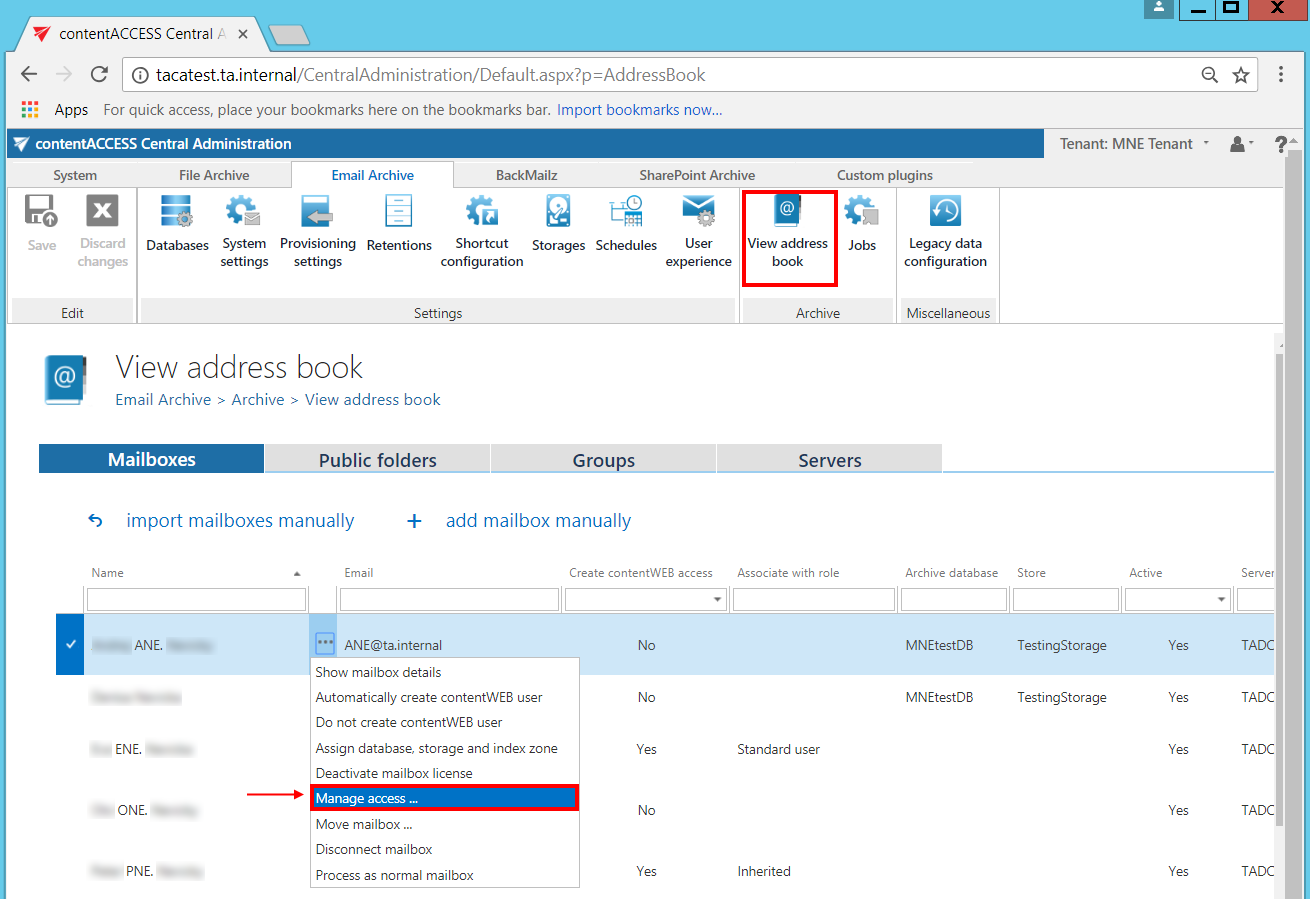 Screenshot B: Manage access to an archive mailbox.
For the file system archive, the option is available in the File archive's Provisioning settings:
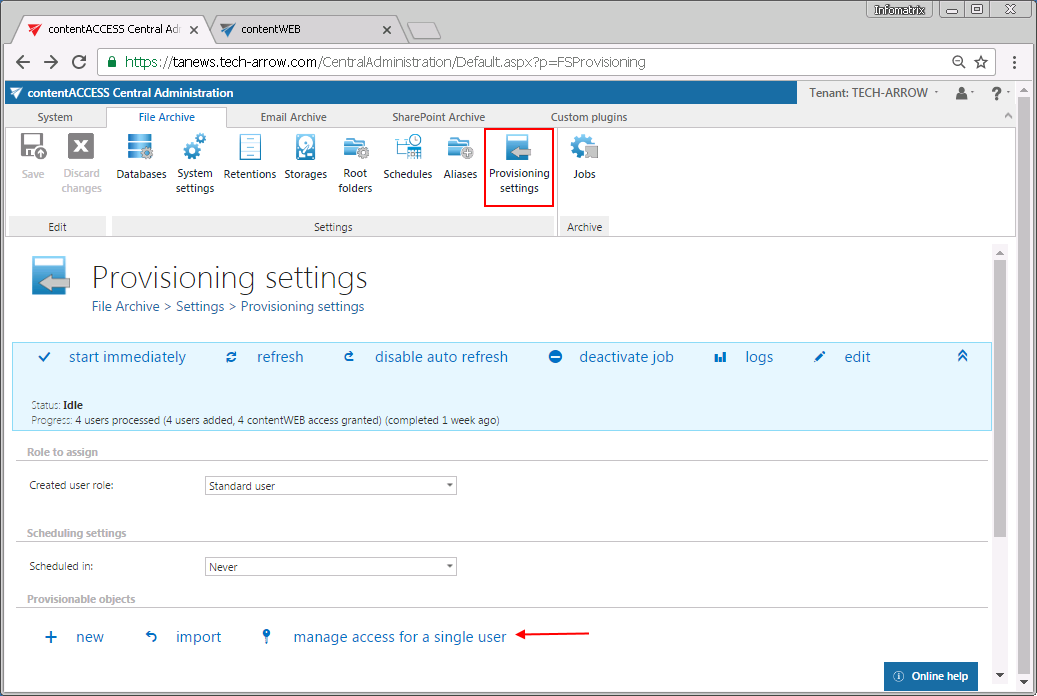 Screenshot C: Manage access to the file system archive folders.
Assign a role to a second user
-
Select an item (a given job, database, retention, mailbox, etc.) from the list.
-
Click Manage access. You are redirected to the Manage access to Object page, where you can manage access to the selected contentACCESS object.
-
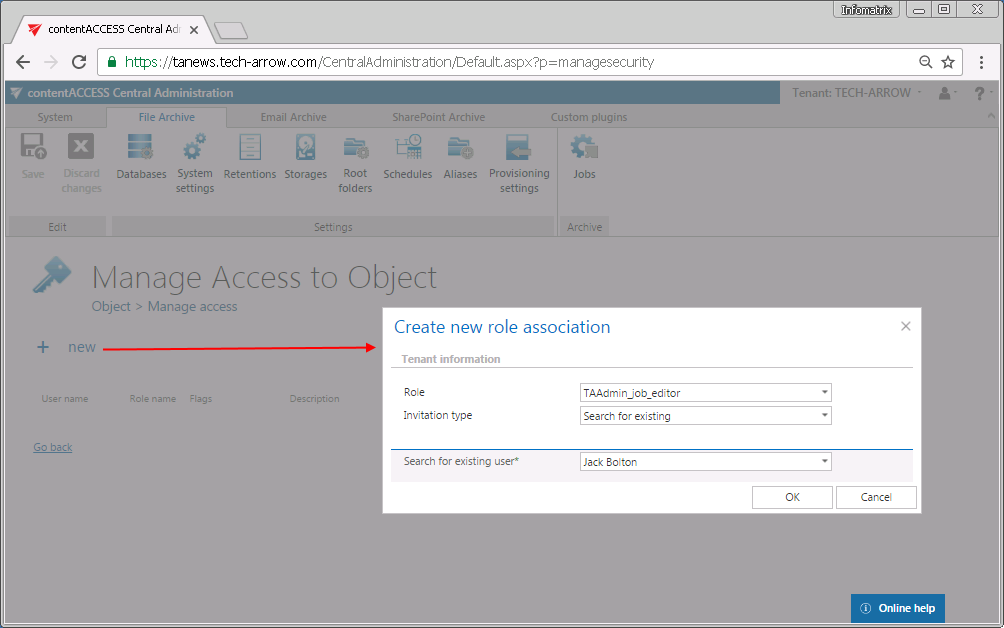
Click +new. The Create role association window opens.
-
From the Role dropdown list, select the role to assign. The list only shows roles that the logged-on user is allowed to assign, and that contain specific permissions on the selected object. Roles containing All allowed permissions (for example, Edit job – All allowed or View mailboxes – All allowed) cannot be granted on the Manage access to Object page.
-
Assign the selected role to a new or an existing contentACCESS user.
Example: Granting job edit access
This example grants Jack Bolton access to edit the Archive job of the TECH-ARROW tenant.
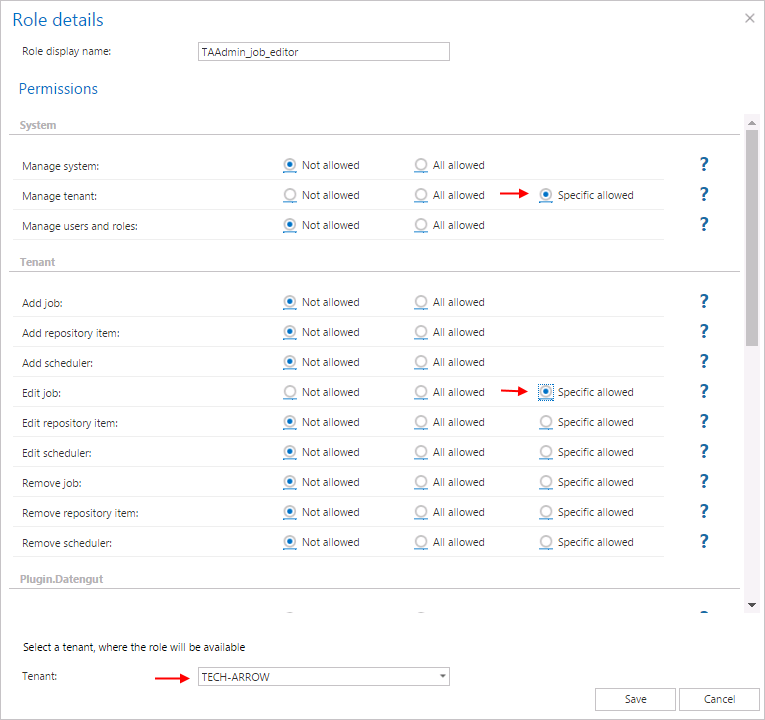
The TAAdmin_job_editor role is already prepared and contains permission to edit specific jobs of this tenant (Edit job – Specific allowed):
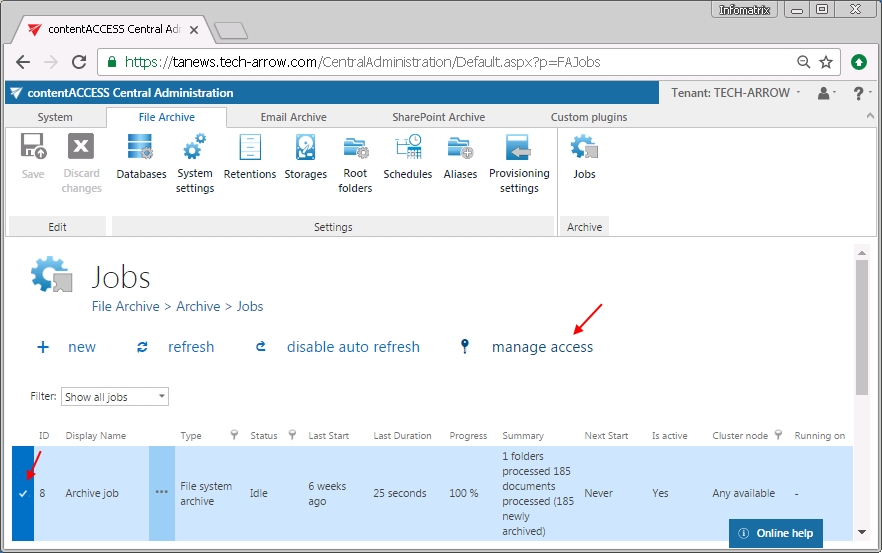
On the File Archive's Jobs page of the TECH-ARROW tenant, locate the Archive job, select it, and click Manage access.
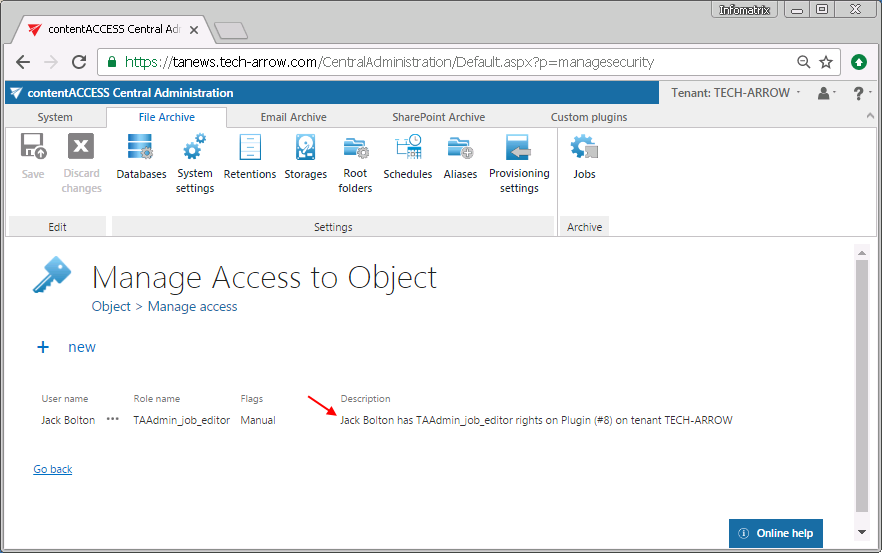
On the Manage access to Object page, select the TAAdmin_job_editor role and assign it to the existing user, Jack Bolton:
Jack Bolton now has rights to edit the Archive job on the TECH-ARROW tenant, but cannot delete this job from the list.