Role details
Introduction
The Role details window allows administrators to create and configure roles in contentACCESS. A role is a collection of permissions that is assigned to a user when the role is associated with that user. This page describes the available role levels, the permission groups that can be assigned to a role, and how these permissions affect what a user can view and manage.
Role availability
Based on availability, a role can be:
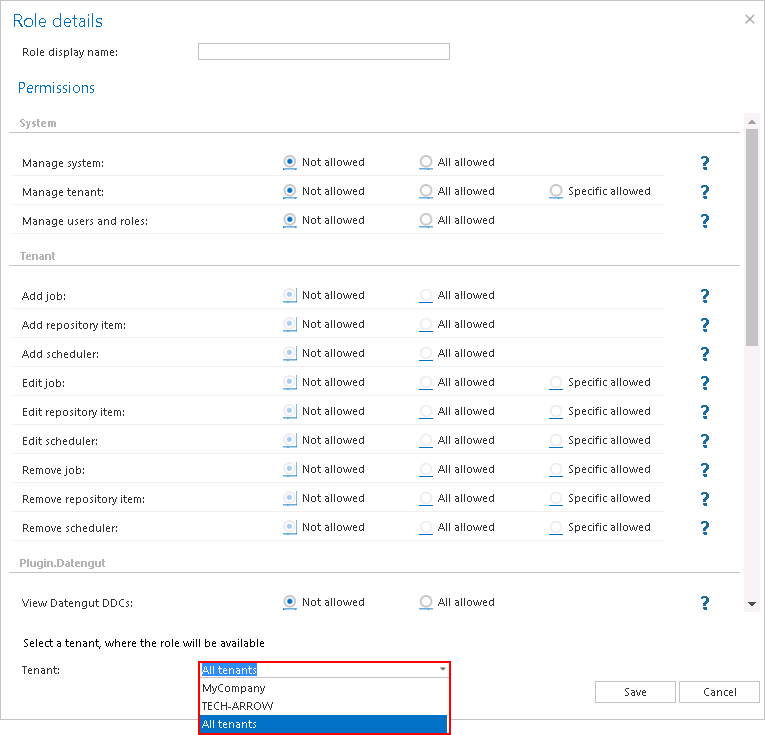
- System level role — available for all tenants in the system; the grid's Tenant name column contains "All tenants".
- Tenant level role — available only for the selected tenant; the grid's Tenant name column contains the name of the selected tenant.
The role's availability is set in the Role details window when creating the role:
Permission groups
The permissions that can be assigned to a role are divided into the following permission groups.
System level permissions
System level permissions allow a user to:
- Manage the system settings (Manage system: "All allowed").
- Manage all tenants (Manage tenant: "All allowed") or specific tenants in the system (Manage tenant: "Specific allowed").
- Manage users and roles in the system.
If Manage tenant is set to "Specific allowed" in the role, the role will be available for the specific tenant only. Only a user with Manage system and/or Manage tenant permissions has the right to log in to Central Administration.
Important: The Manage system permission does not allow managing the entire system. A user with this permission has access to client application settings, system, license, notification, cluster, and login provider settings, and to the notification scheduler. Such a user cannot create tenants or databases; this requires the Manage tenants permission.
Note: Roles with Manage system and/or Manage tenant permissions cannot be assigned automatically (by the contentACCESS email and file archive provisioning job).
Note: If the Manage users and roles permission is not assigned to a tenant administrator, that tenant administrator will only be able to view the roles on the Roles page.
Tenant level permissions
Tenant level permissions allow a user to:
- Manage all jobs, repository items, and schedulers ("All allowed") of the selected tenants.
- Manage only specific jobs, repository items, and schedulers ("Specific allowed") of the selected tenants.
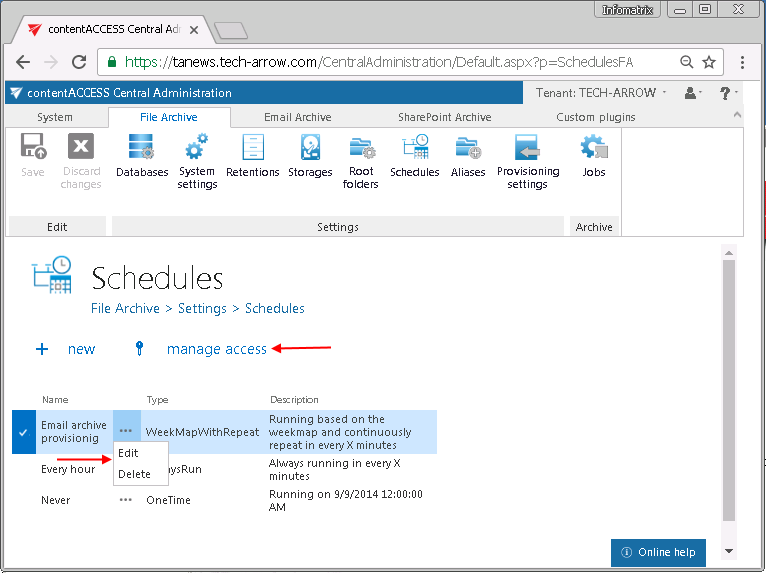
Note: The Edit, Delete, and + new options on the Schedulers, Jobs, Storages, Databases, Aliases, Retentions, Shortcuts, and Exchange connections pages/context menus are enabled based on the permissions defined in Role details. If the logged-in user has the Edit "All allowed" permission on the repository item and/or job and/or scheduler on the assigned tenant, and also has the Manage users and roles permission, that user can manage access to the selected object(s) on this tenant.
Permissions to manage jobs of the selected tenant(s)
These permissions allow a user to manage all or specific jobs (email archive, file archive, SharePoint archive jobs, etc.):
- On all tenants, if Manage tenant is "All allowed" and the role is assigned to the user on all tenants.
- On the selected tenant, if Manage tenant is "Specific allowed".
Tips and common workflows
When you move your mouse over the question mark in the Role details dialog, the permission description is displayed in a tooltip. Select the permissions that you want to assign to an already existing or newly created contentACCESS user, name your role, and save it.