Sharing settings
Introduction
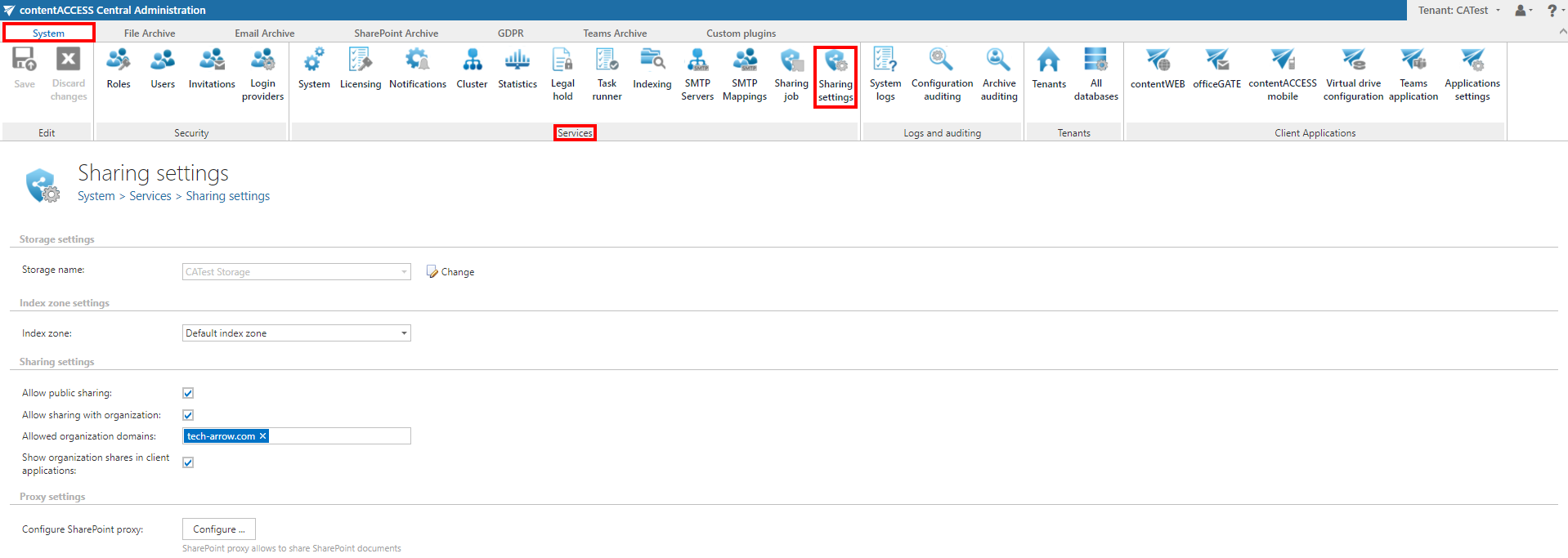
The Sharing settings page in Central Administration allows administrators to configure the storage, index zone, sharing behavior, and SharePoint proxy settings used by the Sharing module.
The Sharing feature allows users to specify restrictions and retention settings applied to items when they are shared. It also automates the user invitation process when items are shared with external recipients, sending an email containing links to the shared items. Full Auditing logs are provided for sharing activity and file downloads.
To access this page, navigate to System -> Services -> Sharing settings.
Storage settings
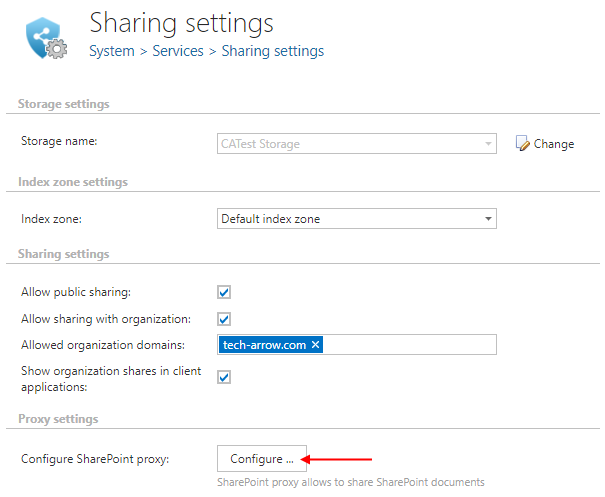
Choose an already configured storage from the dropdown list. The binaries for files that are directly uploaded during sharing are stored here. Items shared from the archive are not duplicated into this storage.
For more information on how to configure storages, see the Storages section.

Index zone settings
Pick the index zone that will be assigned to the shared items from the dropdown list. To configure a new index zone, navigate to System -> Services -> Index zones.

Sharing settings
This section allows you to configure the following:
- Allow public sharing: If checked, archived items can be shared from the contentACCESS Portal with anyone, including recipients to whom the sharing link or email is forwarded. Public sharing does not require authentication, so Auditing cannot log the identity of the user who downloaded the item.
- Allow sharing with organization: If checked, the next two options are enabled. Organization sharing allows easy access to a file for everyone inside the organization, which is useful when sharing company-wide documents.
- Allowed organization domains: Specify the organization domain(s) to be used when a user selects "My organization" as the sharing option in the contentACCESS Portal. The system checks the user's login name against these domains. If the organization owns multiple domains, all of them must be specified here for users to be able to download the files.
- Show organization shares in client applications: If the option above is used, organization shares become visible in client applications. Files shared with organization access are displayed to all users inside the organization.

Proxy settings
In addition to archived items, it is possible to share live SharePoint files that are not in the archive. By using the SharePoint proxy, all additional features provided by contentACCESS (date/download restrictions, a common view of shared files, etc.) are applied while the files remain in SharePoint. File download and access is performed by a superuser, but during the sharing process, the permissions of the user sharing the file(s) are verified to confirm that the user actually has access to the file(s).
Requirement: Microsoft 365 SharePoint is required, and the sharing user must have a Microsoft 365 login in contentACCESS.
To configure the SharePoint proxy, click Configure….
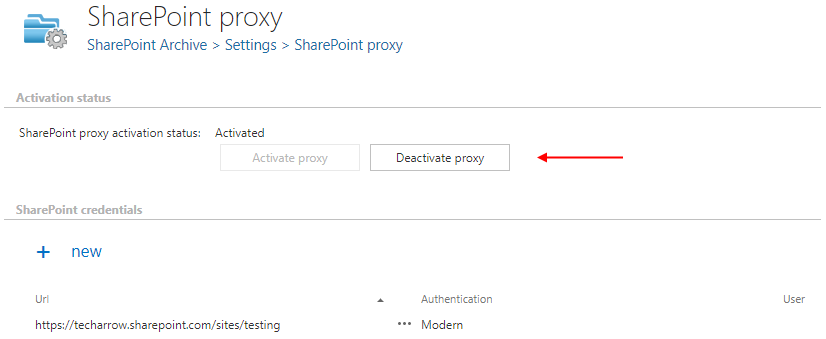
First, activate the SharePoint proxy by clicking Activate proxy. In the example below, the proxy is already activated, so only the Deactivate proxy button is enabled.
Note: Deactivating the SharePoint proxy makes any previously shared file unavailable. Re-activating the proxy makes the files available again.
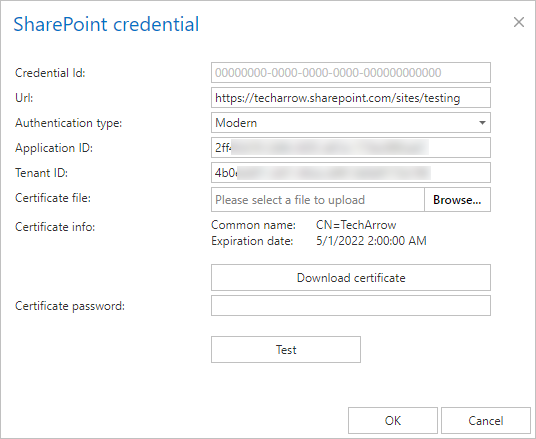
Each site collection you want to share files from must be specified separately. To specify a new site collection, click +new. The SharePoint credential window opens. Enter the URL and choose the Authentication type from the dropdown list: Integrated, Basic, or Modern. All authentication types are explained in the SharePoint archive settings section.