SMTP Mappings
Introduction
The SMTP mappings page allows administrators to define how incoming emails received by the SMTP server are routed to target mailboxes for archiving. On this page, you can create new SMTP mappings, edit existing ones, and delete mappings that are no longer needed. Each mapping links an email address to a specific folder, model, and target entity, and can be further secured using a range of configurable security settings designed to protect email archives from unauthorized access.
The SMTP mappings page is found under System → Services in Central Administration.
Note: Any change to the mappings — adding, editing, or deleting — is synchronized to the SMTP servers immediately.
Mappings grid
The mappings grid displays all existing SMTP mappings and provides a context menu for editing or deleting individual entries. The listening address (Email address) of an existing mapping cannot be changed.
The grid contains the following columns:
- Email address: the address the SMTP server is listening on for incoming emails.
- Folder name: the name of the folder in the target mailbox to which the emails archived by the SMTP server will be saved.
- Model name: the name of the model where the selected target entity lives (the Email archive model enabled for SMTP-based archiving).
- Entity name: the name of the target entity — the email address of the target mailbox.
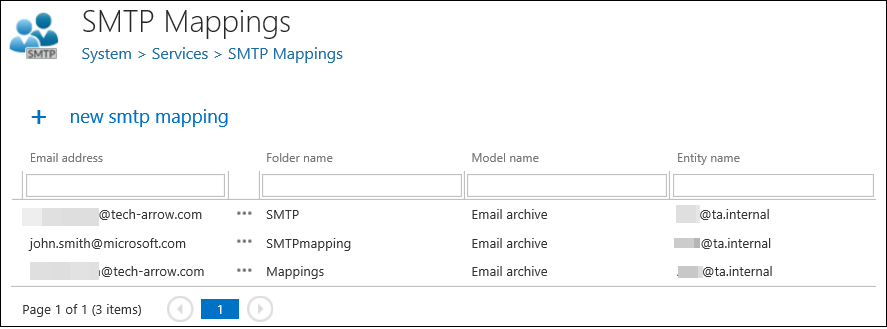
Add a new SMTP mapping
To add a new SMTP mapping:
- Click + new smtp mapping.
- Specify the Email address — the address that the SMTP server is listening on for incoming emails. The domain part is a dropdown list containing the domains specified in the SMTP domains section of the SMTP Servers page.
- Specify the Folder name — the name of the folder in the target mailbox to which the emails archived by the SMTP server will be saved.
- Specify the Model name — the name of the model where the selected target entity lives (the Email archive model enabled for SMTP-based archiving).
- Specify the Entity name — the name of the target entity, i.e. the email address of the target mailbox. For a mailbox to appear here, it must have an archive database and an index zone assigned.

Note: If an email address is not specified in any of the mappings, it cannot be processed by the SMTP server.
Important: One Email address can be associated with only one Entity. However, one Entity can be associated with multiple Email addresses.
Configure security settings
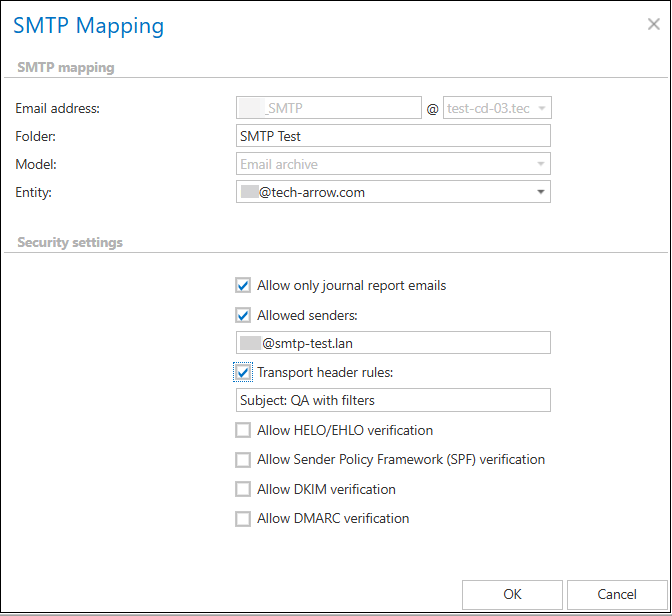
After specifying the basic mapping details, configure the security settings to align with your specific requirements.
In multi-tenant environments and cloud-based systems like Microsoft 365, it is important to protect email archives from unauthorized access. The main issue is that the SMTP server is publicly accessible — if someone knows the SMTP-mapped email address, they can easily inject unauthorized emails into the archive, which poses a serious security risk. In on-premises systems, administrators can limit IP addresses (for example, by allowing only Exchange server IPs), but this method does not work well in multi-tenant environments. Additionally, Microsoft 365's large Exchange Online IP range allows emails to originate from other Microsoft 365 tenants as well.
To address this issue, multiple security layers have been added to the SMTP server, which can be configured at the SMTP mapping level. These layers help ensure that only trusted emails are accepted into the archive. The key components include:
- Allow Only Journal Report Emails: ensures that only journal report emails are accepted into the archive. It can be enabled or disabled with a checkbox.
- Allowed Senders: especially important for Microsoft 365 journaling, where the sender's name remains the same, but the domain changes from tenant to tenant. This setting ensures that emails come only from trusted senders.
- Transport Header Rules: defines that specific headers (
HEADERNAME:VALUE) must match particular values. If they do not match, the email is rejected. - Allow HELO/EHLO Verification: examines the hostname provided by the sending server at the beginning of the SMTP connection, verifying that this hostname exists and points to a valid IP address.
- Allow Sender Policy Framework (SPF) Verification: checks whether the email is sent from an IP address authorized by the sender's domain, by looking up the sender domain's SPF record in DNS.
- Allow DomainKeys Identified Mail (DKIM) Verification: ensures that the email was sent from an authenticated server and has not been altered during transit, by checking the DKIM signature in the email headers and verifying it using the public key from the sender domain's DNS.
- Allow Domain-based Message Authentication, Reporting, and Conformance (DMARC) Verification: adds an extra layer of protection on top of SPF and DKIM by checking the DMARC policy of the sender's domain and verifying whether the email complies with these rules.
With these security measures, you can significantly reduce the risk of unauthorized emails being injected into the archive, providing reliable protection in both on-premises and multi-tenant environments.
Note: In Exchange Online (Microsoft 365), journaled messages (the special "journal reports" or envelope messages that carry a copy of the original email) are not signed with DKIM. This is by design — journaling messages are generated by the system and bypass many normal mail processing steps. Microsoft's own tests confirm that DKIM signatures are omitted on journaled emails.
As an Exchange MVP explains, journal reports are treated as system messages that skip usual transport rules and enhancements, so features like DKIM signing do not apply to them.
In short, you cannot enable DKIM for Microsoft 365's journaled emails — the platform does not support signing those messages with DKIM at this time. (The initial connector test email might be DKIM-signed with an onmicrosoft.com domain, but actual user journal reports will not carry DKIM signatures.)