SMTP Rules - Selective Journaling
Introduction
The SMTP Rules feature in Central Administration allows administrators to refine the email archiving process by excluding certain emails from being archived on the SMTP server. This feature is useful for:
- Spam filtering: Ensures that spam emails are filtered out, preventing unnecessary archiving of irrelevant content.
- Internal communication filtering: Allows administrators to exclude internal communications from archiving, ensuring the focus remains on external or critical communications.
Filtering in SMTP rules can be configured similarly to email archive jobs, allowing you to target specific email types based on attributes such as subject, recipient, or domain. This page describes how to configure filters and SMTP rules to control which emails are excluded from archiving.
Configure SMTP rules
To configure the SMTP rules, follow these steps:
-
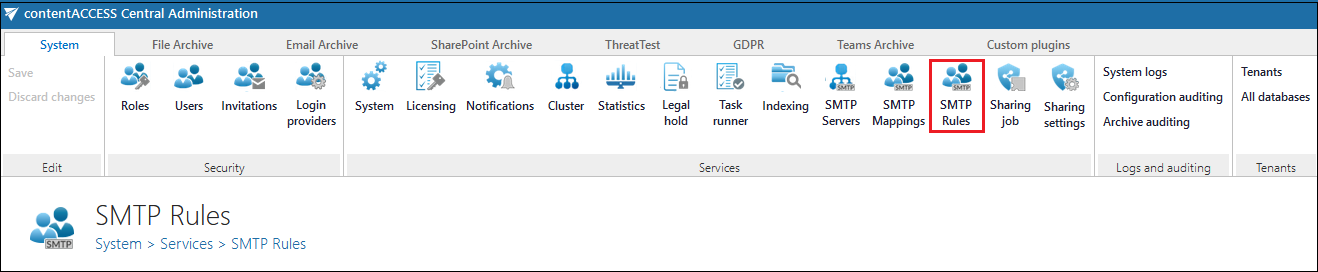
Navigate to the Central Administration UI and select the SMTP Rules button under the System section.
-
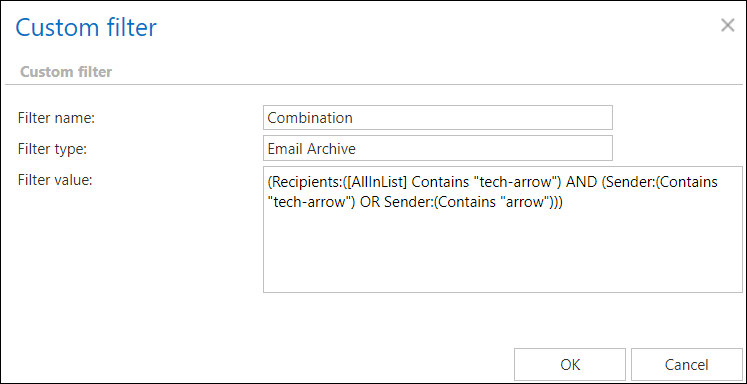
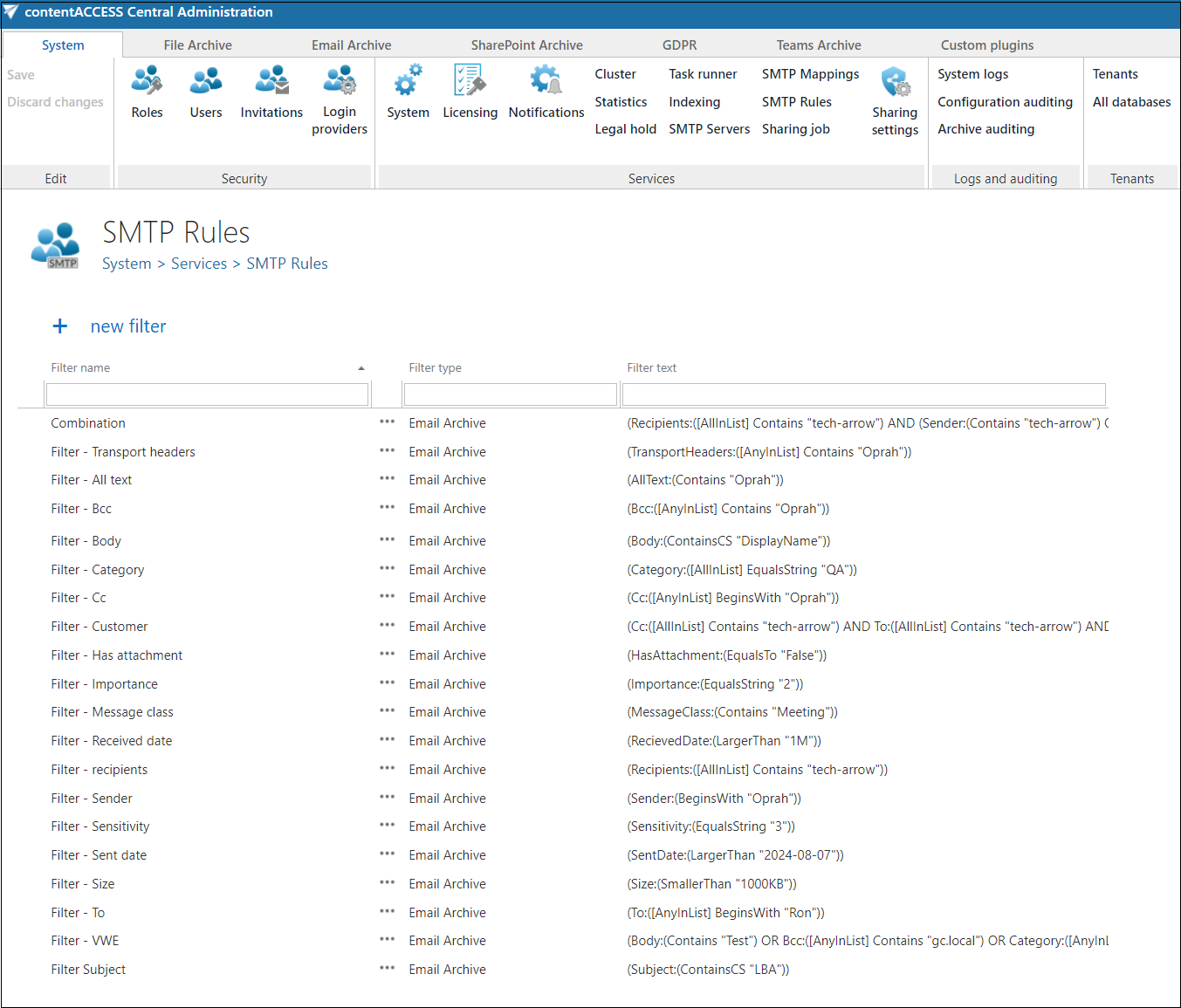
Create a new filter to define one or more criteria for email exclusion. The filter values use a structure similar to the email archive job in the Email archive system. Click the + new filter button and configure the filter settings.
-
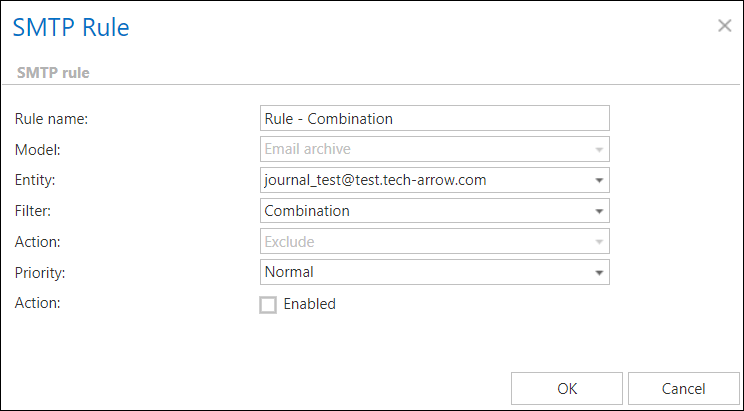
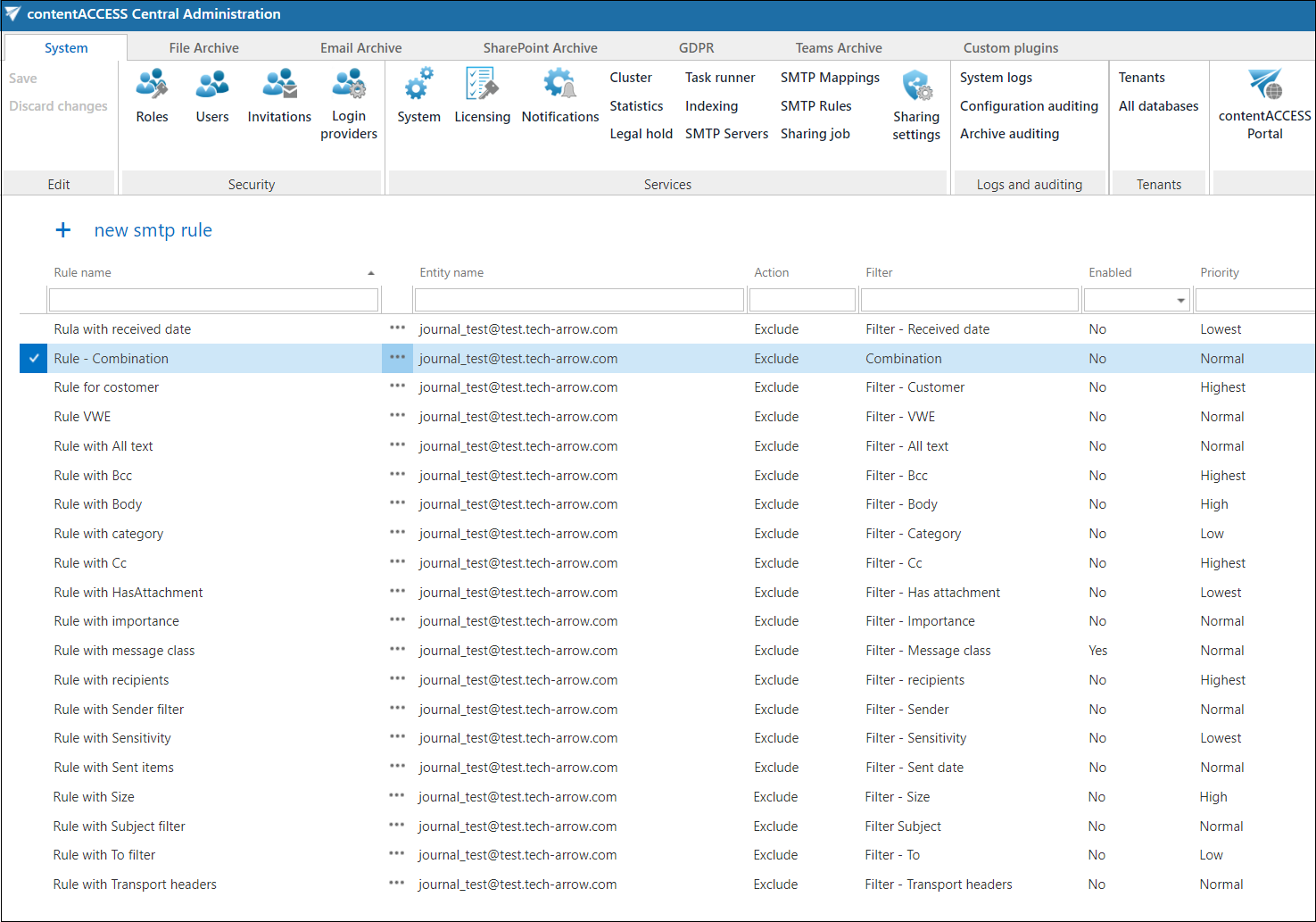
Create a new SMTP rule once the filtering is set. Click the + new smtp rule button to link the filter(s) to specific entities, such as email addresses or domains.
By following this configuration process, you can efficiently manage which emails are archived and which are excluded, ensuring that your organization archives only the necessary communications.
Filter settings
When creating a new filter, configure the following options:
- Filter name: Assign a descriptive name to the filter. For example:
Internal communicationorSpam emails. - Filter type: Select the action (exclude) to indicate that emails matching the filter criteria should be excluded from archiving.
- Filter text: Define the specific conditions for exclusion. For example, exclude emails from internal domains or spam emails by specifying sender, recipient, or subject conditions.
SMTP rule settings
When creating a new SMTP rule, configure the following options:
- Rule name: Provide a clear name for easy identification.
- Entity name: Specify the entity or domain associated with the rule.
- Action: Set the action to Exclude.
- Filter: Assign the relevant filter created earlier to the rule.
- Enabled: Set the rule status as enabled or disabled.
- Priority: Define the priority of the rule to determine its order of execution.
Note: Currently, only the exclude action is supported in the SMTP Rules feature.