SMTP Servers
Introduction
The SMTP Servers page in Central Administration allows administrators to manage the SMTP (Simple Mail Transfer Protocol) servers used to process and archive emails into contentACCESS. SMTP servers are tenant independent — all SMTP servers receive the same settings, so any registered SMTP server can process incoming emails and archive them into contentACCESS.
The SMTP Servers page can be found under System -> Services in Central Administration. The page is organized into four sections:
- SMTP servers
- SMTP domains
- Blacklisted domains/IPs
- SMTP mappings
SMTP servers
The SMTP servers section lists all SMTP servers that have been registered in contentACCESS, along with some basic information about each server.
Each server can have one of two statuses:
- Online
- Offline — automatically assigned if the SMTP server has not pinged contentACCESS in the last 15 minutes.
Note: If a server is disabled, it will not process any newly acquired emails. However, it remains Online, because it continues polling contentACCESS to check whether it has been re-enabled.
The context menu for each SMTP server provides the following options:
- Edit — edit the SMTP server configuration (described below).
- Reload settings — reload the server settings.
- Statistics — view the statistics of the selected SMTP server, as in the SMTP server configuration tool.
- Disable — disable the selected SMTP server.
- Delete — remove the SMTP server from the list.
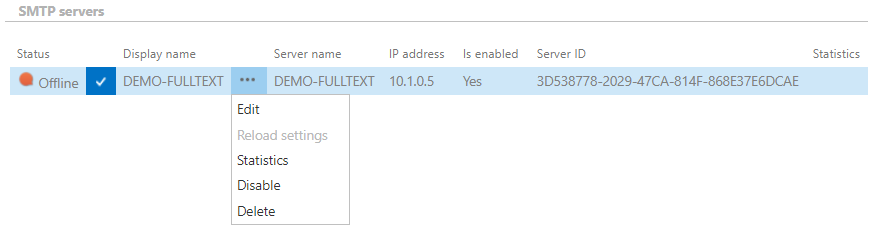
Clicking Edit opens a page with details about the selected SMTP server. On this page, you can edit parameters and settings that were read-only or disabled in the SMTP server configuration tool.
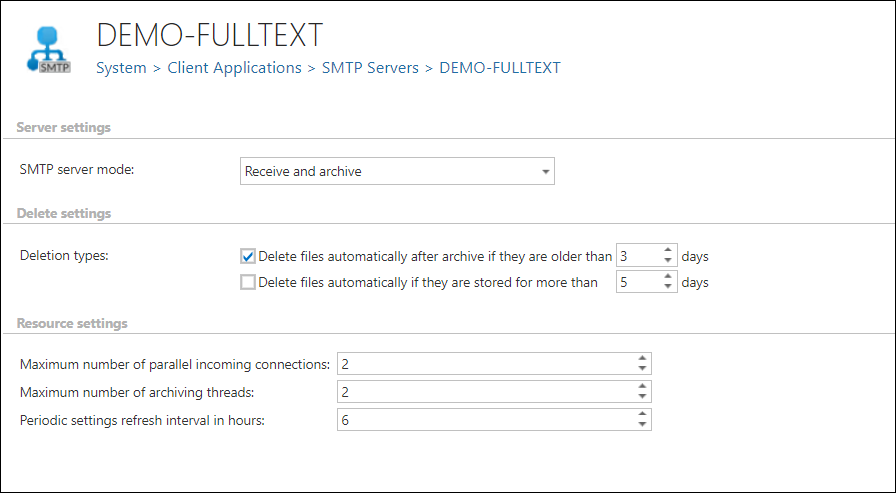
Server settings
-
Receive and archive: The default SMTP server mode. Emails are received by the SMTP server and archived asynchronously.
infoNote: Emails awaiting archiving are stored temporarily in the SMTP storage.
-
Receive only (read-only mode): The SMTP server receives emails but does not archive them. This mode is useful when performing updates or maintenance on the archive server. When the SMTP server is switched back to Receive and Archive mode, the previously received emails are archived asynchronously.
Delete settings
- Delete files automatically after archive if they are older than X days: When enabled, the SMTP server deletes locally saved emails after they have been archived, once the specified number of days has elapsed.
- Delete files automatically if they are stored for more than X days: When enabled, the SMTP server deletes locally saved emails that have not been archived after the specified number of days. This option is disabled by default.
Resource settings
- Maximum number of parallel incoming connections: The number of threads on which the SMTP server listens for incoming emails.
- Maximum number of archiving threads: The number of threads used to archive incoming emails into contentACCESS.
- Periodic settings refresh interval in hours: Defines how often the server settings are refreshed.
Note: When the page is saved, the configured options are immediately sent to the SMTP server.
SMTP domains
The SMTP domains section allows you to view and define a list of domains that can later be used to create SMTP mappings. Listening email addresses for incoming emails can only be configured in SMTP mappings if the corresponding domain has already been defined here. SMTP domains can be edited and deleted from their context menu.

To add a new SMTP domain:
- Click + new smtp domain.
- Enter the domain name.
- Click Save.

Blacklisted domains/IPs
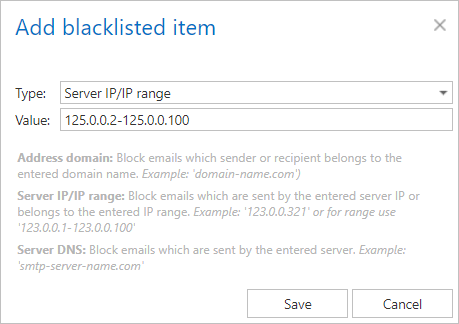
The Blacklisted domains/IPs section allows you to define a list of domains and IPs that act as a forbid list. Any incoming email containing one of these domains and/or IPs in any recipient address is rejected from the archiving process. Blacklisted items can be edited and deleted from their context menu.

To add a new blacklisted item:
- Click + new blacklisted item.
- Choose the Type from the dropdown list.
- Specify the Value. Examples of how to specify values are provided in the window.
- Click Save.
SMTP mappings
The SMTP mappings section displays a read-only list of the created SMTP mappings, for overview purposes.
