System
Introduction
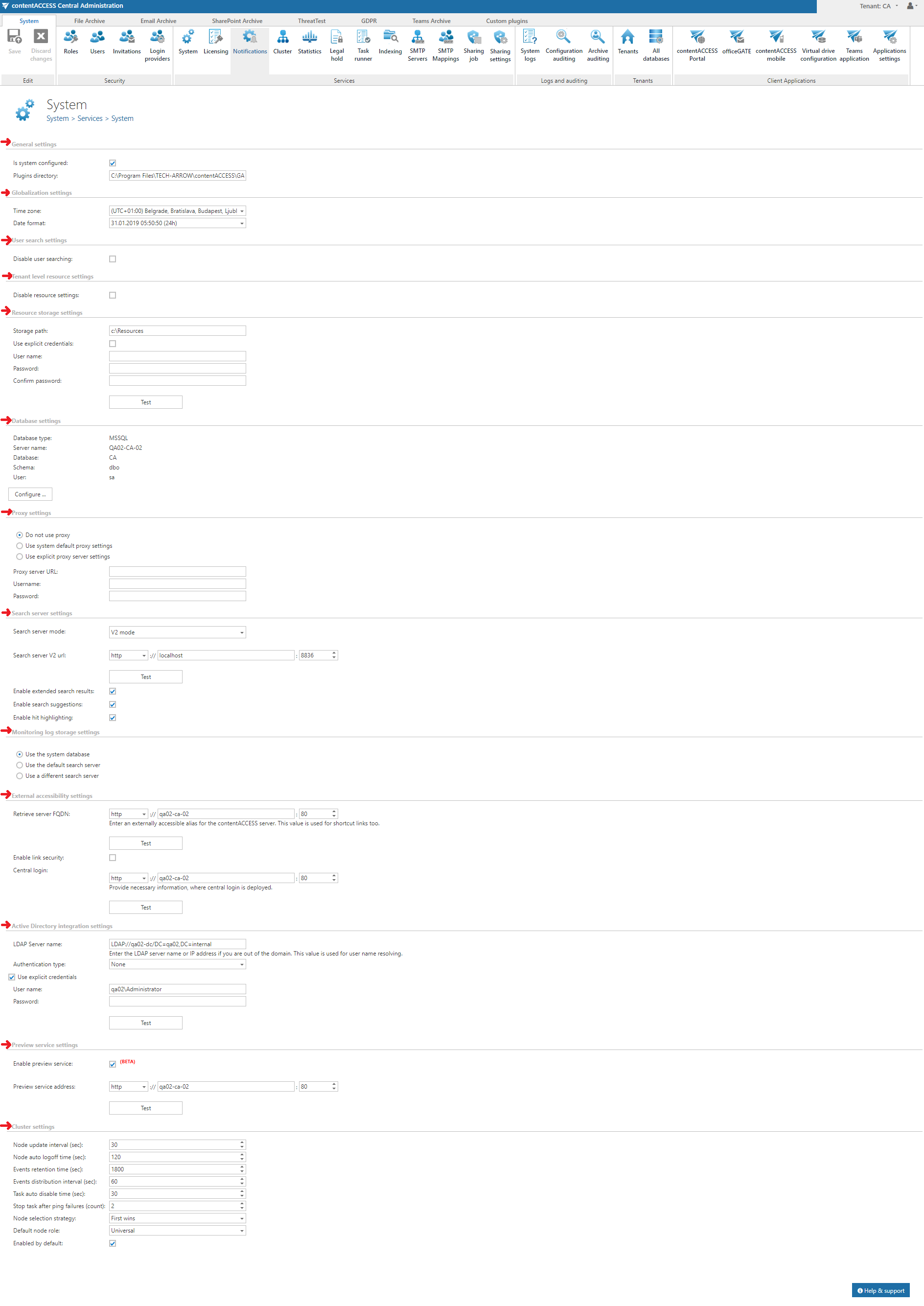
The System page (System ⇒ Services ⇒  System) allows administrators to configure the core, system-level settings of contentACCESS. These settings control database and resource connectivity, search and preview services, external accessibility, Active Directory integration, and clustering behavior.
The page is organized into the following configuration sections:
- General settings
- Globalization settings
- User search settings
- Tenant level resource settings
- Resource storage settings
- Database settings
- Proxy settings
- Search server settings
- Monitoring log storage settings
- External accessibility settings
- Active directory integration settings
- Preview service settings
- Cluster settings
The General settings and Globalization settings sections are configured by the setup by default.
General settings
If the first checkbox is checked, it means that the system is configured — that is, the connection to the SQL Server database is correctly configured and the jobs directory points to a valid folder. If this checkbox is not checked, contentACCESS will run in so-called "zombie" mode.
The Jobs directory textbox contains the path where the processing jobs are stored on the server.
Globalization settings
In this section, it is possible to set the Time zone and Date format. The time zone can be selected from the dropdown list; the date format can be selected from the dropdown list or specified manually using the Custom date format option. These settings are configured at system level.
Note: If a tenant doesn't have a configuration, or if the user's default tenant is the System tenant, then the System's globalization settings will be used.
Important: When updating from contentACCESS version 3.7 and older, default values are set here. It is possible to change them.
User search settings
By default, this option is turned off. The feature is used to disable or enable user searching when assigning:
- System administrator rights.
- Tenant administrator rights.
- File Archive access rights.
- Access rights to certain Exchange mailboxes.
- Access rights to jobs, schedulers, retentions, databases, root connections, email archive shortcuts, storages, and file archive aliases.
This applies to contentACCESS users that already exist in contentACCESS.
If the option is turned off, all existing contentACCESS users are listed in the respective dialog when assigning access rights (as shown in Screenshot B below). If the option is turned on, rights can only be granted if the correct contentACCESS User name is specified in the dialog (as shown in Screenshot A below). This configuration option is useful in hosted environments, where you want to hide the users of one customer from another customer.
 Screenshot A: Granting tenant administrator rights if user search is disabled.
 Screenshot B: Granting tenant administrator rights if user search is enabled.
Tenant level resource settings
Resource settings can be disabled at tenant level by checking the checkbox in this section.
Resource storage settings
The resource storage must be accessible from every contentACCESS node. Files created by contentACCESS that should remain accessible (for example, files exported to PST or ZIP) are automatically stored in this folder. If more than one contentACCESS node is installed, a UNC path must be set here; otherwise, any common folder can be used, as shown in the screenshot.
Database settings
Under Database settings, you can find the system database configurations, which are filled in by the setup by default. If you need to edit these settings (not recommended), click the Configure button and fill in the fields in the Database connection settings window:

By default, contentACCESS connects to the database using the credentials of the user under whom contentACCESS is running. If you want to use SQL credentials that differ from these, check the Use explicit credentials checkbox and enter the User and Password to use for the database connection. You can also run a test connection using the Test button in the left corner of the window.
Proxy settings
In this section, you can configure (or change already configured) the URL and user credentials for the proxy server. The licensing component uses this proxy to reach the licensing server. The following options are available:
- Use default proxy settings — based on the proxy settings on the contentACCESS server (Control panel ⇒ Internet options ⇒ Connection tab ⇒ LAN settings ⇒ Proxy server section).
- Use explicit proxy server settings — specify an explicit proxy server URL and user.
- Do not use proxy — disables proxy usage.
Search server settings
In this section, the URL of the Search server can be specified. Depending on the installation (first install/update from a version later than 6.0, or update from a version earlier than 6.0), the mode can be set automatically to V2, or it can be selected from a dropdown menu. For more information, see the contentACCESS setup package documentation. The Search server can operate in one of the following modes:
-
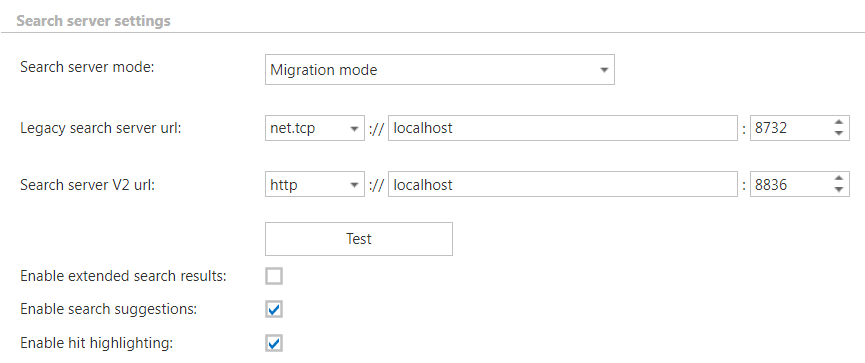
Legacy mode — allows searching in selected entities/folders using Elasticsearch 5.x and the Search service (legacy). The Legacy search server URL is written to and read from the Search service (legacy) settings tab of the installation package during each install or product update, but it can also be changed manually on the System page.

-
Migration mode — used when switching to the new Search service (V2). During migration, indexes from Elasticsearch 5.x are migrated into Elasticsearch 8.x, and the legacy and V2 search services work together.
Example: Two mailboxes are being migrated from an entity. Mailbox A is already migrated, so when a user searches in the Portal, results for that mailbox are returned from Elasticsearch 8.x. Mailbox B is not yet migrated, so its search results come from Elasticsearch 5.x.
warningImportant: Search everywhere is limited during the migration. The search results list will show items from either mailbox A (new Elasticsearch) or mailbox B (old Elasticsearch), but not from both.
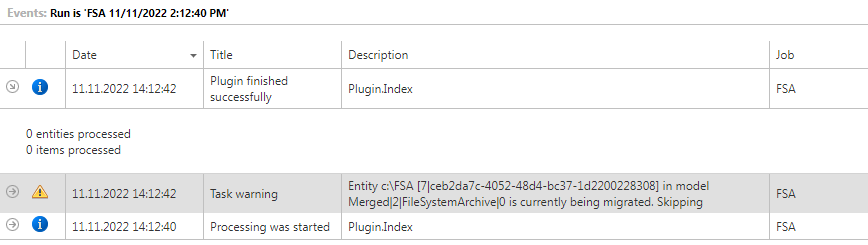
Index jobs must be stopped during the migration. If they are started accidentally, the following message appears in the Monitoring log:
-
V2 mode — allows searching in selected entities/folders using Elasticsearch 8.x. This mode is set after the migration is completed. Search results are returned only from the indexes in Elasticsearch 8.x; data that has not been migrated is left out of the search results. After migration, the index statistics contain only the new, V2 indexes.
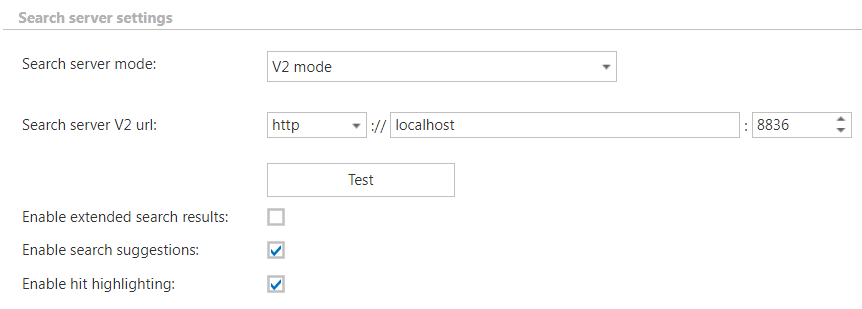
It is also possible to test the connection by clicking the Test button.
Extended search results
The Enable extended search results checkbox allows you to switch between the old and new search method:
Unchecked (new method):
- Faster — works only from the search engine (Elasticsearch).
- The first 200 characters of the email body are not displayed in contentACCESS Mobile and the Teams Search App.
- The icon for emails is always the same in contentACCESS Mobile and does not change for read/unread, forwarded, or replied emails.
Checked (old method):
- Slower — works from the search engine (Elasticsearch), from databases (email, file, etc.), and from the store (for Email archive — body text).
- Results are more detailed.
Search suggestions
When you start a search in any contentACCESS client application, search suggestions help you find relevant information more quickly. Search suggestions are possible search terms related to what you are looking for, generated from document contents — only terms related to at least one of your documents will be suggested.
To enable this feature, check the Enable search suggestions checkbox. After it is enabled, suggestions will not appear immediately — suggested terms are created during the Indexing process.
Important: Search suggestions are created only from the content of items that were indexed while this option was turned on. If some items were already indexed without it and the option is turned on later, search suggestions will not be created from their content.
The set of suggested terms depends on the type of archive being searched:
- Email archive: Usernames and email addresses of senders and recipients; attachment filenames; email subjects.
- Filesystem archive: File and directory names.
- SharePoint archive: File and directory names; usernames.
- Teams archive: Usernames; attachment filenames; team and channel names; message subjects; meeting topics.
- Teams chat archive: Usernames; attachment filenames; meeting topics.
- GDPR Exchange: Usernames and email addresses of senders and recipients; attachment filenames; email subjects.
- GDPR Filesystem: File and directory names.
Context sensitivity
Suggestions are also context-sensitive — if a user is searching for documents by specific property values, only values relevant to that property are suggested. For example:
- For properties such as "sender", "from", "cc", "author", etc., only usernames are suggested.
- For properties such as "attachment", "subject", "title", etc., filenames and terms from document titles are suggested.
- If no search property is specified, both usernames and terms from document titles and filenames are suggested, ordered by relevance.
Username suggestions
Usernames are suggested by both first and last name. For example, the username "John Smith" will be suggested if the user starts typing either "John" or "Smith".
Hit highlighting
If the Enable hit highlighting checkbox is checked, contentACCESS Portal will highlight the located words in search results as follows:
- In the item list — highlights the title/subject, sender, and recipient.
- In the email preview — highlights the title/subject, sender, recipient, attachment name, and email body.
- In the file preview — highlights the title.
- In the SharePoint preview — highlights any property.
Monitoring log storage settings
This section allows you to set where the logs from System logs will be stored.
External accessibility settings
Under Retrieve server FQDN, enter the externally accessible, fully qualified domain name for the contentACCESS proxy server into the Server FQDN textbox. If the contentACCESS proxy is not installed, enter the domain name of the contentACCESS server instead. The contentACCESS proxy server ensures communication between the user and contentACCESS, and forwards user requests to the contentACCESS server. These external accessibility settings are used by the shortcut links in the Email Archive system.
Important: If you have contentACCESS Email Archive and/or accessGATE Mobile, this setting is mandatory. In all other cases, it is also highly recommended.
Note: If the contentACCESS Server ID is changed, HTML shortcuts pointing to archived mailbox items will no longer work. The solution is to update the contentACCESS Server ID in the Outlook forms as well. For more information, see the Outlook form installation manual.
Under Retrieve server FQDN, there is also an option to enable link security:
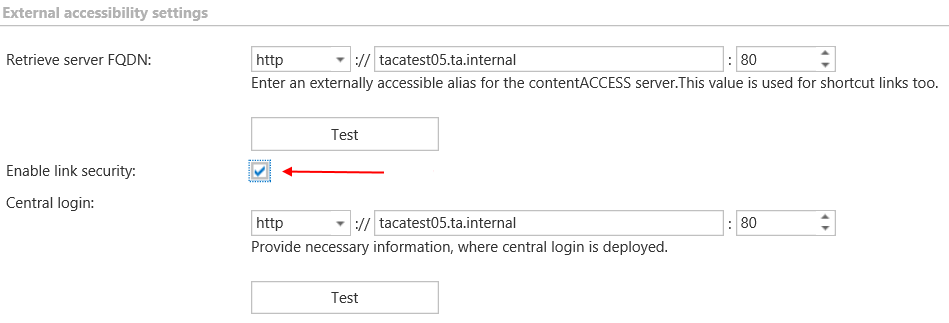
If you want to protect the links in your mailbox that point to archived items from unauthorized access, it is recommended to turn this option on. If this option is checked and you try to download files, you must authenticate via CentralLogin. This means that when you click a link (to download an email, attachment, or shared file), you are first taken to a login page, and after successful login, you can download the file.
The following components are affected:
- contentACCESS MailApp for archiving.
- ShareApp links.
- Email shortcuts.
- contentACCESS Outlook add-in.
- All download links for files, emails, and attachments.
Under Central login, the Central login page URL and communication port configurations (previously specified in the setup package during installation) are accessible here. The setup package writes to and reads from this location if the Central login page URL changes. For more information, see Installation of contentACCESS.
Active directory integration settings
Some contentACCESS functionalities (such as contentACCESS Portal access for mailboxes or Virtual Drive) require an LDAP connection. Enter the required data, along with the user/administrator credentials to use for connecting to the Active Directory, into the User name and Password textboxes. It is not necessary to fill in these fields if you are using an online Exchange server.
Preview service settings
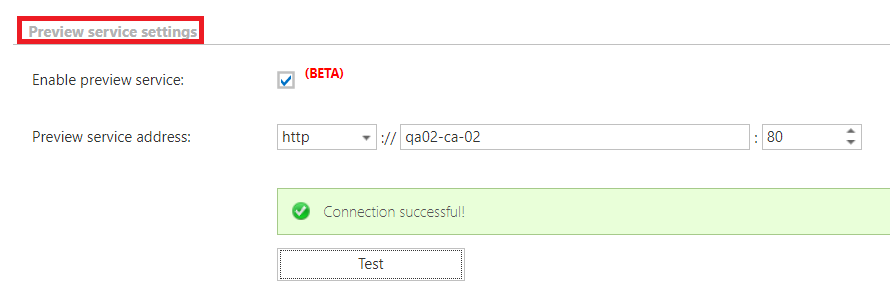
In this section, the URL of the Preview service can be specified. If this service is enabled, item previews can be opened in the Portal. For more information, see the item list and item preview section of the contentACCESS Portal documentation. It is also possible to test the connection by clicking the Test button. The administrator can change the configuration, and the changes will be read and prefilled by the setup during product updates.
Cluster settings
contentACCESS supports clustering, which enables contentACCESS and its jobs to run on multiple nodes, improving performance. To adjust the default cluster settings, scroll down on the System page. The following settings can be adjusted:
- Node update interval (sec): The time interval at which each node "pings" the central database and updates its state in it. For example, if set to 30, each node updates its state every 30 seconds.
- Node auto logoff time (sec): If a node does not receive input during this time period, it automatically switches to offline.
- Events retention time (sec): Events (such as commands to run a job, added/changed/removed job configurations, changes to schedulers, etc.) that are shared and distributed between nodes are stored in the database for this retention time.
- Events distribution interval (sec): Events to be distributed between nodes are written to the system database. Each node periodically checks for these events at the interval set here.
- Task auto disable time (sec): If a failure occurs during a node's operation (server shutdown, hardware problems, etc.), the task(s) performed by that node (running jobs, retrieving content, etc.) are automatically disabled within the time set here.
- Stop task after ping failures (count): Determines after how many ping failures a task will be stopped. Once the ping failure count reaches this value, all tasks running on that node are stopped.
- Node selection strategy: Determines how nodes are automatically selected for processing. Available strategies:
- First wins — the first running node is picked for the task.
- Balanced — CPU usage, memory usage, and the number of running jobs are considered before picking a node for a task.
- Default node role: The default role type assigned to a node added to the system. It is recommended to set this to Universal, so the node can be used for both processing and retrieving data. The role type of a node can be adjusted later by navigating to System ⇒ Services ⇒ Cluster on the Central Administration ribbon, using the node's context menu in the nodes' grid.
- Enabled by default: By default, all nodes are enabled (checkbox checked) — when the contentACCESS service starts up, the nodes start processing (running jobs, publishing models, etc.) as well. When installing contentACCESS components on additional nodes, it is recommended to disable the nodes (uncheck this checkbox), since a node must be fully configured before it can pick up any job for processing. An enabled node is marked in green, and a disabled node is marked in yellow, in the nodes' grid.