System logs
Introduction
The System logs page in System ⇒ Logs and auditing allows administrators to review currently running and previously completed system- and job-related events. It provides access to system events such as updates, shutdowns, startups, and system component updates, as well as job-related events, including detailed failure information that occurs during job execution.
Using System logs, administrators can:
- Review runs of jobs and system events, and monitor real-time job execution.
- Sort, filter, and export logged events for troubleshooting purposes.
- Configure how many job runs are retained at system, tenant, and job level.
- Manually remove job runs and events that are no longer needed.
To access this page, navigate to System ⇒ Logs and auditing ⇒  System logs.

System logs interface
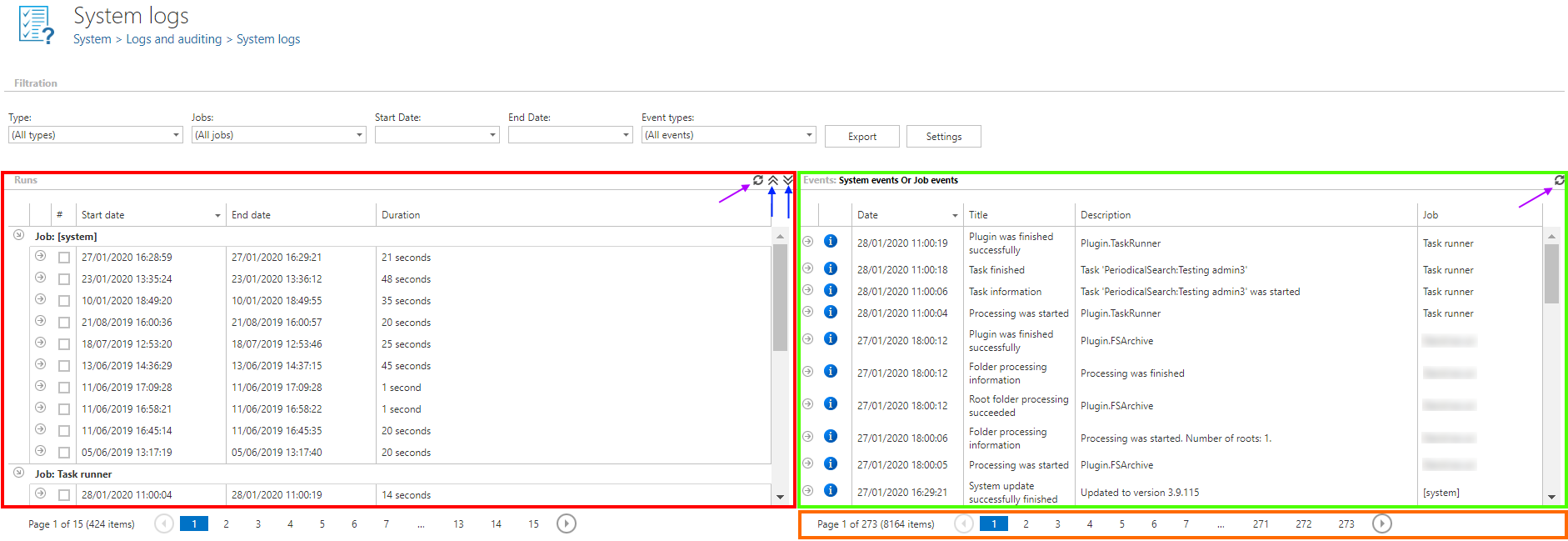
When you open System logs, the interface is divided into the following main areas:
- Runs — displays the runs of jobs or the system, shown on the left side of the page.
- Events — displays the system and job events, shown on the right side of the page.
- Refresh button — reloads the current runs and events from the database, allowing you to check real-time running jobs.
- Collapse all / Expand all buttons — collapse or expand all sessions for all jobs with a single click.
- Event list — lists the available events at the bottom of the System logs page.
Sort events and runs
Sorting is available in both the Runs and Events tables. Click a column name (Start date, End date for runs; Date, Title, Description, Job for events) to display the items in reverse order.

Configure maximum history count of runs
The maximum history count determines how many job runs are retained. For example, if the value is set to 10 and a job has run 20 times, only the last 10 runs can be viewed — the remaining 10 are deleted and are no longer accessible. It is recommended to set a higher value if a job runs frequently, or during weekends, and the events need to be reviewed retroactively.
This value is inherited from a higher level. There are three levels at which the history count can be adjusted, from highest to lowest: system, tenant, and job.
System level settings
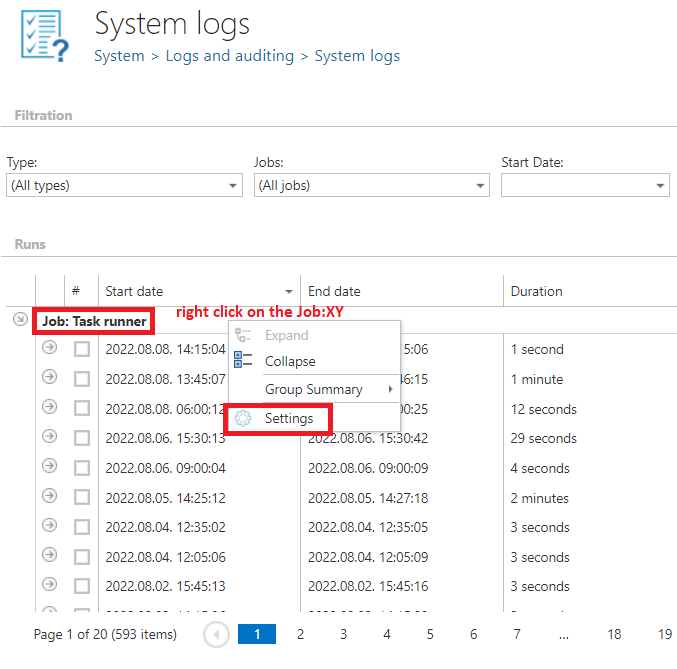
System level settings are accessed by right-clicking a system-related job in the Runs column and selecting Settings. Adjust the value in the System level monitoring setting dialog.

Tenant level monitoring settings
Tenant level settings are inherited from the system level by default. For example, if the maximum history count is set to 10 at system level, the same value applies at tenant level. However, tenant level settings can also be configured independently of the system settings.
Click the Settings button and set the required value in the Tenant level monitoring settings dialog. If tenant level settings have been configured independently, they can be reset to the system value by selecting Inherit from system in the same dialog.


Job level monitoring settings
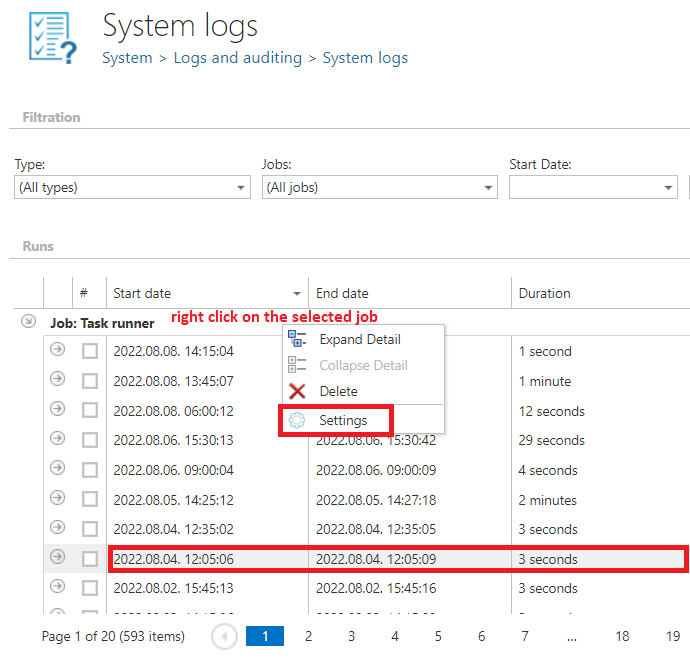
Job level settings are inherited from the tenant level by default. They can be adjusted by clicking a particular job run in the Runs column and configuring the settings in the Job level monitoring setting dialog, or by right-clicking the job, selecting Settings, and setting the maximum history count in the dialog.
To reset the job level settings to the default value inherited from the tenant, select Inherit from tenant in the same dialog.

Filter events
To review the details of a specific system or job run, filter the jobs under Filtration ⇒ Jobs using the dropdown list. To check system or job events that occurred within a specific period, set the Start date and End date filtering options.
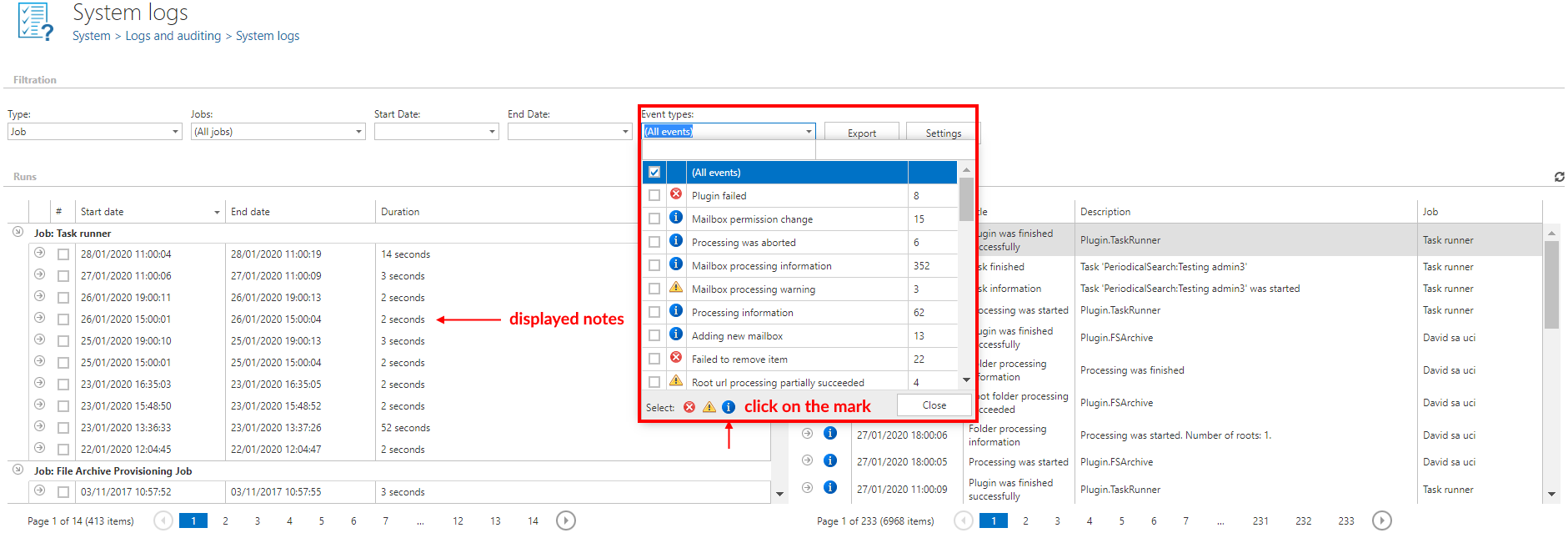
Under Event types, you can filter by the event types occurring in the currently selected events. An event type filter is also available at the bottom of the Event types dropdown list, allowing you to filter events belonging to one of three event groups:
- Error (
 )
) - Warning (
 )
) - Note (
 )
)
Click the mark of the required event group next to Select to display only the selected events. In the example below, all notes have been filtered out by clicking the mark.
Note: If the logged-in user is a system administrator, they can view system-related events. If the user has tenant administrator rights, they can view tenant-related events using the monitoring feature.
Filtering example
In the example below, the Mailbox Provisioning Job and TA_Email Archive Job have been filtered, with Start date set to July 1, 2015, and End date set to July 8, 2015. Event types is set to All events. This filter finds all events related to these two jobs that occurred within this time interval.
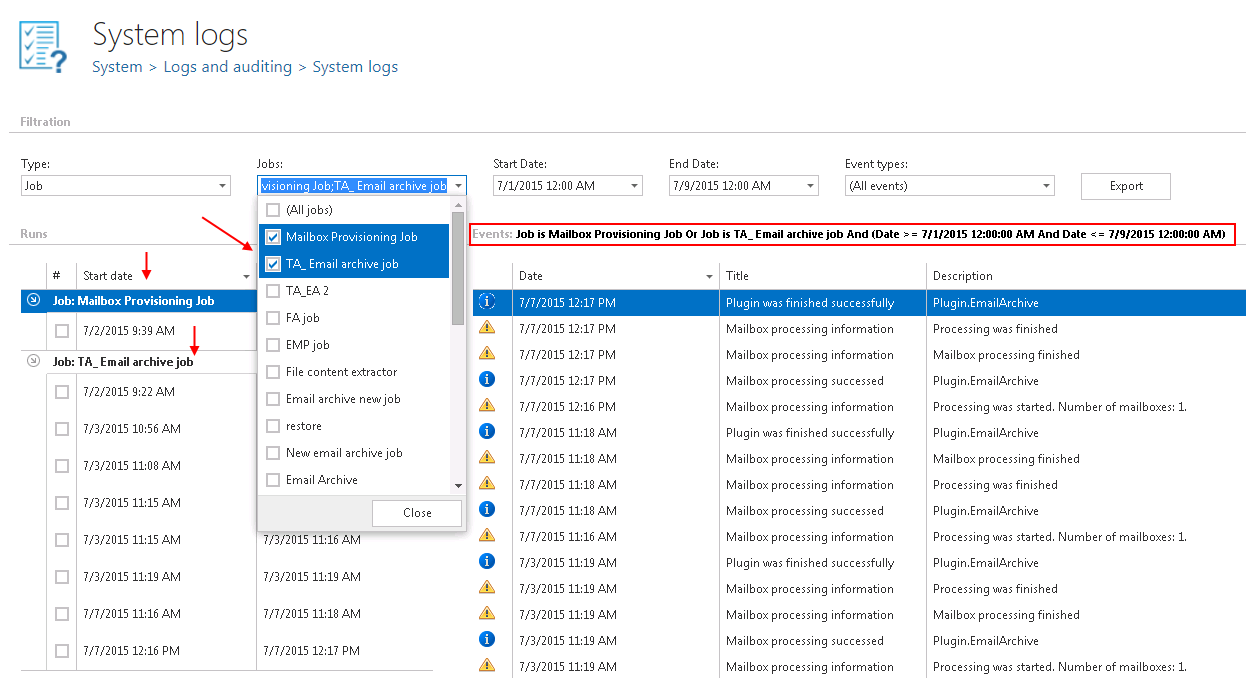
Under the Runs section, click the arrow next to a job to display its most recent run times. The Events table on the right side of the screen shows all events related to these jobs within the selected time period. Clicking a particular job run (for example, the Mailbox Provisioning Job run from 9:39–9:40 on July 2, 2015) opens further details about that run. In this example, the job processed 98 mailboxes during this run, of which 25 mailboxes were added, 71 were skipped, and 2 were updated.
Selecting the checkbox next to a job run displays all events and event types related to that specific run (9:39–9:40 on July 2, 2015) in the table on the right.
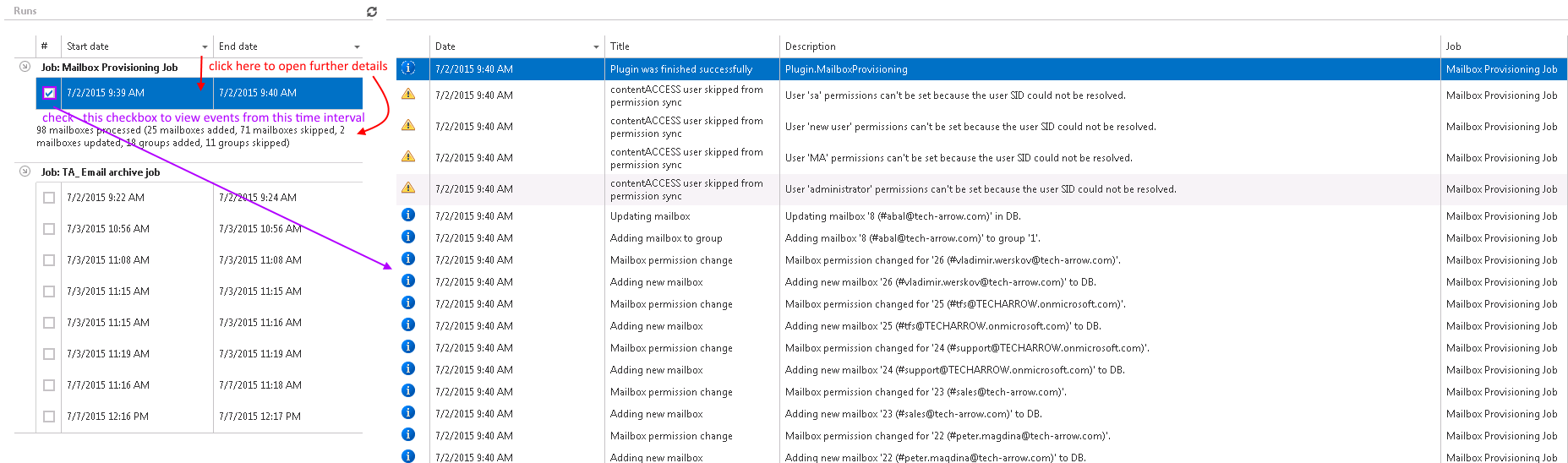
Note: The exact details of a job or system run can be expanded or collapsed by right-clicking the particular session and selecting Expand Details or Collapse Details from the context menu.
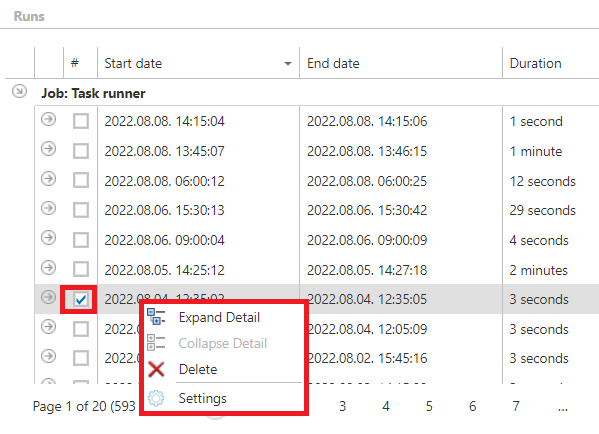
Note: Additional details related to a selected event can be expanded or collapsed by right-clicking the event and selecting Expand Detail or Collapse Detail from the context menu.

To display only a specific type of event, for example, Job was finished successfully, set this filter in the Event types checkbox list. Only this event type will then be displayed in the Events table.

Export logs
The Export function allows you to save the reviewed events into XML, CSV, or HTML format. The exported report contains all necessary information (date, job ID, message, details), enabling you to review the required information and identify possible failures quickly. This provides fast access to system and job processing information and ensures efficient troubleshooting when needed.

The example below shows the report exported in HTML format:
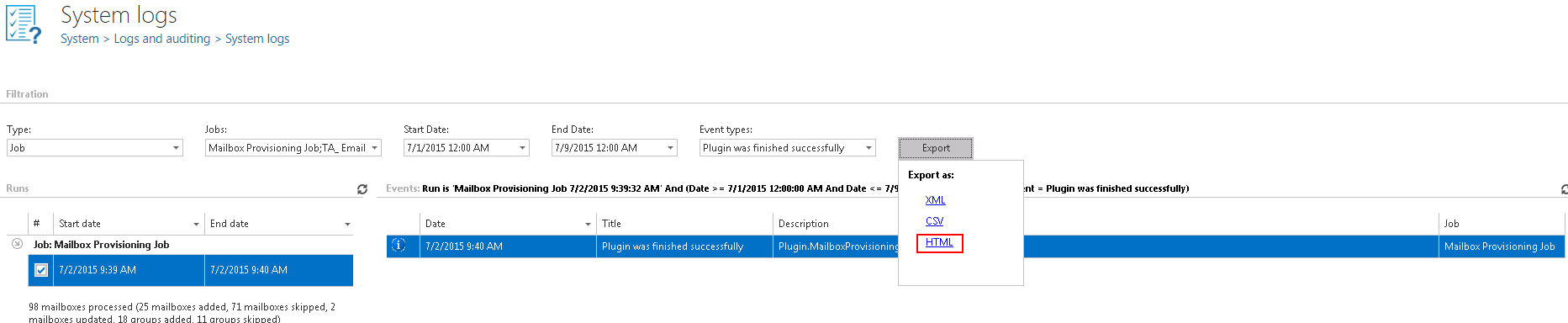
The report contains all information necessary to identify failures or review the last events of a job within the filtered time period.

Delete runs and events
- To delete a system or job run, right-click the particular run in the Runs column and select Delete from the context menu (Screenshot A).
- To delete a particular event, right-click the event and select Delete from the context menu (Screenshot B).
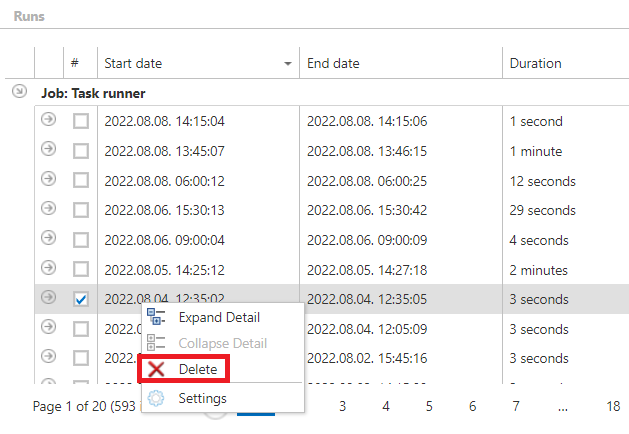
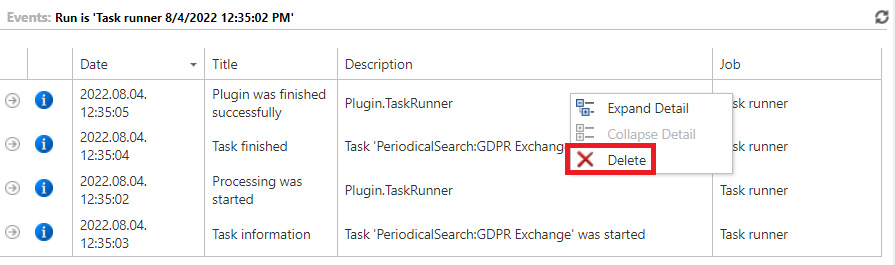
Screenshot A: Deleting a system/job run. Screenshot B: Deleting a system/job event.
Tips and common workflows
Note: If more space is needed on the System logs page — for example, if there are too many events — hide the ribbon by clicking the arrow icon in the upper-right corner of the user interface, under the About menu.