OneDrive Archive job configuration
Introduction
The OneDrive Archive job allows administrators to archive OneDrive account content for selected users and groups, convert archived items to shortcuts, and delete items from the original OneDrive location based on configurable filters. This page describes how to create a OneDrive Archive job and configure its settings, including report mode, scheduling, retention, filtering and shortcuts, users and groups selection, notifications, and resource allocation.
Create the job
After you have configured all necessary settings, you can create and configure a OneDrive Archive job.
- Go to the Jobs page (SharePoint Archive tab → Archive group → Jobs).
- Click + new.
- Fill in the required settings (Job type, Run on node, Display name) in the pop-up window.
- Click Add.

To configure the job immediately, click Yes in the next pop-up window. Alternatively, you can configure it later using the Configure option in the job's context menu.
On the job's configuration page, set the following.
Report mode settings
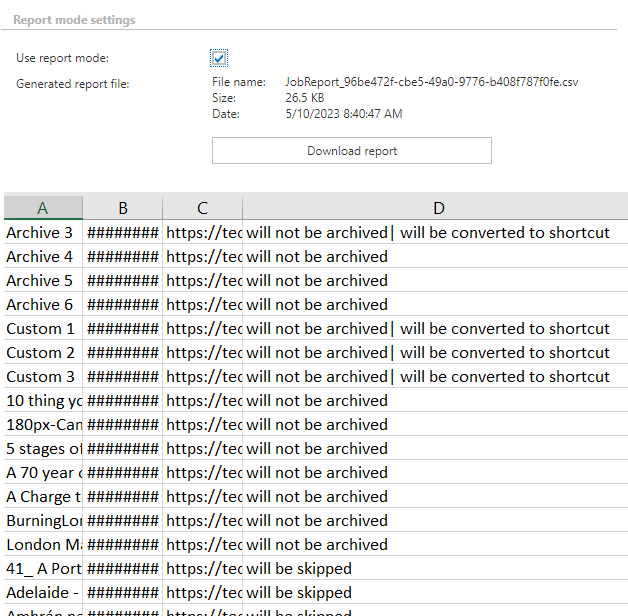
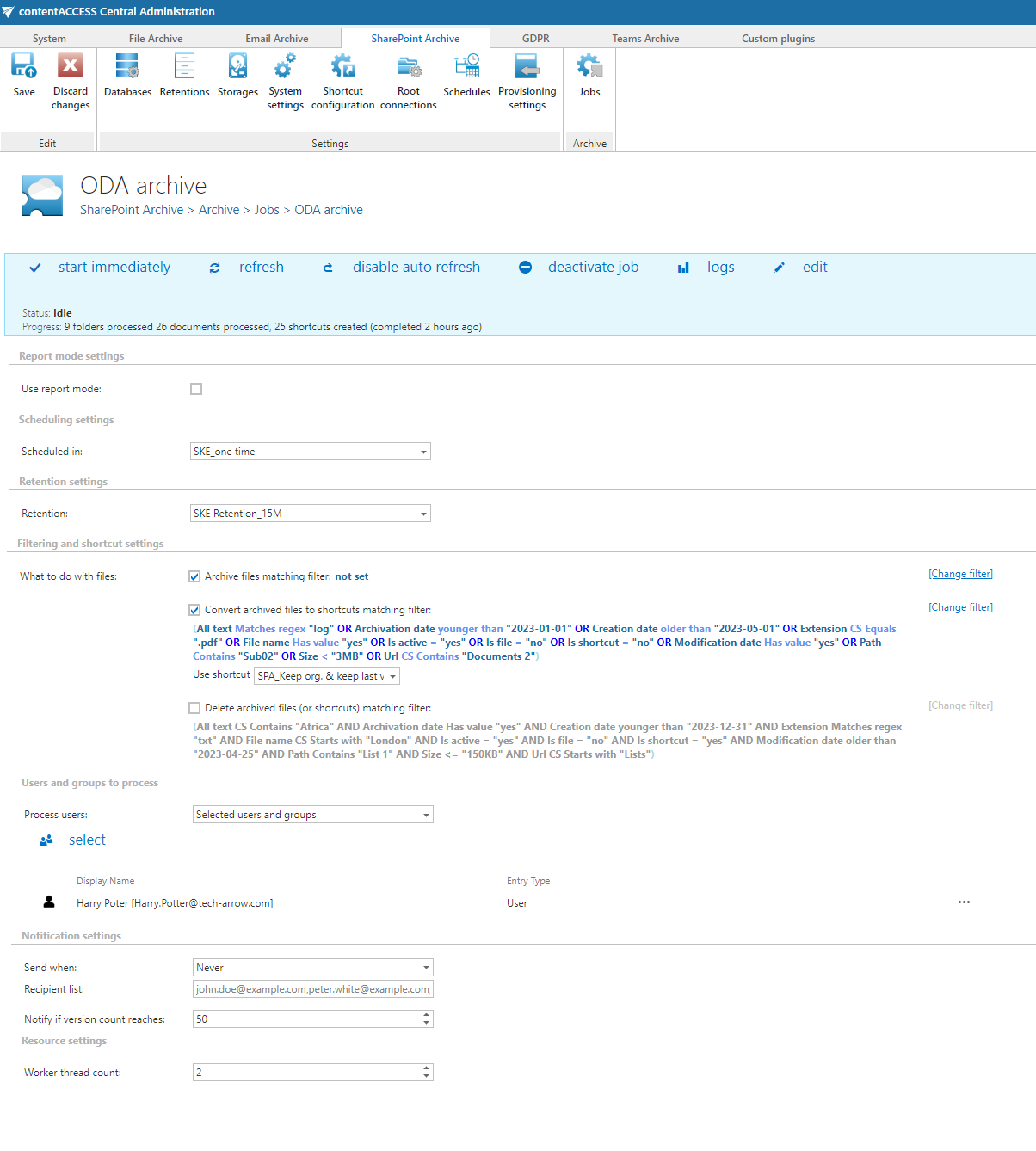
If the Use report mode checkbox is checked, the job runs in report mode. After the job finishes running, the user can download a .csv report from this section. The report contains a list of items belonging to the selected users and groups (as specified in the Users and groups to process section) and includes information about them, such as whether they will be processed or not.
Scheduling settings
In this step, select the running times of the archive job. You can either select an existing scheduler from the list or create a new one. For archive jobs, it is recommended to set up a scheduler that runs continuously, or at defined times during the week.
For more information about setting up schedules, refer to the Schedules page.

Retention settings
Under retention settings, the administrator can select a previously configured retention period. During this time, archived items cannot be deleted from the storage. It is recommended to set a time interval based on data recording regulations required either by the law of the country or by internal company policies.
For more information about setting retentions, refer to the Retentions page.

Filtering and shortcut settings
In this section, configure what will be archived and how it will be archived. It is also possible to create shortcuts from already archived items or delete them.
There are three options available in the Filtering and shortcut settings section:
Option 1: Archive files matching filter
With this option, new (not yet archived) files from the selected users' or groups' OneDrive accounts are archived, or new versions are created for already archived items. This option can be used independently of the other options and does not modify the file(s) on OneDrive in any way.
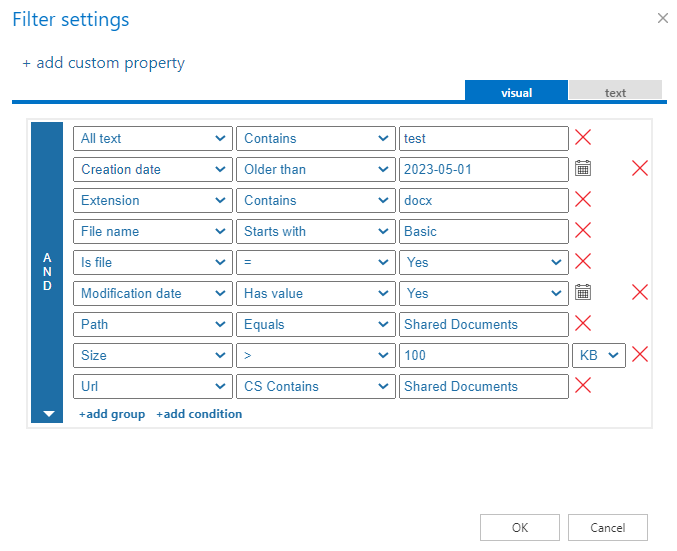
If the account (or folders) have not been archived yet (are being archived for the first time), check the Archive files matching filter [not set] checkbox. Items are archived with their whole version history (if the filter settings allow it), or the version history can be filled in during a later run. The job compares items with the database and archives the missing versions (or files).
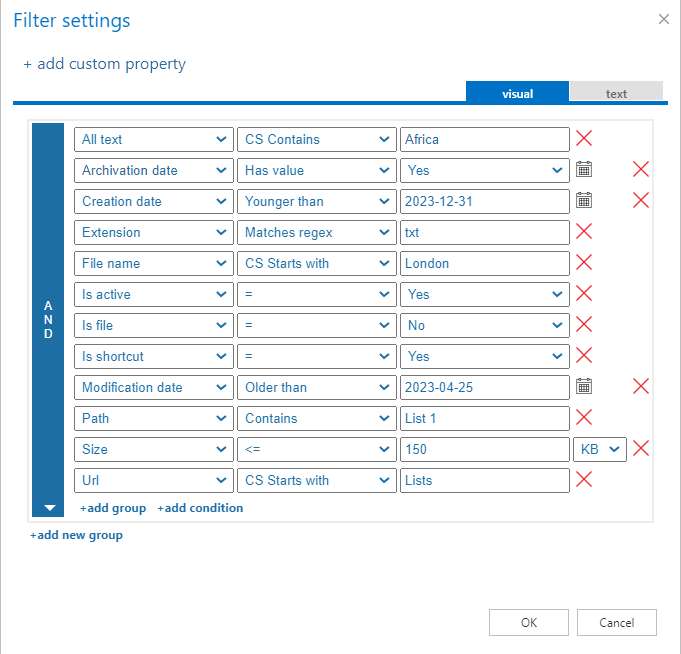
You can set which files will be archived using the filtering settings, by clicking the not set or Change filter buttons. Learn more about filtering settings on the Filtering in jobs page.

Option 2: Convert files to shortcuts matching filter
If files are already archived (using option 1) but need to be replaced with shortcuts, check the second checkbox. This option can be used independently or together with option 1. If an item matches both option 1 and option 2, the actions are executed sequentially within the same job run: the item is first archived, then converted to a shortcut.
Before a shortcut is created, the item(s) are checked and updated: missing versions are archived before shortcutting. This prevents any data loss before the file is modified.
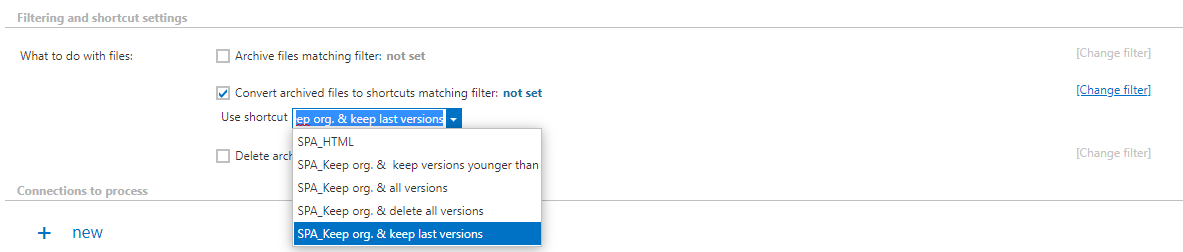
When this option is selected, the Use shortcut dropdown menu becomes available. Here, select the preferred shortcut type, configured on the Shortcut configuration tab.
During shortcutting, the job manipulates the version history of the file based on the configured settings, renames the file to HTML (if the HTML shortcut type is selected), and overwrites the contents to create a shortcut. If Keep original is selected as the shortcut type, the version history is modified (if the shortcut type supports it) and the content is overwritten, but the file retains its original formatting and does not become an HTML file.
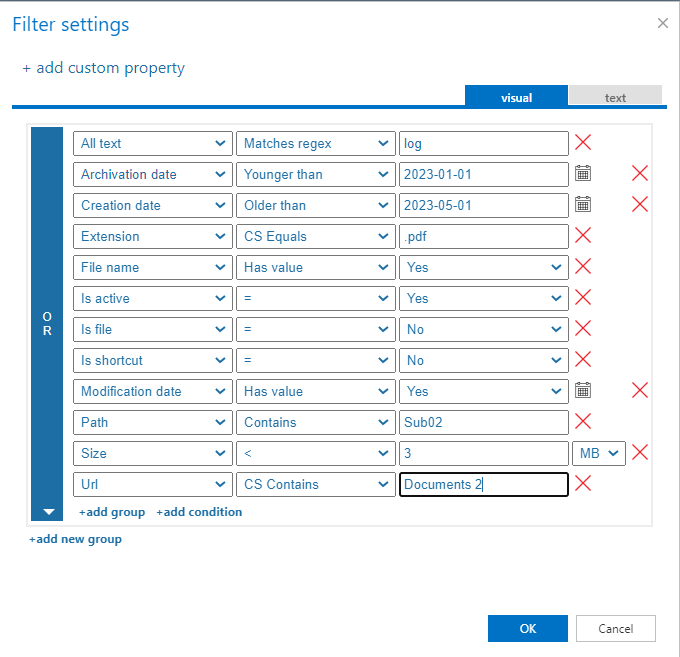
You can set which files will be processed using the filtering settings, by clicking the not set or Change filter buttons. Learn more about filtering settings on the Filtering in jobs page.
Note: If you rename an HTML shortcut in the OneDrive account, the archive job or shortcutting option will not be able to process the change. The shortcut will keep its original name.
Option 3: Delete files (or shortcuts) matching filter
This option allows already archived files to be deleted from the original OneDrive account. The delete function can be used separately or together with the other two options. When used, the item is deleted immediately and no shortcut is created.
You can set which items will be deleted using the filtering settings, by clicking the not set or Change filter buttons. Learn more about filtering settings on the Filtering in jobs page.

Users and groups to process
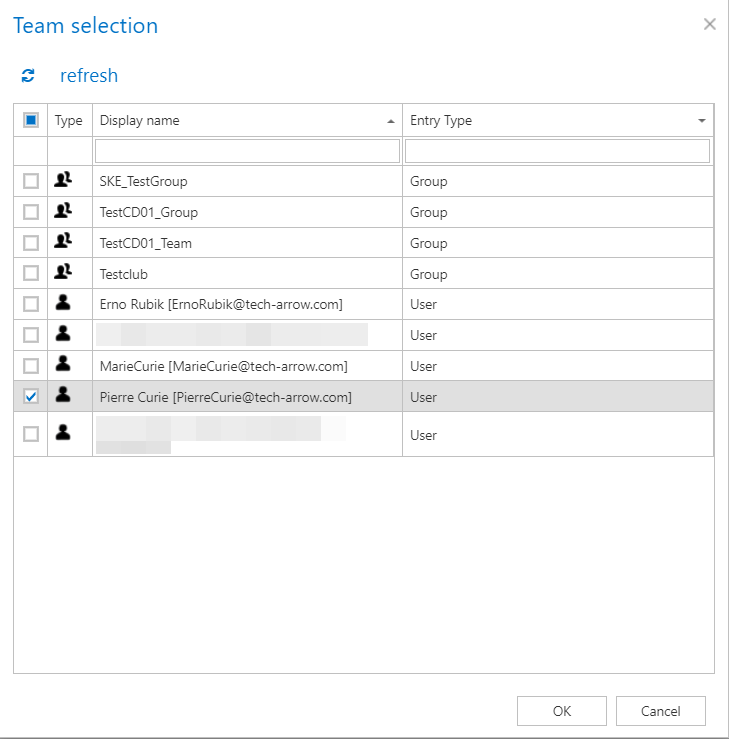
Click select and specify the users and groups in the pop-up window. The selected users' or groups' OneDrive accounts will be archived.
Notification settings
Select when you want to receive notification emails from the OneDrive Archive job. In the Recipient list text box, enter the email address(es) of the person(s) who should receive these notifications. You can also configure notifications to be sent only when the version count reaches a certain number.

Resource settings
Set the number of worker threads responsible for the archiving processes. By default, this value is set to 2.

Once the job is configured, save your changes and wait until it starts based on the defined schedule, or start it manually from the status bar.