Configuration of Delete job in SharePoint archive
Introduction
The Delete job in SharePoint archive removes previously archived data from the archive. This page explains how to create and configure the job, including its running mode, scheduling, target sites, processing, filtering, notification, and resource settings, and describes the conditions under which an archived document is considered expired and eligible for deletion.
Note: Files and emails must first be marked for delete in the contentACCESS Portal. For more information, see Tasks supported by entities/models.
Create a Delete job
To create a new Delete job, go to Jobs > Add new > Delete from archive.

On the job's configuration page, go through the following sections. Most of them are mandatory; filtering settings are optional.
Running mode settings
The job can be run in one of three modes:
-
Immediate deletion: Collects the expired documents and deletes them.

-
Create report: Collects the expired documents and provides a CSV file with a list of documents. The administrator can delete documents from the list.

-
Apply report: Requires uploading a CSV file with a list of documents to be deleted. The administrator can delete documents from the list before running the job—only documents that remain in the list will be processed. The job reads the list and deletes the documents that have expired.

Scheduling settings
In this step, select the running times of the Delete job. You can either select a scheduler from the list or create a new scheduler using the Create new … option.

Sites to process
In this section, select the site connection(s) where the data is located. A root can be a site collection, a subsite, a library, or a folder already defined in the Site connections section.
-
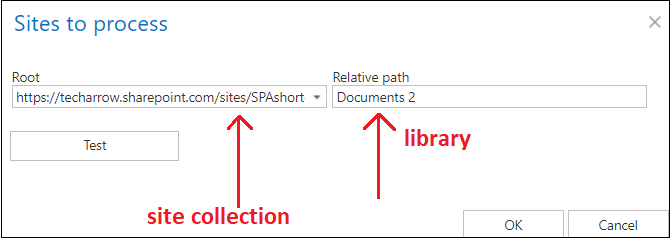
In On-premise mode, only the select site option is available. Click + select site to specify the connection from which items should be deleted. In the Connections to process dialog, expand the list of already created roots and select the one to apply. Enter the Relative path if necessary, test the path using the Test button, and click OK.

-
In Microsoft 365 mode, you can either process all sites (the archived data will be deleted from all provisioned and archived sites) or selected sites, or select sites and/or groups by clicking + select site or + select group. Specify the root and the relative URL in the pop-up window, test the path using the Test button if necessary, and click OK.

Processing settings
In this section, you can select the Delete even if not marked for delete checkbox. If enabled, the Delete job deletes expired items even if they have not been marked for delete.

Filtering settings
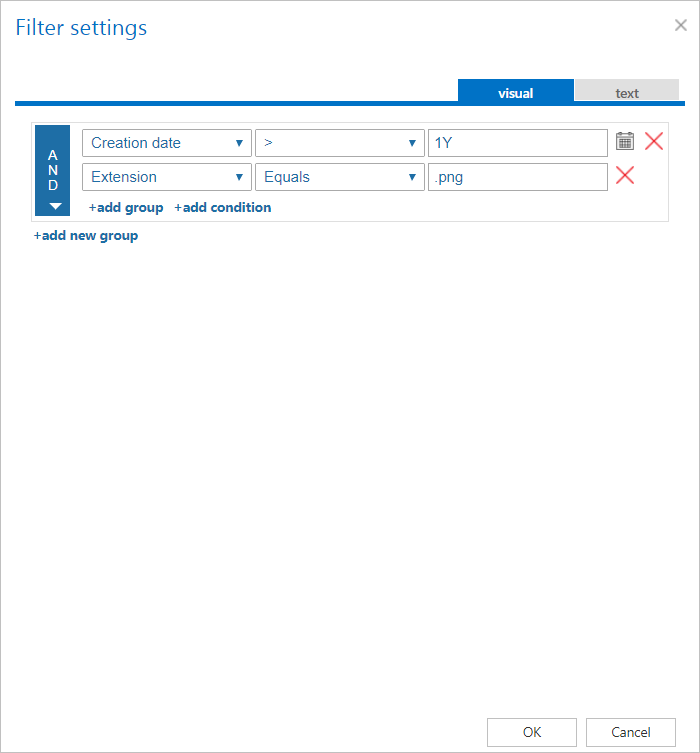
Click Change filter and configure the filtering according to your needs and/or regulations. To learn more about working with filtering settings, see Filtering in jobs.
Notification settings
Select when you want to receive notification emails from the Delete job. You can configure notifications to be sent always, never, or only when an error or warning occurs during processing—for example, if the deletion of one or more items fails. In the Recipient list field, enter the email addresses of the people who should receive these emails. If there are multiple recipients, separate the addresses with , or ;.

Resource settings
Set the value that determines how many items the Delete job processes simultaneously. The recommended value is 2.

Once all settings are configured, click Save in the upper-left corner of the UI to save the job configuration.
When does a document expire?
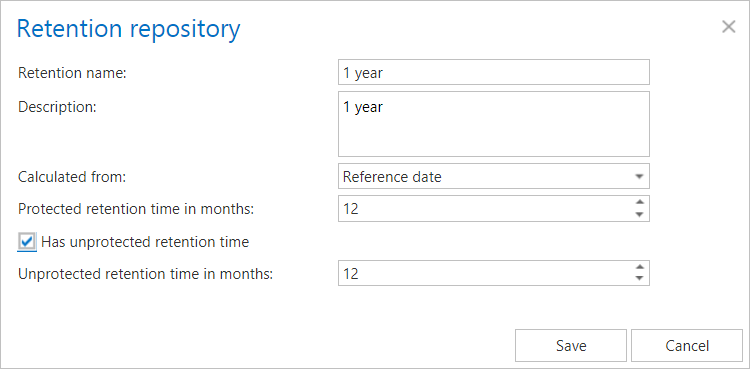
A document is considered expired and eligible for deletion when either of the following conditions is met:
- The protected retention has expired (archive date / reference date + protected retention is in the past), the document is not under legal hold, and the document is marked for deletion.
- The unprotected retention is defined and has expired (archive date / reference date + unprotected retention is in the past).