SharePoint archive Provisioning settings
Introduction
The Provisioning settings page allows administrators to configure the provisioning job for SharePoint archive. The provisioning job creates and updates contentACCESS users and assigns contentACCESS roles to them based on information gathered from SharePoint.
In contentACCESS, a provisioning job is created automatically when activating SharePoint archive for the first time. The provisioning process is similar for on-premises SharePoint and SharePoint online, although there are some differences between the two, which are described below.
This page explains how the provisioning job works for both SharePoint types and describes the configuration sections available on the Provisioning settings page, including report mode, archive settings, scheduling, site selection, default provisioned site settings, OneDrive group provisioning, and notification settings.
Note: The contentACCESS technical user account performing the provisioning job reads the permissions set on the archived SharePoint objects. Therefore, it needs to read the SharePoint users, groups, and group membership information. To achieve this, add the contentACCESS technical user account to the list of Site Collection Administrators.
On-premises SharePoint
For on-premises SharePoint, the provisioning job:
- Scans SharePoint groups and users, which are then snapshotted in the SharePoint archive database.
- Picks users with a Windows login and creates these users in contentACCESS (see the System settings section in SharePoint Archive settings) together with their Windows login.
- Grants permissions to access the given SharePoint connection (archive only).
On-premises SharePoint works with Active Directory and uses its users and groups to grant access to sites, folders, and items. SharePoint defines SharePoint groups, which are a collection of AD users, AD groups, and other users (Azure, etc.).
The provisioning job also collects information about AD groups and their members. This is important when permissions are evaluated, because they are configured through AD groups.
A snapshot means that a copy of the user or group is created in the archive, which remains even after the user or group is deleted from SharePoint. This allows the last known permissions for the user to be used when working with the archive.
At the end of the provisioning job, the archive has collected the following information:
- All AD groups that are somehow related to SharePoint.
- All AD users that are somehow related to SharePoint.
- AD group memberships.
- SharePoint groups for the given site connection.
- Members of the SharePoint groups.
To access folders and documents, the user requires individual permissions, which are synchronized by the SharePoint archive job.
Note: The user will only see those folders and items to which they really have access.
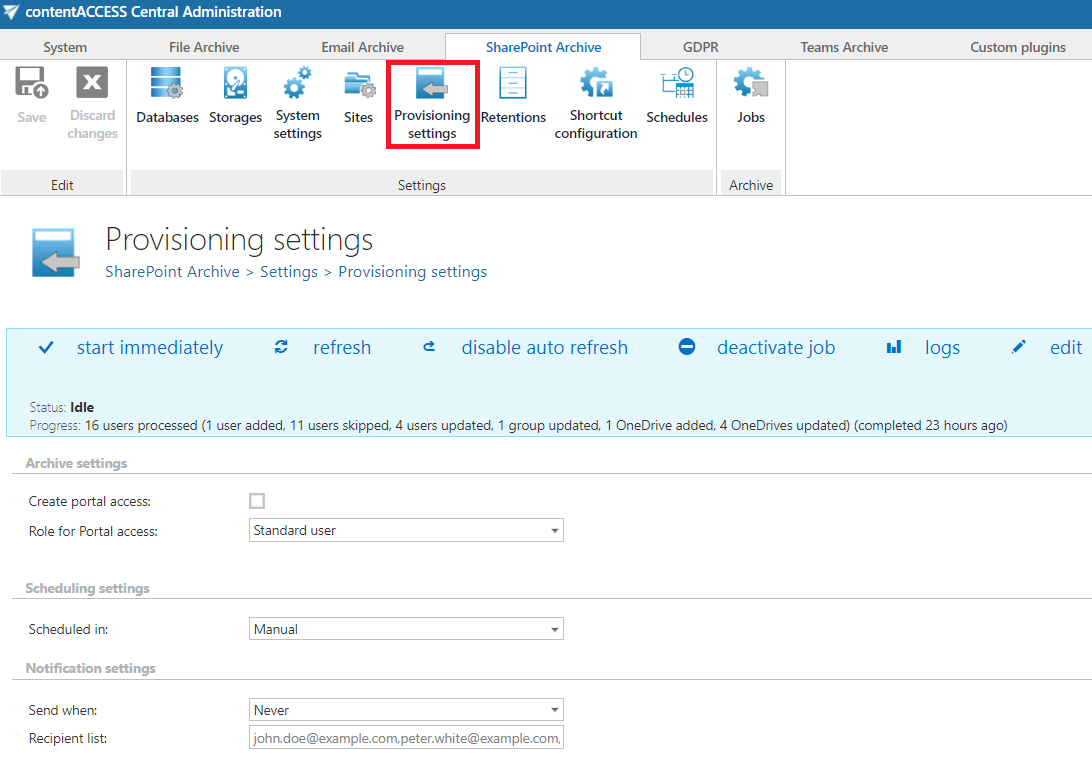 Screenshot: Provisioning settings for On-premise SharePoint
SharePoint online
For SharePoint online, the users and SharePoint groups from Microsoft 365 are also synchronized by the provisioning job. Microsoft 365 users, together with Microsoft 365 logins, are also created automatically by the provisioning job.
Important: The Sites to provision and OneDrive groups to provision (AAD) sections are only visible if Microsoft 365 SharePoint type is selected on the System settings page. In On-premise mode, provisioning will process the created site connections without the Sites to provision and OneDrive AAD group sections.
SharePoint Archive provisioning settings are available on the Provisioning settings page (SharePoint Archive ⇒ Settings ⇒ Provisioning settings):
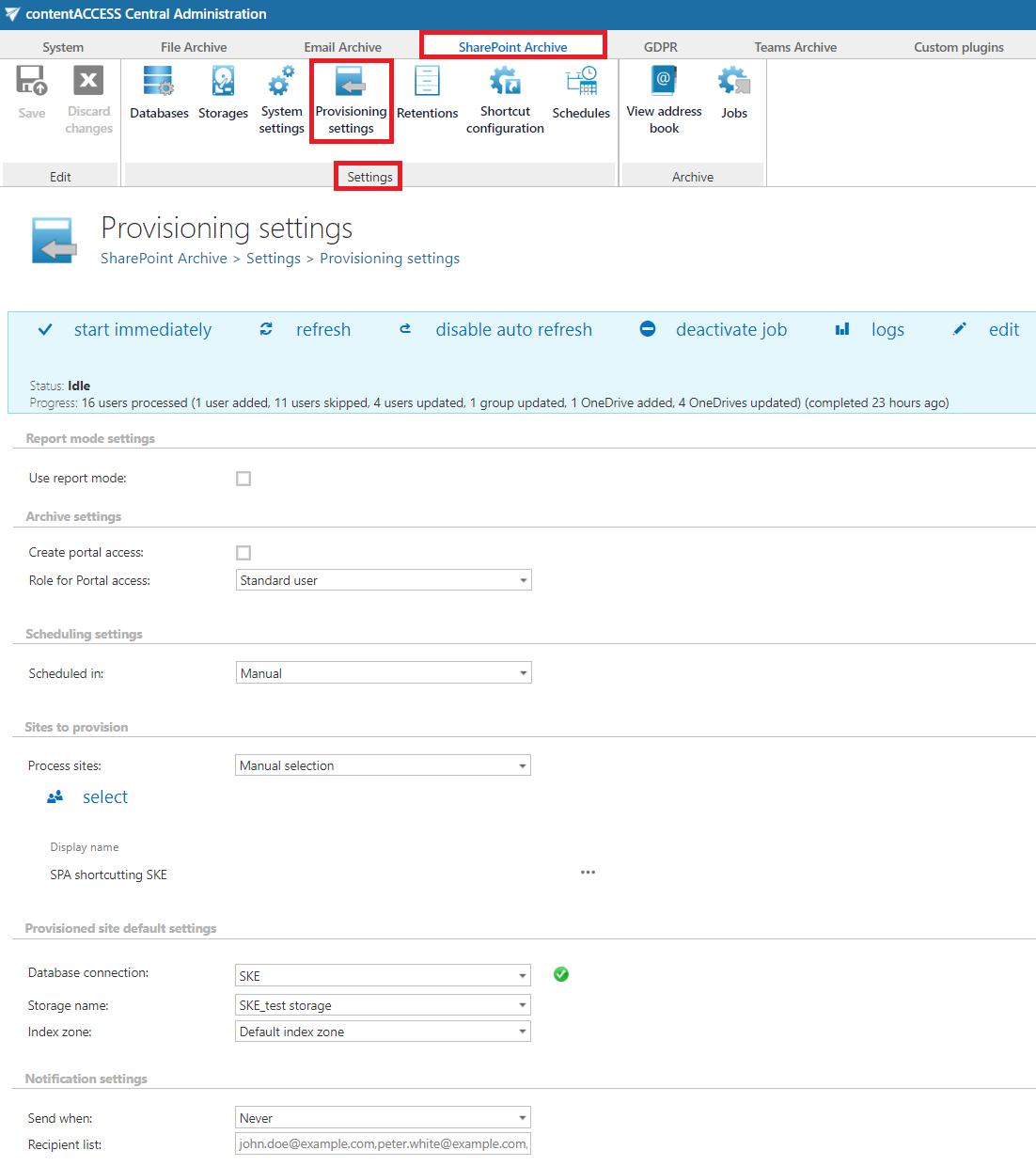 Screenshot: Provisioning settings for SharePoint online
Status bar
The status bar of the provisioning job offers the following options:
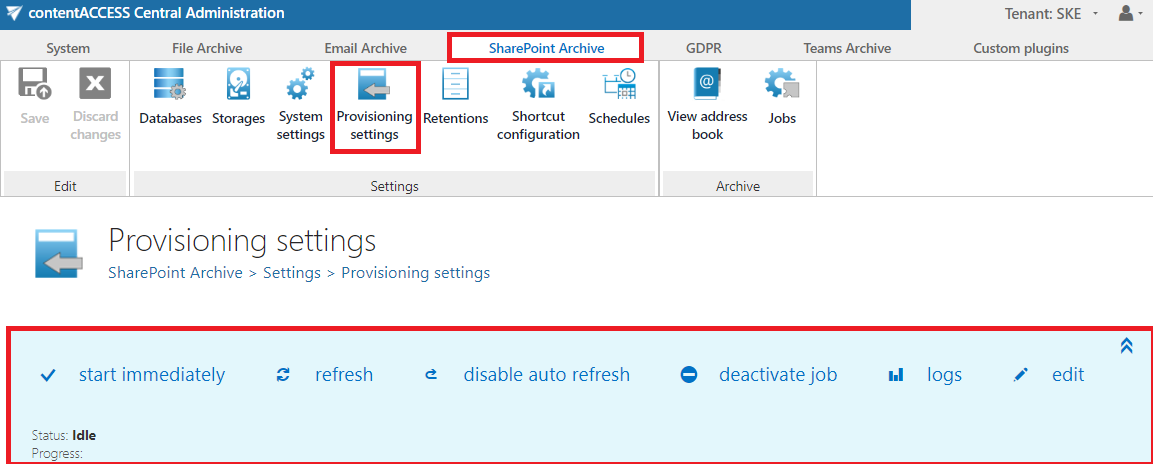
- Start immediately / Stop: If a scheduler has not been selected, the provisioning job can be started or stopped manually.
- Refresh: Manually refreshes the provisioning progress information.
- Enable auto refresh / Disable auto refresh: Enables or disables automatic refresh of the progress information every 5 seconds.
- Deactivate job: Deactivates the provisioning job. A deactivated job will not start automatically, nor can it be started manually.
- Edit: Selects the node where the provisioning job will run. The user may also rename the provisioning job here.
- Logs: Redirects to the System logs page, where the last run of the provisioning job is preselected and its last events are shown in the events table. Use this option to view further event details of the provisioning job and to detect any potential failures or errors in the provisioning events.
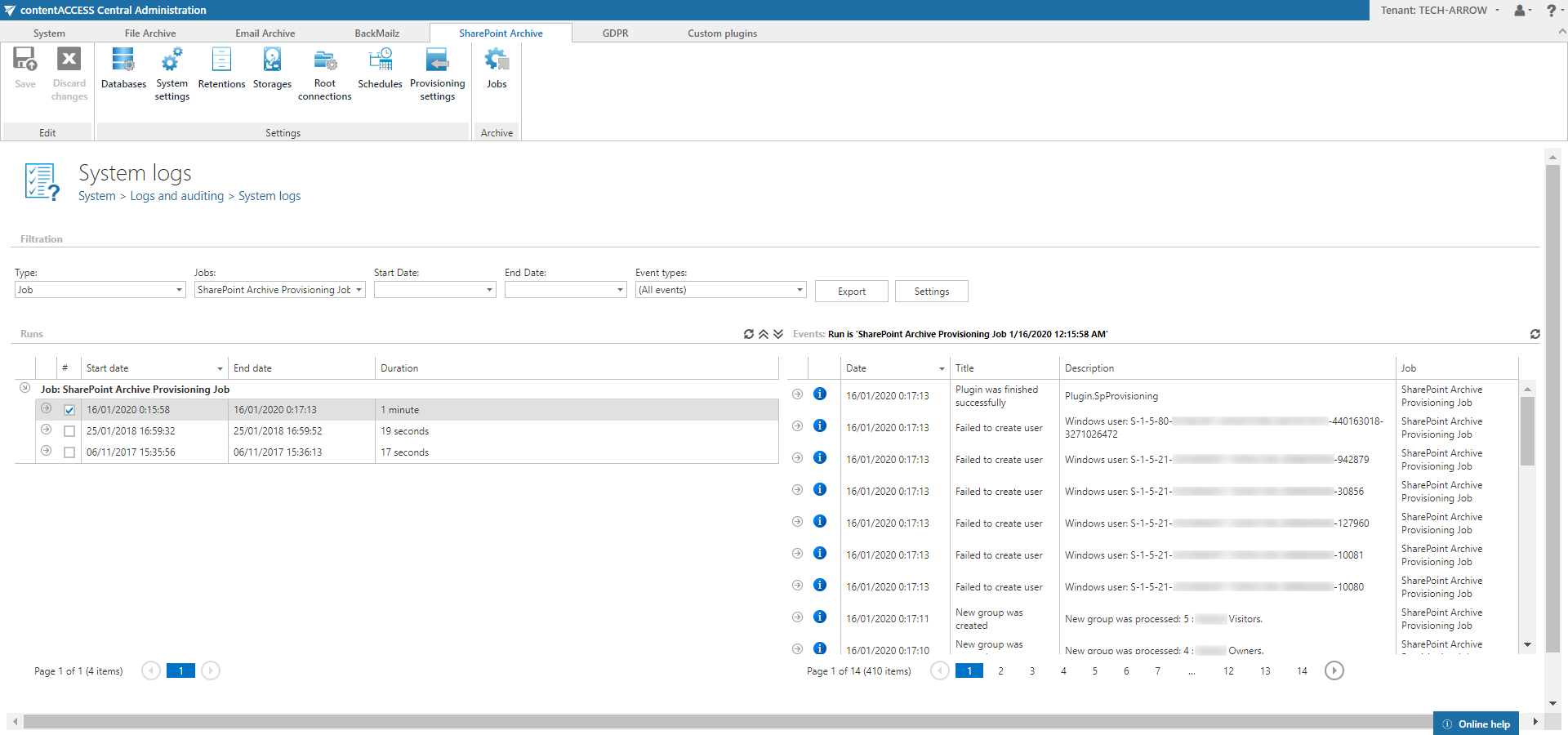 Screenshot: System logs page with logs
Configuration sections
The following configuration sections are available on the Provisioning settings page.
Report mode settings
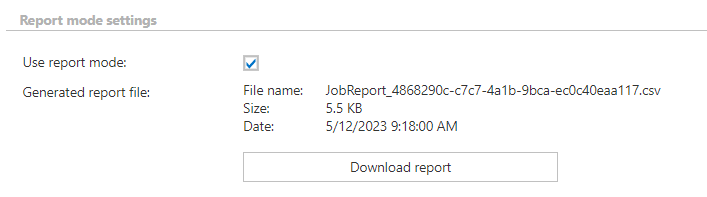
If the Use report mode checkbox is checked, the job will run in report mode, and the user will be able to download a .csv report in this section after the job finishes running. This file will contain a list of teams selected in the Sites to provision section and OneDrive groups selected in the OneDrive groups to provision (AAD) section of the job, along with some information about them, including whether they will be processed or not.
Archive settings
This configuration section allows you to assign default contentACCESS Portal user roles. This rule is granted for the users on the SharePoint archive site.
It is recommended to specify a default role with fewer contentACCESS Portal permissions here. The roles to be assigned must be created on the Roles page.
Note: Roles containing Manage system and/or Manage tenant permissions are unavailable in the default roles dropdown list.

Scheduling settings
Select the running times of the provisioning job or create a new scheduler. For more information on how to configure scheduler settings, refer to the Schedules section.

Sites to provision
In this section, the user can choose whether to process all accessible SharePoint sites or select only some of them manually. It is also possible to provision sites automatically by selecting Automated selection.
-
All sites: If the administrator selects All sites, all accessible sites will be processed and provisioned.

-
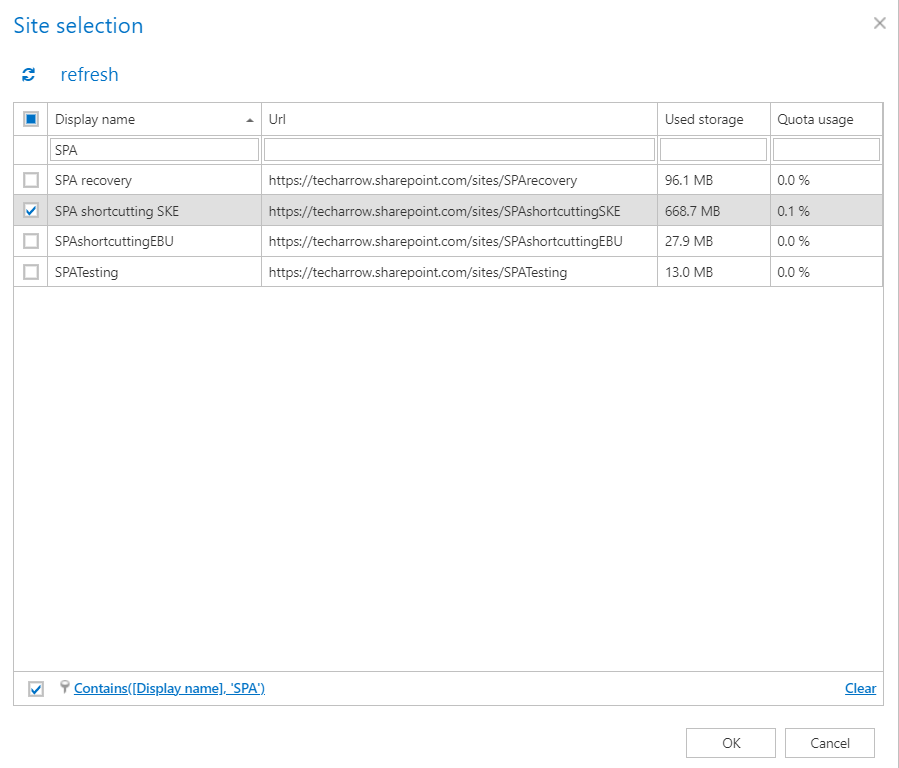
Manual selection: With manual selection, the user can pick which sites to process and add to the address book. If manual selection is chosen, the
 select option will appear.
After clicking the select option, the Site selection window opens, where you can select the sites to be processed. After the selection is made, click OK.
-
Automated selection: There is also the option to set up automated site provisioning. After selecting this option from the Sites to process dropdown list, click + new.

The Site selection window opens. Here, you can specify a list of filters for a group, based on which sites you want to be processed. Every filter is associated with one group. All sites matching the specified filter will be added to the group.
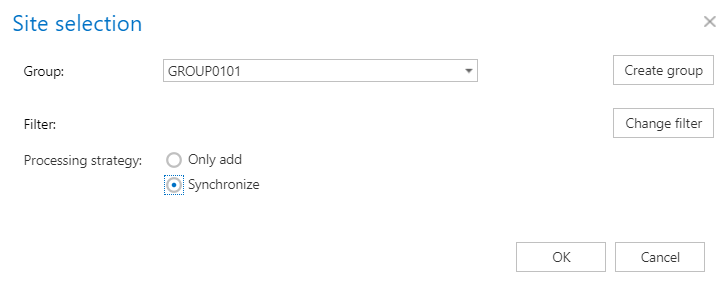
Before specifying a filter, you first need to select a Group from the dropdown list. If you have no groups created, you can create one directly from here by clicking the Create group button (more information about group creation can be found in the SharePoint archive address book section).
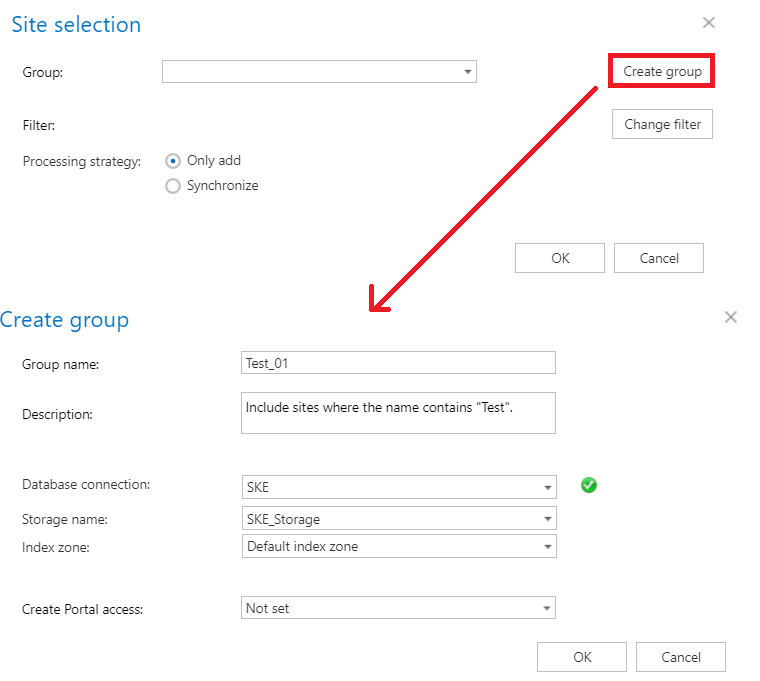
To specify a filter, click the Change filter button. Specify your desired filtering options in the Filtering settings window, then click OK.
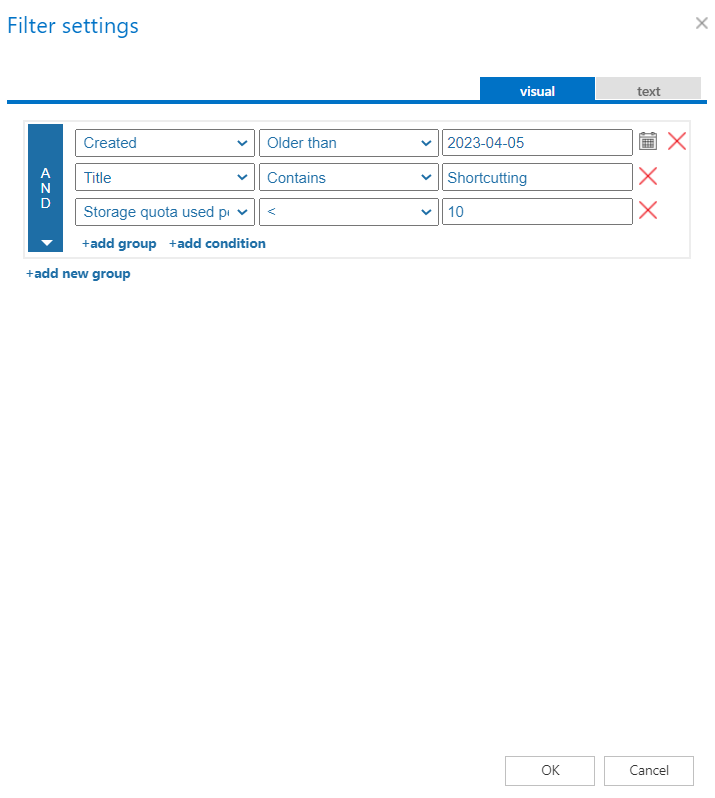 warning
Important: The Sites to provision section is visible only if Microsoft 365 SharePoint type is selected on the System settings page.
Select one of the Processing strategy options:
- Only add: New sites matching the filtering settings will be added, but previously added sites won't be updated during the process.
- Synchronize: Adds or removes sites from the group based on the filtering settings. New sites will be added to the group, and sites no longer matching the filtering settings will be removed from the group.
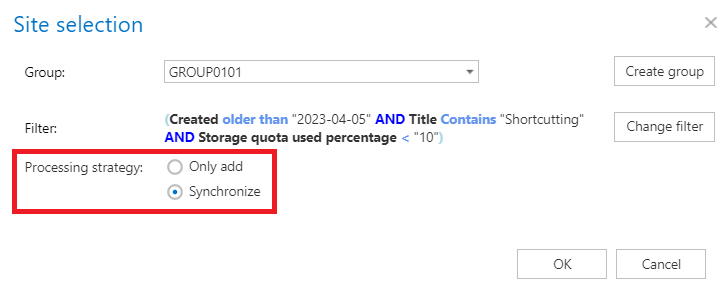
Click OK. The group settings (database, store, index zone) will be applied to the sites that are members of the group. If a site already has an associated database, store, or index zone, it won't be overwritten by the provisioning job.
Important: Sites connected to a Teams team will not be provisioned by automatic provisioning.
Default provisioned site settings
In this section, the administrator can select the default database connection, storage, and assigned index zone for the provisioned sites and OneDrive groups. During the run of the provisioning job, if a new site or group is provisioned, the selected database, store, and index zone will be automatically assigned to it.
If a database, store, or index zone is already assigned to the provisioned site or group, it won't be updated during the next run of the provisioning job.

OneDrive groups to provision (AAD)
In this section, it is possible to select OneDrive groups that the administrator would like to add to the address book and later use for OneDrive archiving. This option is only visible if OneDrive archiving is enabled on the System settings page.

To manually select from the available groups, click the select button. The Select AAD Group(s) window opens, where you can select the AAD groups to be processed. After the selection is made, click OK.
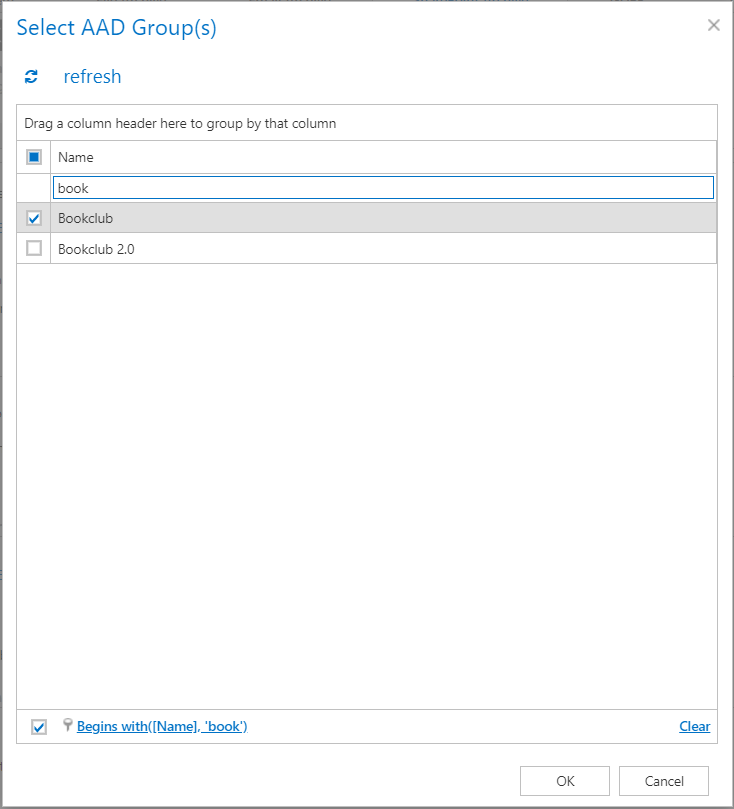
If you want to add a group that is not in the list of available groups, click the + add button. The Add AAD group window opens. Here you can specify the group's name, then click OK to add it to the AAD groups list in the provisioning settings.

Important: The OneDrive groups to provision (AAD) section is visible only if Microsoft 365 SharePoint type is selected on the System settings page.
Notification settings
If the provisioning job could not run properly for some reason, contentACCESS can send a warning about the problem. The notification email message will be sent to the email address set under the Recipient list option. Here you can also choose when these email messages should be sent: only if errors occur, if errors or warnings occur, or always, regardless of whether the provisioning job ran successfully.
