SharePoint Publishing job
Introduction
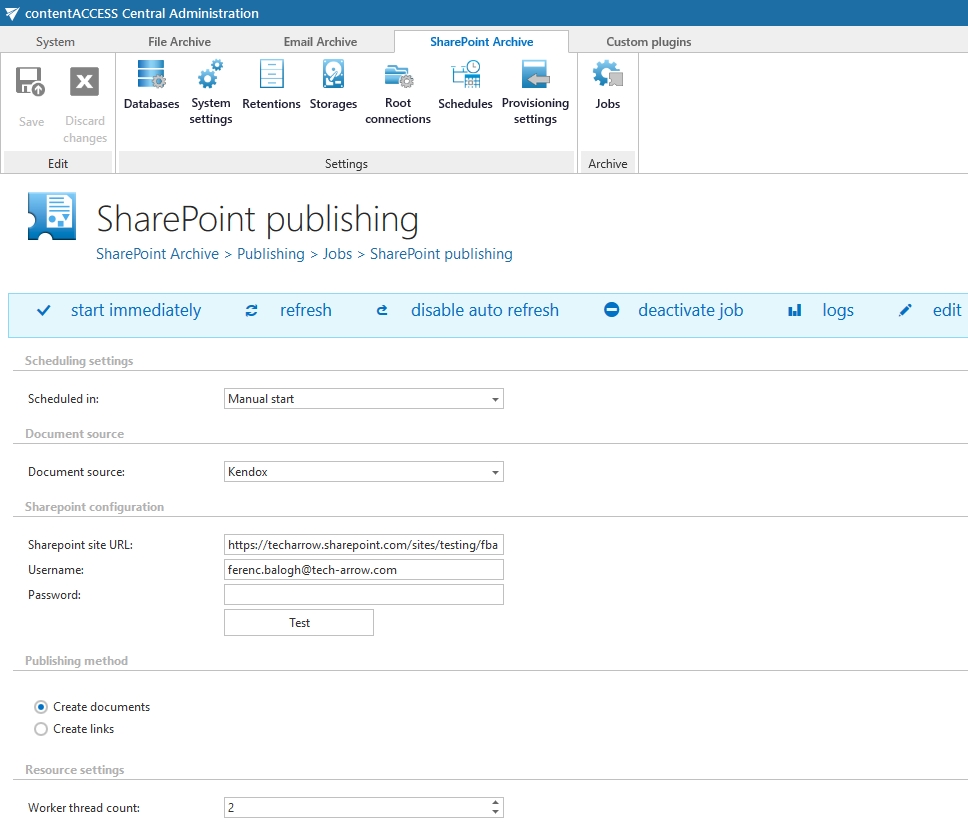
The SharePoint Publishing job publishes data into SharePoint from a third-party store. It allows administrators to choose between publishing actual documents or lightweight links to the source documents, and to configure the storage source, target SharePoint location, and processing resources used during publishing.
This page describes the available publishing methods, how to create a new SharePoint Publishing job, and how to configure its settings.
Note: Currently, the Kendox store type supports this. Read more in the Storages chapter.
Publishing methods
Two publishing methods are available:
-
Create documents: The job creates a document library containing real documents.
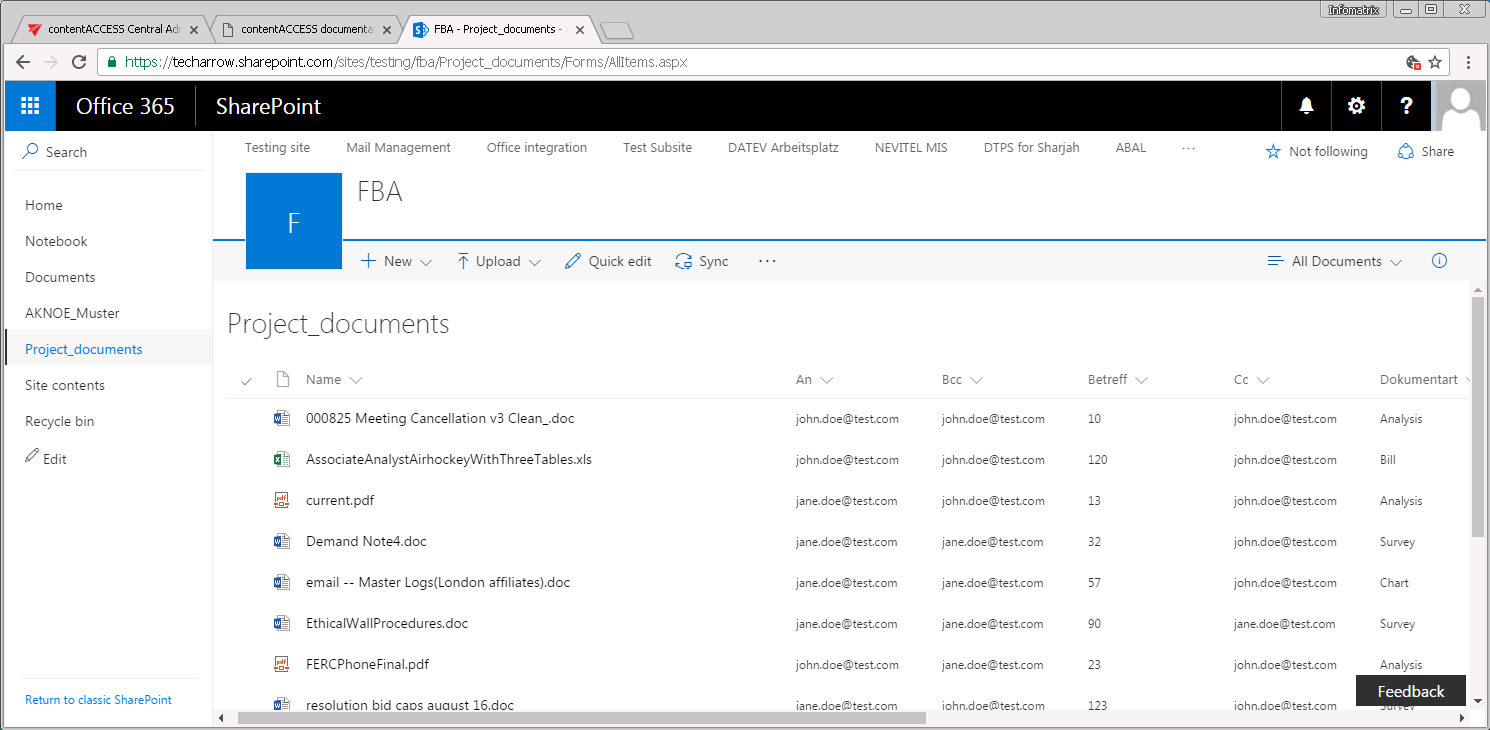 Screenshot A: Project_documents library with real documents.
 -
Create link: The job creates a custom list with "placeholder" items. Each item has an extra metadata field containing a URL that points to the document residing in the third-party document system (column External Document URL). The custom list using the link option acts like a shortcut — no real binary data is stored in SharePoint. Only the metadata of the original documents and the links to access them are available.
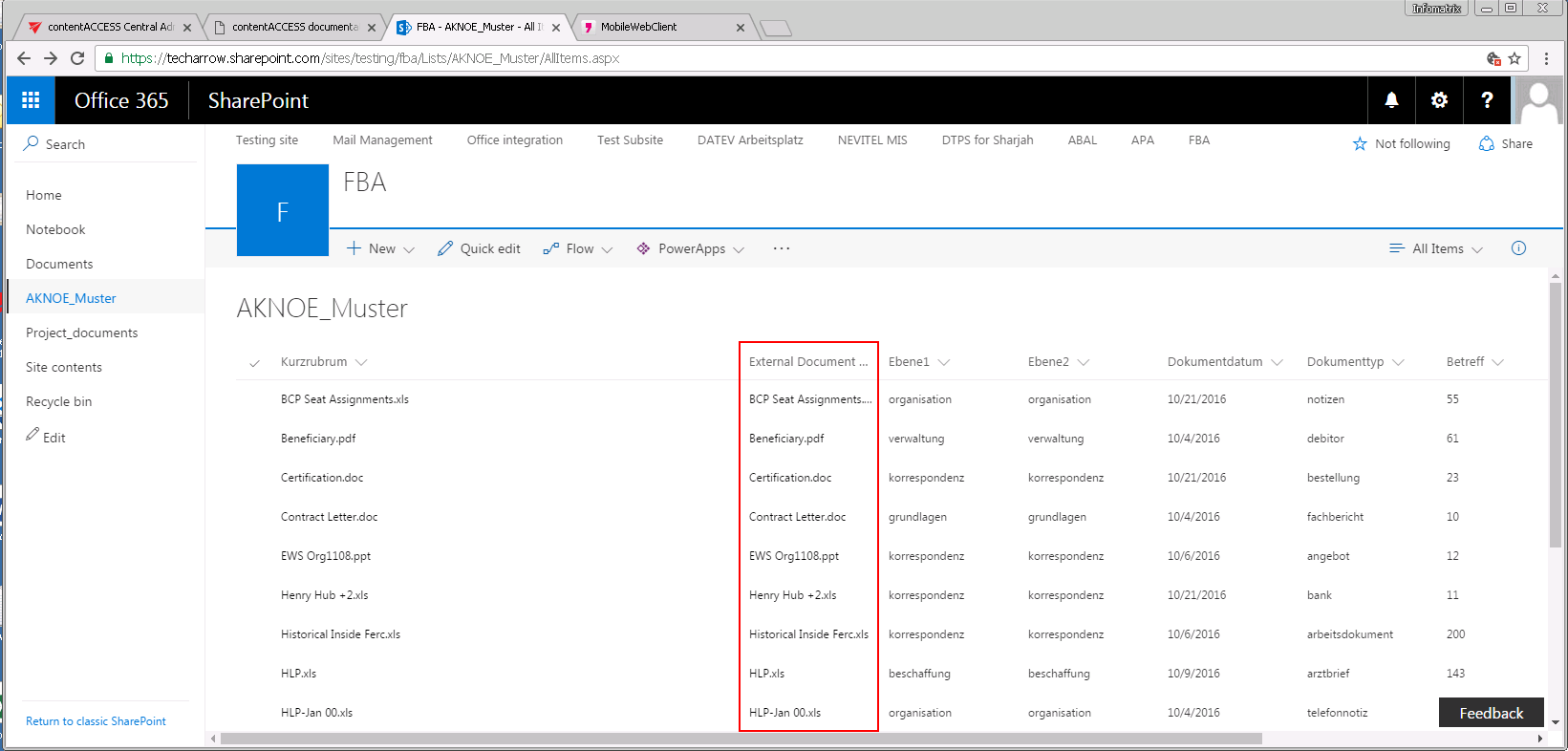 Screenshot B: AKNOE_Muster custom list with links.
The document library/custom list names ("Project_documents" and "AKNOE_Muster" in the screenshots above) are inherited from the source folder.
Create a new SharePoint Publishing job
To create a new SharePoint Publishing job:
- Go to the Jobs page (SharePoint Archive tab => Archive group => Jobs).
- Click + new.
- Select the SharePoint Publishing job type in the Add new job instance dialog.
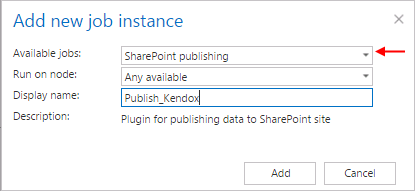
Configure the job
When a new job is created, you are asked to configure it immediately. On the SharePoint Publishing job's configuration page, the following must be set:
- Scheduling settings: Set the time when the job should run.
- Document source: Select the configured third-party storage from where you want to publish the documents into SharePoint. The storage must first be configured on the Storages page. Read more in SharePoint Archive settings.
- SharePoint configuration: Set the URL of the site collection or subweb where you want to create the document library/custom list based on the folder from the third-party storage. The URL must point to a site collection or a subweb — it cannot be an existing document library/list or a subfolder of a document library/list.
- Publishing method: The documents from the source storage can be published either:
- as a document — option Create documents, or
- as a link — option Create link.
- Resource settings: Set the number of worker threads running in parallel during the publishing process.
If the Create documents option is selected, the publishing job creates a document library based on the source folder, using a content type created from the source folder's content type. The documents are then uploaded to this document library.
If the Create link option is selected, a custom list is created with a content type based on the source folder's content type, and a new list item is created for each document in the source folder. The new list item has the original metadata plus an additional column named External Document URL, which contains the link pointing to the actual document in the third-party system (see Screenshot B above).