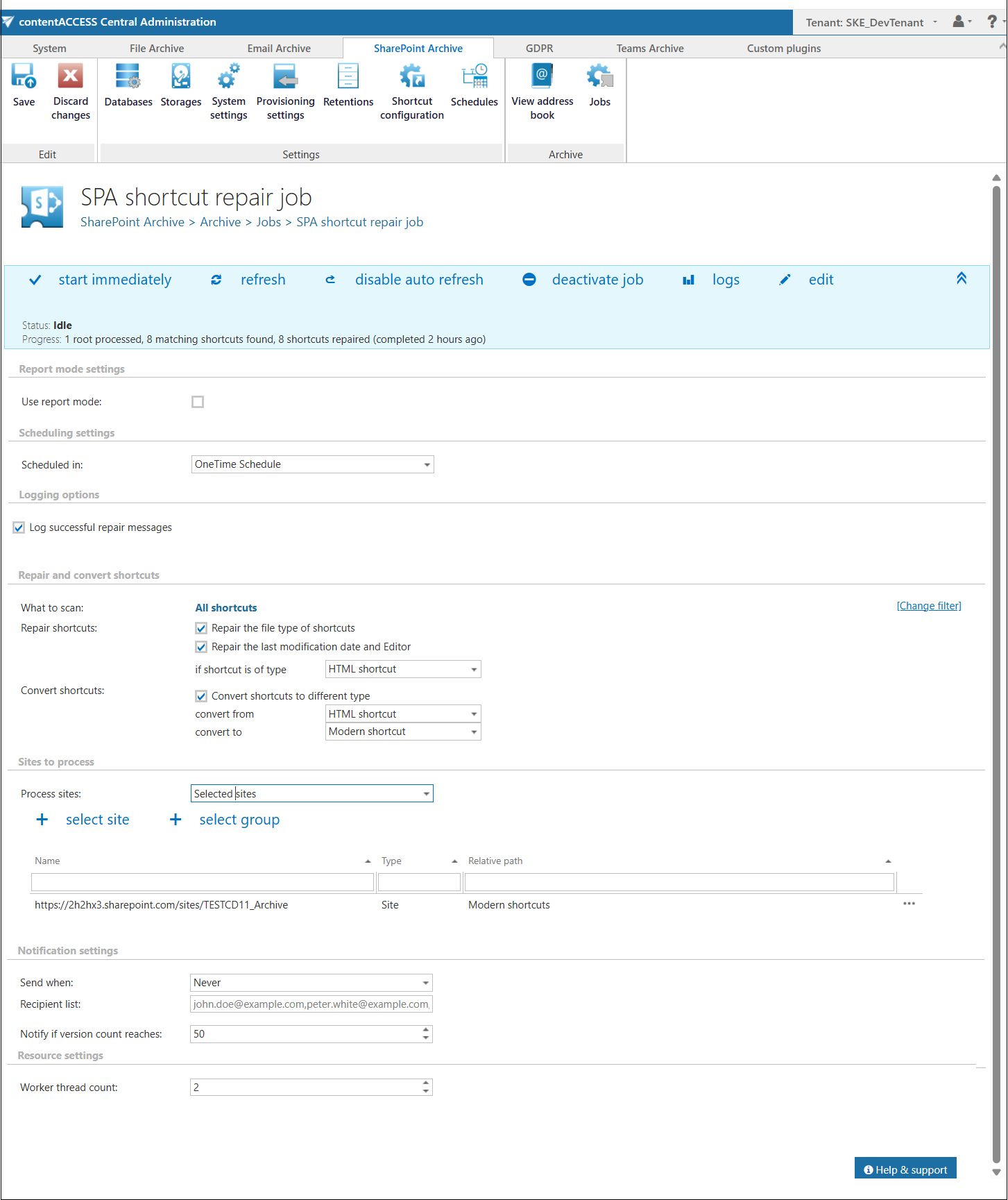
SharePoint shortcut repair job configuration
Introduction
The SharePoint shortcut repair job is a specialized maintenance job designed to locate and repair shortcut files based on specific parameters. Its primary function is to ensure that shortcuts have the correct FileType, filtered according to the selected filter and shortcut type. In addition to repair, the job also supports shortcut conversion, including conversion between HTML and Modern shortcut types.
This page describes how to create and configure the SharePoint shortcut repair job, including its scheduling, logging, repair and conversion, site selection, notification, and resource settings.
Note: Selecting both the filter and the shortcut type is mandatory to run the job. The repair process applies only to HTML shortcuts. The job operates strictly within the selected shortcut repository ID and ignores shortcuts outside this scope.
Note: When a shortcut matching the criteria is found, it is always reported as "repaired", even if no actual modification was made. The "repaired" status only indicates that the shortcut was identified and processed, not necessarily that a change was applied.
Create the job
The SharePoint shortcut repair job can be created and configured on the Jobs page.
- Click the + new button.
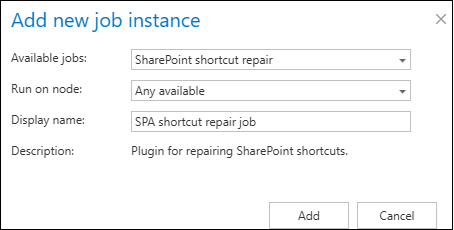
- Fill in the required settings (Job type, Run on node, Display name) in the pop-up window.
- Click Add.
To configure the job immediately, click Yes in the next pop-up window, or configure it later using the Configure option in the job's context menu.
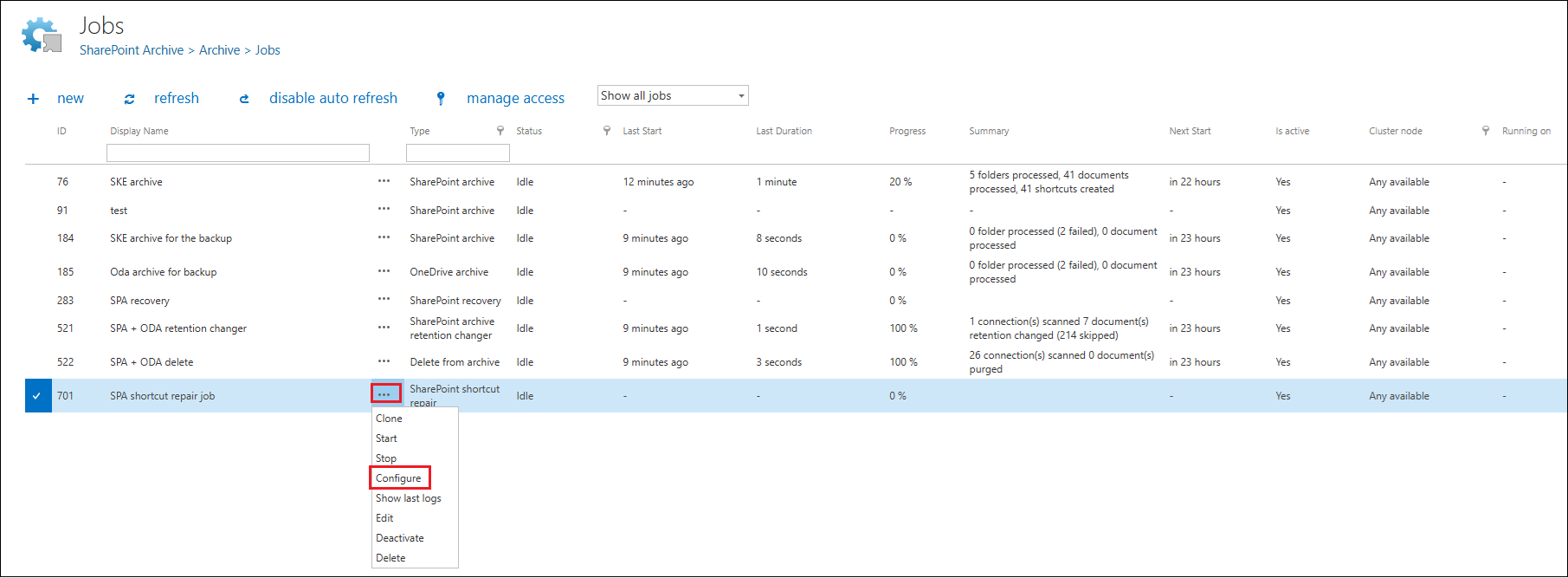
On the job's configuration page, go through the following sections. Most of them are mandatory, but the filtering settings are optional.
Report mode settings
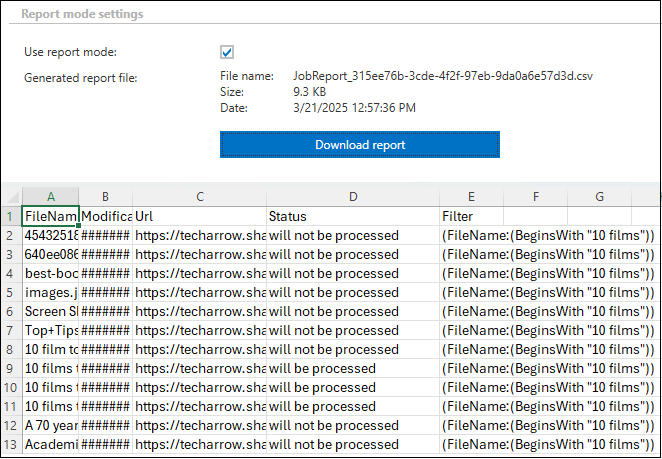
If the Use report mode checkbox is checked, the job will run in report mode, and a .csv report can be downloaded from this section after the job finishes running. This file contains a list of items that belong to the site(s) or related path(s) selected in the Sites to process section of the job, along with information about them, including whether they will be processed or not.
Scheduling settings
In this step, the running times of the shortcut repair job must be selected. You can either select a scheduler from the list or create a new scheduler via the corresponding option. For shortcut repair jobs, it is recommended to set up a One time scheduler or to start the job manually from the status bar.
For more information about how to set schedules, refer to the Schedules page.

Logging options
This section controls the logging behavior of the SharePoint shortcut repair job.
By enabling the Log successful repair messages option, the job will record log entries not only for errors and warnings, but also for successfully processed repair actions. This can be useful for auditing and troubleshooting purposes, as it provides detailed visibility into completed operations.

Repair and convert shortcuts
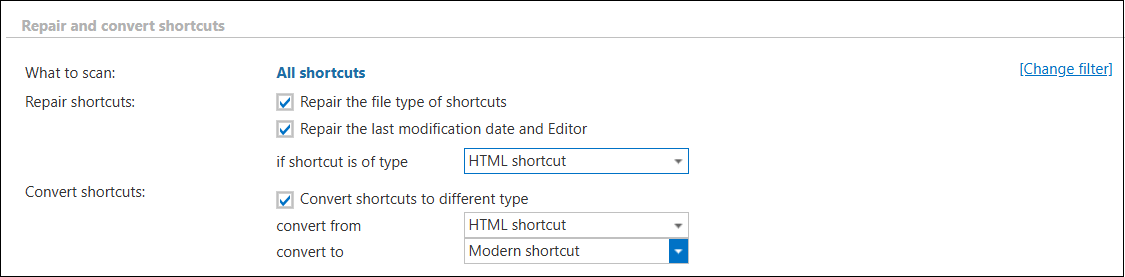
This section allows you to define what the job should do with the shortcuts, including repairing shortcut properties and converting shortcuts between different types.
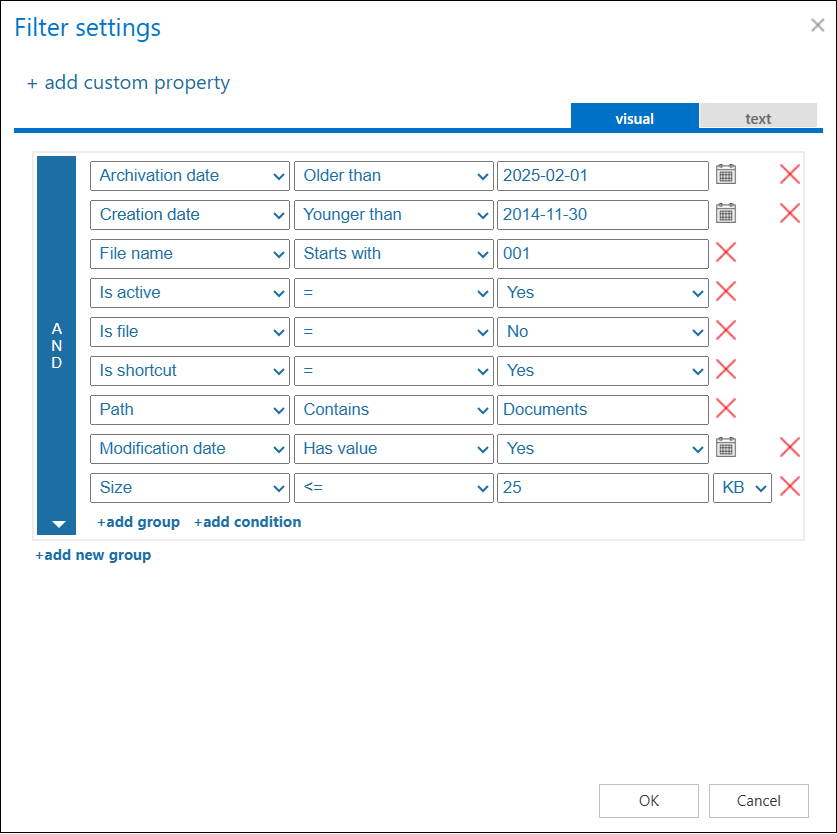
- What to scan: Defines the scope of the scan. By default, all shortcuts are included, but you can filter out shortcuts by clicking the not set or Change filter buttons. The filtering settings allow you to define which files or items will be repaired. More details about the filtering options can be found in the Filtering in jobs page.
- Repair shortcuts: Decides what happens with the shortcuts.
- Repair the file type of shortcuts: Configures the job to ensure that shortcuts have the correct FileType. The repair process applies only to HTML shortcuts, which can be selected from the dropdown menu.
- Repair the last modification date and Editor: Updates the shortcut's metadata so that the Last modified date and Editor fields are corrected according to the current repair operation.
- Convert shortcuts: In addition to repairing shortcuts, this section also supports shortcut conversion.
- Convert shortcuts to different type: Allows the job to convert shortcuts from one type to another. The Convert from and Convert to dropdown lists allow you to specify the source shortcut type and the target shortcut type.
Sites to process
In this section, you can decide which site(s) or group(s) will be processed. The available options change based on the SharePoint archive system settings.
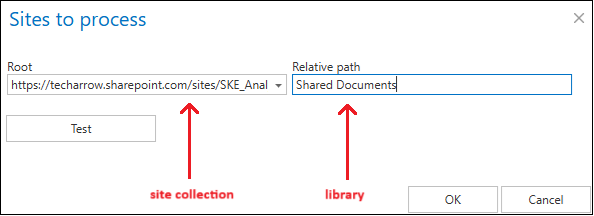
In On-premise mode, only the select site option is accessible to users. Click + select site, and specify the root connection and the relative URL in the pop-up window. A root can be a site collection, a subsite, a library, or a folder already defined in the Site connections section.

When Microsoft 365 type is selected on the System settings page, you can either process all sites (all provisioned sites will be processed), or selected sites and/or groups in this section.

When the selected sites option is selected from the dropdown list, click + select site or + select group and specify the root connection and the relative URL (if you do not wish to process the whole site) in the pop-up window. A root can be a site collection, a subsite, or a library. It is also possible to test the connection using the Test button.

Notification settings
Select here when you need to receive notification emails from the SharePoint shortcut repair job. In the Recipient list textbox, enter the email address(es) of the person(s) who should receive the notifications. It is also possible to configure emails to be sent only when the version count reaches a certain number.

Resource settings
The number of worker threads responsible for the repair processes can be set here. By default, this value is set to 2.